Why Are My Windows 11 Desktop Icons Missing?
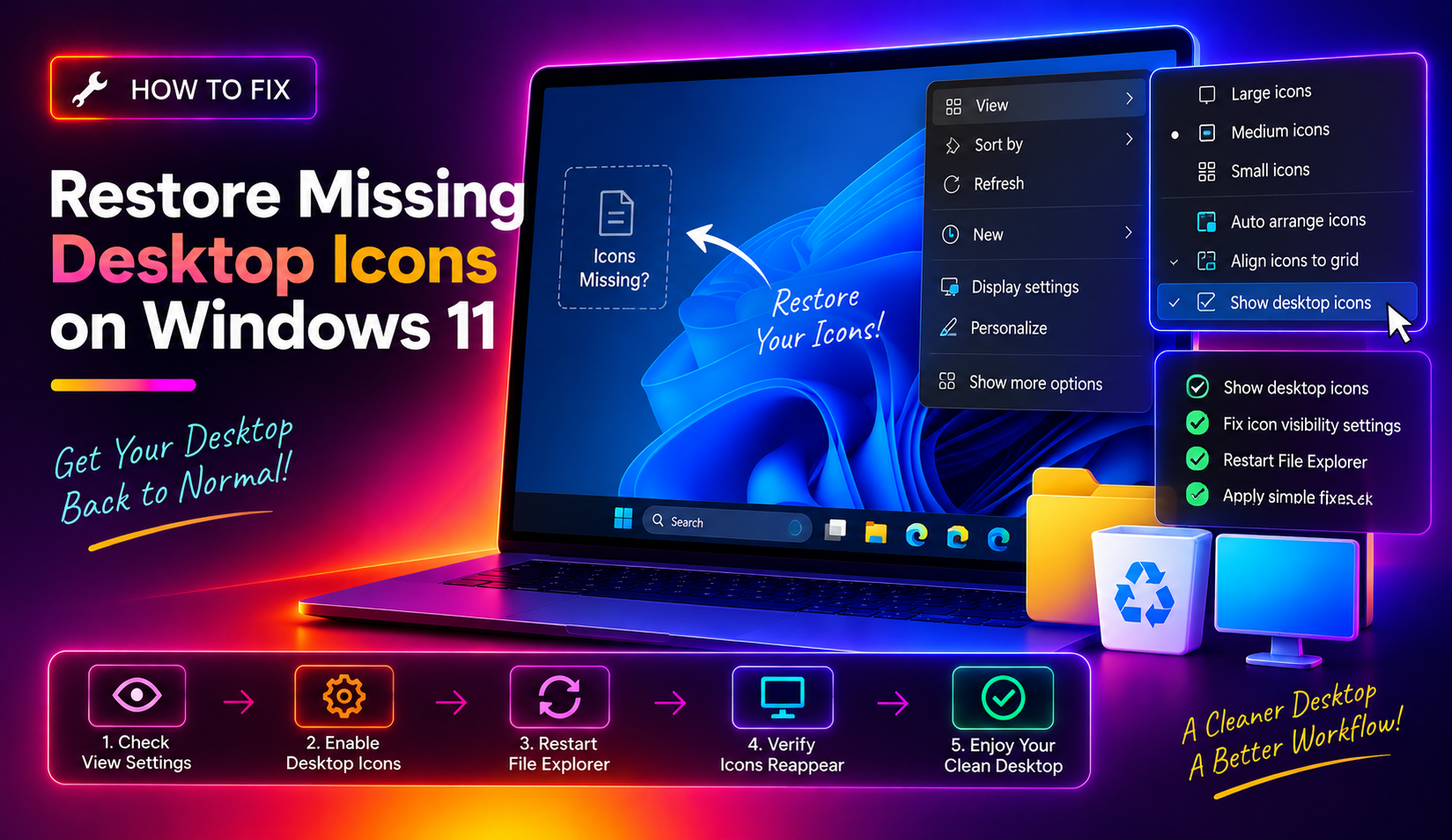
Waking up to a blank desktop — with all your shortcuts, the Recycle Bin, and system icons gone — is a jarring experience. On Windows 11 in 2026, missing desktop icons are most commonly caused by accidental toggling of "Show desktop icons," a crashed Windows Explorer process, a corrupt icon cache, or a recent Windows update that reset display settings.
Here are 9 targeted fixes, from the 30-second quick fix to deeper system repairs.
Fix 1: Enable "Show Desktop Icons" (Most Common Fix)
The single most common reason all desktop icons disappear is that "Show desktop icons" got accidentally toggled off — this happens easily if you right-clicked the desktop while trying to do something else.
- Right-click anywhere on the empty desktop.
- Hover over View.
- Make sure Show desktop icons has a checkmark. If not, click it.
All icons should reappear immediately. If they don't, continue to the next fix.
Fix 2: Restart Windows Explorer
A crashed explorer.exe process can make the desktop appear empty even though icons are technically there.
- Press Ctrl + Shift + Esc to open Task Manager.
- Find Windows Explorer → right-click → Restart.
The desktop will flash briefly as Explorer reloads. Check if icons return.
Fix 3: Restore System Icons (This PC, Recycle Bin, Network)
Windows 11 lets you hide or show individual system icons independently. If only specific icons like This PC or Recycle Bin are missing:
- Go to Settings → Personalization → Themes.
- Click Desktop icon settings (under the Related settings section).
- Check the boxes for Computer, Recycle Bin, User's Files, and Network as needed.
- Click Apply → OK.
Fix 4: Rebuild the Icon Cache
A corrupted icon cache causes shortcuts to show blank or generic icons and can prevent icons from appearing entirely.
- Open Command Prompt as Administrator.
- Run these commands one at a time:
taskkill /f /im explorer.exe
cd %localappdata%\Microsoft\Windows\Explorer
attrib -h iconcache_*.db
del iconcache_*.db /s /f /q
start explorer.exe
Windows rebuilds the icon cache automatically when Explorer restarts.
Fix 5: Check for Tablet Mode
On touchscreen-enabled devices, Tablet Mode (or its successor in Windows 11) hides desktop icons by design. Check whether it's accidentally enabled:
- Press Win + A to open Quick Settings.
- Look for a Tablet mode tile. If it appears blue/highlighted, click it to disable.
On some Windows 11 builds, Tablet Mode behavior is tied to physical keyboard attachment — docking or undocking a keyboard can toggle it automatically.
Fix 6: Run SFC to Repair Corrupted System Files
Windows Update failures or disk errors can corrupt the system files that handle the desktop shell, causing icons to disappear after a reboot.
- Press Win + X → Windows Terminal (Admin) or open Command Prompt as Administrator.
- Run:
sfc /scannow - Wait for the scan to complete.
- Reboot.
If SFC finds and repairs issues, reboot and check if icons are restored.
Fix 7: Check Display Settings and Multiple Monitors
On multi-monitor setups, icons sometimes migrate to a disconnected or disabled display — making them invisible on your primary monitor.
- Right-click desktop → Display settings.
- Check that your primary monitor is set correctly (the one marked 1).
- If you recently disconnected a second monitor, click Detect and ensure desktop content hasn't been left on a phantom display.
Fix 8: Re-Enable via Group Policy
In managed environments (work or school PCs), Group Policy can force-hide desktop icons. If your PC is domain-joined or managed:
- Press Win + R → gpedit.msc.
- Navigate to: User Configuration → Administrative Templates → Desktop
- Find Hide and disable all items on the desktop.
- If it's set to Enabled, change it to Not Configured.
- Run
gpupdate /forcein Command Prompt and reboot.
Fix 9: Create a New User Profile
If icons are missing only for your account but visible in other accounts (or a new test account), your user profile may be corrupted.
- Go to Settings → Accounts → Family & other users.
- Click Add account and create a new local account.
- Log in to the new account and verify icons display correctly.
If the new account works fine, migrate your data and settings to the new profile.
Still Need Help?
If desktop icons still won't show after trying all these fixes, there may be a deeper system or hardware issue at play. CloudHouse Technologies offers Pay-Per-Ticket Windows support — get a technician to diagnose your specific issue without any ongoing commitment.
FAQs
Why did all my desktop icons disappear on Windows 11?
The most common cause is accidentally toggling "Show desktop icons" off — right-click the desktop, go to View, and make sure Show Desktop Icons is checked. Other causes include a crashed Explorer process, a corrupt icon cache, or Tablet Mode being enabled.
How do I get back the Recycle Bin on Windows 11 desktop?
Go to Settings → Personalization → Themes → Desktop icon settings. Check the Recycle Bin checkbox and click Apply. This restores the system icon to the desktop independently from shortcut icons.
How do I rebuild the icon cache in Windows 11?
Open Command Prompt as Administrator. Run: taskkill /f /im explorer.exe, navigate to %localappdata%\Microsoft\Windows\Explorer, delete all iconcache_*.db files, then run start explorer.exe. Windows rebuilds the cache automatically on restart.
Can a Windows Update remove desktop icons?
Yes — Windows updates occasionally reset personalization settings, including the visibility of system desktop icons. Check Settings → Personalization → Themes → Desktop icon settings to restore them.
Why are my desktop shortcut icons blank or showing wrong icons?
Blank or wrong icons mean the icon cache is corrupted. Rebuild it by deleting the iconcache_*.db files in %localappdata%\Microsoft\Windows\Explorer as described in Fix 4 above.