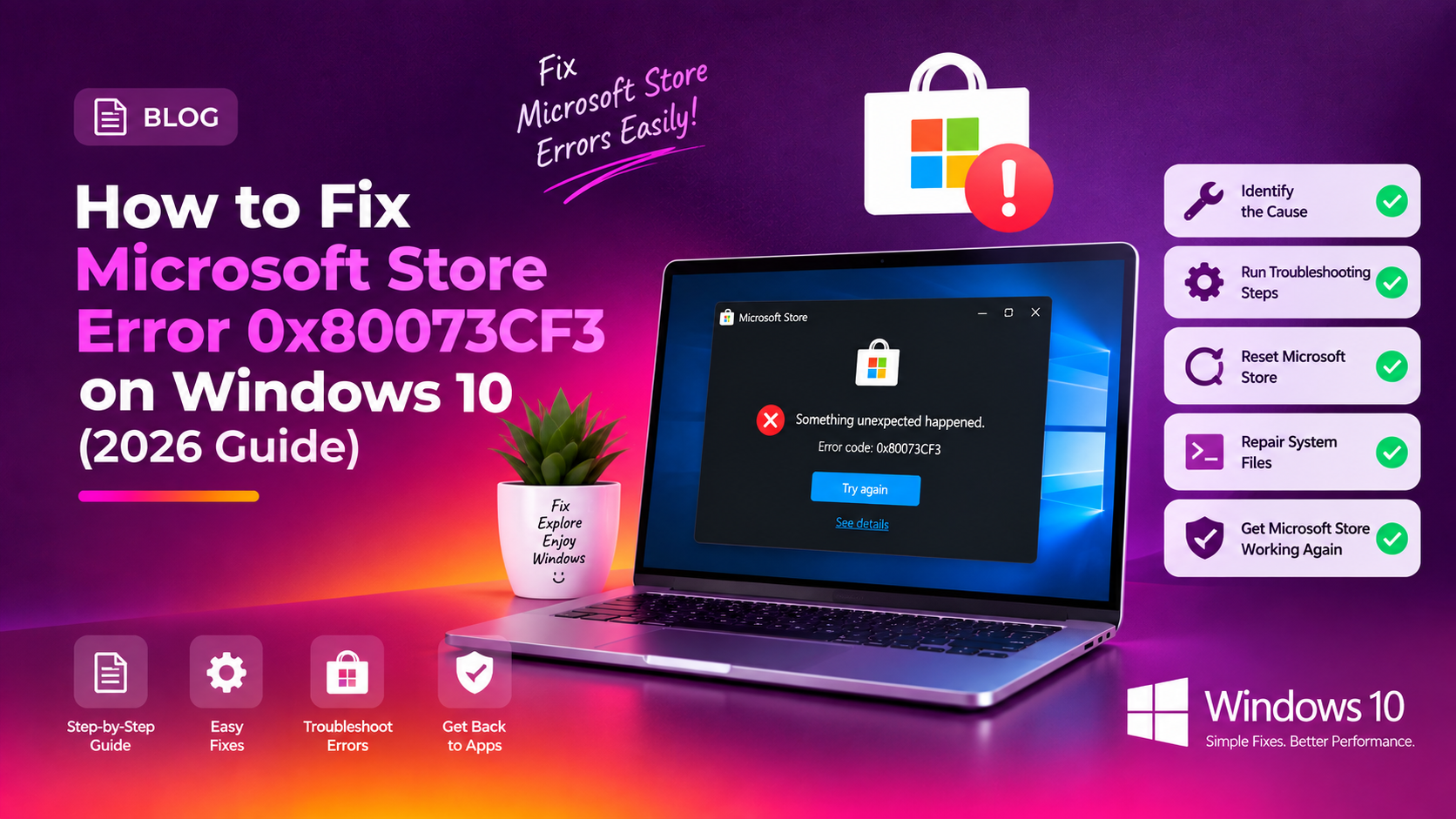
What Is Microsoft Store Error 0x80073CF3 and Why Does It Happen?
If you've tried to install or update an app from the Microsoft Store on Windows 10 and been stopped by error code 0x80073CF3, you're not alone. This error translates to ERROR_INSTALL_RESOLVE_DEPENDENCY_FAILED — Windows cannot resolve a required package dependency needed to complete the installation.
The root causes are well understood:
- Corrupted or stale Store cache — accumulated cache data conflicts with fresh package downloads.
- Missing or outdated framework packages — apps depend on runtime libraries such as Microsoft.VCLibs, Microsoft.NET.Native.Framework, and Microsoft.NET.Native.Runtime. If these are absent or mismatched, the dependency check fails.
- Corrupted Windows component store — damage to core Windows image files can prevent the App Package Deployment service from functioning correctly.
- Conflicting or partially installed packages — a previous failed install may have left orphaned entries that block the new install.
The solutions below are ordered from quickest to most thorough. If you'd rather skip the troubleshooting entirely, you can get expert Windows support from our team and have it resolved remotely.
Quick Fixes: Clear Store Cache and Reset the Microsoft Store
The fastest first step is clearing the Microsoft Store's cache using the built-in WSReset.exe tool.
Method 1: Run WSReset via the Run Dialog
- Press Win + R to open the Run dialog.
- Type
wsreset.exeand press Enter. - A blank Command Prompt window will open and run silently for approximately 30 seconds.
- The Microsoft Store will launch automatically once the reset is complete.
- Try installing or updating the app again.
Method 2: Reset via Windows Settings
- Open Settings (Win + I) and go to Apps > Apps & features.
- Scroll down to Microsoft Store, click it, then select Advanced options.
- Scroll down and click Reset. Confirm when prompted.
- Relaunch the Store and attempt the installation again.
Repair Corrupted App Dependencies and Packages via PowerShell
Error 0x80073CF3 is most commonly caused by missing or broken framework packages — specifically the VCLibs and .NET Native runtimes that most Store apps depend on.
Step 1: Re-register the Microsoft Store
- Right-click Start and open Windows PowerShell (Admin).
- Run:
PowerShell -ExecutionPolicy Unrestricted -Command "& {$manifest = (Get-AppxPackage Microsoft.WindowsStore).InstallLocation + '\AppxManifest.xml'; Add-AppxPackage -DisableDevelopmentMode -Register $manifest}"Step 2: Re-register All Store Framework Packages
Get-AppxPackage -allusers Microsoft.WindowsStore | Foreach {Add-AppxPackage -DisableDevelopmentMode -Register "$($_.InstallLocation)\AppXManifest.xml"}You may see red warning lines — this is normal for already-registered packages. The command repairs any that are broken.
Step 3: Reinstall VCLibs Manually if Needed
If Event Viewer names a missing VCLibs package, download and install it via PowerShell:
Add-AppxPackage -Path "C:\Path\To\Microsoft.VCLibs.x64.14.00.appx"Fix Windows Component Conflicts Blocking Store Installs
A damaged Windows image or corrupted system file can silently break the App Package Deployment service.
Step 1: Scan and Repair System Files with SFC
- Open Command Prompt as administrator.
- Run:
sfc /scannowThe scan takes 10–20 minutes. If corruption was found and repaired, restart your PC before continuing.
Step 2: Repair the Windows Image with DISM
- In the same elevated Command Prompt, run these in sequence:
DISM /Online /Cleanup-Image /CheckHealthDISM /Online /Cleanup-Image /ScanHealthDISM /Online /Cleanup-Image /RestoreHealthThe /RestoreHealth step contacts Windows Update servers to download replacement files. Ensure you have a working internet connection. The process takes 15–30 minutes.
- Restart your PC, then run
sfc /scannowonce more to verify.
Step 3: Restart Key Services
- Press Win + R, type
services.msc, press Enter. - Right-click App Readiness and Windows Installer — select Restart for each.
- Ensure Background Intelligent Transfer Service (BITS) is Running.
Advanced Fixes: Re-register All Store Apps and Repair Windows Image
If none of the above steps resolved the error, re-register every Appx package on the system.
Re-register All Appx Packages System-Wide
- Open Windows PowerShell (Admin).
- Run:
Get-AppXPackage -AllUsers | Foreach {Add-AppxPackage -DisableDevelopmentMode -Register "$($_.InstallLocation)\AppXManifest.xml"}Ignore the stream of red error text — these are harmless warnings about already-registered packages. Allow the command to run to completion.
Clean Up Orphaned Packages
List all provisioned packages to find orphaned entries:
Get-AppxProvisionedPackage -Online | Select DisplayName, PackageNameRemove any broken or duplicate entries:
Remove-AppxProvisionedPackage -Online -PackageName "PackageNameHere"Restart your PC, then retry the Store installation.
Create a New Windows User Account
If the error only affects one user account, go to Settings > Accounts > Family & other users, add a new local admin account, and test the Store installation there. If it works in the new account, the issue is profile-specific.
If all methods above fail, a Windows 10 in-place upgrade repair install is the last resort. If you're at this stage, our team can get expert Windows support and handle the repair remotely.
FAQ
What does Microsoft Store error 0x80073CF3 mean?
Error 0x80073CF3 means ERROR_INSTALL_RESOLVE_DEPENDENCY_FAILED. Windows could not find or validate a required dependency package — such as a VCLibs or .NET Native runtime — needed to install or update a Store app. The installation is blocked until the missing dependency is repaired or re-registered.
Will clearing the Store cache delete my installed apps?
No. Running wsreset.exe or resetting the Store through Settings only clears temporary cache and configuration data. Your installed apps, app data, and Microsoft account sign-in are not affected.
How long does DISM /RestoreHealth take on Windows 10?
The command typically takes 15–45 minutes depending on your internet speed and how much of the Windows image needs repair. It contacts Windows Update servers to download replacement files, so a stable connection is required. Do not close the window or restart while it is running.
Why do I see red errors when running the re-register PowerShell command?
The red output is expected and harmless. PowerShell reports a non-fatal error for every app that is already correctly registered. The command still repairs any packages that are actually broken — simply let it run to completion and ignore the red lines.
Error 0x80073CF3 keeps coming back after updates — how do I stop it recurring?
Recurring instances usually indicate that Windows Updates are delivering framework packages that are not being correctly provisioned. Keep Windows 10 fully updated, run sfc /scannow after each major update, and ensure the Windows Update service is set to Automatic. If the error continues, contact our support team — it may indicate a deeper Windows Update infrastructure issue.