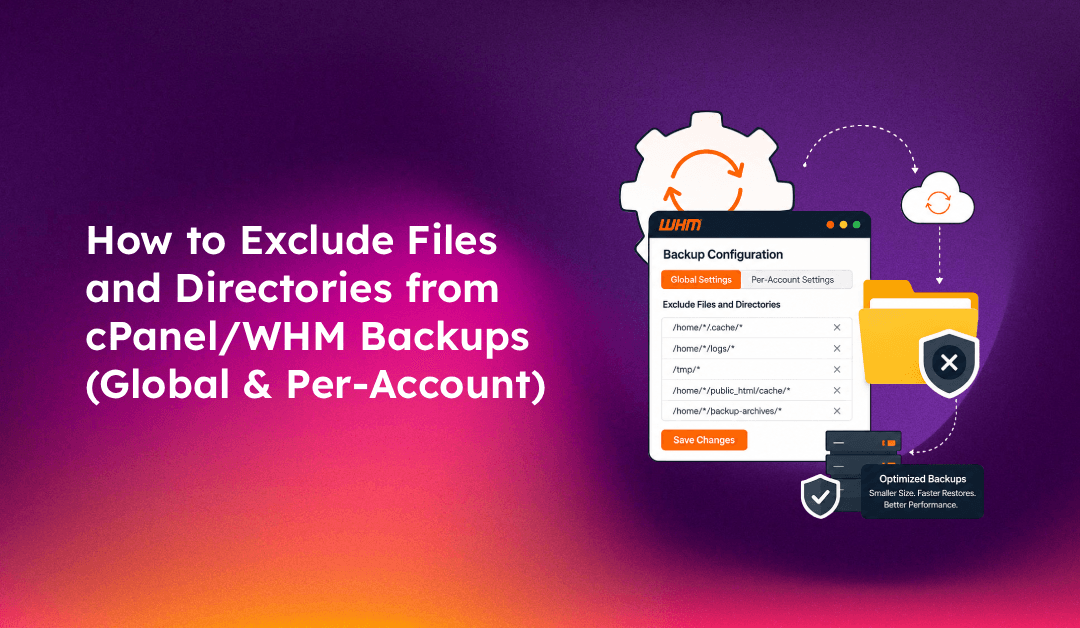
cPanel/WHM backups can balloon to many gigabytes when they include cache files, temporary data, log archives, and files that simply do not need to be backed up. Excluding the right files from backups reduces storage costs, speeds up the backup process, and makes restores faster. This guide covers every method available in cPanel/WHM for excluding files at the global and per-account level.
Why Backup Exclusions Matter
Before diving into configuration, it helps to understand what typically inflates backup size unnecessarily:
- Cache directories: WordPress object cache, PHP OPcache dumps, CDN cache — regenerated automatically and never needed from a backup
- Log files: Access logs, error logs, mail logs — often large and only useful for recent troubleshooting, not disaster recovery
- Temporary files: Uploads in progress, session data,
/tmpdirectories inside account home folders - Old backup archives: Home directories sometimes contain
.tar.gzfiles that double the backup size - Node modules / vendor directories: These should be reconstructed from
package.jsonorcomposer.jsonon deploy, not backed up
Excluding these categories can reduce backup size by 30–70% on typical hosting accounts.
💡 None of these worked? Skip the guesswork.
Get Expert Help →Method 1: Global Exclusions for All Accounts (WHM Root)
The global exclude file applies to every account on the server during cPanel/WHM backup runs.
nano /etc/cpbackup-exclude.confAdd one path per line. Paths are relative to each account's home directory:
# WordPress cache
public_html/wp-content/cache
public_html/wp-content/uploads/cache

# Temporary and session files
tmp
.cache

# Compiled/generated assets
public_html/node_modules
public_html/vendor

# Log files
logs
access-logs

# Archive files inside home directories
*.tar.gz
*.zip
*.tar.bz2Navigate to WHM → Backup → Backup Configuration → Files tab. You will see an editable text box for the global exclude list. Add paths in the same relative format and click Save.
cat /etc/cpbackup-exclude.confEach line should be a relative path — do not use leading slashes. Wildcards (*) are supported.
Important: The global exclude file applies to all accounts on the server. Be conservative — do not exclude directories that contain user data that could be needed for a restore.
As root (or the user), create ~/cpbackup-exclude.conf in the user's home directory:
nano /home/username/cpbackup-exclude.confAdd relative paths (relative to the user's home directory):
public_html/wp-content/cache
public_html/.sass-cache
public_html/uploads/temp
mail/cur
mail/newcPanel users can navigate to Files → Backup → Configure Backup Exclusions (if available in their cPanel theme) to manage their own exclusion list without SSH access.
chown username:username /home/username/cpbackup-exclude.conf
chmod 644 /home/username/cpbackup-exclude.confGo to WHM → JetBackup → Backup Jobs → Select Job → Edit → Exclude Files. Add glob patterns for files or directories to exclude from all accounts in that backup job.
Go to WHM → JetBackup → Accounts → Select Account → Exclude Files. This lets you add user-specific exclusions without touching the global list.
JetBackup also supports excluding by file extension, file size thresholds, and last-modified date — useful for excluding very large rarely-changed files automatically.
Recommended Exclusion Patterns for Common CMS Platforms
Here are production-tested exclusion patterns by platform:
WordPress:
public_html/wp-content/cache
public_html/wp-content/uploads/cache
public_html/wp-content/wflogs
public_html/.htaccess.bak
Magento 2:
public_html/var/cache
public_html/var/session
public_html/var/tmp
public_html/generated
Laravel:
public_html/storage/framework/cache
public_html/storage/framework/sessions
public_html/storage/logs
public_html/vendor
public_html/node_modules
General (safe for all accounts):
tmp
.cache
*.log
*.log.gz
Verifying Your Exclusions Work
After adding exclusions, run a test backup and verify the excluded directories are not in the archive:
# Run a manual backup for a test account
/scripts/cpbackup --incremental

# Once complete, inspect the backup archive
tar -tzf /backup/cpbackup/daily/username/backup-*.tar.gz | grep "wp-content/cache"
# Should return no results if exclusion worked
Check backup logs for any exclusion-related messages:
grep -i "exclude\|skip" /usr/local/cpanel/logs/cpbackup-cpbackuplogMonitoring Backup Size After Applying Exclusions
Track the impact of your exclusions on storage usage:
# Before and after comparison — check total backup directory size
du -sh /backup/cpbackup/daily/

# Per-account backup sizes
du -sh /backup/cpbackup/daily/*/
If backup sizes have not decreased significantly, review the exclusion file for path typos — paths that do not match any real directory are silently ignored.
For comprehensive cPanel/WHM backup configuration, monitoring, and storage optimisation, CloudHouse Technologies' server management service includes proactive backup health checks as part of ongoing server management.