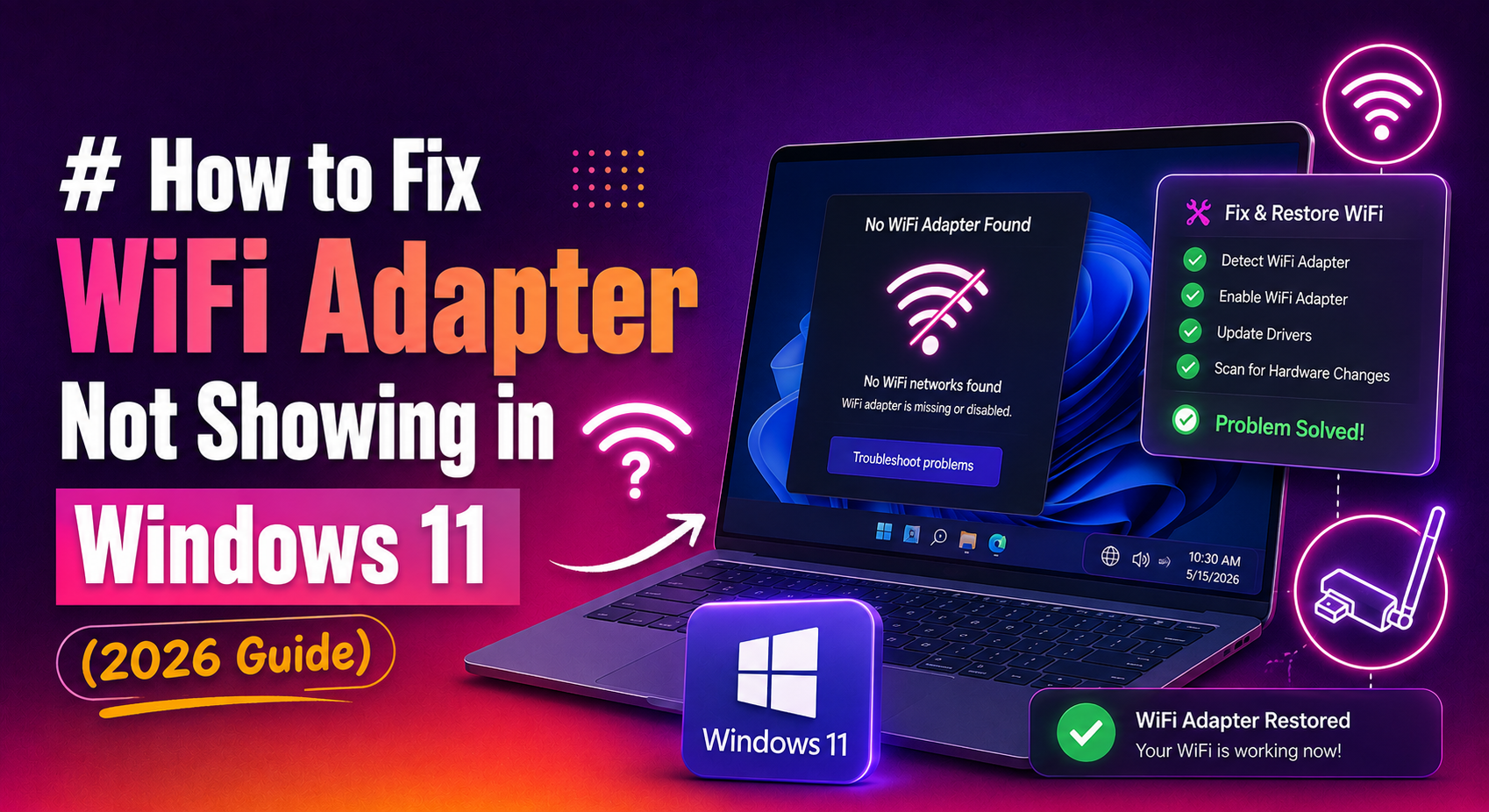
You open Windows 11 Settings, head to Network & Internet, and the WiFi option is simply gone. No toggle, no adapter name — nothing. Or you open Device Manager and the wireless adapter has completely disappeared from the Network Adapters list. This is one of the most frustrating problems Windows 11 users face, especially after a system update or driver change, because without the adapter showing up, there is no obvious starting point to fix it.
This 2026 guide walks you through every proven fix in the correct order — from checking hidden devices in Device Manager all the way to a full network stack reset — so you can get your wireless connection back without reinstalling Windows.
What Causes the WiFi Adapter to Disappear in Windows 11?
Before jumping into fixes, it helps to understand why the adapter disappears in the first place. The most common causes are:
- A Windows Update gone wrong: Feature updates and cumulative patches can overwrite or corrupt the existing WiFi driver, causing the adapter to drop out of Device Manager entirely.
- Corrupted or outdated drivers: A driver file that becomes corrupt — whether from a failed install, disk error, or partial update — will prevent Windows from loading the adapter.
- Power Management settings: Windows can aggressively power down the WiFi adapter to save battery on laptops. In some cases it fails to bring the adapter back, making it appear missing.
- Disabled WLAN AutoConfig service: This background service manages wireless connections. If it stops or is set to Manual, Windows may not initialise the adapter at boot.
- BIOS or hardware toggle: Some laptops have a physical WiFi kill switch or a BIOS setting that disables the wireless card entirely.
- Hidden device in Device Manager: The adapter may still be present but hidden from the default view — a common source of confusion.
Identifying which category your issue falls into will help you reach the right fix faster. Work through the steps below in order.
Check Device Manager for a Hidden or Disabled WiFi Adapter
The first place to look is Device Manager. The adapter may still be registered with Windows but hidden or disabled rather than truly absent.
Show Hidden Devices
- Press Win + X and select Device Manager.
- In the Device Manager menu bar, click View.
- Select Show hidden devices.
- Expand the Network Adapters section.
- Look for your WiFi adapter (common names include Intel Wi-Fi, Realtek Wireless, Qualcomm Atheros, or similar). A greyed-out entry means it is hidden or disabled.
Enable a Disabled Adapter
- If you see the adapter with a grey icon or a downward arrow, right-click it.
- Select Enable device.
- Wait a few seconds and check if the WiFi option reappears in Settings.
Scan for Hardware Changes
If the adapter does not appear even after showing hidden devices, force Windows to re-detect it:
- In Device Manager, click the Action menu.
- Select Scan for hardware changes.
- Windows will probe all hardware buses and attempt to re-register any detected adapters.
If the adapter appears after the scan but then disappears again on reboot, the underlying cause is almost certainly a driver or power management issue — continue with the steps below.
Restart the WLAN AutoConfig Service
The WLAN AutoConfig service (also called wlansvc) is the Windows component responsible for discovering and connecting to wireless networks. If it is stopped or set to start manually, your WiFi adapter may not initialise correctly after boot.
- Press Win + R, type
services.msc, and press Enter. - Scroll down the list to find WLAN AutoConfig.
- Check the Status column. It should read Running.
- If it is stopped or blank, right-click it and select Start.
- To ensure it starts automatically every time Windows boots, right-click and select Properties.
- Set Startup type to Automatic and click OK.
After starting the service, wait 10–15 seconds and then check Settings > Network & Internet. In many cases, particularly on machines that received a recent update, this single step is enough to restore the WiFi toggle.
Also Check the Network List Service
Two supporting services should also be running: Network List Service and Network Location Awareness. Find them in services.msc, ensure both are set to Automatic and are currently running, then restart the machine.
Update or Reinstall the WiFi Driver
A corrupt, incompatible, or outdated driver is the most common root cause of a missing WiFi adapter. The fix is to update the driver through Device Manager or, if the adapter is completely absent, to download the driver from the manufacturer's website using another device and install it manually.
Update via Device Manager
- Open Device Manager (Win + X > Device Manager).
- Expand Network Adapters.
- Right-click your wireless adapter and select Update driver.
- Choose Search automatically for drivers.
- If Windows finds a newer driver, it will install it and prompt you to restart.
Reinstall the Driver Completely
If updating does not help, or if the adapter is showing an error code (such as Code 10 or Code 43), uninstall the driver entirely and let Windows reinstall a clean copy:
- In Device Manager, right-click the wireless adapter and select Uninstall device.
- Check the box that says Attempt to remove the driver for this device if it appears.
- Click Uninstall to confirm.
- Once the process completes, click Action > Scan for hardware changes.
- Windows will detect the adapter and install a fresh driver automatically.
- Restart your PC when prompted.
Install the Driver Manually (Adapter Completely Missing)
If the adapter does not appear in Device Manager at all, you will need to download the driver on a second device:
- Intel WiFi adapters: Visit Intel's official driver download page.
- Realtek adapters: Use your laptop or motherboard manufacturer's support page (Dell, HP, Lenovo, ASUS, etc.).
- Qualcomm/Atheros: Check the device manufacturer's support portal.
Download the driver as a setup .exe or .inf file, transfer it to the affected machine via USB, and run the installer. If only a .inf file is provided, use Device Manager's Have disk option under Update Driver.
Disable Power Management for the WiFi Adapter
Windows 11 can switch off hardware components to save power, particularly on laptops. If the system powers down the WiFi adapter and fails to wake it back up, the adapter will appear missing until it is power-cycled. Disabling this behaviour permanently prevents the issue from recurring.
- Open Device Manager and expand Network Adapters.
- Right-click your wireless adapter and select Properties.
- Click the Power Management tab.
- Uncheck Allow the computer to turn off this device to save power.
- Click OK.
Additionally, adjust the Windows power plan:
- Press Win + R, type
powercfg.cpl, and press Enter. - Click Change plan settings next to your active plan.
- Click Change advanced power settings.
- Expand Wireless Adapter Settings > Power Saving Mode.
- Set both On battery and Plugged in to Maximum Performance.
- Click Apply and restart your machine.
This combination ensures Windows will never power down the adapter regardless of battery state.
Reset Network Settings to Restore the Missing Adapter
If the steps above have not resolved the problem, a deeper issue with the network stack may be preventing the adapter from loading. Windows 11 provides both a GUI network reset and a set of Command Prompt commands that flush and rebuild all network configuration from scratch.
Run Network Reset Commands (Command Prompt)
- Press Win + S, type cmd, and select Run as administrator.
- Run each command below, pressing Enter after each line:
netsh winsock reset
netsh int ip reset
ipconfig /release
ipconfig /flushdns
ipconfig /renew- Restart your PC after all commands complete.
These commands reset the Winsock catalog (network socket registry), rebuild the TCP/IP stack, clear the DNS cache, and request a fresh IP address. You may see some error messages during execution — this is normal and indicates that a reset targeted an unused adapter.
Use the Windows 11 Network Reset Feature
For a more thorough reset that removes and reinstalls all network adapters:
- Go to Settings > System > Recovery (or Settings > Network & Internet > Advanced network settings).
- Click Network reset.
- Click Reset now and confirm.
- Windows will remove all network adapters and reinstall them. Your PC will restart automatically.
Note: Network reset removes saved WiFi passwords and VPN configurations. Make a note of your WiFi password before proceeding.
Check BIOS Settings
If the adapter still does not appear after a network reset, the wireless card may be disabled at the BIOS level:
- Restart your PC and press the BIOS key during startup (usually F2, Del, or Esc — check your manufacturer's documentation).
- Navigate to the Advanced or Onboard Devices section.
- Look for a Wireless LAN or WiFi setting and ensure it is Enabled.
- Save changes and exit.
On laptops, also check whether there is a physical WiFi toggle key (often Fn + F2 or a dedicated hardware switch on the chassis edge).
When to Consider Hardware Replacement
If the wireless adapter does not appear in Device Manager after every software fix, including a fresh driver install and BIOS check, the WiFi card itself may have failed physically. Signs of hardware failure include the adapter never appearing even with a live Linux USB (which would rule out Windows-specific issues) or the card not being detected in a second laptop of the same model. In that case, replacing the internal M.2 or PCIe WiFi card, or using a USB WiFi adapter as a temporary replacement, is the practical next step.
If you would prefer a professional to diagnose and resolve this remotely without risking further configuration changes, get expert desktop support from the CloudHouse team — no subscription required, pay only for the fix you need.
Summary: Quick-Reference Fix Order
- Show hidden devices in Device Manager and enable the adapter if greyed out.
- Run Action > Scan for hardware changes in Device Manager.
- Start the WLAN AutoConfig service and set it to Automatic.
- Update or fully reinstall the WiFi driver.
- Disable power management for the adapter and set wireless power saving to Maximum Performance.
- Run
netsh winsock resetand related commands from an elevated Command Prompt, then restart. - Use Windows 11 Network Reset as a last software resort.
- Check BIOS for a disabled wireless setting.
- Consider hardware replacement or a USB WiFi dongle if all software steps fail.
Working through this list in order covers the vast majority of missing WiFi adapter scenarios in Windows 11, including those triggered by the 2024 and 2025 cumulative updates that caused widespread adapter dropouts for Intel and Realtek chipsets.