Why Default Windows 11 Security Isn't Enough
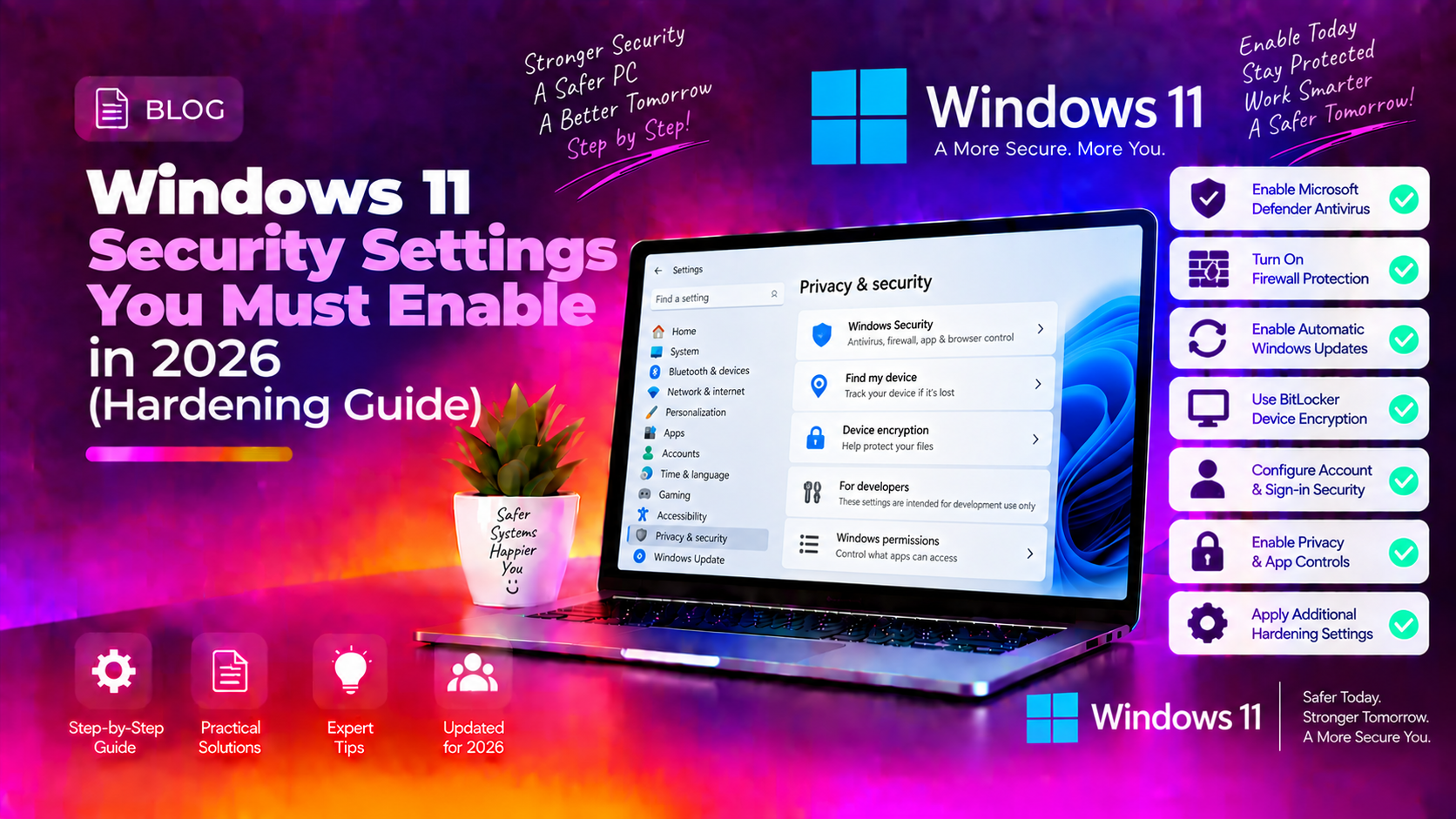
Windows 11 ships with a solid security foundation — TPM 2.0 requirements, Secure Boot, and Microsoft Defender enabled by default. But "enabled by default" doesn't mean "fully configured." A fresh Windows 11 installation in 2026 has several critical protections either disabled or set to their weakest settings: BitLocker encryption is off, Controlled Folder Access (ransomware protection) is disabled, Core Isolation isn't enforced, and PowerShell has no script-block logging.
This guide covers the settings that actually matter — the ones security professionals enable first on any Windows 11 workstation. Each step takes under five minutes and requires no third-party software.
1. Enable BitLocker Drive Encryption
BitLocker encrypts your entire drive so that even if someone physically removes your hard drive or SSD, they cannot read your data without your recovery key. On a laptop especially, this is non-negotiable.
How to enable BitLocker on Windows 11 Pro/Enterprise:
- Open the Start Menu and search for Manage BitLocker.
- Click Turn on BitLocker next to your system drive (usually C:).
- Choose how to unlock your drive at startup — TPM + PIN is the most secure option (requires you to enter a PIN at boot).
- Choose where to save your recovery key: Microsoft account (convenient), USB drive, or Print (offline and safest for high-security environments).
- Select Encrypt entire drive (not just used space — this is more secure for PCs that have been used before).
- Choose New encryption mode (XTS-AES 128-bit) for fixed drives, Compatible mode for removable drives that need to be read on older Windows.
- Click Start encrypting. The process runs in the background — your PC remains usable.
Windows 11 Home users: BitLocker is only in Pro/Enterprise. Home edition has Device Encryption instead — check Settings → Privacy & Security → Device Encryption and enable it if available.
2. Enable Ransomware Protection (Controlled Folder Access)
Controlled Folder Access blocks unknown or untrusted applications from modifying files in your protected folders — a direct defence against ransomware. It's disabled by default.
- Open Windows Security (search for it in the Start Menu).
- Click Virus & threat protection.
- Scroll down to Ransomware protection and click Manage ransomware protection.
- Toggle Controlled folder access to On.
- Click Protected folders and add any additional folders that contain important documents — your Downloads folder, project folders, and backup destinations.
Note: Some legitimate apps may trigger false positives and get blocked. If an app stops working after enabling this, go back to Allow an app through Controlled folder access and whitelist it.
3. Enable Core Isolation and Memory Integrity
Core Isolation uses hardware virtualisation to protect critical Windows processes from malware. Memory Integrity (Hypervisor-Protected Code Integrity — HVCI) prevents malicious code from being injected into high-security processes.
- Open Windows Security → Device Security.
- Click Core isolation details.
- Toggle Memory integrity to On.
- Restart your PC when prompted.
If Memory Integrity fails to enable, it usually means an incompatible driver is installed. Windows will tell you which driver is blocking it. Update or remove that driver, then try again. Common culprits include older printer drivers, VPN software drivers, and legacy antivirus drivers.
4. Configure Windows Firewall Properly
Windows Defender Firewall is enabled by default but is often misconfigured — especially if you've said "yes" to allowing apps through the firewall without thinking about it.
- Open Windows Security → Firewall & network protection.
- Verify the firewall is On for Domain, Private, and Public networks.
- Click Allow an app through firewall and review the list. Remove any apps you don't recognise or no longer use.
- For Public networks (coffee shops, airports), make sure Public network protection is on and consider disabling all incoming connections: click Public network → Block all incoming connections.
5. Enable Tamper Protection
Tamper Protection prevents malicious software from disabling Microsoft Defender. It's sometimes turned off by enterprise management tools or misconfigured systems.
- Open Windows Security → Virus & threat protection → Manage settings.
- Scroll to Tamper Protection and ensure it's toggled On.
If it's greyed out, your PC is managed by a company IT policy. Contact your IT administrator to verify it's enabled at the policy level.
6. Keep Windows Update on Automatic
The vast majority of successful Windows attacks in 2026 exploit vulnerabilities that already have patches available. Delaying updates is one of the most dangerous things you can do to a Windows 11 PC.
- Go to Settings → Windows Update.
- Ensure Receive updates for other Microsoft products is enabled — this covers Office, Edge, and other Microsoft software.
- Set Active hours to your work hours so restarts happen outside of them.
- Do not pause updates for extended periods — the maximum recommended pause is 1 week when testing compatibility.
7. Use Windows Hello Instead of Password-Only Sign-In
Passwords alone are weak — they can be phished, stolen from data breaches, or brute-forced. Windows Hello provides stronger authentication using biometrics (fingerprint, face) or a PIN backed by the TPM.
- Go to Settings → Accounts → Sign-in options.
- Under Windows Hello Face or Windows Hello Fingerprint, click Set up if your hardware supports it.
- At minimum, set up a Windows Hello PIN (Settings → Accounts → Sign-in options → PIN). A PIN is tied to your specific device and backed by the TPM — far more secure than a password alone.
8. Enable Exploit Protection
Exploit Protection applies mitigations to individual apps and system-level processes to prevent common attack techniques like heap spraying and return-oriented programming.
- Open Windows Security → App & browser control.
- Click Exploit protection settings.
- Review system-level settings — Data Execution Prevention (DEP) and Address Space Layout Randomisation (ASLR) should be set to On by default.
- If you're a power user or IT admin, you can configure per-app exploit mitigations under the Program settings tab for specific high-risk applications like browsers and Office.
9. Audit Local User Accounts
Review which accounts exist on your PC and ensure none have administrative rights without a clear reason.
- Go to Settings → Accounts → Other users.
- Check each account's role — standard users should not be administrators unless they need elevated access regularly.
- Also open Computer Management (search in Start Menu) → Local Users and Groups → Users and verify the Guest account is disabled (it should be by default in Windows 11 — verify it hasn't been re-enabled).
10. Review App Permissions
Apps on Windows 11 can request access to your camera, microphone, location, and contacts. Review and revoke unnecessary permissions:
- Go to Settings → Privacy & security.
- Work through each category: Location, Camera, Microphone, Notifications, Account info, Contacts, Calendar, Call history, Email, Tasks, Messaging, Documents, Downloads, Music, Pictures, Videos, File system.
- Disable access for any app that doesn't have a clear reason to need that permission. A photo editing app needs camera access; a calculator app does not.
Professional Windows Security Support
If you've experienced a security incident, suspect malware, or need help implementing a comprehensive Windows 11 security policy for your business, our Windows security team is available for remote assistance.
Frequently Asked Questions
Does Windows 11 have built-in ransomware protection?
Yes — Controlled Folder Access in Microsoft Defender is a built-in ransomware defence. It blocks unauthorised apps from modifying files in protected folders. However, it's disabled by default and must be manually enabled in Windows Security → Virus & threat protection → Ransomware protection.
Is BitLocker available on Windows 11 Home?
BitLocker is only available on Windows 11 Pro, Enterprise, and Education. Windows 11 Home has a simplified version called Device Encryption, which automatically encrypts the drive if your PC meets hardware requirements and you sign in with a Microsoft account. Check Settings → Privacy & Security → Device Encryption.
What is Memory Integrity and should I enable it?
Memory Integrity (HVCI) prevents malicious code from being injected into Windows kernel processes. It should be enabled on all Windows 11 PCs. The only reason to leave it off is if it blocks a driver you genuinely need and no updated version is available — in that case, update the driver and then enable Memory Integrity.
Will these security settings slow down my Windows 11 PC?
BitLocker adds minimal overhead on modern hardware with hardware AES acceleration (virtually all CPUs from 2015 onwards). Memory Integrity has a measurable but small performance impact on older hardware. Controlled Folder Access has no noticeable impact. The security benefits outweigh any performance cost in all but the most performance-critical workloads.
How do I know if Windows Defender is actively protecting my PC?
Open Windows Security and verify all sections show a green checkmark. Under Virus & threat protection, check that Real-time protection, Cloud-delivered protection, and Tamper Protection are all On. Run a Quick Scan periodically and check Protection history for any past threats detected.