
Why Is Steam Proton Not Working on Linux Mint?
Steam Proton is the compatibility layer that lets you play Windows games on Linux. When it stops working on Linux Mint — games fail to launch, show a black screen, crash immediately, or produce runtime errors — the cause is usually one of these: missing Vulkan libraries, an outdated or mismatched GPU driver, a game installed on an NTFS partition, a broken Proton runtime, or compatibility issues with a specific Proton version.
This guide covers every fix for 2026 so you can get your Windows games running on Linux Mint via Steam Proton.
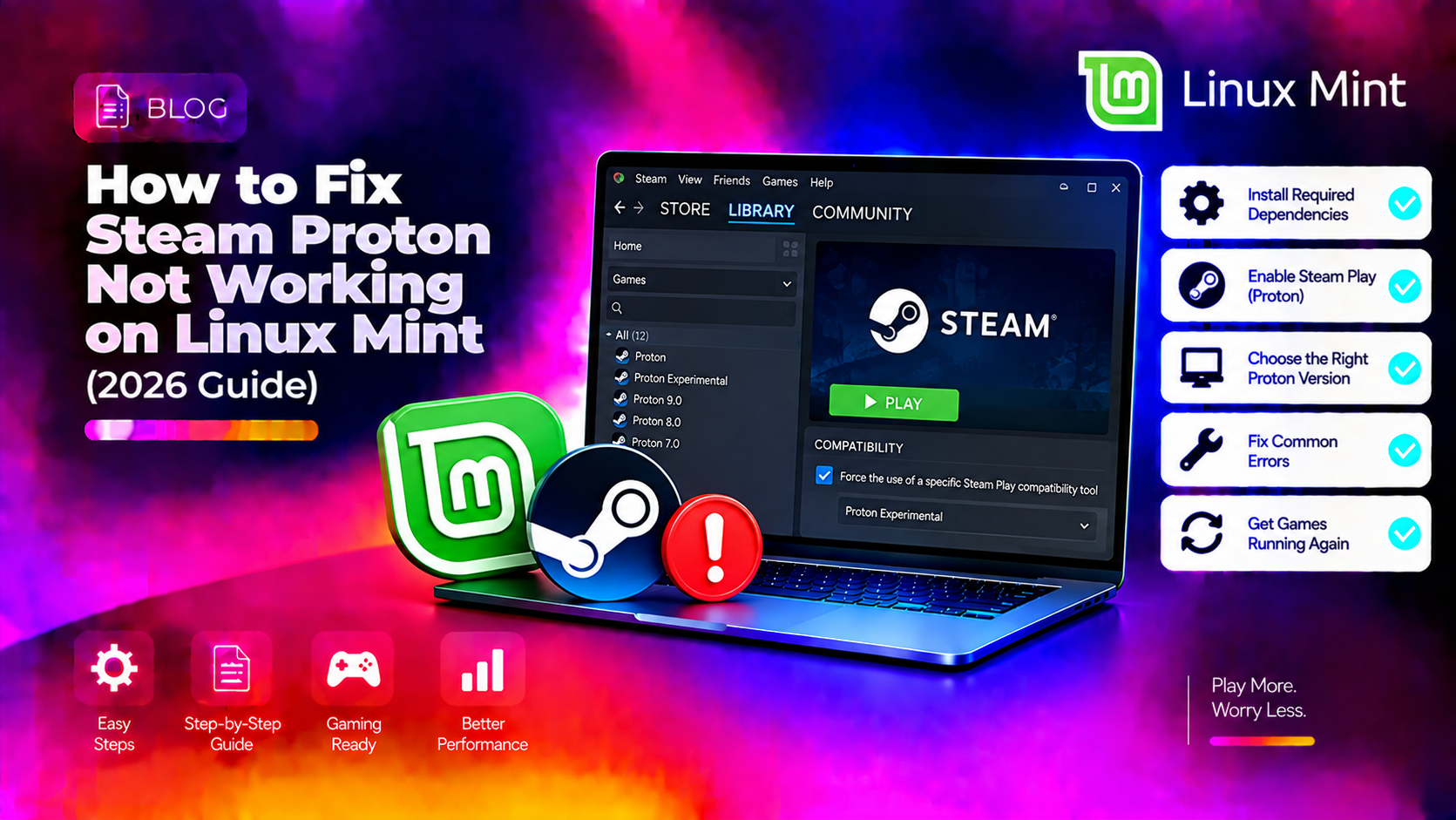
Fix 1: Enable Steam Play for All Titles
By default, Steam only enables Proton for a whitelisted set of games. Enable it for all titles first:
- Open Steam.
- Click Steam in the menu bar → Settings.
- Go to Compatibility.
- Turn on Enable Steam Play for all other titles.
- Set the Proton version in the dropdown (start with Proton Experimental or the latest stable Proton).
- Restart Steam when prompted.
Fix 2: Install Vulkan Drivers and Libraries
Proton requires Vulkan support. Without the correct Vulkan libraries, games will fail to launch or crash immediately. On Linux Mint, install them:
sudo apt update
sudo apt install mesa-vulkan-drivers vulkan-tools libvulkan1
For NVIDIA GPUs — also install:
sudo apt install nvidia-vulkan-icdFor AMD GPUs on 64-bit systems — enable 32-bit Vulkan libraries needed by many games:
sudo dpkg --add-architecture i386
sudo apt update
sudo apt install libvulkan1:i386 mesa-vulkan-drivers:i386
Restart your PC after installing, then test the game again.
Fix 3: Install or Update Your GPU Driver
An outdated GPU driver is the second most common Proton failure cause. On Linux Mint:
For NVIDIA GPUs:
- Open Driver Manager (Menu → Administration → Driver Manager).
- Select the latest proprietary nvidia-driver-xxx (not nouveau).
- Click Apply Changes and restart.
For AMD/Intel GPUs (Mesa):
sudo add-apt-repository ppa:kisak/kisak-mesa
sudo apt update
sudo apt upgrade
The Kisak-mesa PPA provides the latest Mesa drivers for Linux Mint, which include updated Vulkan support needed for modern Proton versions.
Fix 4: Move the Game Off an NTFS Partition
Running Steam games from an NTFS partition (a Windows-formatted drive) is a major cause of Proton failures. NTFS lacks proper Linux permission handling, which breaks Proton's runtime setup. The fix: move your Steam library to an ext4 partition.
To add a Linux-formatted Steam library location:
- In Steam, go to Settings → Storage.
- Click Add Drive and select a Linux-formatted partition.
- Move games to the new location by right-clicking them → Properties → Local Files → Move Install Folder.
If you must use NTFS, add these mount options in /etc/fstab for the NTFS partition:
uid=1000,gid=1000,rw,user,exec,umask=000Fix 5: Switch to a Different Proton Version
Some games work with Proton Experimental but not with the stable version (or vice versa). Test with Proton-GE (a community build with extra patches):
Install Proton-GE via ProtonUp-Qt:
sudo apt install python3-pip
pip3 install protonup-qt
Or download the AppImage from the ProtonUp-Qt GitHub releases. Run ProtonUp-Qt, click Add version, and install the latest GE-Proton. Restart Steam, right-click the game → Properties → Compatibility → select GE-Proton.
Fix 6: Force Proton for a Specific Game
Even with Steam Play enabled globally, individual games may default to running natively. Force Proton for a specific game:
- Right-click the game in your library → Properties.
- Click the Compatibility tab.
- Check Force the use of a specific Steam Play compatibility tool.
- Select a Proton version from the dropdown.
- Launch the game.
Fix 7: Clear the Proton Runtime Cache
A corrupt Proton prefix or runtime cache can prevent games from launching. To reset a game's Proton environment:
- Navigate to your Steam library folder:
~/.local/share/Steam/steamapps/compatdata/ - Find the folder with the numeric App ID of the problematic game (visible in the game's store URL).
- Delete that folder entirely.
- Launch the game — Steam will rebuild the Proton prefix from scratch.
Fix 8: Install Required Windows Runtime Libraries via Protontricks
Some games require Visual C++ Redistributables, DirectX, or .NET Framework. Install them into the Proton prefix using Protontricks:
sudo apt install python3-pip
pip3 install protontricks
Run Protontricks, select your game, and install needed runtimes (e.g., vcrun2019, d3dx9, dotnet48). Check ProtonDB (protondb.com) for the specific game to see what others have installed to get it working.
Fix 9: Check ProtonDB for Game-Specific Fixes
ProtonDB (protondb.com) is a community database of compatibility reports for thousands of games on Linux. Search for your game to find:
- Which Proton version works best
- Launch options that fix crashes (e.g.,
PROTON_USE_WINED3D=1 %command%) - Required runtime installs via Protontricks
- Known workarounds for specific bugs
To apply launch options: right-click the game → Properties → General → Launch Options.
Still Can't Get Proton Working on Linux Mint?
If games still won't launch after all these steps, the issue may be a kernel-level conflict, a specific GPU driver incompatibility with your Linux Mint version, or a game using anti-cheat that doesn't support Linux. CloudHouse Technologies offers pay-per-ticket remote Linux support — a specialist can diagnose your exact setup and configure Proton correctly without guesswork.
Frequently Asked Questions
Why do Proton games show a black screen on Linux Mint?
A black screen usually means Vulkan isn't working. Install mesa-vulkan-drivers and libvulkan1 via apt. For NVIDIA, install nvidia-vulkan-icd. For AMD on 64-bit systems, also install the i386 32-bit Vulkan libraries. Restart after installing and try the game again.
What is the best Proton version to use for gaming on Linux Mint in 2026?
GE-Proton (community Proton) is generally the most compatible for a wide range of games and includes extra patches not in Valve's official builds. For newer titles, try Proton Experimental first. Check ProtonDB (protondb.com) for your specific game's best Proton version.
Can I run games from an external hard drive using Proton on Linux Mint?
Yes, but only if the drive is formatted as ext4 or another Linux filesystem. NTFS drives cause Proton failures due to missing execute permissions. If the drive is NTFS, add execute mount options in /etc/fstab or reformat it (after backing up data) to ext4.
How do I see Proton logs to diagnose why a game won't launch?
Add PROTON_LOG=1 %command% to the game's Launch Options in Steam (right-click → Properties → General). This generates a log file at ~/.local/share/Steam/logs/ or in the game's steamapps folder — check it for specific error messages.
Does Proton work with anti-cheat games on Linux Mint?
Some anti-cheat systems (Easy Anti-Cheat, BattlEye) now have experimental Linux support through Proton — check protondb.com for your specific game. Games using older or unsupported anti-cheat implementations (like VAC-hardened titles) may not work via Proton regardless of configuration.