NVIDIA Driver Problems on Ubuntu — What Is Happening?
Installing or updating an NVIDIA driver on Ubuntu is one of the most common causes of a black screen, broken desktop, or missing display output. This happens most often after a kernel update (which invalidates the compiled driver module), after installing a driver version incompatible with your GPU, or when Secure Boot blocks the unsigned driver module from loading.
This guide covers Ubuntu 24.04 LTS and Ubuntu 26.04 LTS. Work through the steps in order — most users are back up and running by Fix 3.
Step 1 — Identify the Problem from GRUB Recovery
If you boot to a black screen after installing an NVIDIA driver:
- Reboot and hold Shift (BIOS) or press Escape repeatedly (UEFI) to get the GRUB menu
- Select Advanced options for Ubuntu
- Choose a recovery mode kernel entry
- From the recovery menu, choose root (Drop to root shell prompt)
- Run:
dmesg | grep -i nvidiato see driver load errors
Common error messages and what they mean:
- NVRM: GPU-0000:01:00.0 RmInitAdapter failed — wrong driver version for your GPU
- modprobe: FATAL: Module nvidia not found — DKMS build failed after kernel update
- Lockdown: module unsigned — Secure Boot is blocking the driver
Fix 1 — Use nomodeset as a Temporary Boot Option
nomodeset forces Ubuntu to boot using basic framebuffer graphics, bypassing the NVIDIA driver entirely. Use this to get into your desktop so you can apply a permanent fix:
- At the GRUB menu, highlight Ubuntu and press E to edit
- Find the line starting with
linux /boot/vmlinuz... - Replace
quiet splashwithnomodeset - Press Ctrl + X to boot
This is temporary — you will need to apply it at every boot or use one of the permanent fixes below.
Fix 2 — Reinstall NVIDIA Drivers with ubuntu-drivers
Once you have terminal access (via recovery shell or nomodeset boot), reinstall the recommended driver:
# Remove existing nvidia packagessudo apt purge nvidia-* libnvidia-* -ysudo apt autoremove -y# Update package listsudo apt update# Install the best driver automaticallysudo ubuntu-drivers autoinstallsudo rebootThe ubuntu-drivers autoinstall command detects your GPU model and installs the highest-version recommended driver for it.
Fix 3 — Rebuild DKMS After Kernel Update
When Ubuntu updates the kernel, DKMS (Dynamic Kernel Module Support) must recompile the NVIDIA driver for the new kernel. If this fails silently, the driver does not load after reboot:
# Check current kerneluname -r# List installed DKMS modulesdkms statusIf you see nvidia listed as broken or not installed for your current kernel:
# Find your NVIDIA versiondpkg -l | grep nvidia-driver# Rebuild DKMS (replace 550 with your version)sudo dkms install nvidia/550.120 -k $(uname -r)sudo update-initramfs -usudo rebootFix 4 — Disable Secure Boot (UEFI Systems)
Ubuntu's NVIDIA drivers require a signed kernel module to work with Secure Boot enabled. If signing fails during installation, the driver is silently blocked at boot.
To check if Secure Boot is blocking the driver:
sudo mokutil --sb-stateIf it returns SecureBoot enabled, you have two options:
Option A: Disable Secure Boot in UEFI
Restart, enter your motherboard UEFI (usually Del or F2), find Secure Boot under Security settings, and disable it. Boot Ubuntu normally and reinstall the driver.
Option B: Enroll the MOK key (keeps Secure Boot enabled)
# During nvidia driver install, a MOK enrollment dialog appears# If you missed it, re-trigger:sudo dpkg-reconfigure nvidia-dkms-550Follow the on-screen prompts to set a one-time enrollment password, then reboot and enroll the key in the MOK Manager that appears before Ubuntu boots.
Fix 5 — Pin a Specific Driver Version
If the latest NVIDIA driver causes problems with your GPU model, install a known-stable older version:
# List available NVIDIA driver versionsapt-cache search nvidia-driver# Install a specific version (e.g. 535)sudo apt purge nvidia-* -ysudo apt install nvidia-driver-535 -ysudo rebootFix 6 — Switch from Wayland to X11
Some NVIDIA GPUs have incomplete Wayland support. If your desktop loads but has screen tearing, lag, or apps crash constantly, switching to X11 resolves it:
- At the login screen, click your username
- Look for the gear icon (session selector) at the bottom-right corner
- Select Ubuntu on Xorg
- Enter your password and log in
To make X11 the permanent default:
sudo nano /etc/gdm3/custom.confUncomment the line: #WaylandEnable=false (remove the # symbol). Save and reboot.
Verify the Driver Is Working
After any fix, confirm the NVIDIA driver is active:
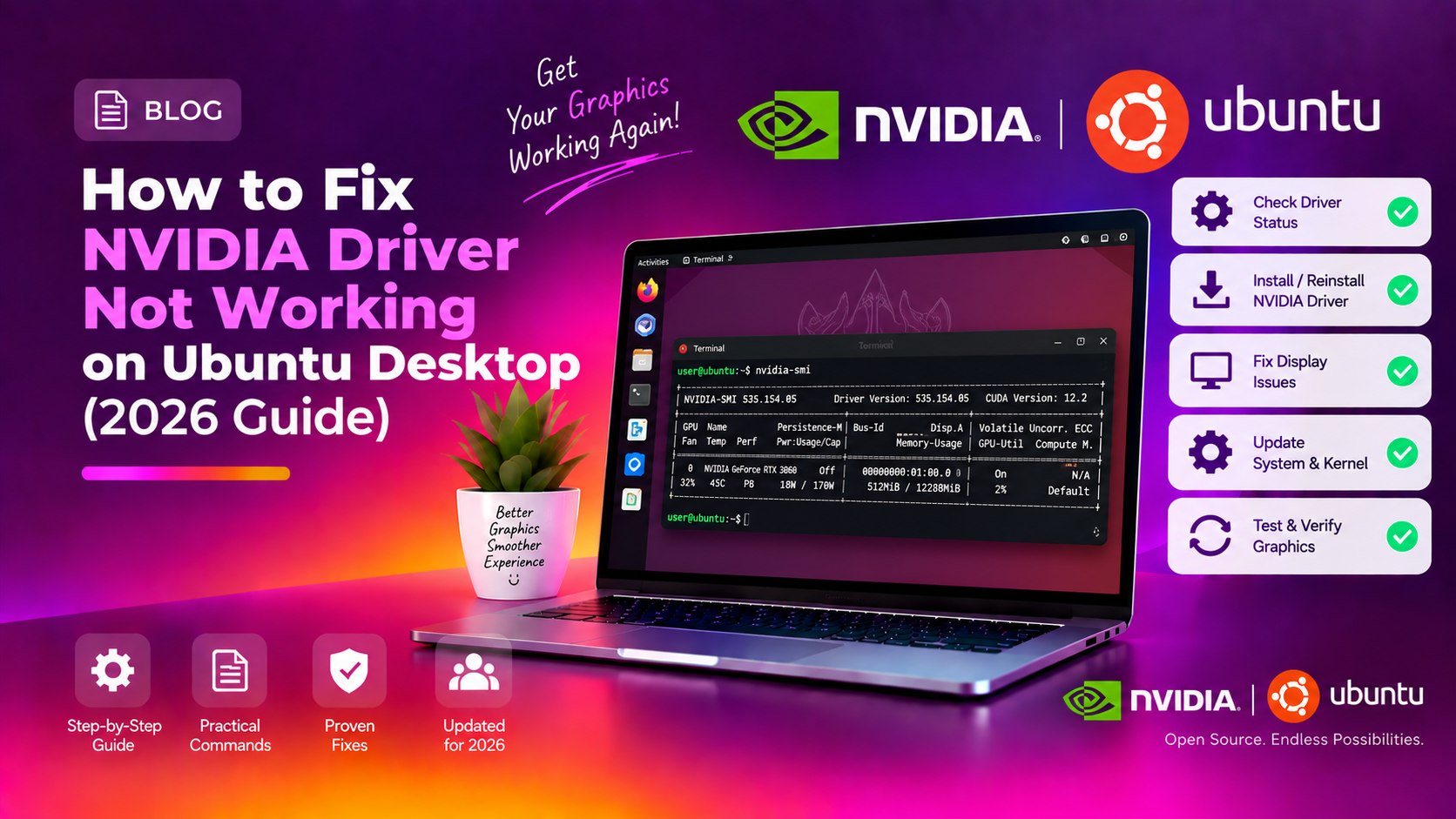
# Check GPU infonvidia-smiExpected output shows your GPU model, driver version, and CUDA version. If nvidia-smi returns command not found or No devices were found, the driver is not loaded correctly — return to Fix 2.
# Alternative checklspci | grep -i nvidiaIf you need help diagnosing a persistent NVIDIA driver issue on Ubuntu, CloudHouse remote support can connect and resolve it directly.
FAQ
Why does my NVIDIA driver break every time Ubuntu updates the kernel?
Kernel updates invalidate compiled DKMS modules. DKMS should automatically rebuild the NVIDIA module for the new kernel, but if the DKMS build fails (due to missing build tools or a header mismatch), the driver stops loading. Ensure linux-headers-$(uname -r) and build-essential are installed.
What is the best NVIDIA driver version for Ubuntu 24.04?
Use ubuntu-drivers autoinstall to get the recommended version for your specific GPU. As of 2026, nvidia-driver-550 is the standard LTS recommendation for most GeForce and Quadro GPUs on Ubuntu 24.04.
Can I use the NVIDIA PPA for newer drivers?
Yes: sudo add-apt-repository ppa:graphics-drivers/ppa. However, PPA drivers are not officially supported by Ubuntu and may break after kernel updates. Use the default ubuntu-drivers version unless you have a specific reason to need a newer one.
Why does nomodeset fix the black screen but NVIDIA features do not work?
nomodeset disables the NVIDIA driver and uses basic framebuffer graphics. It is a recovery tool, not a permanent fix. Apply Fix 2 or Fix 4 to get the NVIDIA driver properly installed and loaded.
My screen works but nvidia-smi says no devices found — what now?
The NVIDIA module is not loaded. Run: sudo modprobe nvidia. If it fails with an error, check dmesg | grep nvidia for the specific reason. Common causes: Secure Boot blocking the module (Fix 4), or a DKMS build failure (Fix 3).