Why Does Linux Mint Fail to Boot After a Kernel Update?
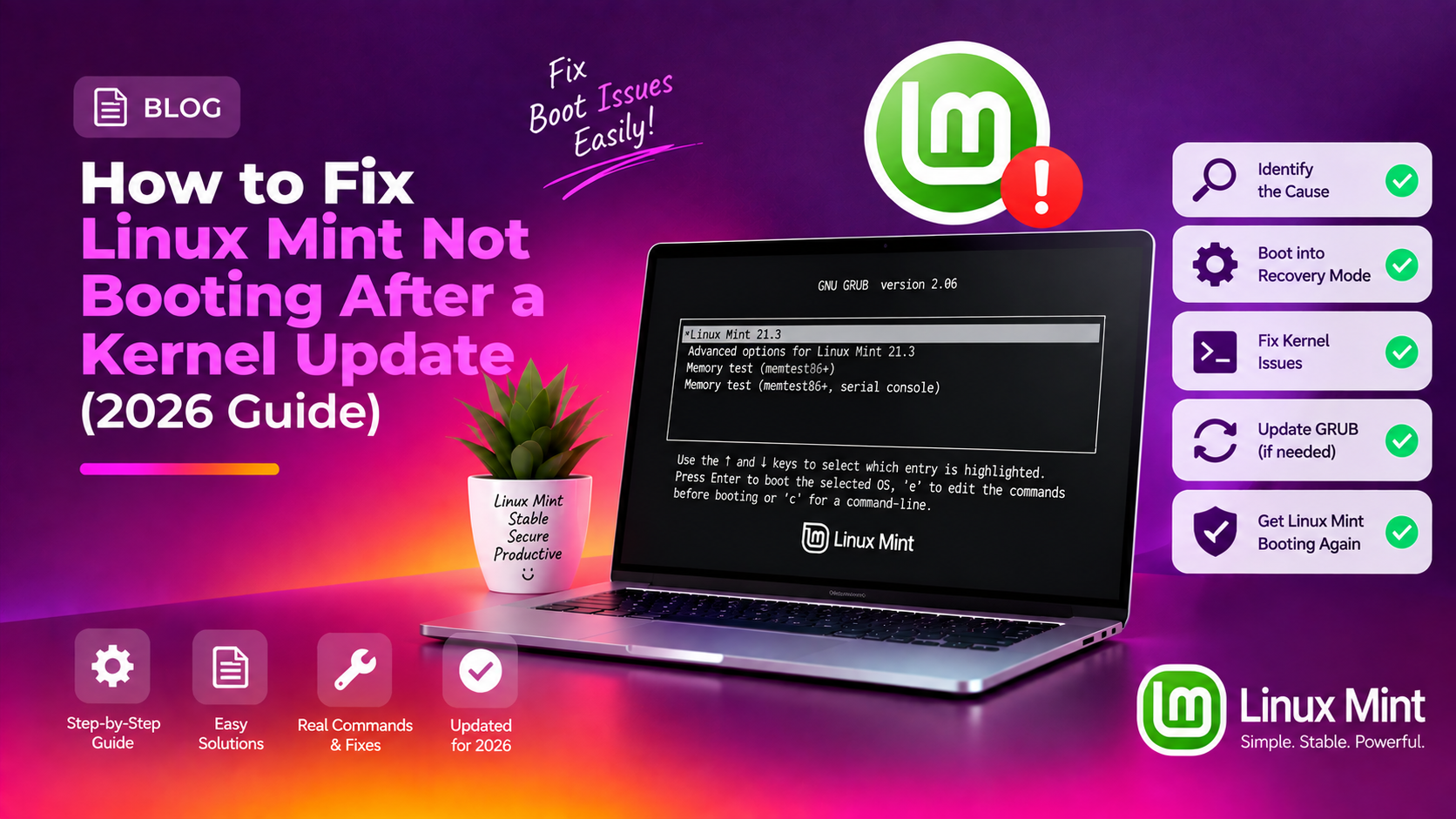
If you've ever stared at a black screen after running sudo apt upgrade on Linux Mint, you're not alone. Kernel update boot failures are one of the most common — and most alarming — issues Linux Mint users encounter in 2026. The good news: they are almost always recoverable.
The most frequent causes include:
- DKMS module build failures — Proprietary NVIDIA or AMD drivers are compiled on-the-fly for each kernel via DKMS. A broken DKMS build leaves your graphics driver non-functional on the new kernel.
- Incomplete kernel installation — A dropped connection, full disk, or interrupted upgrade can leave a half-installed kernel that GRUB tries (and fails) to boot.
- GRUB not updated — If
update-grubdid not run successfully, the bootloader may not know about the new kernel. - initramfs generation failure — The initial RAM filesystem must be regenerated for each new kernel. If
update-initramfsfails, the new kernel cannot mount your root filesystem.
Work through the steps below to recover your system. If you'd rather skip the manual work, get expert Linux support from CloudHouse Technologies.
Step 1 — Boot Into a Previous Kernel Using the GRUB Menu
The fastest way to get back to a working system is to boot into the last known-good kernel. Linux Mint keeps previous kernel versions installed alongside the new one.
How to Access the GRUB Menu
- Power on or restart your machine.
- Immediately after the BIOS/UEFI splash screen, hold Shift (Legacy BIOS) or tap Esc repeatedly (UEFI) to display the GRUB menu.
- Use the arrow keys to highlight Advanced options for Linux Mint and press Enter.
- You'll see all installed kernels listed. Select the entry just above the broken one — for example, if
6.11.0-26-genericis broken, select6.8.0-52-generic— and press Enter.
Your system should boot normally into the older kernel. Once logged in, proceed with the repair steps below.
Set the old kernel as temporary default
sudo grub-reboot "1>2"
sudo update-grub
This prevents you from having to manually select the old kernel on every reboot during the repair process.
Step 2 — Fix NVIDIA or AMD Driver DKMS Rebuild Failures
A DKMS module build failure is the most common cause of Linux Mint black screen after update. After booting the working kernel, check and fix DKMS modules.
Check DKMS module status
dkms statusLook for entries showing poorly-installed or built (not installed) for the broken kernel version, such as:
nvidia/550.120, 6.11.0-26-generic, x86_64: poorly-installedInstall missing kernel headers
sudo apt install linux-headers-$(uname -r) build-essential dkms
# Also install headers for the broken kernel version:
sudo apt install linux-headers-6.11.0-26-generic
Rebuild DKMS modules for the broken kernel
# Rebuild all modules for the broken kernel at once:
sudo dkms autoinstall -k 6.11.0-26-generic

# Or rebuild a specific module (e.g. nvidia 550.120):
sudo dkms build -m nvidia -v 550.120 -k 6.11.0-26-generic
sudo dkms install -m nvidia -v 550.120 -k 6.11.0-26-generic
Reinstall the NVIDIA driver if rebuild keeps failing
apt list --installed | grep nvidia
sudo apt install --reinstall nvidia-driver-550
sudo update-initramfs -u -k all
After completing this step, reboot and try loading the new kernel from the GRUB Advanced Options menu.
Step 3 — Repair or Remove the Broken Kernel and Regenerate GRUB
If DKMS fixes don't resolve the issue, remove the broken kernel and regenerate GRUB.
Fix broken packages first
sudo dpkg --configure -a
sudo apt --fix-broken install
Remove the broken kernel
# Replace 6.11.0-26-generic with your actual broken kernel version
sudo apt remove --purge linux-image-6.11.0-26-generic
sudo apt remove --purge linux-headers-6.11.0-26-generic
sudo apt remove --purge linux-modules-6.11.0-26-generic
sudo apt remove --purge linux-modules-extra-6.11.0-26-generic
sudo apt autoremove --purge
Regenerate GRUB configuration
sudo update-grubReinstall GRUB on BIOS (Legacy) systems
sudo grub-install /dev/sda
sudo update-grub
Reinstall GRUB on UEFI systems
sudo apt install --reinstall grub-efi-amd64
sudo grub-install --target=x86_64-efi --efi-directory=/boot/efi --bootloader-id=ubuntu --recheck
sudo update-grub
Reinstall a fresh kernel
sudo apt update
sudo apt install linux-generic
sudo update-initramfs -u -k all
sudo update-grub
Step 4 — Use Timeshift to Restore If the System Is Unrecoverable
If none of the above steps bring your system back and you had Timeshift snapshots enabled before the kernel update, a full system restore is your cleanest recovery path.
Restore from within Linux Mint (if booted on old kernel)
- Open the Timeshift application from the System menu.
- Select the snapshot taken just before the kernel update.
- Click Restore and follow the wizard. Allow Timeshift to handle bootloader restoration automatically.
- Reboot when prompted.
Restore from a Live USB (system won't boot at all)
- Boot a Linux Mint Live USB and enter the live environment.
- Open Timeshift from the live desktop.
- Point Timeshift to the partition where your snapshots are stored.
- Select the desired snapshot and click Restore.
- Reboot and remove the USB drive.
Create snapshots before future updates
sudo timeshift --create --comments "Before kernel update $(date +%Y-%m-%d)" --tags D
sudo apt update && sudo apt upgrade
FAQ
Why does Linux Mint show a black screen after a kernel update?
A black screen is most often caused by a failed DKMS build for your graphics driver (particularly NVIDIA). The new kernel loads, but the proprietary driver was not compiled for it, so the display manager fails to start. Boot into the previous kernel via GRUB Advanced Options and rebuild your DKMS modules as described in Step 2.
How do I find out which kernel versions are installed on Linux Mint?
Run uname -r to see the currently running kernel version. To list all installed kernels, run dpkg --list | grep linux-image. The Linux Mint Update Manager also shows installed kernels under the Kernels tab.
Is it safe to remove old kernels in Linux Mint?
Yes, as long as you keep at least two working kernels installed — your current one and one fallback. Never remove the kernel you are currently booted into. Use sudo apt remove --purge linux-image-X.X.X-generic to remove specific versions, then run sudo update-grub to clean up the boot menu.
What should I do if GRUB shows "error: file not found" or drops to grub rescue?
This means GRUB cannot find the kernel or configuration file it expects. Boot from a Linux Mint Live USB, chroot into your installation, reinstall GRUB with sudo grub-install /dev/sda (BIOS) or sudo grub-install --target=x86_64-efi --efi-directory=/boot/efi (UEFI), and run sudo update-grub.
How can I prevent Linux Mint kernel update boot failures in the future?
Create a Timeshift snapshot immediately before any kernel update. After each update, verify DKMS modules rebuilt successfully by running dkms status. If any module shows a failed state, rebuild it before rebooting into the new kernel.