
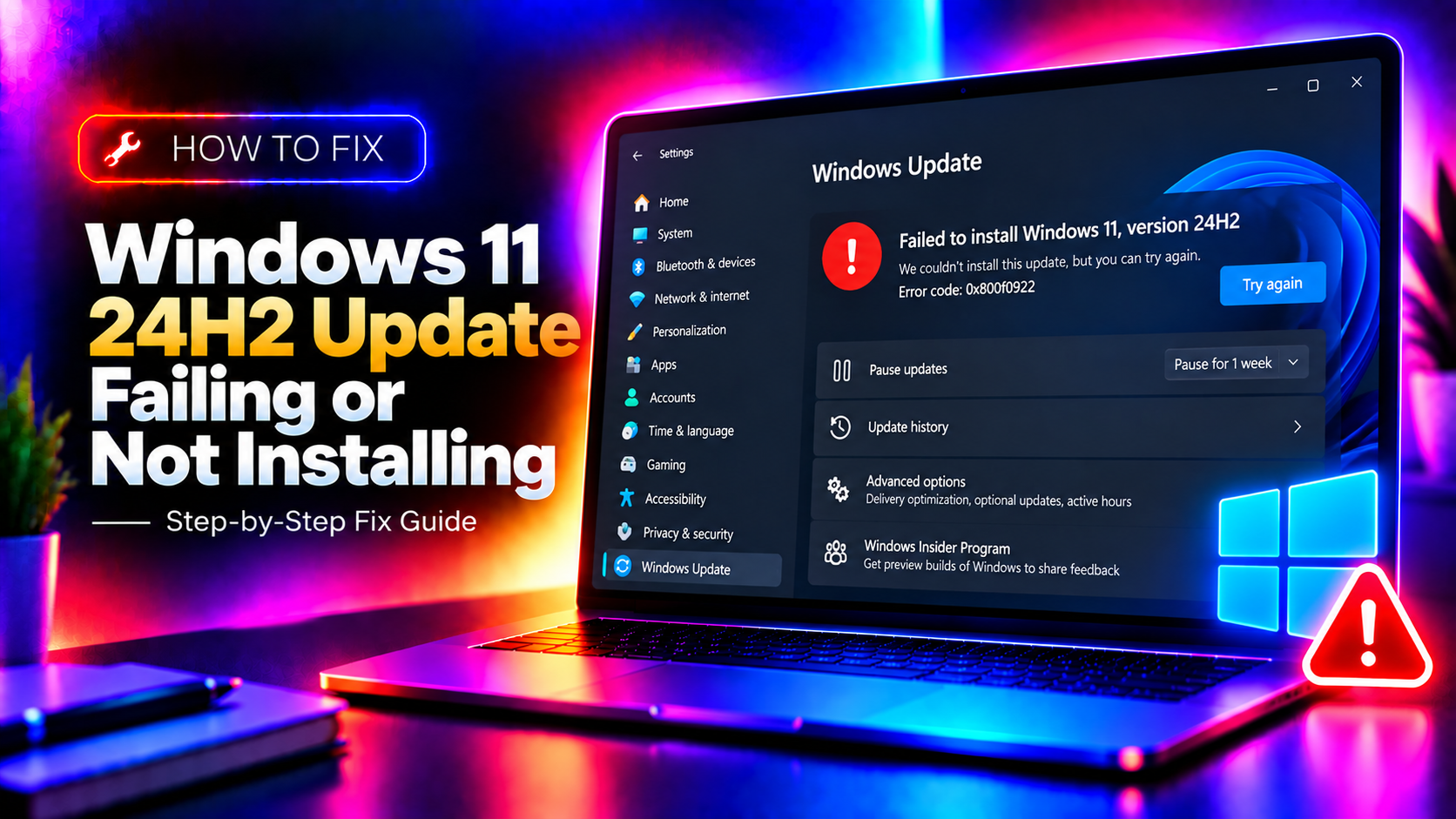
Why Is the Windows 11 24H2 Update Failing to Install?
The Windows 11 2024 Update (version 24H2) is a major feature update, and it's more demanding than a standard cumulative update. When it fails — looping back to your previous version, throwing error codes, or getting stuck at a percentage — the usual culprits are: an incompatible driver blocking the installation, insufficient free disk space, a corrupt Windows Update cache, or a conflicting third-party application (antivirus is a frequent offender).
This guide covers every proven fix for 2026, including how to interpret specific error codes and how to force the 24H2 upgrade manually when Windows Update won't cooperate.
Quick Check: Common 24H2 Error Codes
- 0x80070002 — Missing file (often a driver issue or corrupt update cache)
- 0x8007001F — Device failure during installation (driver incompatibility)
- 0x800f0922 — System reserved partition too small or connectivity issue
- 0xC1900101 — Driver incompatibility (the most common upgrade blocker)
- 0x80073712 — Component store corrupt
Identifying your error code helps narrow down the right fix.
Fix 1: Free Up Disk Space (Minimum 20 GB Required)
The 24H2 upgrade requires at least 20 GB of free space on your C: drive. Check and free space before attempting the update:
- Press Windows + I → System → Storage.
- Click Temporary files and remove what's safe (Windows Update Cleanup, Delivery Optimization Files, Recycle Bin).
- Also run Disk Cleanup as administrator: search for it, click "Clean up system files."
- Aim for at least 25 GB free before retrying the update.
Fix 2: Run Windows Update Troubleshooter
- Press Windows + I → System → Troubleshoot → Other troubleshooters.
- Find Windows Update and click Run.
- Follow the prompts — the troubleshooter fixes common update service failures and clears temporary update files.
- Restart and try the update again after it completes.
Fix 3: Reset the Windows Update Components
A corrupt update cache or stuck Windows Update service is a top cause of 24H2 installation failures. Resetting the components clears and restarts everything fresh:
Open Command Prompt as administrator (right-click Start → Terminal (Admin)) and run:
net stop wuauserv
net stop cryptSvc
net stop bits
net stop msiserver
ren C:\Windows\SoftwareDistribution SoftwareDistribution.old
ren C:\Windows\System32\catroot2 catroot2.old
net start wuauserv
net start cryptSvc
net start bits
net start msiserver
Restart your PC and try the update again.
Fix 4: Run SFC and DISM to Repair System Files
Corrupt system files prevent feature updates from completing. Run these commands in an elevated Terminal:
sfc /scannowWait for it to complete. Then run:
DISM /Online /Cleanup-Image /RestoreHealthThis downloads fresh copies of any corrupt Windows files from Microsoft's servers. Restart after both commands complete, then retry the update.
Fix 5: Check for Incompatible Drivers (Error 0xC1900101 / 0x8007001F)
Driver incompatibility is the leading cause of Windows 11 24H2 failures. Check the Windows upgrade log for the specific driver causing the block:
- Navigate to
C:\$WINDOWS.~BT\Sources\Panther\ - Open setupact.log in Notepad.
- Search for "MOSETUP_E_COMPAT_DRIVER" or "Failed" — this identifies the problematic driver.
- Go to Device Manager, find that device, right-click → Update driver or Uninstall device.
- For Intel Smart Sound Technology (SST) — a known 24H2 blocker — update it via Intel's website: download the latest Intel SST driver and install before retrying the upgrade.
Fix 6: Temporarily Disable Antivirus
Third-party antivirus software can block the feature update installation process. Temporarily disable your antivirus before upgrading:
- Right-click your antivirus icon in the taskbar → find "Disable" or "Pause protection" → choose 1 hour.
- Retry the Windows 11 24H2 update immediately.
- Re-enable antivirus once the update is complete (or has started downloading).
Windows Defender does not need to be disabled — it coexists with the update process.
Fix 7: Use the Windows 11 Installation Assistant for Manual Upgrade
If Windows Update keeps failing, bypass it entirely and upgrade manually using Microsoft's official Installation Assistant:
- Search "Windows 11 Installation Assistant" on Microsoft's website and download it.
- Run the tool as administrator.
- Accept the license terms — it will download and install 24H2 directly, bypassing the Windows Update mechanism.
- Your files and applications are preserved.
This method bypasses most Windows Update component failures and succeeds when the in-place upgrade loop doesn't.
Fix 8: Create a Bootable USB for a Clean In-Place Upgrade
As a last resort before a clean install, use the Media Creation Tool to upgrade from bootable media. This resolves deep component corruption that online upgrades can't fix:
- Download the Media Creation Tool from Microsoft's Windows 11 download page.
- Create a bootable USB drive (8 GB minimum).
- Boot from the USB and choose Upgrade this PC now while keeping files and apps.
Still Stuck on the Windows 11 24H2 Update?
Some 24H2 upgrade failures involve OEM-specific drivers, BitLocker encryption conflicts, or unusual partition layouts that require individual diagnosis. CloudHouse Technologies offers pay-per-ticket remote Windows support — a technician can read your upgrade logs, identify the specific blocker, and resolve it in one session without requiring a fresh Windows install.
Frequently Asked Questions
Why does my Windows 11 PC keep rolling back after attempting the 24H2 update?
Rollbacks happen when the installer encounters a fatal error after the upgrade starts — most commonly a driver incompatibility (0xC1900101) or a corrupt system component. Check C:\$WINDOWS.~BT\Sources\Panther\setupact.log to identify the exact driver causing the failure, then update or uninstall it before retrying.
How much disk space does the Windows 11 24H2 update require?
Windows 11 24H2 requires at least 20 GB of free space on the C: drive for the upgrade, but 30+ GB is recommended to avoid space-related failures. Use Disk Cleanup (run as administrator, clean up system files) to free space before attempting the update.
Can I skip Windows 11 24H2 and wait for 25H2?
Yes — you can defer feature updates for up to 52 weeks in Windows 11 Pro via Settings → Windows Update → Advanced options → Pause updates. Home users can delay for up to 5 weeks. However, staying on an unsupported version may mean missing security patches bundled with the feature update.
What is the Windows 11 Installation Assistant and when should I use it?
The Windows 11 Installation Assistant is Microsoft's official tool for manually triggering feature updates outside of Windows Update. Use it when Windows Update keeps failing for the 24H2 upgrade — it downloads and installs the update directly, bypassing stuck update components, and preserves all your files and apps.
Does the 24H2 update delete my files?
No — the Windows 11 24H2 feature update is an in-place upgrade that preserves all your personal files, applications, and settings. Only a "Reset this PC" or clean install would remove files. However, some older software may stop working after the upgrade if it was incompatible with 24H2.