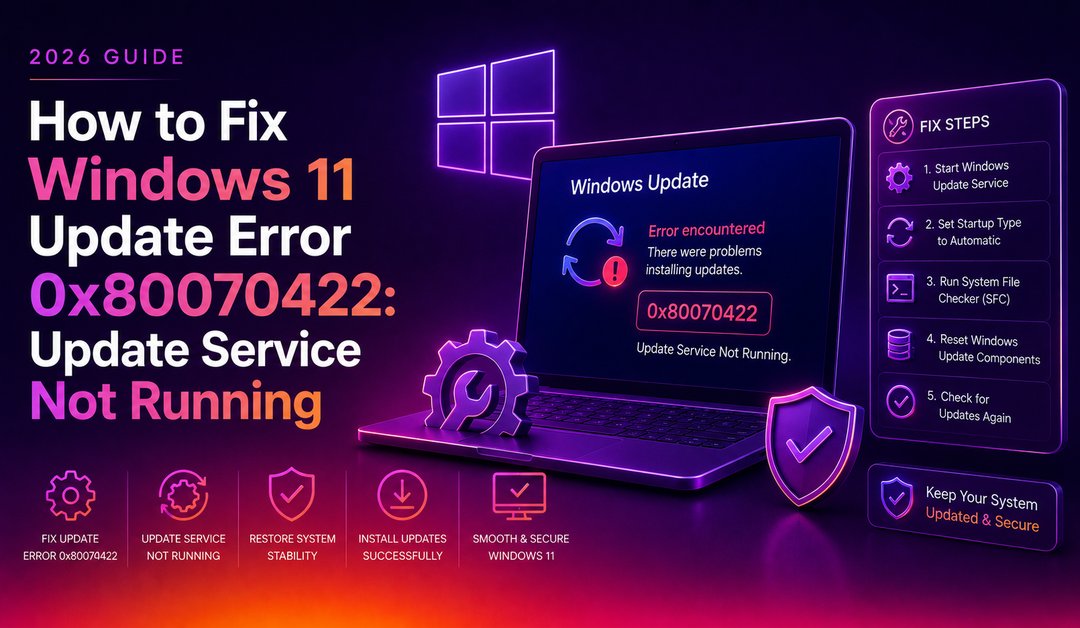
Windows 11 update error 0x80070422 is one of the most common Windows Update failures — it means the Windows Update service has stopped running or is set to disabled. When this service isn't active, Windows cannot download or install any updates, security patches, or feature updates. This guide covers every fix for Windows 11 update error 0x80070422, from the simplest one-click solution to deep repair methods for persistent cases.
What Does Error 0x80070422 Mean?
The error code 0x80070422 translates to "The service cannot be started, either because it is disabled or because it has no enabled devices associated with it." In plain English: the Windows Update service (wuauserv) is either stopped or set to Manual/Disabled instead of Automatic.
Common triggers:
- A third-party optimisation tool (CCleaner, PC Cleaner, etc.) disabled background services
- Malware or a failed update disrupted the service configuration
- Manual system tweaking disabled the service
- A Windows component store corruption
💡 None of these worked? Skip the guesswork.
Get Expert Help →Method 1 — Restart the Windows Update Service (Fastest Fix)
Press Windows + R, type services.msc, and press Enter.
Scroll down to Windows Update. Right-click it and select Properties.
In the Properties window, change Startup type from "Manual" or "Disabled" to Automatic. Click Apply.
Click the Start button under Service status. Click OK.
The following services must also be running for Windows Update to work:
- Background Intelligent Transfer Service (BITS) — set to Automatic (Delayed Start)
- Cryptographic Services — set to Automatic
- Windows Update Medic Service — set to Manual
Start and set each one the same way. Then retry Windows Update.
2. Find Windows Update and click Run
The troubleshooter automatically detects and fixes common service configuration issues, including 0x80070422. It takes about 2 minutes and often resolves the error without any manual steps.
3. Restart your PC after the troubleshooter completes, then try updating again.
Method 3 — Fix via Command Prompt (NET START)
Open Command Prompt as Administrator (search "cmd" → right-click → Run as administrator) and run:
net stop wuauserv
net stop cryptSvc
net stop bits
net stop msiserver

net start wuauserv
net start cryptSvc
net start bits
net start msiserver
These commands stop and restart all four services that Windows Update depends on. After running them, open Windows Update and try again.
Method 4 — Reset Windows Update Cache
Corrupted update cache files can keep the service from starting correctly.
:: Run these in an elevated Command Prompt:
net stop wuauserv
net stop bits

:: Delete the update cache folder
rd /s /q C:\Windows\SoftwareDistribution

:: Restart services
net start wuauserv
net start bits
Windows recreates the SoftwareDistribution folder automatically on the next update check. This forces a fresh start and resolves cache corruption.
Method 5 — Run DISM and SFC to Repair Windows Components
If the service configuration keeps reverting, the Windows component store may be corrupted.
:: Run in elevated Command Prompt:
DISM /Online /Cleanup-Image /RestoreHealth
:: Wait for this to complete (5–15 minutes), then:
sfc /scannow
DISM downloads fresh Windows system files from Microsoft's servers and repairs corrupted components. SFC then scans and repairs system file integrity. Restart after both complete, then try updating.
Method 6 — Check Windows Firewall Service
Windows Update requires the Windows Firewall service to be running, even if you use a third-party firewall. Check it in services.msc — it should be set to Automatic and running. If it's disabled, start it and set it to Automatic.
Method 7 — Run the Windows Update Reset Script
Microsoft provides an official reset script that resets all Windows Update components in one go:
- Download the Windows Update Reset Script from Microsoft's support site
- Right-click the downloaded
.batfile and select Run as administrator - The script stops all update services, clears the cache, re-registers update DLLs, and restarts services
- Restart your PC when the script finishes
Preventing 0x80070422 in Future
- Avoid using "service optimiser" tools that disable background services — they frequently disable Windows Update
- Keep Windows Firewall service running even if you use a third-party security suite
- Don't disable Windows Update service manually — if update reboots are disruptive, schedule Active Hours instead (Settings → Windows Update → Advanced Options → Active Hours)
If you're managing multiple Windows 11 devices and update errors are recurring, professional IT support can audit your update policy, check Windows Update for Business settings, and ensure all devices stay patched without interrupting users. CloudHouse Technologies offers pay-per-ticket IT support for Windows issues — get help without a long-term contract.