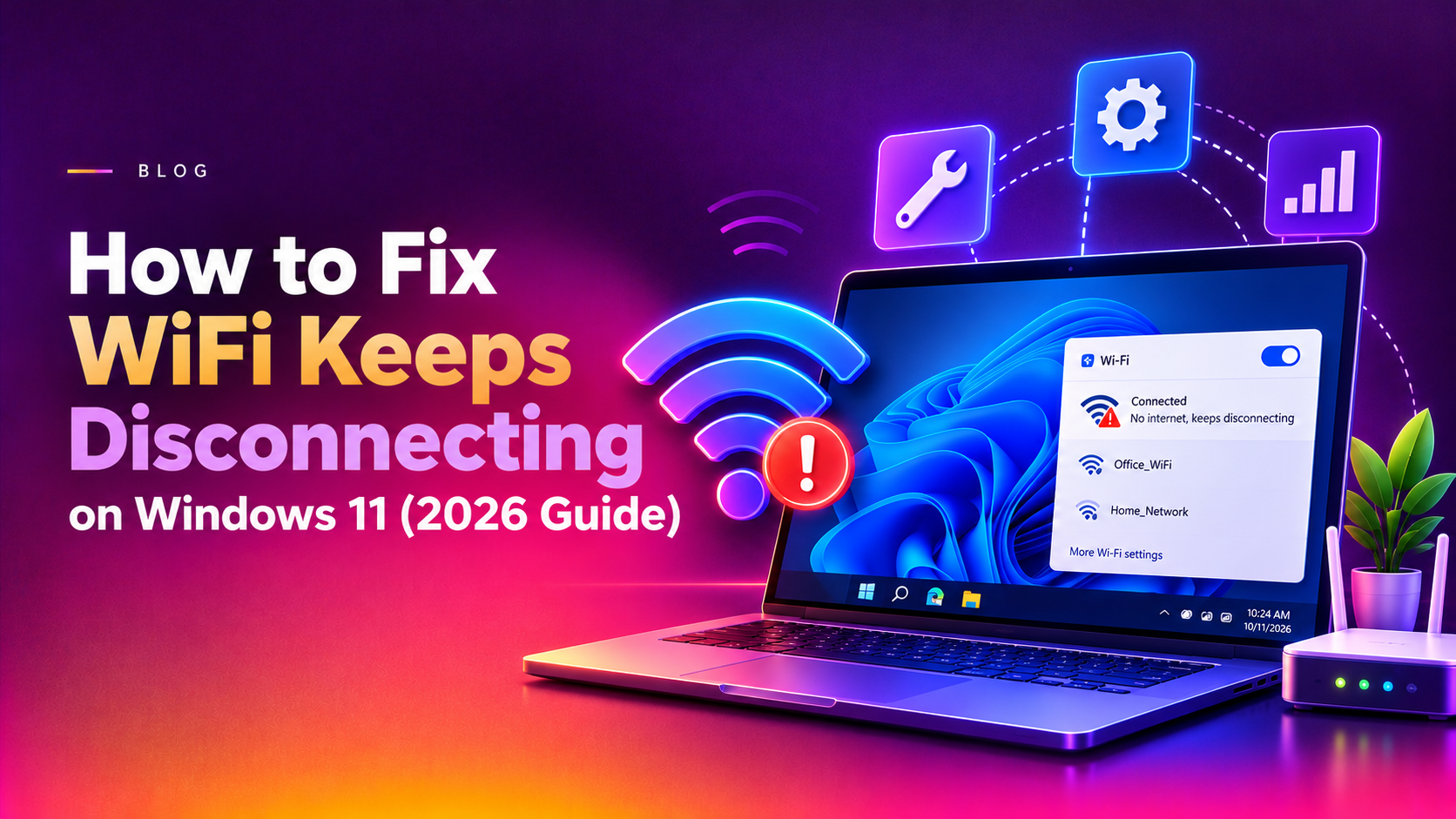
Why Does Windows 11 WiFi Keep Disconnecting?
Windows 11 WiFi disconnects are one of the most-reported networking issues in 2026, affecting desktops, laptops, and Surface devices alike. The root causes range from power management settings and outdated drivers to conflicting software and corrupted network configurations. The good news: most cases are fixed in under 10 minutes with the right method.
Common triggers include:
- Windows Power Management turning off the WiFi adapter to save battery
- Outdated or incompatible WiFi adapter drivers post-update
- IP address conflicts or corrupted DNS cache
- VPN or security software interfering with the network stack
- Auto-switching between saved WiFi networks
- Corrupted TCP/IP or Winsock configuration
Fix 1: Disable WiFi Power Management (Fixes 70% of Cases)
Windows 11 aggressively cuts power to the WiFi adapter when it detects low activity. This is the single most common cause of sudden disconnects:
- Right-click the Start button → select Device Manager
- Expand Network Adapters
- Right-click your WiFi adapter (e.g., Intel Wi-Fi 6 AX201) → Properties
- Go to the Power Management tab
- Uncheck "Allow the computer to turn off this device to save power"
- Click OK and restart your PC
If you don't see a Power Management tab, your adapter's driver handles this setting elsewhere — proceed to Fix 2.
Fix 2: Update Your WiFi Driver
Windows 11 updates frequently push driver compatibility breaks. Updating to the latest driver from your manufacturer resolves disconnect issues caused by post-update regressions:
- Open Device Manager → expand Network Adapters
- Right-click your WiFi adapter → Update driver
- Select "Search automatically for drivers"
If Windows finds no update, visit your laptop maker's website directly:
- Dell: dell.com/support — enter your service tag
- HP: support.hp.com — enter your product number
- Lenovo: support.lenovo.com — enter your serial number
- ASUS: asus.com/support — enter your model
Download the WLAN driver, run the installer, and restart.
Fix 3: Disable Auto-Connect on Multiple Networks
If Windows 11 has several saved networks nearby, it may silently switch between them, causing repeated drops:
- Go to Settings → Network & Internet → Wi-Fi → Manage Known Networks
- Click each network you don't currently use
- Toggle off "Connect automatically when in range"
Also forget networks you no longer use — they create unnecessary competition for the adapter's attention.
Fix 4: Reset DNS Cache and TCP/IP Stack
A corrupted DNS cache or broken Winsock configuration causes intermittent drops that look like WiFi issues but are actually network-stack problems. Open Command Prompt as Administrator and run:
ipconfig /flushdns
netsh winsock reset
netsh int ip reset
ipconfig /release
ipconfig /renew
Restart your PC after running these commands. This sequence clears stale DNS entries, resets the Windows network socket layer, and requests a fresh IP from your router.
Fix 5: Change the Network Adapter's Roaming Aggressiveness
Intel WiFi adapters have a "Roaming Aggressiveness" setting that controls how eagerly the adapter switches access points. Set too high, it causes constant drops as it hunts for a "better" signal:
- Open Device Manager → Network Adapters
- Right-click your WiFi adapter → Properties → Advanced tab
- Find Roaming Aggressiveness in the property list
- Change the value from Medium or High to Lowest
- Click OK and reconnect to WiFi
This setting is specific to Intel adapters. Realtek and Qualcomm adapters have a similar setting labelled "Roaming Sensitivity" or "BSS Transition".
Fix 6: Disable VPN and Network Monitoring Software Temporarily
In 2026, conflicts between Windows 11's updated network stack and VPN clients (NordVPN, Mullvad, Cisco AnyConnect) or antivirus network monitoring modules cause frequent drops. Test by:
- Temporarily disabling your VPN client
- Disabling the firewall/network module in your antivirus
- Reconnecting to WiFi and monitoring for 10 minutes
If drops stop, update your VPN client or antivirus to the latest version — the conflict is usually resolved in newer releases within 1–2 weeks of a major Windows update.
Fix 7: Run the Network Troubleshooter
Windows 11's built-in troubleshooter catches adapter configuration errors you might miss manually:
- Go to Settings → System → Troubleshoot → Other troubleshooters
- Click Run next to Internet Connections
- Follow the on-screen prompts
If it finds no issues, also run the Network Adapter troubleshooter from the same menu — it runs different diagnostics.
Fix 8: Perform a Full Network Reset
If all else fails, a network reset wipes all saved configurations and reinstalls network adapters from scratch:
- Go to Settings → Network & Internet → Advanced Network Settings
- Scroll down and click Network Reset
- Click Reset Now and confirm
Your PC will restart automatically. You'll need to reconnect to your WiFi network and re-enter the password. After the reset, recheck Fix 1 (power management) since the reset restores default settings.
If your WiFi keeps disconnecting despite trying all methods above — especially on a work device or after a major Windows 11 update — CloudHouse Technologies provides expert Windows 11 networking support on a pay-per-ticket basis with no ongoing subscription required.
Frequently Asked Questions
Why does my Windows 11 WiFi disconnect every few minutes?
The most common cause is Power Management turning off the WiFi adapter. Open Device Manager, go to your WiFi adapter's Properties → Power Management tab, and uncheck "Allow the computer to turn off this device to save power."
Does a Windows 11 update cause WiFi to drop?
Yes — major Windows 11 updates frequently break WiFi driver compatibility. After an update, go to Device Manager and update your WiFi driver, or download the latest driver from your laptop manufacturer's website.
How do I stop Windows 11 from forgetting my WiFi?
Go to Settings → Network & Internet → Wi-Fi → Manage Known Networks. Select your network and enable "Connect automatically when in range." Also check that the adapter isn't being powered off via Power Management.
Can a VPN cause WiFi disconnects on Windows 11?
Yes. VPN clients that hook into the Windows network stack — NordVPN, Mullvad, Cisco AnyConnect — can cause drops, especially after Windows 11 updates. Temporarily disable your VPN to test, then update it to the latest version.
What does netsh winsock reset do?
It resets the Windows Sockets (Winsock) catalog to its default state, removing corrupted entries that cause network failures. It's safe to run and requires a restart to take effect.