Why Is Windows 10 Running Slow in 2026?
Windows 10 reached end of support on October 14, 2025. While Microsoft no longer ships free security updates, the operating system continues to run on hundreds of millions of PCs — many of which have accumulated years of background services, startup bloat, fragmented drives, and outdated drivers. The result: a system that's slower than it was on day one.
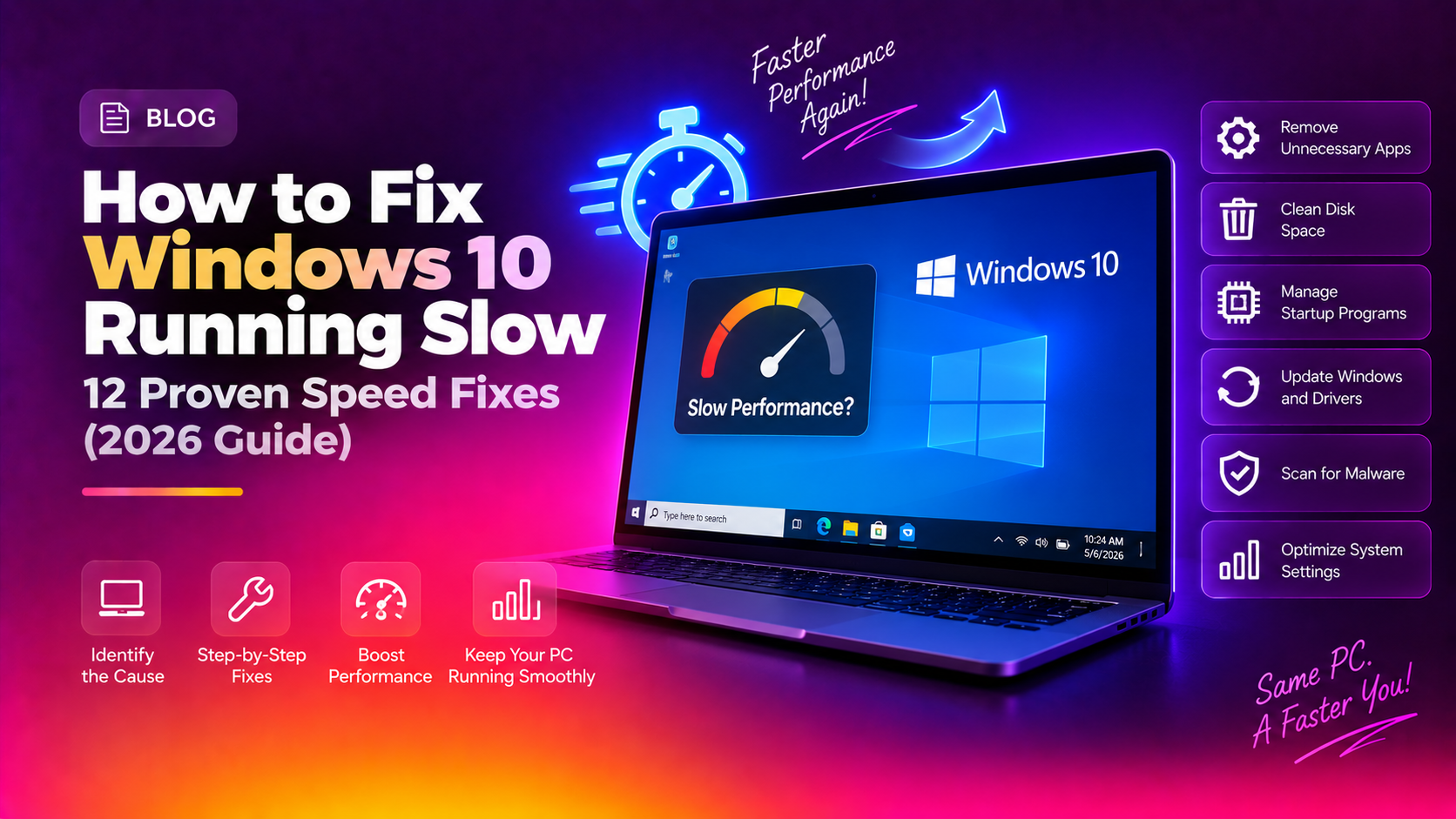
The good news is that most Windows 10 slowdowns are software-related and fixable without buying new hardware. These 12 fixes are ordered from fastest to most comprehensive — work through them in sequence until your PC returns to a usable speed.
Fix 1: Restart Your PC (Not Just Sleep)
Sleep mode preserves your session but doesn't clear RAM or reset background services. A full restart does. If your Windows 10 PC is set to sleep rather than shut down, it may not have properly restarted in days or weeks — and background processes accumulate over that time.
Go to Start → Power → Restart (not Shut down, which on many machines does a "hybrid shutdown" that preserves kernel state). After the restart, test performance before opening any apps.
Fix 2: Disable Unnecessary Startup Programs
Every program that launches at startup claims RAM and CPU before you've even opened anything. On many Windows 10 PCs, 20–40 startup items have accumulated over the years.
Step 1. Press Ctrl + Shift + Esc to open Task Manager.
Step 2. Click the Startup tab.
Step 3. Sort by Startup impact. Right-click and Disable everything that isn't essential — common candidates: Spotify, Teams, Discord, Adobe updaters, OneDrive (if you don't use it), browser updaters.
Step 4. Restart and test. Reducing high-impact startup items often cuts boot time by 50% and improves early-session responsiveness dramatically.
Fix 3: Run Disk Cleanup
Windows accumulates gigabytes of temporary files, old update downloads, and system logs over time. Disk Cleanup removes them safely.
Step 1. Press Win + S and search for Disk Cleanup.
Step 2. Select your C: drive and click OK.
Step 3. After the initial scan, click Clean up system files for a deeper clean — this includes Windows Update cleanup files which can be 10–20 GB on systems with a history of updates.
Step 4. Check all categories and click OK → Delete Files.
Fix 4: Adjust for Best Performance
Windows 10 applies visual effects (animations, shadows, transparency) that consume GPU and CPU resources. Switching to performance mode removes all of these.
Step 1. Press Win + R, type sysdm.cpl, press Enter.
Step 2. Go to the Advanced tab → Performance → Settings.
Step 3. Select Adjust for best performance. This disables all animations and visual effects. If you want to keep a minimal set of visuals, choose Custom and keep only "Smooth edges of screen fonts."
Fix 5: Change Your Power Plan
Many laptops and some desktops default to the Balanced or Power Saver plan, which throttles CPU and disk performance to reduce energy usage. This causes severe slowdowns during demanding tasks.
Step 1. Press Win + S and search Power plan. Select Choose a power plan.
Step 2. Select High Performance. If it's not listed, click Show additional plans.
Step 3. On laptops, expect higher battery drain. This is a performance vs battery trade-off — switch back to Balanced when away from power.
Fix 6: Run System File Checker
Corrupted system files are an underappreciated cause of persistent Windows 10 slowdowns. The System File Checker repairs them automatically.
Step 1. Press Win + S, type cmd, right-click → Run as administrator.
Step 2. Run: sfc /scannow
Step 3. Wait for completion (5–15 minutes). If corruption is found and repaired, restart your PC.
Step 4. Also run DISM to repair the Windows image: DISM /Online /Cleanup-Image /RestoreHealth
Fix 7: Check for Malware
Cryptominers, adware, and spyware commonly run as background processes consuming 30–80% of CPU without showing any visible symptoms. If your PC slows down specifically when idle, malware is a prime suspect.
Step 1. Open Windows Security → Virus & threat protection → Scan options → Full scan.
Step 2. Additionally, download Malwarebytes Free and run a second opinion scan — Windows Defender misses some adware that Malwarebytes catches.
Step 3. Check Task Manager's Details tab while the PC is idle. Sort by CPU. Any unknown process above 10% CPU when you're not doing anything is suspicious.
Fix 8: Disable Windows Search Indexing (If Not Needed)
Windows Search indexes your files continuously for fast search results. On HDDs, this process is a significant performance drain.
Step 1. Press Win + R, type services.msc, press Enter.
Step 2. Find Windows Search, right-click → Properties.
Step 3. Set Startup type to Disabled and click Stop. Click OK.
Trade-off: the search bar in File Explorer will be slower (results won't be instant). If you rarely use file search, this is a worthwhile trade on low-spec machines.
Fix 9: Check Hard Drive Health (HDD Users)
If your PC has a traditional hard drive (HDD) rather than an SSD, a failing drive is the most common cause of severe, worsening slowdowns. HDDs fail gradually — first showing slowdowns, then errors, then data loss.
Step 1. Download CrystalDiskInfo (free) and check your drive's SMART status.
Step 2. Look for Reallocated Sectors Count or Pending Sectors above zero — these indicate physical drive damage and imminent failure. Back up immediately.
Step 3. Also run Windows' built-in check: open Command Prompt as admin and run chkdsk C: /f /r. This requires a restart to complete.
Fix 10: Upgrade Your RAM (If Under 8GB)
Windows 10 with a modern browser, Office, and a few background apps comfortably uses 6–8 GB of RAM. Systems with 4 GB of RAM constantly page to disk, which on an HDD causes catastrophic slowdowns.
Check your current RAM: press Win + Pause or Task Manager → Performance → Memory. If you're regularly above 80% memory usage, adding RAM is the highest-impact, lowest-cost hardware upgrade available.
Fix 11: Upgrade from HDD to SSD
No software fix delivers the same improvement as replacing an HDD with an SSD. Boot times drop from 60–120 seconds to under 15 seconds. App launch times improve 5–10x. Windows 10 on an SSD feels like a different operating system.
SATA SSDs (the drop-in replacement for most laptops and desktops) cost under $50 for 500 GB in 2026. Tools like Macrium Reflect Free can clone your existing drive to the new SSD without reinstalling Windows.
Fix 12: Consider Upgrading to Windows 11
If your hardware supports Windows 11 (TPM 2.0, UEFI, 64-bit CPU, 4 GB RAM, 64 GB storage), upgrading receives continued security updates and performance improvements that Windows 10 no longer gets. Check compatibility by downloading the PC Health Check app from Microsoft.
If your hardware doesn't qualify for Windows 11 and performance remains unacceptable after all software fixes, a fresh Windows 10 installation on a clean drive is often the most practical path — all accumulated junk, corrupt system files, and broken registries are wiped out entirely.
Need Professional Help?
If your Windows 10 PC is still slow after working through these fixes, the issue may require advanced diagnostics — event log analysis, driver conflict identification, or hardware stress testing. CloudHouse Technologies offers remote Windows support with a certified technician who will diagnose and fix the issue in a single session.