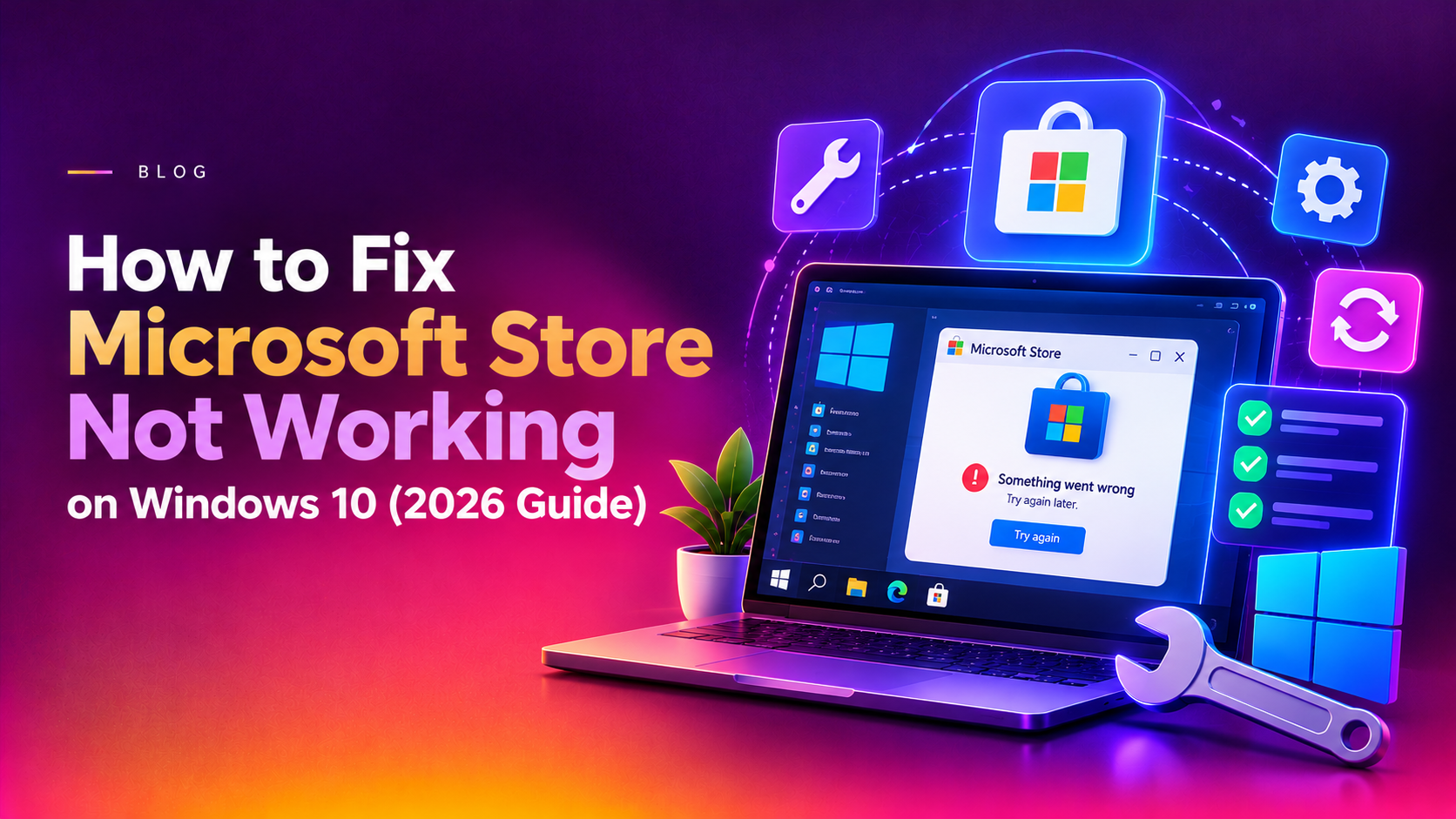
Microsoft Store not working on Windows 10? Start by running wsreset.exe to clear the Store cache. If that doesn't help, run the Windows Store Apps troubleshooter, then re-register the Store with PowerShell. Those three steps fix most blank screens, endless loading spinners and error codes such as 0x80131500, and none of them requires reinstalling Windows.
This guide covers every proven fix in the order that resolves problems fastest, from a simple cache reset to PowerShell re-registration. In 2026, Microsoft Store problems are still among the most common Windows 10 complaints, and most of them can be fixed in a few minutes. Work through the steps in order and stop as soon as the Store opens normally.
Why Microsoft Store Stops Working on Windows 10
Before diving into fixes, it helps to understand why the Microsoft Store breaks in the first place. The most common causes include:
- Corrupted cache files — temporary data that accumulates and conflicts with Store operations
- Incorrect date, time, or region settings — Microsoft Store uses these to authenticate your session with Microsoft servers
- Proxy or VPN interference — proxy settings can block Store's connection to Microsoft's CDN
- Corrupted Store installation — system files or app manifests become damaged after bad updates
- Pending Windows Updates — uninstalled updates can cause version mismatches that break Store functionality
- DNS issues — misconfigured DNS prevents Store from resolving Microsoft's servers
- User account corruption — a corrupted Windows profile can cause Store to fail to launch
Understanding the root cause will help you choose the right fix. But since diagnosing this precisely takes time, we recommend working through the fixes below in sequence. Each one is safe to try and none of them deletes your personal files.
Quick Fix: Reset the Microsoft Store Cache (wsreset.exe)
The fastest fix for a broken Microsoft Store is clearing its cache using wsreset.exe. This is Microsoft's official tool for flushing Store's temporary files — it usually takes under 60 seconds and fixes the majority of Store problems.
- Press Windows + R to open the Run dialog.
- Type
wsreset.exeand press Enter. - A blank black Command Prompt window will appear. Do not close it — this is normal.
- Wait 30–60 seconds. The Command Prompt will close automatically.
- Microsoft Store will launch automatically with a cleared cache.
If the Store opens and works after this step, you're done. If it still fails or shows an error, proceed to Fix 1 below.
Fix 1: Run the Windows Store Apps Troubleshooter
Windows 10 includes a built-in troubleshooter specifically designed to detect and repair Microsoft Store issues. It can automatically fix problems with app registration, file permissions, and service configuration.
- Click the Start menu and open Settings (gear icon).
- Go to Update & Security → Troubleshoot.
- Click Additional troubleshooters.
- Scroll down and click Windows Store Apps.
- Click Run the troubleshooter.
- Follow the on-screen prompts and apply any fixes the troubleshooter recommends.
- Restart your PC and reopen Microsoft Store.
The troubleshooter will scan for common issues like missing app registrations, broken service dependencies, and configuration errors. In many cases, it applies the fix automatically, and it will tell you at the end whether it found and fixed anything.
Fix 2: Re-register Microsoft Store via PowerShell
If the troubleshooter didn't resolve the issue, re-registering the Microsoft Store app using PowerShell is one of the most effective fixes. This doesn't uninstall the Store — it simply repairs its registration with Windows, fixing broken manifests and missing components.
- Right-click the Start button and select Windows PowerShell (Admin) or Terminal (Admin).
- Click Yes when prompted by User Account Control.
- Copy and paste the following command, then press Enter:
Get-AppxPackage -allusers Microsoft.WindowsStore | Foreach {Add-AppxPackage -DisableDevelopmentMode -Register "$($_.InstallLocation)\AppXManifest.xml"}
- Wait for the command to complete. You may see some red text — this is usually harmless.
- Close PowerShell and restart your PC.
- Open Microsoft Store and test if it works.
You can also re-register all built-in Windows apps at once if multiple apps are broken:
Get-AppxPackage -AllUsers | Foreach {Add-AppxPackage -DisableDevelopmentMode -Register "$($_.InstallLocation)\AppXManifest.xml"}
Note: This command may take several minutes. Allow it to complete fully before restarting.
Fix 3: Check Date, Time, and Region Settings
Microsoft Store authenticates your device with Microsoft's servers using your system clock. If your date, time, or timezone is incorrect — even by a few minutes — Store may show error 0x80131500 or refuse to connect entirely.
- Right-click the clock in the bottom-right corner of the taskbar.
- Click Adjust date/time.
- Under Synchronize your clock, click Sync now.
- Make sure Set time automatically and Set time zone automatically are both On.
- Now open Settings → Time & Language → Region.
- Confirm your Country or region matches your actual location.
- Restart your PC and try Microsoft Store again.
You can also sync the clock via Command Prompt:
w32tm /resync
Run this in an elevated Command Prompt (Run as Administrator) if the automatic sync doesn't work.
Fix 4: Disable Proxy Settings
An active proxy server or misconfigured network settings can block Microsoft Store from reaching Microsoft's servers. This is a common cause of the 0x80131500 and 0x80072EFD errors.
- Open Settings → Network & Internet → Proxy.
- Under Manual proxy setup, toggle Use a proxy server to Off.
- Under Automatic proxy setup, make sure Use setup script is also Off (unless your organization requires it).
- Click Save.
Alternatively, reset the system-wide WinHTTP proxy settings via Command Prompt (these affect Windows apps including Store):
- Open Command Prompt as Administrator.
- Run:
netsh winhttp reset proxy - Also run:
ipconfig /flushdns - Restart your PC and test Microsoft Store.
If you use a VPN, try disconnecting it temporarily to see if it's interfering with Store connectivity.
Fix 5: Clear Cached Data and Reinstall Microsoft Store
If wsreset.exe didn't fully clear the cache, manually deleting the Store's cached data folder can help. Then, if the Store is still broken, you can use PowerShell to fully reinstall it.
Step A: Manually clear the Store cache
- Press Windows + R, type
%localappdata%\Packages\Microsoft.WindowsStore_8wekyb3d8bbwe\LocalCache, and press Enter. - Delete all files inside the LocalCache folder (you can press Ctrl+A then Delete).
- Restart your PC.
Step B: Fully reinstall Microsoft Store
- Open PowerShell as Administrator.
- To remove the Store completely, run:
Get-AppxPackage *windowsstore* | Remove-AppxPackage - Then reinstall it for all users:
Get-AppxPackage -AllUsers *WindowsStore* | Foreach {Add-AppxPackage -DisableDevelopmentMode -Register "$($_.InstallLocation)\AppXManifest.xml"} - Restart your PC.
Note: On some Windows 10 builds, removing and reinstalling via PowerShell may require downloading the Store package from Microsoft. If the above doesn't work, use the Windows Store Apps troubleshooter or contact support.
Fix 6: Create a New Administrator Account
If Microsoft Store works in a different user account but not yours, your Windows profile may be corrupted. Creating a new administrator account is the cleanest way to test this — and often resolves Store issues permanently.
- Open Settings → Accounts → Family & other users.
- Under Other users, click Add someone else to this PC.
- Select I don't have this person's sign-in information.
- Click Add a user without a Microsoft account.
- Enter a username (e.g., TestAdmin) and password, then click Next.
- Back on the Family & other users page, click the new account and select Change account type.
- Set it to Administrator and click OK.
- Sign out of your current account and sign in to the new account.
- Open Microsoft Store and check if it works.
If Store works in the new account, your original profile is corrupted. You can migrate your files and settings to the new account to resolve this permanently.
Fix 7: Perform a Windows Update
Outdated Windows components can prevent Microsoft Store from functioning correctly. Windows 10 reached end of support on October 14, 2025, so devices that are not enrolled in Microsoft's Extended Security Updates program no longer receive regular security or quality updates. Even so, installing every update that is still available, including the final cumulative update and any servicing stack or .NET updates, is a critical step.
- Open Settings → Update & Security → Windows Update.
- Click Check for updates.
- Install all available updates, including optional quality updates.
- Restart your PC when prompted.
After updating, also run the System File Checker to repair any corrupted system files that may have caused Store issues:
- Open Command Prompt as Administrator.
- Run:
sfc /scannow - Wait for the scan to complete (this may take 10–15 minutes).
- If SFC finds and fixes errors, also run:
DISM /Online /Cleanup-Image /RestoreHealth - Restart your PC and test Microsoft Store.
The sfc /scannow command repairs protected system files, while DISM /RestoreHealth repairs the Windows component store — both are important for a healthy Store installation.
If you've tried all the fixes above and Microsoft Store is still not working, the issue may require deeper diagnosis — checking event logs, Windows licensing status, or Store service dependencies. Our team at CloudHouse Pay-Per-Ticket Support can remotely diagnose and resolve Microsoft Store errors on Windows 10 quickly, without you needing to do anything more than grant a remote session.
FAQ
Why is Microsoft Store not working on Windows 10?
Microsoft Store can stop working due to corrupted cache files, incorrect date/time settings, proxy configuration issues, a corrupted Store installation, or pending Windows updates that conflict with Store services. Running wsreset.exe resolves the majority of cases in under a minute.
How do I reset the Microsoft Store cache?
Press Windows + R, type wsreset.exe, and press Enter. A blank Command Prompt will appear, then close automatically — Microsoft Store will open fresh with a cleared cache. This is the fastest and safest fix to try first.
How do I reinstall Microsoft Store on Windows 10?
Open PowerShell as Administrator and run: Get-AppxPackage -allusers Microsoft.WindowsStore | Foreach {Add-AppxPackage -DisableDevelopmentMode -Register "$($_.InstallLocation)\AppXManifest.xml"}. This re-registers the Store without uninstalling it. For a full reinstall, first run Get-AppxPackage *windowsstore* | Remove-AppxPackage, then the re-register command.
What is Microsoft Store error 0x80131500?
Error 0x80131500 means Microsoft Store cannot connect to Microsoft's servers. The most common causes are incorrect date/time settings, a proxy server blocking the connection, or a DNS issue. Fix it by correcting your system clock, disabling any proxy settings, and running ipconfig /flushdns in an elevated Command Prompt.
Can I use Microsoft Store on Windows 10 in 2026?
Yes, Microsoft Store still works on Windows 10 in 2026. Microsoft ended support for Windows 10 on October 14, 2025, which means regular security updates stopped for devices not enrolled in Extended Security Updates, but the Store itself remains available. Some newer apps may require Windows 11, while many existing Store apps continue to run on Windows 10.