
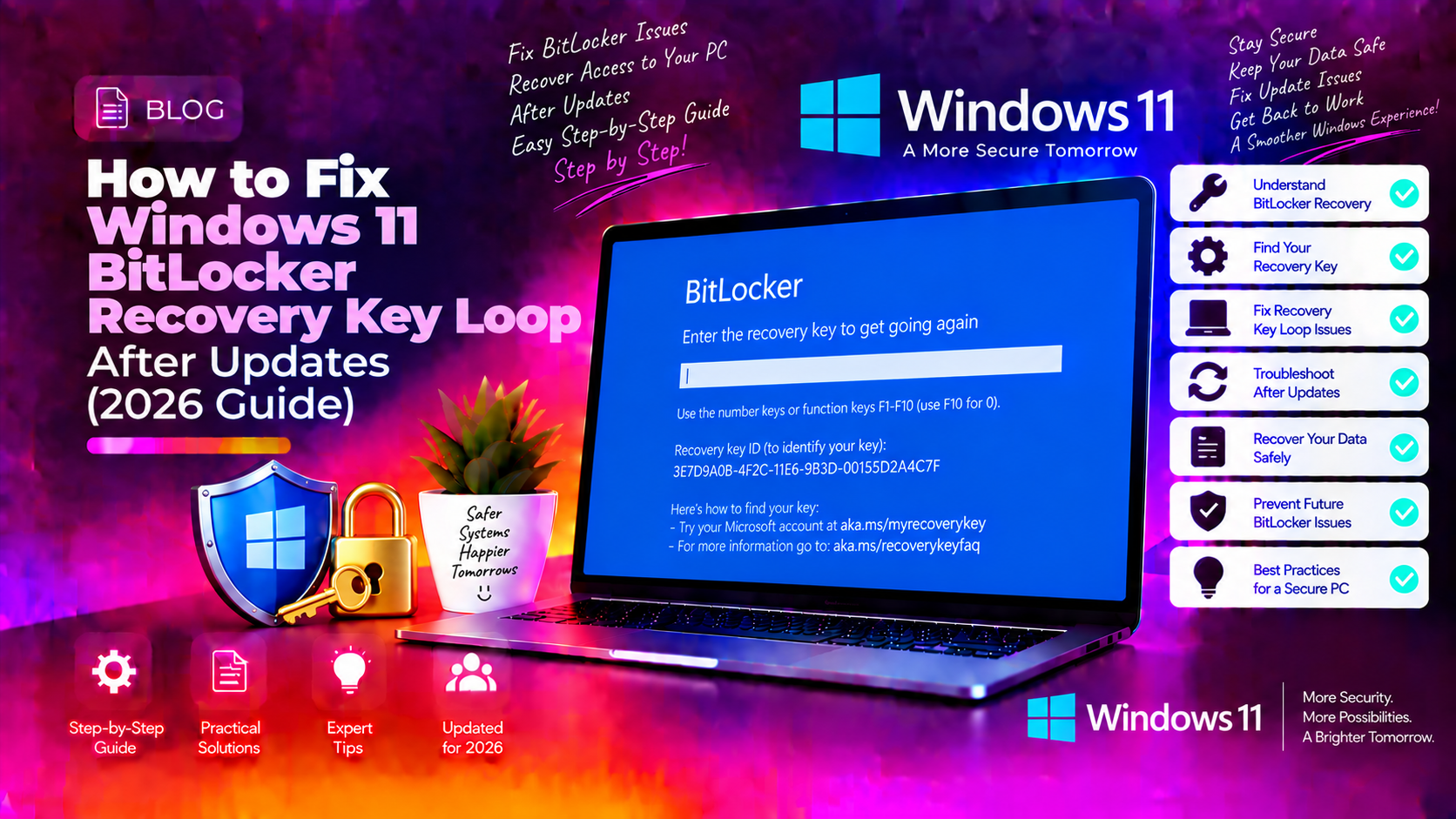
If you've recently booted your Windows 11 PC after an automatic security update and were immediately greeted by a screen demanding a 48-digit BitLocker recovery key — you're not alone. This frustrating issue surged in April–May 2026, affecting thousands of users running Windows 11 24H2 and 25H2. The good news: Microsoft has released a fix, and there are multiple ways to resolve this depending on your situation.
This guide explains exactly why the BitLocker recovery loop happens, which updates trigger it, and gives you step-by-step solutions from the quickest patch to advanced Group Policy and TPM fixes.
What Causes Windows 11 BitLocker Recovery Loop
The root cause is a PCR7 bank mismatch in your device's Trusted Platform Module (TPM). Here's the technical breakdown:
BitLocker uses Platform Configuration Registers (PCRs) inside the TPM to verify that your system's boot environment hasn't changed. PCR7 specifically measures Secure Boot policy. When Windows updates alter the Secure Boot chain — for example, by switching to the Windows UEFI CA 2023 certificate — the measured value stored in PCR7 no longer matches the value BitLocker sealed your encryption key against.
When this mismatch occurs, BitLocker cannot automatically unlock your drive and demands the 48-digit recovery key as a fallback. This is a security feature working as designed, but triggered by a legitimate, Microsoft-signed update rather than an actual attack.
The issue is specifically triggered when all four of the following conditions are true on a device:
- BitLocker is enabled on the OS drive (C:)
- A Group Policy explicitly includes PCR7 in the TPM platform validation profile
- System Information (msinfo32.exe) reports "PCR7 Binding: Not Possible"
- The Windows UEFI CA 2023 certificate is present in the Secure Boot Signature Database
The loop effect is especially vicious because entering the recovery key once doesn't always fix the underlying misconfiguration — so the next update triggers recovery all over again.
Affected Windows Updates and Versions
The following cumulative updates are confirmed to trigger the BitLocker recovery loop:
- KB5083769 — Windows 11 24H2 and 25H2 (April 14, 2026 Patch Tuesday)
- KB5082052 — Windows 11 26H1 (April 14, 2026 Patch Tuesday)
- KB5082063 — Windows 11 23H2 (April 2026)
These updates unexpectedly added PCR7 to the measured boot chain on systems with the non-default Group Policy configuration, causing the TPM's PCR7 bank to diverge from BitLocker's stored expectations.
Affected Windows versions: Windows 11 23H2, 24H2, 25H2, and 26H1. Windows 10 has a separate but related issue tracked independently.
Quick Fix: Install KB5089549 May 2026 Update
Microsoft released a targeted hotfix in May 2026: KB5089549. This cumulative update resolves the PCR7 mismatch without requiring you to change your BitLocker configuration or Group Policy settings.
How to install KB5089549:
- Press Windows + I to open Settings
- Go to Windows Update
- Click Check for updates
- Install all available updates, including KB5089549
- Restart when prompted
If Windows Update isn't showing the patch, you can download it directly from the Microsoft Update Catalog and install it manually.
After installing KB5089549 and rebooting, BitLocker should unlock automatically using the TPM — no recovery key required. If you are still stuck in the loop after the update, proceed to the advanced fixes below.
Advanced Fix: Group Policy TPM Configuration
If you cannot install KB5089549 immediately, or the issue persists, correcting the Group Policy TPM validation profile is the most reliable solution for enterprise and pro users.
Step 1: Open Group Policy Editor
gpedit.mscPress Win + R, type gpedit.msc, and press Enter. (Requires Windows 11 Pro, Enterprise, or Education.)
Step 2: Navigate to the BitLocker policy
Computer Configuration
  └── Administrative Templates
        └── Windows Components
              └── BitLocker Drive Encryption
                    └── Operating System Drives
Step 3: Modify the TPM validation profile
- Double-click "Configure TPM platform validation profile for native UEFI firmware configurations"
- Set it to "Not Configured" (or uncheck PCR7 / index 7 from the list)
- Click OK and close Group Policy Editor
Step 4: Apply the changes and rebind BitLocker
Open an elevated Command Prompt (Run as Administrator) and run these commands in order:
gpupdate /force
manage-bde -protectors -disable C:
manage-bde -protectors -enable C:
These commands force the policy to propagate, temporarily suspend BitLocker protection, then re-enable it — causing BitLocker to create a new key protector bound to the current, corrected TPM/PCR state. After this, future updates should not trigger recovery mode.
Manual Fix: Disable PCR7 Validation
For users who need more granular control, or whose Group Policy is managed centrally by an IT department, you can check and adjust PCR7 binding status manually.
Step 1: Check current BitLocker PCR configuration
Open an elevated Command Prompt and run:
manage-bde -protectors -get C:Look for the PCR Validation Profile line in the output. If PCR 7 is listed, it is included in the validation profile.
Step 2: Check PCR7 binding status
msinfo32Open System Information and look for "Secure Boot State" and "PCR7 Configuration". If it shows "Binding Not Possible", your system has the problematic configuration.
Step 3: Suspend and resume BitLocker to rebind
manage-bde -protectors -disable C:
manage-bde -protectors -enable C:
Step 4: Verify the new profile
manage-bde -protectors -get C:The PCR Validation Profile should now show the default Windows profile (PCRs 0, 2, 4, 11) without PCR 7 listed, indicating the mismatch has been resolved.
Recovery Key Method: Retrieve Your BitLocker Key
If you are locked out right now and need to get past the recovery screen immediately, here's how to find your 48-digit BitLocker recovery key:
Option 1: Microsoft Account (Most Common)
- On another device, open a browser and go to https://aka.ms/myrecoverykey
- Sign in with the Microsoft account linked to your locked PC
- Locate your device and find the recovery key matching the Key ID shown on the recovery screen
Option 2: Azure Active Directory (Work/School Devices)
- Sign in to the Azure Portal
- Go to Azure Active Directory > Devices > BitLocker keys
- Search for the device and retrieve the recovery key
Option 3: On-Premises Active Directory
IT administrators can retrieve keys using the BitLocker Recovery Password Viewer tool (included with RSAT):
Active Directory Users and Computers
  → Right-click the computer object
  → Properties
  → BitLocker Recovery tab
Option 4: Printed or Saved Key
When BitLocker was first enabled, Windows prompts you to save or print the recovery key. Check your documents, email archives, or any USB drives where it may have been saved as a .txt file named BitLocker Recovery Key [Key ID].txt.
After entering the recovery key and booting successfully, apply the Group Policy fix above immediately to prevent the loop from recurring.
Prevention Tips: Avoid Future BitLocker Issues
Now that you're back into your system, take these steps to prevent the BitLocker recovery loop from happening again:
- Install KB5089549 immediately — Microsoft's official fix addresses the PCR7 mismatch at the source.
- Set Group Policy to "Not Configured" — The non-default PCR7 Group Policy setting is what makes systems vulnerable. Removing it eliminates the risk.
- Back up your BitLocker recovery key — Go to Settings > Privacy & Security > Device Encryption > Manage BitLocker and select "Back up your recovery key" to save it to your Microsoft account.
- Suspend BitLocker before major updates — Before installing large feature updates, suspend BitLocker:
Then re-enable it after the first successful reboot:manage-bde -protectors -disable C:manage-bde -protectors -enable C: - Monitor Windows Health Dashboard — Check Microsoft's Windows release health page before installing major updates to check for known issues.
- Enterprise: Use Known Issue Rollback (KIR) — For organizations managing many devices, Microsoft offers KIR Group Policy packages to prevent problematic updates from being applied automatically.
Need professional help implementing these fixes across your fleet? Get Expert Windows 11 Support from CloudHouse Technologies — our certified engineers resolve BitLocker and TPM issues remotely, typically in under 60 minutes.
FAQ
Why does Windows 11 keep asking for my BitLocker recovery key after every update?
This happens because your device has a non-default Group Policy that includes PCR7 in the BitLocker TPM validation profile, and recent Windows updates (KB5083769, KB5082052) changed the Secure Boot chain by adding the Windows UEFI CA 2023 certificate. This causes a PCR7 bank mismatch. Installing KB5089549 and setting the Group Policy to "Not Configured" permanently resolves the loop.
Is it safe to enter my BitLocker recovery key at the boot screen?
Yes — the recovery key prompt triggered by Windows updates is a false positive, not a sign of a security breach. Your data is safe. The encryption itself has not been compromised; BitLocker simply cannot auto-unlock because the TPM measurements don't match. Enter your key, boot into Windows, and apply the fixes above.
What is PCR7 and why does it affect BitLocker?
PCR7 (Platform Configuration Register 7) is a register inside your TPM chip that measures the Secure Boot policy state. BitLocker can use PCR7 as part of its "seal" — a cryptographic binding that only releases your encryption key when the measured boot values match exactly. When Microsoft changes the Secure Boot certificates during updates, PCR7's measured value changes, breaking the seal.
I don't have my BitLocker recovery key. What can I do?
Check your Microsoft account at https://aka.ms/myrecoverykey, your organization's Azure AD or Active Directory, any printed copies, and USB drives. If none of these have the key and your drive is encrypted with BitLocker, data recovery without the key is not possible — this is by design for security purposes. Always back up your recovery key to your Microsoft account.
Does this BitLocker loop issue affect Windows 10 too?
The April 2026 updates primarily affect Windows 11 (24H2, 25H2, 26H1). Windows 10 has a separate but related issue tracked with KB5094127. Microsoft's KB5089549 fix is targeted at Windows 11. Windows 10 users experiencing similar issues should check Microsoft's Windows release health dashboard for their specific update guidance and use the Group Policy fix described in this article as a workaround.