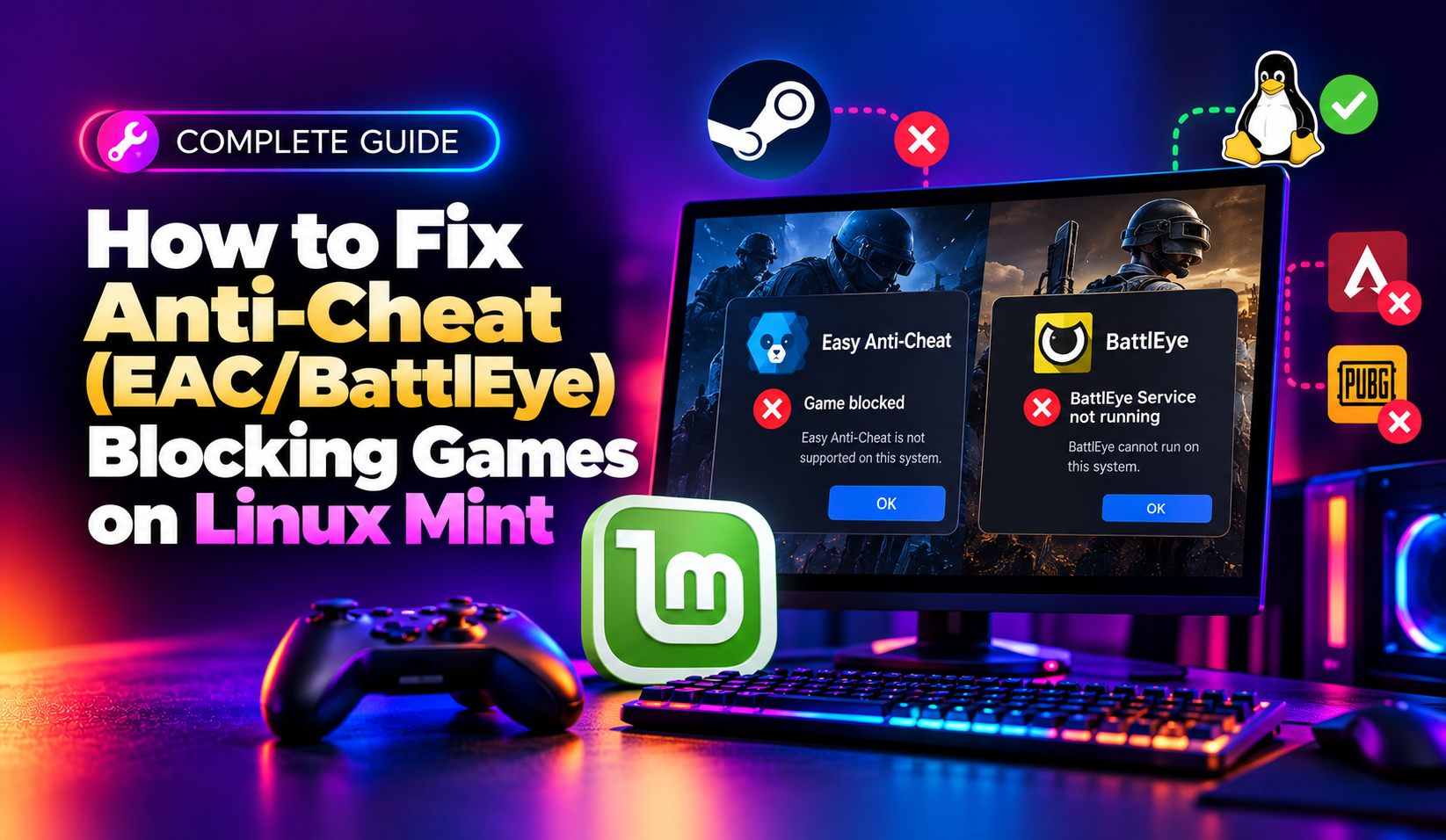
You install a game through Steam Play on Linux Mint, hit launch, and instead of a loading screen you get a black flash, an instant crash, or a message like EasyAntiCheat.exe has stopped working or BattlEye Service could not be started. This is one of the most frustrating experiences in Linux gaming because the problem usually has nothing to do with your drivers, your CPU, or your Proton settings — it comes down to whether the game's developer has flipped a switch on the anti-cheat vendor's dashboard to allow Linux clients at all.
The good news is that anti-cheat support on Linux has improved dramatically since Valve, Epic's Easy Anti-Cheat (EAC), and BattlEye rolled out official Proton runtimes. Hundreds of titles now work out of the box. The bad news is that support is still opt-in per game, so you need to know how to check compatibility, install the right runtime, and troubleshoot the specific error your game is throwing. This guide walks through all of it step by step.
Why Anti-Cheat Games Fail to Launch on Linux Mint
Unlike a missing library or a bad graphics driver, anti-cheat failures are almost always a permissions and kernel-integration problem. Easy Anti-Cheat and BattlEye were originally built to run as privileged Windows kernel-mode or user-mode services that inspect memory for cheating tools. Proton has to translate that behaviour into something Linux allows, and it can only do so if:
- The game developer has explicitly enabled the "EOS/EAC for Linux" or "BattlEye for Linux/Steam Deck" flag on their backend, and shipped the Linux anti-cheat module in the game's depot
- Your Steam client has the correct Proton compatibility tool selected, including the anti-cheat runtime components
- Your system meets kernel and Secure Boot requirements the anti-cheat driver expects
If any one of those is missing, the game will crash on launch, hang on a black screen, or throw an explicit anti-cheat error. This is different from a general Proton compatibility issue — no amount of DXVK or Vulkan tweaking will fix an anti-cheat block if the developer has not enabled Linux support for that specific title.
Step 1: Check If Your Game's Anti-Cheat Actually Supports Linux
Before touching any settings, confirm the game is even meant to work. Community trackers maintain live, community-verified compatibility databases:
- GamingOnLinux Anti-Cheat Compatibility List — tracks Easy Anti-Cheat and BattlEye status per game for Steam Deck/Proton/Linux
- Are We Anti-Cheat Yet? — a community-run tracker with a simple Working / Not Working / Denied status per title
Search for your exact game title on both sites. If the status is "Denied" (the publisher has explicitly blocked Linux, common with competitive shooters that worry about cheat-detection parity), no client-side fix will work — you'll need a Windows dual-boot or a cloud gaming service for that title. If it's listed "Working" but you're still crashing, the problem is on your end and the steps below will help.
💡 None of these worked? Skip the guesswork.
Get Expert Help →Step 2: Update Steam and Switch to Proton Experimental
Anti-cheat runtimes are updated frequently, and the stable Proton branches lag behind. Most EAC/BattlEye fixes land in Proton Experimental first.
Open Steam, go to Steam > Check for Updates, and restart the client. Then run a terminal update as well, since Mint's Steam package can lag behind Valve's own updater:
sudo apt update && sudo apt upgrade steamRight-click the game in your Steam library, choose Properties > Compatibility, tick Force the use of a specific Steam Play compatibility tool, and select Proton Experimental. Valve ships anti-cheat fixes to this branch continuously, well before they reach numbered Proton releases.
In your Steam Library, filter by Tools (View > Settings > Library, enable "Tools" category if hidden), and confirm Proton EasyAntiCheat Runtime and Proton BattlEye Runtime both appear and show as installed. If they're missing, right-click each one and select Install. Steam usually installs these automatically the first time you launch a supported game, but a failed download can silently skip this step.
Right-click the game > Properties > Installed Files > Verify integrity of game files. A corrupted or partially-updated EAC module is the single most common cause of this exact crash.
A stale Wine prefix can leave behind an incompatible EAC driver install from a previous Proton version. Back up any save data stored locally, then delete the prefix:
rm -rf ~/.local/share/Steam/steamapps/compatdata/<APPID>Replace <APPID> with the game's Steam App ID (visible in the URL of its store page). Relaunch the game — Steam will rebuild a clean prefix and reinstall EAC automatically.
Some EAC integrations refuse to run under kernels newer than what the vendor has certified, or when Secure Boot is enabled without properly signed modules. Check your kernel version and Secure Boot state:
uname -r
mokutil --sb-state
If Secure Boot is enabled and causing issues, and you don't rely on it for security policy reasons, disabling it in your BIOS/UEFI settings is a common workaround while EAC vendor support catches up on newer kernels.
In your Steam Tools list, right-click Proton BattlEye Runtime, choose Uninstall, then Install again to force a clean download of the launcher components.
Some BattlEye-protected games ship a separate anti-cheat launcher executable that must run before the main game binary. Skipping this by launching the game .exe directly (a common workaround for non-anti-cheat titles) will break BattlEye entirely. Leave the game's default launch options untouched unless a compatibility guide for that specific title says otherwise.
BattlEye's kernel-level checks can conflict with certain out-of-tree kernel modules (including some NVIDIA driver builds). If you're running the proprietary NVIDIA driver, make sure it's fully up to date:
sudo apt update
sudo apt install --reinstall nvidia-driver-550
sudo reboot
Step 5: When the Game Simply Isn't Supported
If a tracker shows "Denied" or "Not Enabled" for your title, don't waste hours chasing driver tweaks — the block is enforced by the developer's backend, not anything on your machine. Realistic options are:
- Play a different, Linux-supported title in the same genre — the compatibility lists make this easy to browse
- Keep a small Windows partition or a lightweight Windows VM with GPU passthrough for the handful of unsupported competitive titles
- Use a cloud gaming service that runs the game server-side on Windows, streaming video to your Linux Mint desktop
- Vote or comment on the game's official forums — several publishers (including major battle royale and MMO titles) have enabled Linux anti-cheat support specifically because of sustained community requests
If you manage a fleet of desktops for a gaming lounge, esports team, or shared office/lab environment and need help standardizing Proton configurations, driver versions, and anti-cheat compatibility testing across multiple Linux Mint machines, CloudHouse's pay-per-ticket IT support team can diagnose and fix these launch failures on individual machines without a full support contract.
Quick Reference Checklist
- Confirm the game is listed as Linux/Proton-supported on GamingOnLinux or Are We Anti-Cheat Yet
- Update Steam and switch to Proton Experimental
- Confirm Proton EasyAntiCheat Runtime and Proton BattlEye Runtime are installed under Steam Tools
- Verify game files and clear the Proton prefix for a clean anti-cheat reinstall
- Check kernel version, Secure Boot state, and NVIDIA driver version for conflicts
- Never launch anti-cheat games via a modified or direct executable path
Anti-cheat compatibility on Linux Mint has come a long way, but it remains a moving target that depends as much on publisher decisions as on your local setup. Keep Steam, Proton, and your GPU drivers current, check the community trackers before troubleshooting blind, and most supported titles will launch cleanly with the runtime steps above.