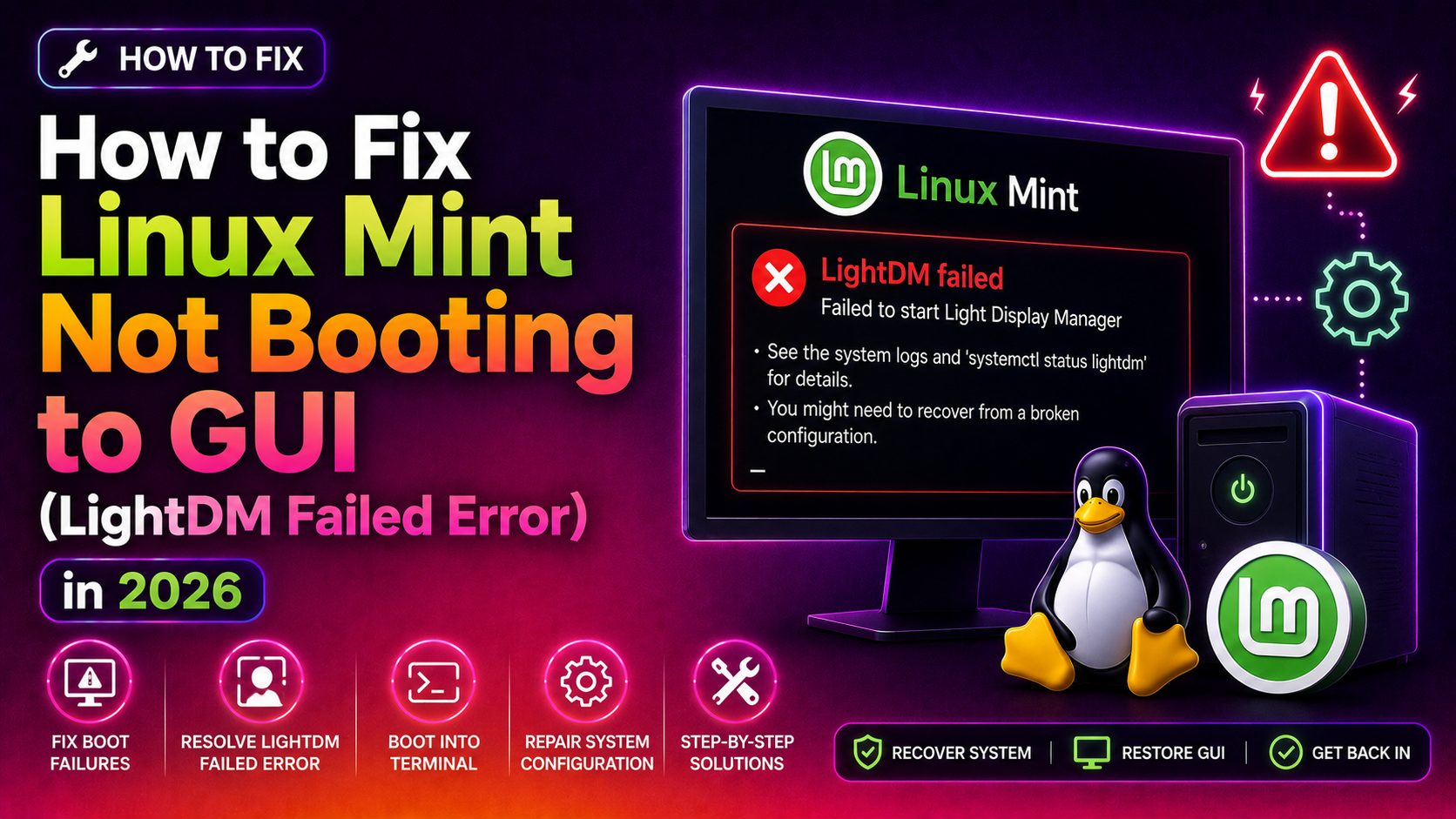
How to Fix Linux Mint Not Booting to GUI (LightDM Failed Error) in 2026
You power on your Linux Mint machine and instead of the familiar login screen, you are greeted by a black screen — or worse, a wall of boot text ending with the dreaded line: [FAILED] Failed to start Light Display Manager. Your desktop is gone, and you are stuck in a text console with no obvious way forward.
This is one of the most common post-update problems in Linux Mint, and it almost always has a fixable root cause. Whether you updated your system, changed a GPU driver, or upgraded to a new kernel, this guide walks you through every proven fix — from restarting the LightDM service to resolving deep Nvidia driver conflicts — so you can get your graphical desktop back without reinstalling the OS.
What Causes Linux Mint to Fail to Boot into the GUI
LightDM (Light Display Manager) is the component responsible for starting the graphical login screen in Linux Mint Cinnamon, MATE, and Xfce. When it fails, the entire desktop environment fails to load. The most common causes in 2026 are:
- GPU driver conflict after a system update: A new Nvidia or AMD driver package can break the existing Xorg configuration, leaving LightDM unable to start an X session.
- Kernel upgrade incompatibility: A new kernel may not load the correct GPU module, causing LightDM to fail at startup.
- Corrupted or missing LightDM/Xorg packages: A failed or interrupted package update can leave display-related packages in a broken state.
- Wrong default boot target: Systemd may have lost its pointer to the graphical target after an update.
- Xorg configuration mismatch: An old or conflicting
/etc/X11/xorg.conffile can prevent the X server from initialising.
The good news: every one of these is fixable from the terminal — no live USB required in most cases.
Step 1: Access the Terminal from the Black Screen (Ctrl+Alt+F2)
Before you can fix anything, you need a working terminal session. Even when the GUI is completely dead, Linux Mint keeps virtual TTY consoles running in the background.
At the black screen or frozen boot prompt, press:
Ctrl + Alt + F2This switches you to TTY2, a plain text console. Log in with your normal username and password. If TTY2 does not respond, try Ctrl+Alt+F3 or Ctrl+Alt+F4.
Once logged in, confirm you have internet access (needed for package reinstalls):
ping -c 3 google.comIf you are on Wi-Fi and there is no connection, connect via ethernet for this session or use nmtui to connect to a wireless network:
sudo nmtuiNow you are ready to diagnose and fix.
Step 2: Check and Restart the LightDM Service
The fastest fix — and the one that works after a simple package glitch — is to check the LightDM service status and restart it.
Check the current status and error output:
sudo systemctl status lightdmRead the output carefully. Common error lines include:
Failed to start Light Display Managerlightdm.service: Start request repeated too quicklyerror: failed to connect to socket /tmp/.X11-unix/X0
Try restarting LightDM directly:
sudo systemctl restart lightdmIf it starts and brings you to a login screen, your problem is solved. If it fails again, check the detailed journal log:
sudo journalctl -xe | grep -i lightdmAlso check the LightDM-specific log file for X server errors:
cat /var/log/lightdm/lightdm.log
cat /var/log/lightdm/x-0.log
Next, ensure systemd is set to boot into the graphical target (this can get reset to multi-user.target after kernel upgrades):
sudo systemctl get-defaultIf the output is multi-user.target instead of graphical.target, fix it:
sudo systemctl set-default graphical.target
sudo reboot
This alone resolves the issue in many post-upgrade scenarios.
Step 3: Reinstall LightDM and Xorg Display Server
If restarting the service does not work, the LightDM or Xorg packages themselves may be corrupted or missing critical components. Reinstalling them is safe and non-destructive — it does not remove your personal files or settings.
First, update your package list:
sudo apt updateReinstall Xorg (the underlying display server that LightDM depends on):
sudo apt install --reinstall xorg xorg-devReinstall LightDM along with the Slick Greeter (the default Linux Mint login screen):
sudo apt install --reinstall lightdm lightdm-settings slick-greeterAfter reinstalling, run the LightDM reconfiguration step. This is the step most guides miss — it re-registers LightDM as the active display manager in the system's debconf database:
sudo dpkg-reconfigure lightdmA text-based menu will appear asking you to select the default display manager. Select lightdm and press Enter.
Now enable and start the service:
sudo systemctl enable lightdm
sudo systemctl start lightdm
If it starts successfully, your desktop will appear on the current TTY or you can switch back with Ctrl+Alt+F7 (or F1 on some systems).
Step 4: Fix GPU Driver Conflicts Causing LightDM to Fail
This is the root cause that most guides skip — and it is the most common reason LightDM fails after a system update in 2026, especially on machines with Nvidia GPUs.
Diagnosing a GPU Driver Problem
Check the Xorg log for driver errors:
grep -i "error\|failed\|nvidia\|nouveau" /var/log/lightdm/x-0.logLook for lines like:
(EE) Failed to load module "nvidia"(EE) No devices detected(EE) Screen(s) found, but none have a usable configuration
Also check which GPU modules are loaded:
lspci -k | grep -A 3 "VGA\|3D"Fix for Nvidia Driver Conflicts
If you recently updated the Nvidia driver or a kernel upgrade left the driver in a broken state, remove the existing Nvidia packages and reinstall cleanly:
sudo apt remove --purge nvidia-*
sudo apt autoremove
sudo apt update
Then reinstall the recommended driver. Use the Driver Manager's recommended version:
sudo ubuntu-drivers autoinstallOr manually install a specific version (replace 535 with your recommended version number):
sudo apt install nvidia-driver-535After the driver installs, reconfigure Xorg to match the new driver:
sudo mv /etc/X11/xorg.conf /etc/X11/xorg.conf.bak
sudo nvidia-xconfig
Then restart LightDM or reboot:
sudo rebootFix for Nouveau (Open-Source Nvidia Driver) Conflicts
If the proprietary Nvidia driver was removed and the open-source Nouveau driver is conflicting, explicitly enable it:
sudo modprobe nouveau
sudo systemctl restart lightdm
If Nouveau is blacklisted (common after proprietary driver installs), remove the blacklist entry:
sudo nano /etc/modprobe.d/blacklist-nvidia.confComment out or delete lines that start with blacklist nouveau, save the file, then update initramfs:
sudo update-initramfs -u
sudo reboot
Fix for Intel/AMD Integrated Graphics
For Intel or AMD GPUs failing after a kernel upgrade, reinstall the Mesa drivers:
sudo apt install --reinstall xserver-xorg-video-intel mesa-utils
sudo reboot
Booting an Older Kernel as a Workaround
If the GUI was working before a kernel upgrade, you can boot into the previous kernel as a temporary workaround while you fix the driver:
- At startup, hold Shift (BIOS) or press Esc (UEFI) to open the GRUB menu.
- Select Advanced options for Linux Mint.
- Choose the previous kernel version from the list.
- Boot and verify the GUI loads.
Once booted into the old kernel, open Driver Manager (Menu > Administration > Driver Manager) and reinstall the correct driver for your GPU before rebooting into the new kernel.
If you have tried all of these steps and the GUI still refuses to start, get expert help from CloudHouse Technologies — our certified Linux technicians can remotely diagnose and fix display manager failures the same day.
FAQ: Linux Mint GUI Boot Failures
Why does Linux Mint boot to a black screen after an update?
A system update can replace GPU drivers, update the kernel, or modify display manager packages in a way that breaks the Xorg/LightDM chain. The most common triggers are Nvidia driver updates and major kernel upgrades. The fix is to access TTY2 (Ctrl+Alt+F2), check the LightDM service status with sudo systemctl status lightdm, and follow the reinstall or driver-fix steps outlined above.
How do I know if my LightDM failure is caused by a GPU driver?
Check the Xorg log with grep -i "error\|failed" /var/log/lightdm/x-0.log. If you see lines like (EE) Failed to load module "nvidia" or (EE) No devices detected, the problem is GPU driver-related. A clean reinstall of the Nvidia or Mesa driver package followed by sudo dpkg-reconfigure lightdm will typically resolve it.
Can I replace LightDM with a different display manager to fix the issue?
Yes. If LightDM continues to fail after reinstallation, you can switch to GDM3 (GNOME Display Manager): sudo apt install gdm3 && sudo dpkg-reconfigure gdm3. Select GDM3 as the default display manager. This is a valid workaround and does not affect your desktop environment — your Cinnamon, MATE, or Xfce session will still load normally.
What does the dpkg-reconfigure lightdm command do and why is it important?
Running sudo dpkg-reconfigure lightdm re-registers LightDM as the active display manager in the system's debconf database and regenerates its configuration files. After a package reinstall or driver change, the system may not recognise LightDM as the default manager even though it is installed — this command fixes that. It is a critical step that most generic guides omit.
My Linux Mint 22 still boots to a terminal after trying all the fixes. What next?
Check if the graphical systemd target is active with sudo systemctl get-default — it should say graphical.target. If it says multi-user.target, run sudo systemctl set-default graphical.target. Also try using Timeshift to restore a snapshot from before the problematic update: sudo timeshift --restore. If neither works, a remote diagnostic session can identify the exact conflict in your system's logs.