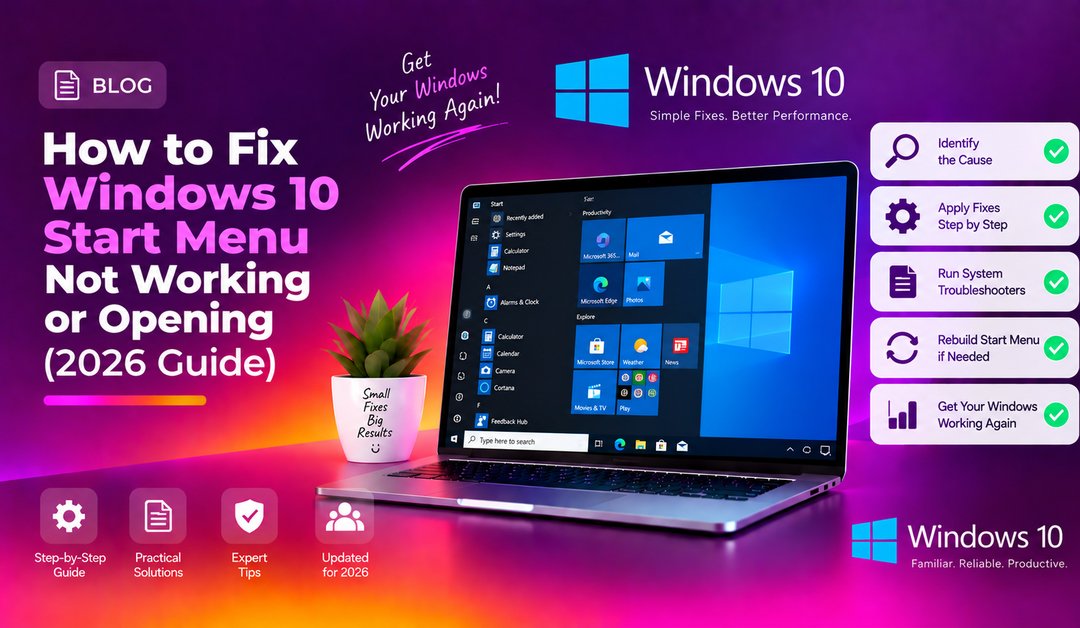
Windows 10 Start Menu Not Working
Clicking the Start button and getting nothing is one of the most frustrating Windows 10 problems. The Start Menu can freeze, refuse to open, or disappear entirely after a Windows update or software install.
The cause is almost always one of three things: a crashed Windows Explorer process, corrupted Start Menu files, or a broken app registration. Work through these fixes in order.
Fix 1 - Restart Windows Explorer
The Start Menu, taskbar, and desktop are all rendered by explorer.exe. Restarting it takes 5 seconds and fixes most temporary freezes:
- Press Ctrl + Shift + Esc to open Task Manager
- In the Processes tab, find Windows Explorer
- Right-click it and choose Restart
- The screen will flicker briefly - try the Start button again
Fix 2 - Sign Out and Sign Back In
A corrupted Windows session can cause the Start Menu to stop responding. Press Ctrl + Alt + Delete then click Sign out, then sign back in.
Fix 3 - Run System File Checker (SFC)
Open Command Prompt as Administrator and run:
sfc /scannowWait 5-15 minutes for the scan. If SFC reports corruption but cannot fix it, run DISM first:
DISM /Online /Cleanup-Image /RestoreHealthThen re-run sfc /scannow after DISM finishes.
Fix 4 - Re-register the Start Menu with PowerShell
This is the most effective fix for Windows 10 Start Menu failures. It re-registers all Windows Universal apps without deleting any data:
- Press Ctrl + Shift + Esc to open Task Manager
- Click File - Run new task
- Type
powershelland check Create this task with administrative privileges - Click OK
- Paste this command and press Enter:
Get-AppXPackage -AllUsers | Foreach {Add-AppxPackage -DisableDevelopmentMode -Register "$($_.InstallLocation)\AppXManifest.xml"}Wait for it to complete - ignore red warning lines. Restart your PC.
Fix 5 - Delete the IconCache
A corrupted tile cache can prevent Start Menu tiles from rendering. Open Command Prompt as Administrator and run:
taskkill /f /im explorer.exe
cd %LOCALAPPDATA%\Microsoft\Windows\Explorer
attrib -h IconCache*
del IconCache*
start explorer.exe
Fix 6 - Create a New User Account
If the Start Menu works for a new account but not your main account, the problem is in your user profile. Press Win + R, type netplwiz, and add a new local admin account to test.
Fix 7 - Install Pending Windows Updates
Some updates leave the system in a half-updated state that breaks the Start Menu. Go to Settings - Windows Update, check for and install all updates, then restart fully.
Fix 8 - Disable Controlled Folder Access
Windows Defender Controlled Folder Access can block Start Menu database writes. Go to Windows Security - Virus and threat protection - Ransomware protection and temporarily disable Controlled folder access to test.
Fix 9 - Run the Windows Troubleshooter
Go to Settings - Update and Security - Troubleshoot - Additional troubleshooters and run the Windows Store Apps troubleshooter. If none of these fixes work, CloudHouse remote support can diagnose the issue for you.
FAQ
Why did my Windows 10 Start Menu suddenly stop working?
Common triggers: a partial Windows Update, a third-party app modifying Shell settings, a corrupt AppModel database, or an explorer.exe crash. Restarting Explorer or running the PowerShell re-registration command resolves most cases.
Can I use keyboard shortcuts if clicking the Start button does not work?
Yes. Pressing the Windows key often works even when clicking fails. Use Win+I for Settings, Win+E for File Explorer, and Win+R for Run as alternatives.
Will the PowerShell command delete any of my files?
No. It only re-registers app manifests. Your user data, settings, and installed programs are not affected.
My Start Menu works sometimes but not always - why?
Intermittent failures usually mean a startup race condition where the AppModel host is not ready. Installing pending cumulative updates typically resolves this.
Is this the same problem on Windows 11?
No. Windows 11 uses a completely different Start Menu component. The PowerShell re-registration and TileDataLayer fixes in this guide are Windows 10 specific.