What Is Shader Compilation Stutter?
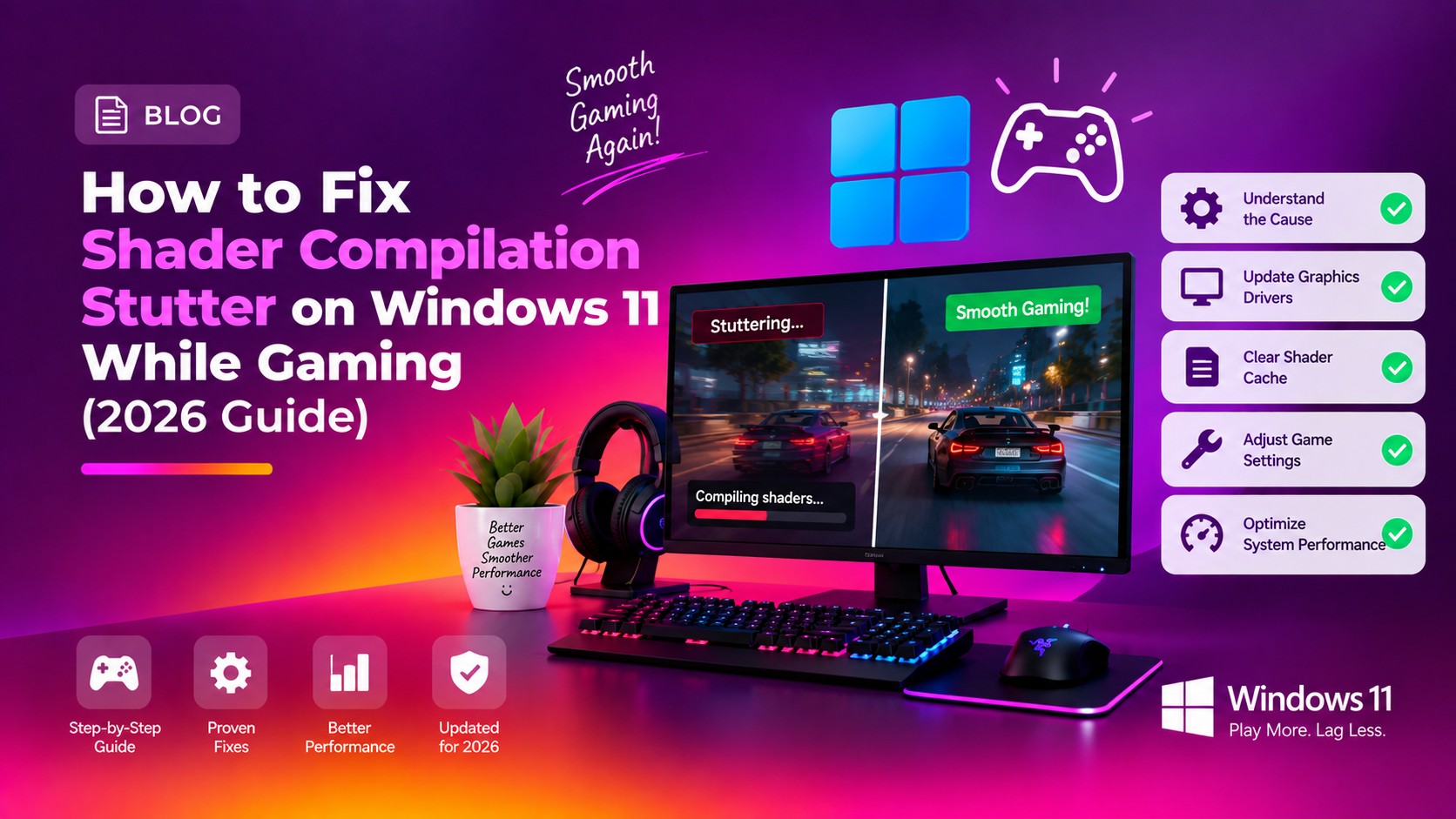
If you've launched a new game on Windows 11 and noticed jarring freezes or half-second pauses the first time you enter a new area, you've experienced shader compilation stutter. It is one of the most common gaming performance problems in 2026 — and it is almost entirely fixable.
Shaders are small programs that run on your GPU controlling how light, shadows, textures, and effects are rendered. Modern games built on DirectX 12 or Vulkan ship with hundreds of thousands of shader programs that must be compiled into machine code specific to your GPU. With DirectX 12, this compilation happens in real time during gameplay if not pre-handled — causing hitches on first load, after driver updates, after game patches, and when the shader cache is corrupted.
Two major 2026 developments have improved the situation: NVIDIA's Auto Shader Compilation rebuilds shaders silently after driver updates, and Microsoft's Advanced Shader Delivery pre-distributes compiled shaders via Windows Update for supported titles.
Fix 1: Run In-Game Shader Pre-Compilation
The cleanest solution is built into the game itself. Most modern DirectX 12 titles include a shader pre-compilation step at install or first launch.
- Launch the game and open Settings > Graphics.
- Look for Shader Pre-Compilation, Compile Shaders, or Shader Cache Warm-Up.
- Select Start or Rebuild and let it run to 100% before playing — typically 5-20 minutes.
- If no such option exists, load the game on the lowest graphics preset and spend 10-15 minutes walking through each main area to force shader compilation.
- After a major game update, expect the cache to be partially invalidated. Repeat the pre-compilation step.
Fix 2: Clear and Rebuild Corrupted Shader Cache (NVIDIA / AMD / Intel)
A corrupted shader cache produces continuous stutter. Clearing it forces a fresh rebuild.
Clear the DirectX Shader Cache (all GPU vendors)
- Press Windows + S, type Disk Cleanup, and open it.
- Select your C: drive and click OK.
- Tick DirectX Shader Cache only, then click OK > Delete Files.
Clear the NVIDIA Shader Cache
- Open NVIDIA App > Graphics > Global Settings.
- Set Shader Cache Size to Off, click Apply, and restart your PC.
- After reboot, delete all contents (not the folders) from:
%LOCALAPPDATA%\NVIDIA\DXCache
%LOCALAPPDATA%\NVIDIA\GLCache
%LOCALAPPDATA%\NVIDIA Corporation\NV_Cache - Return to NVIDIA App, set Shader Cache Size back to Driver Default (16 GB), click Apply.
Clear the AMD Shader Cache
- Open AMD Software: Adrenalin Edition > Gaming > Graphics > Advanced.
- Click Reset Shader Cache > Perform Reset.
Or delete manually from %LOCALAPPDATA%\AMD\DxCache and %LOCALAPPDATA%\AMD\DxcCache.
Clear the Intel Arc Shader Cache
Delete all contents inside %LOCALAPPDATA%\Intel\ShaderCache and restart your PC.
Fix 3: Enable or Tune Hardware-Accelerated GPU Scheduling (HAGS)
HAGS moves GPU memory scheduling from the CPU driver to the GPU itself. On modern cards (NVIDIA RTX 30/40, AMD RX 6000/7000, Intel Arc) with DirectX 12 games, it reduces frame latency and smooths shader-compilation hitches. It is also a prerequisite for NVIDIA DLSS Frame Generation.
Enable HAGS via Settings
- Press Windows + I > System > Display > Graphics.
- Click Change default graphics settings.
- Toggle Hardware-accelerated GPU scheduling to On.
- Restart your PC — the toggle has no effect until after a full reboot.
Enable via Registry (if Settings toggle is missing)
- Open Registry Editor (Win + R > regedit).
- Navigate to:
HKEY_LOCAL_MACHINE\SYSTEM\CurrentControlSet\Control\GraphicsDrivers - Double-click HwSchMode, set value to
2(Hexadecimal), click OK. - Restart your PC.
Note: On older GPUs (GTX 10/16 series, RX 500 series), HAGS can cause worse microstutter. Disable it if performance degrades after enabling.
Fix 4: Update GPU Drivers Cleanly Using DDU
Installing new drivers over old ones leaves behind leftover registry keys and cached shader databases that cause persistent stutter. Display Driver Uninstaller (DDU) removes every trace before the new driver goes in.
Step-by-step DDU clean install
- Download new drivers first from the NVIDIA, AMD, or Intel website. Save to your desktop.
- Download DDU from Guru3D or Wagnardsoft.
- Boot into Safe Mode: Hold Shift + click Restart > Troubleshoot > Advanced Options > Startup Settings > press 4.
- Disconnect from the internet to prevent Windows auto-reinstalling the old driver.
- Run DDU: Select GPU type and brand, click Clean and Restart.
- After rebooting normally, run the new driver installer using Custom (Advanced) installation and tick Perform a clean installation.
- Restart once more after installation completes.
Fix 5: Additional Tweaks — Game Mode, Power Plan, and 2026 Settings
Set Power Plan to High Performance
Press Win + R, type powercfg.cpl, press Enter. Select High Performance or Ultimate Performance. The Balanced plan allows CPU throttling during brief pauses which worsens perceived stutter.
Enable Windows Game Mode
Press Win + I > Gaming > Game Mode and toggle it On. Game Mode prioritises CPU and GPU resources for the foreground game and reduces background Windows Update activity during sessions.
Enable NVIDIA Auto Shader Compilation (RTX users)
In NVIDIA App > Graphics > Global Settings, enable Auto Shader Compilation. After a driver update or new game install, leave your PC idle 15-30 minutes to let the driver rebuild the cache silently in the background.
Check for Microsoft Advanced Shader Delivery
Go to Windows Update > Advanced Options > Optional Updates and install any pending DirectX Shader Cache packages. Microsoft's Advanced Shader Delivery (expanded in early 2026) distributes pre-compiled shaders for supported titles — cutting first-launch stutter by up to 90%.
If you've worked through all five fixes and still hit persistent stutter, our team can get expert Windows support remotely and diagnose the exact bottleneck on your system.
FAQ
Why does my game stutter only the first time I visit a new area?
This is classic shader compilation stutter. The first time your GPU encounters a new visual effect, it must compile the relevant shaders in real time. Once compiled and cached, the same area runs smoothly on every subsequent visit. Running in-game shader pre-compilation or warming up the cache on low settings eliminates most first-visit stutter.
How often should I clear my shader cache?
Clear it reactively — after a major GPU driver update, after a significant game patch, or when you notice new stutter that wasn't there before. Clearing it too often forces your GPU to rebuild the cache from scratch unnecessarily.
Does HAGS help or hurt gaming performance on Windows 11?
On modern GPUs (NVIDIA RTX 30/40, AMD RX 6000/7000, Intel Arc) with DirectX 12 games, HAGS generally helps by reducing frame latency and enabling features like DLSS Frame Generation. On older GPUs or in DirectX 11 titles, it can introduce microstutter. Test with it both on and off for your specific hardware and game.
Is it safe to use DDU to remove GPU drivers?
Yes. DDU is a widely recommended driver removal tool. Have your new driver installer downloaded and ready before running DDU, and install it immediately after the DDU reboot so you are not running Windows without a proper GPU driver.
Will clearing the shader cache delete my game saves or settings?
No. Shader cache files are temporary graphics data entirely separate from game saves, user settings, and game installation data. Deleting them is completely safe and only affects how quickly shaders are compiled on the next game launch.