Can You Reset Windows 11 Without Losing Your Files?
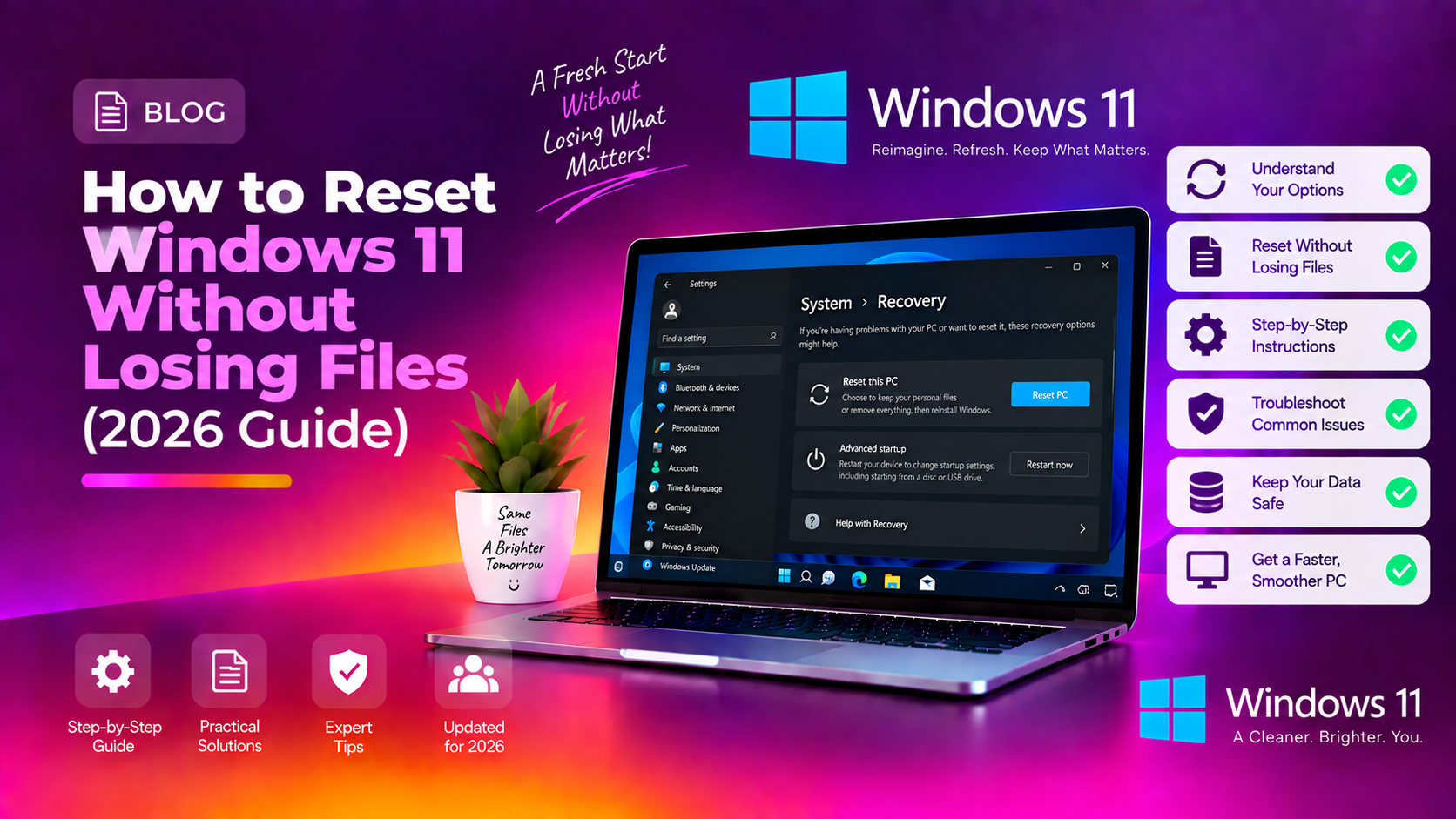
Yes. Windows 11 has a built-in Reset this PC feature with a 'Keep my files' option that reinstalls Windows while leaving your personal documents, photos, and downloads intact. This is the recommended approach when Windows is misbehaving, running slowly, or suffering from corrupted system files — before you resort to a full wipe.
This guide covers everything: what exactly happens during a reset, which option to choose, and how to prepare so you don't lose anything important.
What Does Resetting Windows 11 Actually Do?
When you choose Keep my files:
- Windows 11 is reinstalled fresh
- All your personal files (Documents, Downloads, Desktop, Pictures, Videos) are preserved
- All installed apps and programs are removed (a list is saved to your desktop)
- All Windows settings are reset to defaults (wallpaper, display settings, startup apps, etc.)
When you choose Remove everything:
- Windows 11 is reinstalled
- All personal files ARE deleted
- All apps are removed
- All settings are reset
This guide focuses on Keep my files — the safe reset. Use Remove everything only if you are selling or recycling the PC.
Before You Reset — Do This First
Even with Keep my files selected, always backup first. Unexpected storage errors or power loss during a reset can corrupt files:
- Back up to an external drive or cloud (OneDrive, Google Drive) — copy Documents, Desktop, Downloads, and Pictures
- Note your app list — after reset, you will need to reinstall all applications
- Note your license keys — especially for productivity software like Microsoft Office, Adobe apps, or games
- Sign out of apps that limit activations (Adobe Creative Cloud, Office, etc.) so you can reactivate after reset
- Charge your laptop to at least 50% or keep it plugged in during the reset
How to Reset Windows 11 — Step by Step
Method 1: From Settings (Recommended)
- Press Win + I to open Settings
- Go to System - Recovery
- Under Recovery options, click Reset PC
- Choose Keep my files
- Choose your reinstall source:
- Local reinstall — uses the Windows image already on your PC. Faster, no internet needed. Best for most cases.
- Cloud download — downloads a fresh Windows 11 image from Microsoft. Takes longer (~4GB download) but is more reliable if your local Windows files are corrupted.
- Review the warning screen — it will show what will be removed
- Click Next, then Reset
Windows will restart and begin the reset process. This typically takes 30–90 minutes depending on your hardware. Do not turn off your PC during this time.
Method 2: From the Sign-in Screen (If Windows Won't Boot Normally)
- At the Windows 11 sign-in screen, hold Shift and click the power icon - Restart
- In the blue recovery menu, choose Troubleshoot - Reset this PC
- Select Keep my files and follow the same steps as above
Method 3: Via Recovery Environment (If Windows Won't Start)
- Force 3 failed boots by holding the power button during startup (this triggers Windows Recovery Environment automatically)
- Choose Troubleshoot - Reset this PC - Keep my files
Local Reinstall vs Cloud Download — Which Should You Choose?
| Feature | Local Reinstall | Cloud Download |
|---|---|---|
| Internet required | No | Yes (~4-6 GB) |
| Speed | Faster | Slower (download time) |
| Best for | General slowness, apps, settings issues | Corrupted Windows files, persistent errors |
| Windows version | Same as installed | Latest available |
Recommendation: Start with Local reinstall. If Windows is still having problems after a local reset, use Cloud download — it fetches a completely clean, verified image from Microsoft.
What Happens to Your Files After Reset?
Your files remain in exactly the same location: C:\Users\YourName\Documents, Downloads, Desktop, Pictures, etc. You will find a file called Removed Apps.html on your desktop listing every app that was removed — this is your reinstall checklist.
Note about desktop shortcuts: Shortcuts on your desktop to installed apps will be gone after reset (since the apps were removed), but your actual files in the Desktop folder remain.
After the Reset — What to Do
- Connect to Wi-Fi and sign into your Microsoft account
- Run Windows Update immediately — install all available updates before reinstalling apps
- Reinstall apps from the Removed Apps.html list on your desktop
- Restore custom settings: display resolution, wallpaper, language, browser preferences
- Sign back into apps that require activation
Reset Not Working? Here Are the Fixes
Error: There was a problem resetting your PC
This error means the local Windows image is corrupted. Switch to Cloud download instead of Local reinstall, or repair the image first:
DISM /Online /Cleanup-Image /RestoreHealthsfc /scannowThen retry the reset.
Reset stuck on a percentage for hours
If the reset is stuck at the same percentage for more than 2 hours, it may have stalled. For reset values under 50%, a forced restart (hold power button) is generally safe and Windows will resume or roll back. For over 50%, wait longer — interrupting a near-complete reset risks corruption.
For complex Windows recovery issues, CloudHouse remote support can help you recover and reset your system safely.
FAQ
Will resetting Windows 11 remove my Microsoft Office and other paid software?
Yes. All installed applications are removed during a reset. However, your Microsoft 365 licence is tied to your account — just reinstall Office from office.com and sign in to reactivate. Check your other software's licensing terms before resetting.
Does resetting Windows 11 fix viruses or malware?
A Keep my files reset removes most malware since all installed apps (including malicious ones) are removed and Windows is reinstalled. However, malware that embedded itself in your personal files or the boot sector may survive. For confirmed infections, use Remove everything for a complete wipe.
How long does a Windows 11 reset take?
A local reinstall reset typically takes 30–60 minutes on an SSD and up to 90 minutes on an HDD. Cloud download adds download time (30–60 minutes depending on connection speed). The PC will restart multiple times during the process.
Will I need my Windows 11 product key after resetting?
No. If Windows 11 was activated before the reset, it will automatically reactivate after. Your licence is stored in Microsoft's servers and linked to your hardware. You only need a key if you are doing a clean install from USB on a different PC.
Is there a difference between Reset and Clean Install?
Yes. Reset this PC (Keep my files) preserves personal files and runs within the existing Windows installation. A clean install from a USB drive completely wipes the drive and installs fresh from scratch — it is more thorough but requires a USB bootable drive and means all data is gone.