What Does 'Your System Has Run Out of Application Memory' Mean on Mac?
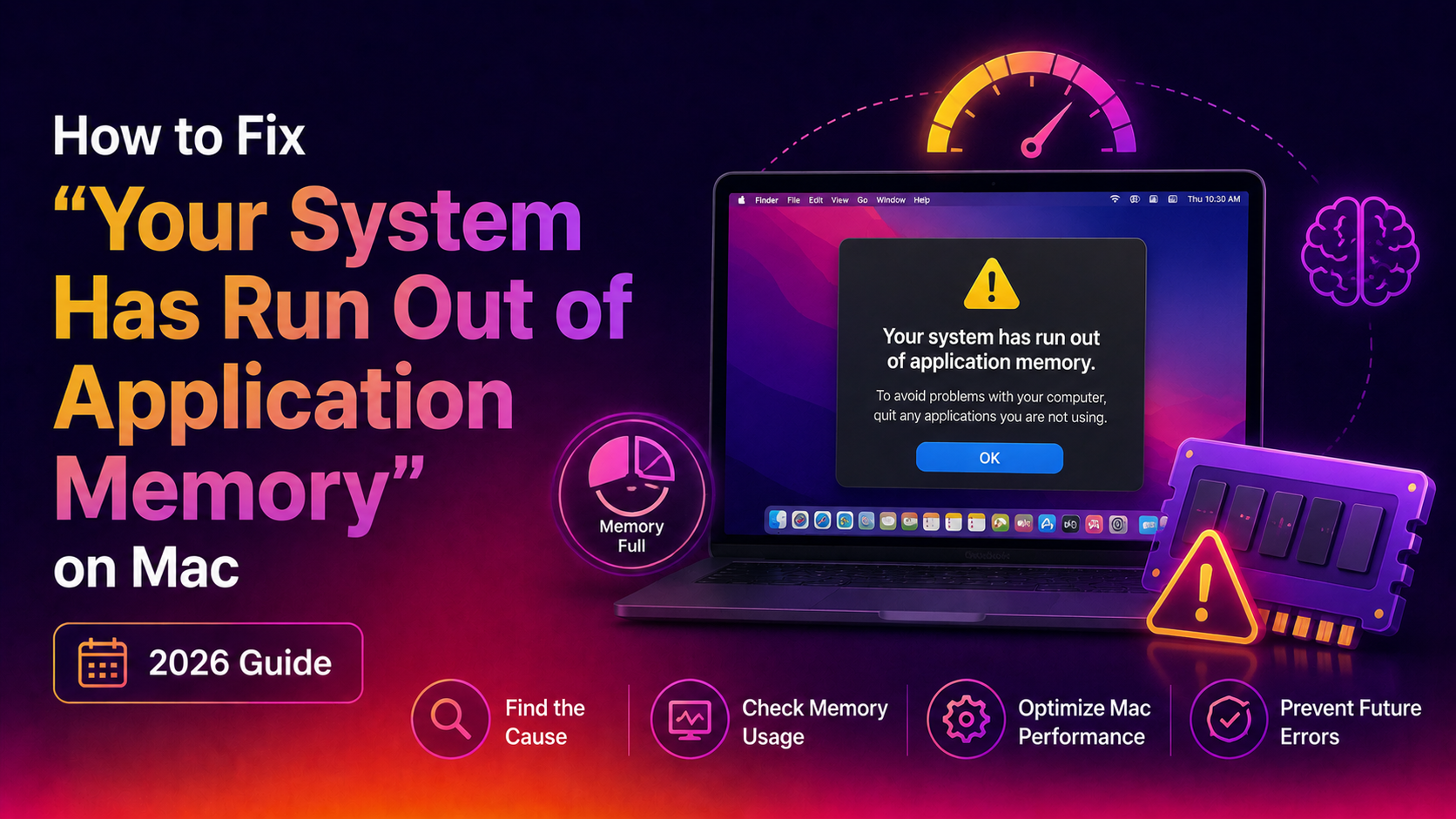
If your Mac has ever frozen mid-task and thrown up a dialog saying "Your system has run out of application memory," you know how jarring it is. Apps stop responding, the spinning beach ball appears, and the whole machine feels like it's grinding to a halt. This is one of the most common performance complaints among Mac users in 2026, especially those running macOS Sequoia or Tahoe on machines with 8 GB of unified memory.
The error is macOS telling you that it has exhausted both its physical RAM and its ability to use swap memory on disk. Here is what is actually happening under the hood:
- Application memory refers to the portion of RAM and virtual memory that macOS allocates to running apps and system processes.
- When too many apps, browser tabs, or background services are active, the system runs out of space to keep them all loaded.
- macOS tries to offload inactive data to disk as swap files — but if your SSD is nearly full, even that escape valve is closed.
- At that point, macOS has no choice but to alert you and ask which app to force quit.
Two root causes cover almost every case: (1) too many processes competing for a limited RAM pool, and (2) insufficient free disk space preventing swap file creation. The sections below walk you through diagnosing and fixing both.
How to Check Memory Pressure in Activity Monitor
Before you start closing apps at random, spend 60 seconds in Activity Monitor to understand exactly where your memory is going. This built-in tool shows real-time RAM usage and a colour-coded memory pressure graph that tells you how serious the situation is.
Open Activity Monitor
- Press Command + Space to open Spotlight.
- Type Activity Monitor and press Return.
- Click the Memory tab at the top of the window.
Read the Memory Pressure Graph
At the bottom of the Memory tab you will see a graph and several key metrics:
- Green — Memory is available; no action needed.
- Yellow — Memory is under moderate pressure; consider closing unused apps.
- Red — Critical pressure; macOS is actively struggling and performance will suffer.
Also look at these values:
- Memory Used — Total RAM currently in use.
- Swap Used — How much data has been offloaded to disk. A high swap figure (anything over 2–3 GB) on an 8 GB Mac is a clear warning sign.
- Wired Memory — RAM locked by the kernel that cannot be freed; this is normal.
Sort by Memory to Find the Biggest Offenders
Click the Memory column header to sort processes from highest to lowest RAM consumption. The top entries are your targets. Common memory hogs include Chrome, Electron-based apps (Slack, VS Code, Figma), and Safari with many tabs open.
How to Force Quit Memory-Hogging Apps on macOS
Once you have identified which apps are consuming the most memory, the fastest fix is to quit or force-quit them.
Quit from Activity Monitor
- Select the process you want to close in Activity Monitor.
- Click the X (Stop) button in the top-left toolbar.
- Choose Quit for a clean exit, or Force Quit if the app is unresponsive.
Force Quit from the Keyboard
Press Command + Option + Escape to open the Force Quit Applications window. Select the frozen app and click Force Quit.
Force Quit via Terminal
If Activity Monitor itself is sluggish, the Terminal is faster. To list all processes sorted by memory:
ps aux --sort=-%mem | head -20Note the PID (process ID) of the offending app, then kill it:
kill -9 <PID>Replace <PID> with the actual number shown in the output. For example, if Chrome's PID is 1423:
kill -9 1423Close Excess Browser Tabs
Each browser tab runs as a separate process and can consume 200–500 MB on its own. Close all non-essential tabs:
- Safari: Go to Window > Close All Windows or press Command + Option + W.
- Chrome: Right-click the tab bar and select Close other tabs.
- Firefox: Right-click a tab and choose Close Multiple Tabs > Close Other Tabs.
How to Free Up RAM on Mac Without Restarting
If you cannot afford to restart your Mac right now, the following techniques can reclaim RAM while keeping your session alive.
Run the Purge Command in Terminal
The purge command forces macOS to flush inactive memory caches and disk buffers, releasing memory that apps are holding but no longer actively using. Open Terminal and run:
sudo purgeEnter your administrator password when prompted. The command typically takes 10–30 seconds. Your Mac may feel briefly sluggish while caches rebuild — that is normal. Once done, re-check Activity Monitor; the Inactive memory figure should drop significantly.
Clear App Caches from the Library Folder
App caches stored in ~/Library/Caches can accumulate gigabytes of stale data. To clear them:
- In Finder, press Command + Shift + G.
- Type
~/Library/Cachesand press Return. - Delete the contents of folders belonging to apps you recognise — do not delete folders you cannot identify.
- Empty the Trash.
Alternatively, run this Terminal command to clear your user cache directory:
rm -rf ~/Library/Caches/*Free Up Disk Space to Restore Swap Capacity
macOS needs at least 10–15% of your SSD free to operate virtual memory swap files smoothly. Check your available space:
df -h /If the Avail column shows less than 20 GB, prioritise freeing space. Delete old downloads, empty the Trash, offload large files to iCloud or an external drive, and uninstall unused applications.
Reduce Login Items and Background Agents
- Open System Settings > General > Login Items & Extensions.
- Toggle off any app you do not need running at startup.
- Restart to see the effect on baseline memory usage.
How to Prevent the Out-of-Application-Memory Error in macOS
Fixing the error once is useful; preventing it from recurring is better. These habits and settings keep memory pressure consistently low.
Keep macOS Updated
Apple ships memory-management improvements in point releases. Monterey 12.x, Ventura 13.x, and early Sequoia 15.x builds all had documented memory regression bugs that were patched in subsequent updates. Running the latest macOS Sequoia or Tahoe release is the single easiest preventive step.
Check for updates: Apple menu > System Settings > General > Software Update.
Limit Browser Tab Count with Extensions
Install a tab suspension extension such as The Great Suspender (Chrome/Edge) or use Safari's built-in tab overview. Suspended tabs consume near-zero RAM until you revisit them.
Disable Features That Consume Background Memory
- Apple Intelligence / Siri Suggestions: Go to System Settings > Apple Intelligence & Siri and disable features you do not use.
- Spotlight Indexing: If indexing is triggering high memory use, exclude large external drives via System Settings > Siri & Spotlight > Spotlight Privacy.
- iCloud Sync: Pause iCloud Drive syncing during heavy work sessions.
Use Memory-Lighter App Alternatives
Electron-based apps are notorious RAM consumers. Where possible, switch to native macOS alternatives: use Mail.app instead of the Electron Gmail wrapper, Xcode or Nova instead of VS Code for sustained coding sessions, and Messages instead of the Slack desktop app when on low-memory hardware.
Schedule Regular Restarts
A weekly restart clears accumulated swap, resets kernel caches, and gives macOS a clean memory slate. Schedule it when you are least likely to be working using System Settings > Energy Saver > Schedule (available on Intel Macs) or simply build the habit before bed on Sunday evenings.
When to Upgrade RAM or Move to a Higher-Memory Mac
If you are hitting this error regularly despite following all the steps above, the honest answer is that your Mac's physical memory is simply undersized for your workload. Here is how to assess whether a hardware upgrade is warranted.
Signs You Have Outgrown Your Current RAM
- Memory pressure is red within minutes of a fresh boot, even with only a browser and one productivity app open.
- Swap Used exceeds 4 GB regularly on an 8 GB machine.
- You consistently use more than 6–7 GB of an 8 GB system (leaving almost no headroom).
- The error appears daily, not just when you have 40 tabs open.
RAM Is Soldered on Apple Silicon — Plan Ahead
Unlike older Intel MacBook Pros, Apple Silicon Macs (M1 through M4 series) have unified memory soldered to the chip. You cannot upgrade RAM after purchase. If you are buying new, the current recommendation for most power users is:
- 16 GB — comfortable for web development, video calls, moderate creative work.
- 24 GB — recommended if you regularly run VMs, Docker, or multiple large creative apps simultaneously.
- 32 GB+ — for machine learning, heavy video editing, or professional audio production.
When a Tune-Up Is More Cost-Effective Than New Hardware
If your Mac is within its useful life and the memory errors are infrequent, a professional tune-up — optimising startup items, clearing legacy caches, auditing background processes, and updating software — can dramatically reduce peak memory usage without spending on new hardware. Get expert desktop support from the CloudHouse team to have a specialist diagnose and optimise your Mac in a single session, with no subscription required.
Frequently Asked Questions
Why does my Mac keep saying it has run out of application memory even after I close apps?
Even after you close apps, macOS may keep their data in "inactive" memory as a performance cache in case you reopen them quickly. This inactive memory shows as used in Activity Monitor but is available for new apps on demand. If the error persists, the problem is more likely that your disk is too full to create swap files, or a background process (such as a browser helper, sync agent, or malware) is continuously consuming RAM. Run sudo purge in Terminal and check Activity Monitor for any unfamiliar processes near the top of the Memory column.
How much free disk space does a Mac need to avoid the out-of-application-memory error?
Apple recommends keeping at least 10% of your storage free at all times. For a 512 GB SSD, that means at least 50 GB free. macOS uses free disk space to create and expand swap files when physical RAM is exhausted. If your drive is near capacity, the swap mechanism fails and the out-of-memory dialog appears much sooner than it otherwise would.
Does the "Your system has run out of application memory" error mean my RAM is failing?
Not typically. In the vast majority of cases it means software demand has exceeded the available memory pool, not that your RAM chips are defective. Hardware RAM failure usually manifests as random kernel panics, corrupted graphics, or the Mac refusing to boot — not the polite application-memory dialog. If you suspect physical RAM issues on an older Intel Mac, run Apple Diagnostics by holding D at startup to check for hardware faults.
Will adding more storage fix the out-of-application-memory error on Mac?
Only partially, and only if the current error is caused by a full disk preventing swap file creation. Freeing up (or adding) storage gives macOS room to offload memory pages to disk, which buys headroom. However, swap memory is much slower than physical RAM, so for sustained performance the real fix is either reducing the number of active processes or moving to a Mac with more physical memory.
Does restarting a Mac permanently fix the application memory error?
A restart clears all RAM, rebuilds kernel caches, and terminates every background process, which does resolve the error immediately. However, if your daily workflow consistently pushes 8 GB of unified memory to its limit, the error will return within hours of your next work session. Use the restart as a quick fix, then implement the preventive measures in this guide — reducing login items, limiting browser tabs, updating macOS, and freeing disk space — to prevent it from recurring.