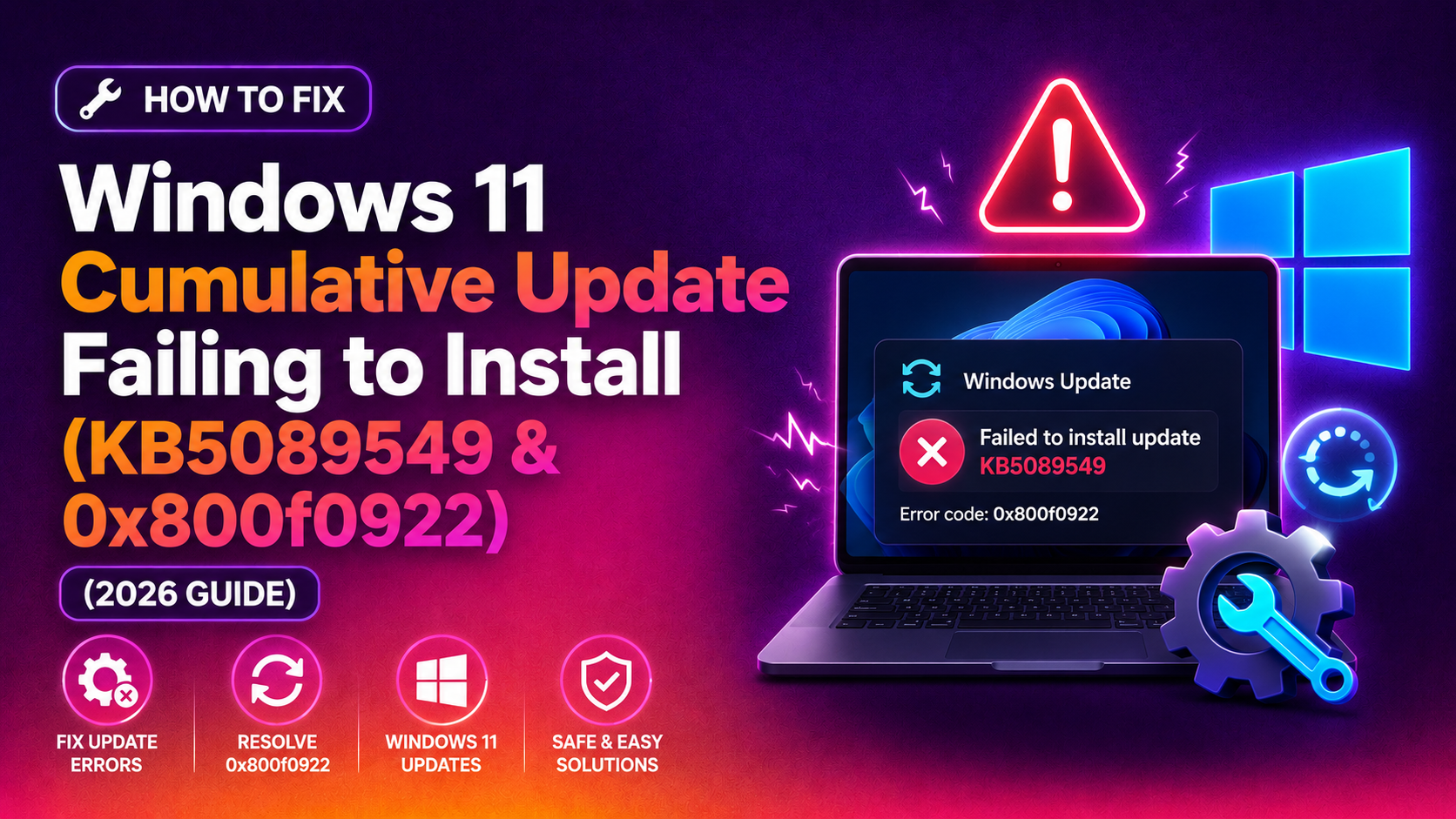
If your Windows 11 PC downloaded the May 2026 cumulative update (KB5089549) only to get stuck at 35%, reboot into a "Something didn't go as planned. Undoing changes" screen, and return to Windows with a failure logged in Update History — you are not alone. Microsoft confirmed this is a widespread issue caused by insufficient space on the EFI System Partition (ESP) and logged it under error code 0x800f0922. The good news: there are clear, tested fixes that work in 2026 for both Windows 11 24H2 and 25H2.
This guide walks through every practical solution — from the fastest one-click fix to deeper partition and system-file repairs — so you can get your machine fully patched and protected again.
What Causes Windows 11 Cumulative Updates to Fail in 2026
The root cause of the KB5089549 failure is straightforward: the May 2026 cumulative update requires more free space on the EFI System Partition than many OEM-built PCs have available. Most manufacturers ship Windows 11 devices with an ESP of only 100 MB. After years of incremental update boot files accumulating, the partition may have 10 MB or less free — well below what KB5089549 needs to stage its boot components during the reboot phase.
When Windows reaches roughly 35% completion during the post-reboot installation phase, the Component-Based Servicing (CBS) stack detects it cannot write to the ESP and aborts. The system rolls back, logs CBS_E_INSTALLERS_FAILED (hex: 0x800f0922), and the update shows as "Failed to install" in Settings.
Secondary causes that can also trigger the same error include:
- Corrupted Windows Update cache or SoftwareDistribution folder
- System file corruption detected by the CBS stack
- Interference from third-party security software or services during the update reboot
- A missing or misconfigured .NET Framework component (less common in 2026 builds)
How to Identify the Error: 0x800f0922, Rollback Loop, and Stuck at 35%
Before diving into fixes, confirm you are dealing with the same issue to avoid chasing the wrong solution.
Check Windows Update History
Go to Settings > Windows Update > Update History. If KB5089549 (or another recent cumulative update) shows "Failed to install" with the date of your last attempt, you are on the right track.
Check the CBS Log
Open an elevated Command Prompt and run:
notepad C:\Windows\Logs\CBS\CBS.logUse Ctrl+End to jump to the bottom of the log. Search (Ctrl+F) for 0x800f0922 or the phrase not enough space. If you see lines referencing the EFI partition or "insufficient disk space," the partition-space fix below is your primary solution.
Check EFI Partition Free Space
In an elevated Command Prompt, run the following to mount the EFI partition and inspect it:
mountvol X: /s
dir X:
If the free space shown is under 20 MB, the EFI partition is the culprit. Type mountvol X: /d after you have noted the space to dismount it.
Fix 1: Free Up EFI System Partition Space
This is the fix Microsoft officially confirmed resolves 0x800f0922 on KB5089549. There are two approaches: clean up junk files on the current ESP, or resize the partition.
Step 1A: Clean Up Old Boot Files on the ESP
Open an elevated Command Prompt and mount the EFI volume:
mountvol X: /sNavigate to the EFI Microsoft Boot folder and list its contents:
dir X:\EFI\Microsoft\BootLook for old locale folders (e.g., en-US, de-DE) that you do not use. You can safely delete unused language folders:
takeown /f X:\EFI\Microsoft\Boot\de-DE /r /d y
icacls X:\EFI\Microsoft\Boot\de-DE /grant administrators:F /t
rd /s /q X:\EFI\Microsoft\Boot\de-DE
Repeat for each unused locale. This can recover 10–30 MB, which is usually enough for the update to succeed.
Dismount the partition when done:
mountvol X: /dStep 1B: Expand the EFI Partition (Advanced)
If cleaning locale files is not sufficient, you need to resize the ESP. Because Windows built-in tools cannot resize the EFI partition directly, you must either use a third-party tool like MiniTool Partition Wizard (bootable environment) or perform a manual diskpart procedure from the Windows Recovery Environment (WinRE).
The safest manual approach:
- Back up all data before proceeding.
- Boot from a Windows 11 USB installer, choose Repair your computer > Troubleshoot > Command Prompt.
- Shrink the C: volume to create ~300 MB of unallocated space, then use diskpart to delete and recreate the EFI partition at a larger size (300 MB recommended for future updates).
This is a destructive operation if done incorrectly. If you are not confident with diskpart, get expert desktop support from a certified technician before proceeding.
Fix 2: Run the Windows Update Troubleshooter and Reset Update Components
If the EFI partition has adequate space but the update is still failing, a corrupted update cache is likely the cause. This fix resets all Windows Update services and clears the cached download metadata.
Step 2A: Run the Built-in Troubleshooter
Go to Settings > System > Troubleshoot > Other troubleshooters, find Windows Update, and click Run. Let it complete and apply any fixes it suggests, then restart and try the update again.
Step 2B: Manually Reset Update Components
If the troubleshooter does not resolve the issue, reset the update stack manually. Open an elevated Command Prompt and run these commands in order:
net stop wuauserv
net stop cryptSvc
net stop bits
net stop msiserver
Rename the corrupted cache folders:
ren C:\Windows\SoftwareDistribution SoftwareDistribution.old
ren C:\Windows\System32\catroot2 catroot2.old
Restart the services:
net start wuauserv
net start cryptSvc
net start bits
net start msiserver
Restart your PC, then go to Settings > Windows Update and click Check for updates.
Fix 3: Manually Install the Cumulative Update via Microsoft Update Catalog
Bypassing the Windows Update delivery pipeline entirely often resolves update failures caused by corrupted metadata or throttled delivery. You can download the exact update package directly from Microsoft and install it manually.
Step 3A: Download from Microsoft Update Catalog
- Open your browser and go to https://catalog.update.microsoft.com.
- Search for KB5089549 (or the latest cumulative update KB number shown in your Update History).
- Find the entry matching your Windows 11 version (24H2 or 25H2) and architecture (x64 for most PCs, ARM64 for Surface Pro X and similar).
- Click Download and save the
.msufile.
Step 3B: Install Using WUSA
Open an elevated Command Prompt, navigate to where you saved the file, and run:
wusa.exe C:\Users\YourName\Downloads\windows11.0-kb5089549-x64.msu /quiet /norestartReplace the filename with the actual downloaded filename. After the command completes, restart your PC.
Note: If KB5089549 is specifically the failing update, Microsoft released a superseding optional update KB5089573 on May 26, 2026, which includes a fix for the EFI space issue. Search for KB5089573 in the catalog to install the fixed version directly.
Fix 4: Use DISM and SFC to Repair Corrupted System Files
If none of the above fixes resolve the failure, system file corruption may be preventing the CBS stack from completing the update. The DISM and SFC tools scan and repair the Windows component store and protected system files.
Step 4A: Run DISM to Repair the Component Store
Open an elevated Command Prompt and run:
DISM /Online /Cleanup-Image /CheckHealthIf it reports corruption, run the full repair:
DISM /Online /Cleanup-Image /RestoreHealthThis command contacts Windows Update servers to download replacement files. It can take 15–30 minutes. If your internet is unreliable or the command fails, you can use a local Windows 11 ISO as a source:
DISM /Online /Cleanup-Image /RestoreHealth /Source:E:\Sources\install.wim /LimitAccessReplace E: with the drive letter of your mounted ISO.
Step 4B: Run SFC to Repair Protected System Files
After DISM completes successfully, run:
sfc /scannowSFC will scan all protected system files and replace corrupted ones with clean copies from the component store. Restart your PC after SFC completes, then retry the Windows Update.
Step 4C: Perform a Clean Boot (Optional)
If the update still fails after DISM and SFC, a third-party service may be interfering during the reboot phase. Press Win + R, type msconfig, go to the Services tab, check Hide all Microsoft services, then click Disable all. Restart and try the update again. Re-enable services after the update succeeds.
Summary: Which Fix to Try First
Here is a quick decision guide based on what you observed:
- Stuck at 35% + "Undoing changes" + CBS log shows EFI space issue: Fix 1 (clean EFI partition)
- Update failed but no specific error in CBS log: Fix 2 (reset update components)
- Update repeatedly fails via Windows Update but no EFI or corruption issues: Fix 3 (manual catalog install of KB5089573)
- CBS log shows component store errors or file corruption: Fix 4 (DISM + SFC)
Most users on Windows 11 24H2 and 25H2 who experienced the KB5089549 failure in May–June 2026 will be fully resolved by either cleaning the EFI partition (Fix 1) or installing the superseding update KB5089573 directly via the catalog (Fix 3). If your system remains stuck after all four fixes, the issue may require an in-place upgrade repair or professional diagnosis.