
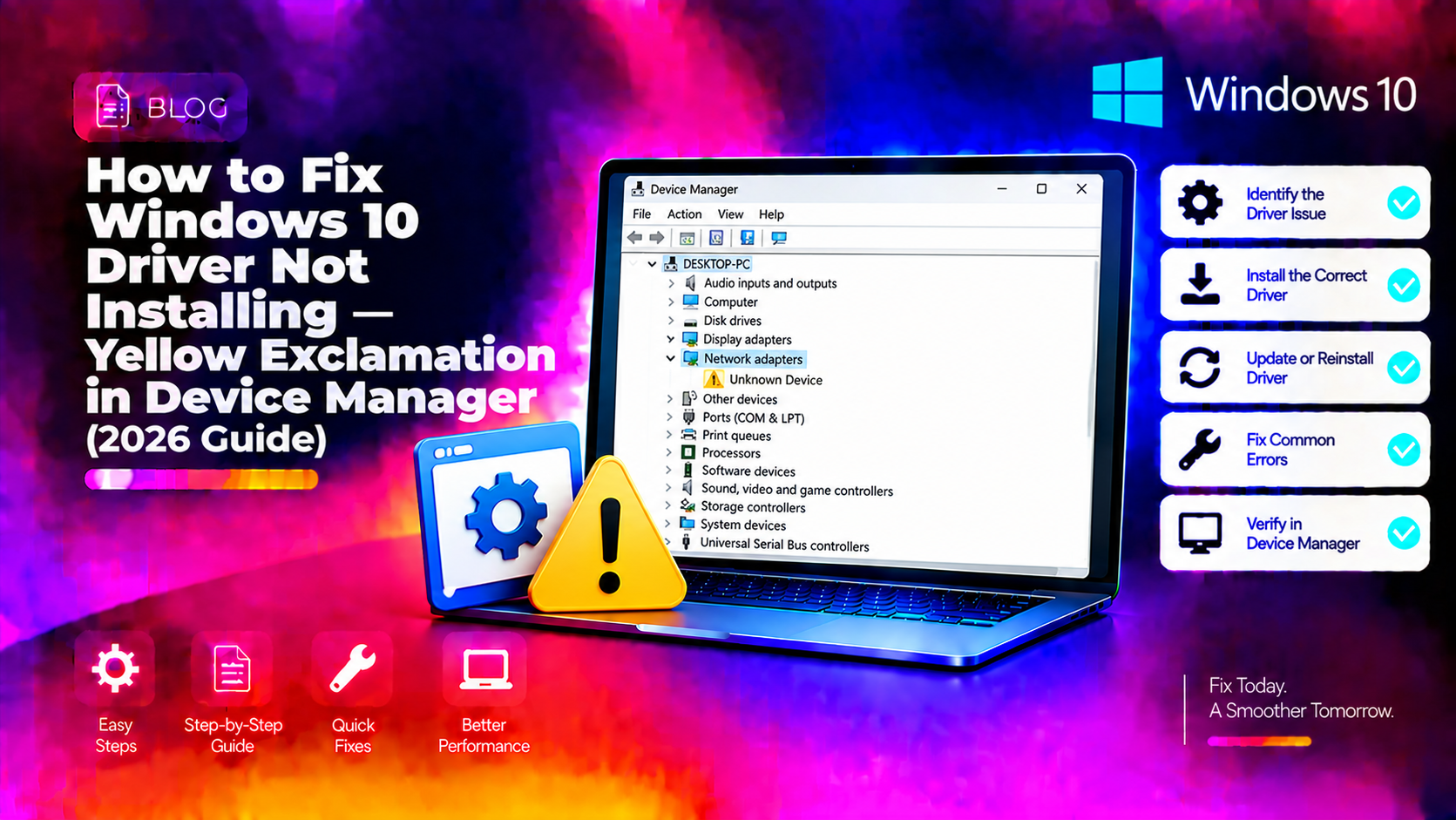
Why Windows 10 Shows a Yellow Exclamation Mark on Drivers
If you open Device Manager and spot a yellow exclamation mark (!) next to a device, Windows 10 is telling you the driver either failed to install, is missing, or has become corrupted. This is one of the most common hardware headaches on Windows 10, and it happens after clean installs, Windows updates, or when you plug in new hardware. The fix almost always comes down to a few targeted steps — no technical background required.
What the Yellow Exclamation Mark Actually Means
The yellow ! icon in Device Manager maps to specific error codes. The most common ones are:
- Code 1 — Device not configured correctly
- Code 10 — Device cannot start (most common)
- Code 28 — Drivers not installed
- Code 43 — Windows stopped the device due to reported problems
- Code 52 — Windows can't verify the digital signature of the driver
To see the error code: open Device Manager, right-click the flagged device, choose Properties, then check the Device Status box under the General tab.
Method 1: Update the Driver Automatically
Start with the simplest fix first. Windows 10 can search Microsoft's servers for a compatible driver automatically.
- Press Win + X and select Device Manager.
- Expand the category containing the flagged device.
- Right-click the device and choose Update driver.
- Select Search automatically for drivers.
- Restart your PC once the update completes.
If Windows says "The best drivers for your device are already installed" but the yellow mark persists, the driver in Microsoft's catalogue may be outdated. Move to Method 2.
Method 2: Download the Driver Directly From the Manufacturer
Manufacturer websites always carry the most up-to-date and device-specific drivers. This method works best for graphics cards, network adapters, audio chips, and chipset drivers.
- Note down the device name shown in Device Manager (e.g., Realtek PCIe GbE Family Controller).
- Visit the manufacturer's support page — Intel, AMD, NVIDIA, Realtek, Broadcom, etc.
- Search for your device model and download the latest Windows 10 driver.
- Run the installer as Administrator.
- Restart Windows after installation.
Tip: If you don't know the hardware manufacturer, right-click the flagged device, select Properties > Details, and change the Property dropdown to Hardware Ids. Copy the top string and paste it into a search engine to identify the exact chipset.
Method 3: Uninstall and Reinstall the Driver
A partially installed or corrupted driver can block a new installation. Wiping it first gives Windows a clean slate.
- Open Device Manager and right-click the flagged device.
- Select Uninstall device.
- Check the box Delete the driver software for this device if it appears.
- Click Uninstall.
- Restart your PC — Windows will attempt to reinstall the driver automatically on reboot.
- If it doesn't reinstall automatically, go to Action > Scan for hardware changes in Device Manager.
Method 4: Disable Driver Signature Enforcement (Code 52)
Windows 10 requires all drivers to be digitally signed by Microsoft. Older or third-party drivers sometimes fail with Code 52 because they lack a valid signature. You can temporarily disable signature enforcement to install the driver.
- Click Start > Power > Restart while holding Shift.
- Go to Troubleshoot > Advanced options > Startup Settings > Restart.
- After restart, press 7 to select Disable driver signature enforcement.
- Install your driver in this mode, then restart normally.
Note: Only do this for drivers from trusted sources. Re-enable signature enforcement after installation by restarting Windows normally.
Method 5: Run SFC and DISM to Repair System Files
Corrupted Windows system files can prevent any driver from installing properly. The built-in SFC and DISM tools repair these files without reinstalling Windows.
- Open Command Prompt as Administrator (search for cmd, right-click, Run as administrator).
- Run:
sfc /scannow— this scans and repairs protected system files. Wait for it to complete (it can take 10–15 minutes). - Then run:
DISM /Online /Cleanup-Image /RestoreHealth— this repairs the Windows image. Requires an internet connection. - Restart and try installing the driver again.
Method 6: Roll Back a Recently Updated Driver
If the yellow mark appeared after a Windows Update or an automatic driver update, rolling back to the previous version often resolves it immediately.
- Open Device Manager, right-click the device, and select Properties.
- Go to the Driver tab and click Roll Back Driver.
- Choose a reason and confirm. Windows restores the previous driver version.
- Restart your PC.
If Roll Back Driver is greyed out, there is no previous driver stored in Windows — use Method 2 to download an older version from the manufacturer.
Method 7: Use Windows Update to Pull Driver Updates
Some driver updates arrive through Windows Update rather than Device Manager. This is common for chipset, USB, and Bluetooth drivers.
- Go to Settings > Update & Security > Windows Update > View optional updates.
- Expand Driver Updates if available.
- Check any driver updates for the affected device and click Download and install.
- Restart after installation.
When Windows 10 Driver Issues Persist
If you've tried all methods above and the yellow exclamation mark won't go away, the issue may be hardware-level — a faulty USB port, a dead PCI slot, or a failing network card. At that point, professional diagnosis saves time and avoids further damage.
Our team at CloudHouse Technologies Pay-Per-Ticket Support can remotely diagnose driver conflicts, hardware faults, and Windows corruption issues in a single session — no subscription required.
Preventing Windows 10 Driver Problems
- Keep Windows 10 updated — Microsoft patches driver compatibility bugs regularly.
- Use the manufacturer's driver installer rather than letting Windows pick automatically when possible.
- Before major Windows updates, create a restore point: Start > Create a restore point.
- Avoid third-party "driver updater" utilities — they often install mismatched drivers.
FAQ
Why does my driver keep showing a yellow exclamation mark after reinstalling?
This usually means the driver file itself is corrupted, or a conflicting driver from a previous install is still present. Run SFC, delete the device completely from Device Manager (including the driver files), and reinstall a fresh copy from the manufacturer's website.
Can a yellow exclamation mark in Device Manager cause a BSOD?
Yes. A device flagged with Code 10 or Code 43 can cause system instability, especially for GPU, storage, or chipset drivers. Resolve the driver error before the next system stress — gaming, heavy file transfers, or sleep/wake cycles tend to trigger crashes.
How do I fix driver issues after a Windows 10 feature update?
Feature updates (like the 22H2 update) sometimes replace or overwrite manufacturer drivers with generic Windows versions. After a feature update, visit your PC manufacturer's support site (Dell, HP, Lenovo, etc.) and download the latest drivers for your specific model.
What does Device Manager error Code 10 mean?
Code 10 means "This device cannot start." It's the most generic driver error and can point to a missing driver, a hardware conflict, a power issue, or a corrupted INF file. Work through Methods 1–5 in this guide in order — one of them resolves Code 10 in the vast majority of cases.
Is it safe to install unsigned drivers on Windows 10?
Only if the driver comes from a known and trusted hardware manufacturer. Unsigned drivers bypass Microsoft's security certification, so installing one from an unknown source is a real risk. Always verify the source before disabling driver signature enforcement.