
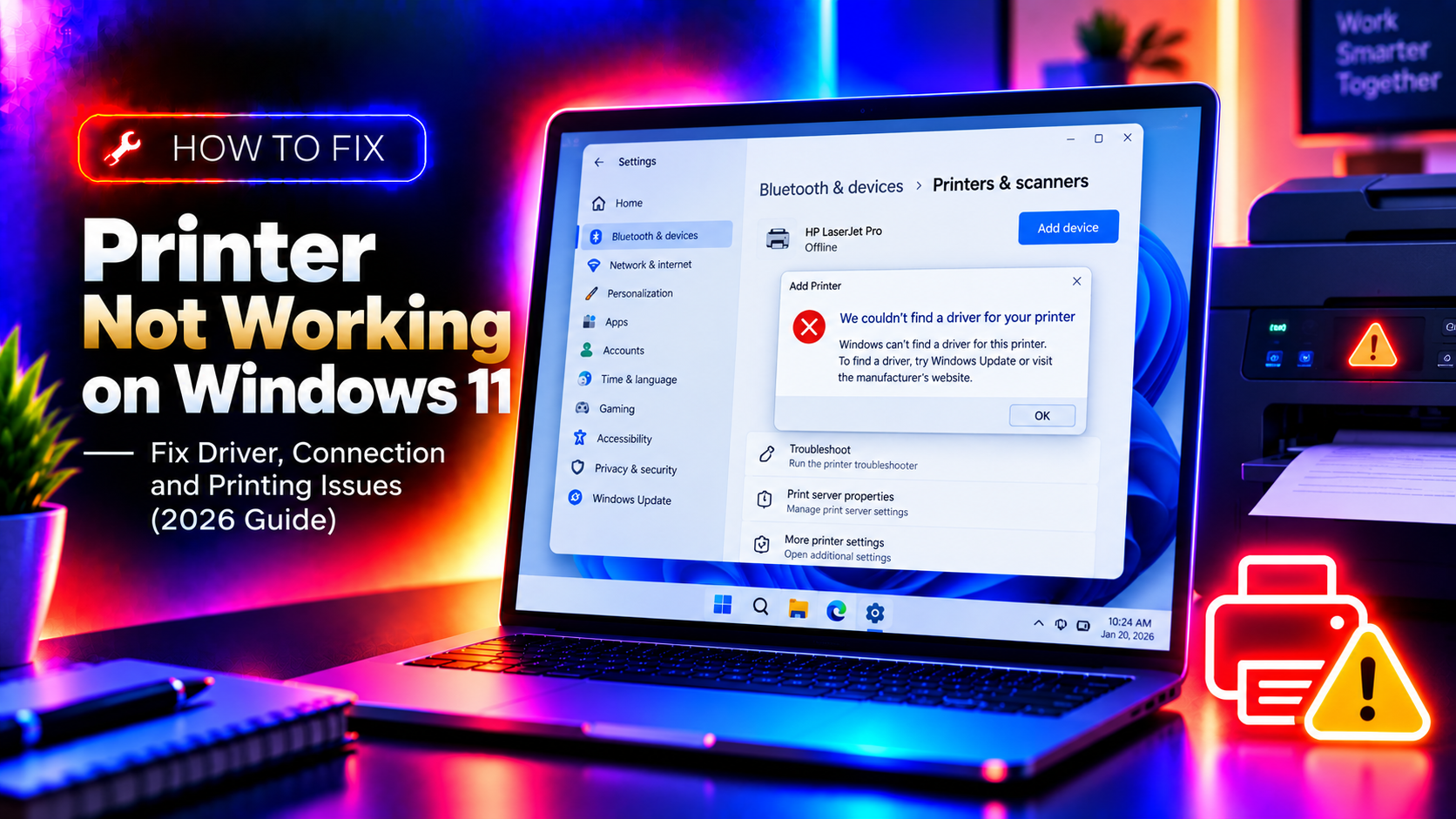
Why Is My Printer Not Working on Windows 11 in 2026?
Windows 11 printer problems in 2026 usually fall into one of four categories: a corrupted or incompatible printer driver (especially after the KB5034765 March 2025 update that broke many third-party printer drivers), a stuck Print Spooler service, a firewall or network policy blocking the print port, or a USB/network detection failure. This guide diagnoses and fixes each one — starting with the Print Spooler, which resolves about half of all reported printer failures instantly.
Quick Fix: Restart the Print Spooler Service
The Print Spooler manages all print jobs. A crashed spooler makes every printer on the system stop responding. Fix it in 30 seconds:
Press Win+R, type services.msc, and press Enter. Scroll to Print Spooler, right-click → Restart. If it won't restart, right-click → Stop, wait 10 seconds, then Start.
Or via Command Prompt (Admin):
net stop spooler
del /Q /F /S "%systemroot%\System32\spool\PRINTERS\*.*"
net start spooler
The del command clears any stuck print jobs that prevent the spooler from restarting. After running these three commands, try printing again.
Step 1: Run the Windows Printer Troubleshooter
Windows 11's built-in troubleshooter fixes many common issues automatically — driver resets, spooler restarts, port assignments. Run it first before manual steps:
Settings → System → Troubleshoot → Other troubleshooters → scroll to Printer → click Run.
Let it complete and apply any fixes it finds. Then test your printer again.
Step 2: Uninstall and Reinstall the Printer Driver
Corrupted or outdated printer drivers — especially after Windows Updates — are the leading cause of printer failure on Windows 11. Do a clean driver reinstall:
1. Open Settings → Bluetooth & devices → Printers & scanners
2. Click your printer → Remove
3. Open Device Manager (right-click Start → Device Manager) → View → Show hidden devices
4. Expand Printers — right-click your printer → Uninstall device → check "Delete the driver software for this device"
5. Also go to Print Management (search in Start) → Drivers → remove any leftover driver for your printer
6. Download the latest driver from the printer manufacturer's website (HP, Canon, Epson, Brother, etc.) — do NOT rely on Windows Update drivers
7. Run the downloaded installer and reconnect the printer
Step 3: Fix "Printer Driver is Unavailable" Error
This specific error appears when Windows Update replaced your manufacturer driver with an incompatible generic one. The fix:
Via Command Prompt (Admin):
printui /s /t2This opens Print Server Properties → Drivers tab. Remove all entries for your printer model. Then reinstall from the manufacturer's website.
Reset the print environment completely:
net stop spooler
del /Q /F /S "%systemroot%\System32\spool\PRINTERS\*.*"
del /Q /F /S "%systemroot%\System32\spool\DRIVERS\W32X86\*.*"
del /Q /F /S "%systemroot%\System32\spool\DRIVERSd\*.*"
net start spooler
This clears all driver files from the spool. Reinstall your printer driver after.
Step 4: Fix Network Printer Not Found
If your network printer (Wi-Fi or Ethernet) doesn't show up in Windows 11:
1. Confirm the printer and PC are on the same network subnet
2. Find the printer's IP address (print a test page from the printer's physical panel, or check your router's DHCP client list)
3. Add the printer manually: Settings → Printers & scanners → Add a printer → "The printer I want isn't listed" → "Add a printer using a TCP/IP address or hostname" → enter the printer IP
4. Check Windows Firewall isn't blocking print traffic: Control Panel → Windows Defender Firewall → Allow an app through → ensure File and Printer Sharing is checked for both Private and Public networks
5. Enable the correct network discovery settings: Settings → Network & Internet → Advanced network settings → Advanced sharing settings → turn on Network discovery and File and printer sharing
Step 5: Fix USB Printer Not Detected
If a USB printer connected directly to your PC isn't being detected:
1. Try a different USB cable and a different USB port (preferably USB 2.0, not USB 3.0 — some printers have USB 3.0 compatibility issues)
2. Open Device Manager → look for Unknown Device or Other devices with a yellow warning icon — if your printer appears here, the driver isn't installed. Right-click → Update driver or uninstall and reinstall from manufacturer
3. Check if USB Selective Suspend is interfering: search for "Edit power plan" → Change advanced power settings → USB settings → USB selective suspend setting → set to Disabled
Step 6: Fix Printing After Windows 11 24H2 Update
Windows 11 24H2 (released October 2024) introduced new printer compatibility requirements. If your printer stopped working after this update:
- Check for an updated driver from the manufacturer — many brands (HP, Epson, Brother) released 24H2-compatible drivers by early 2025
- Some older printers (pre-2015) require enabling Legacy Mode Printing — check the manufacturer's 24H2 compatibility page
- HP printers: use the HP Smart app (Microsoft Store) as it handles driver compatibility automatically
- Epson printers: use the Epson Connect Printer Setup utility from Epson's support site
Step 7: Run SFC and DISM for System File Corruption
If none of the above fixes work, Windows system file corruption may be preventing the print system from functioning. Open Command Prompt as Administrator:
sfc /scannowWait for it to complete (5–15 minutes). If it finds and fixes errors, restart and test printing. If it reports that it couldn't fix errors, run DISM:
DISM /Online /Cleanup-Image /RestoreHealthThis downloads replacement files from Windows Update and repairs the system image. Restart after completion.
Still Not Fixed? Get Professional Printer Support
Printer driver conflicts — especially with specialty printers, label printers, or network printers behind corporate firewalls — can involve deep registry entries and print server configuration that take time to resolve. CloudHouse Technologies' pay-per-ticket support provides direct access to a Windows technician who can remote in and fix printer issues on your specific setup — no subscription required.