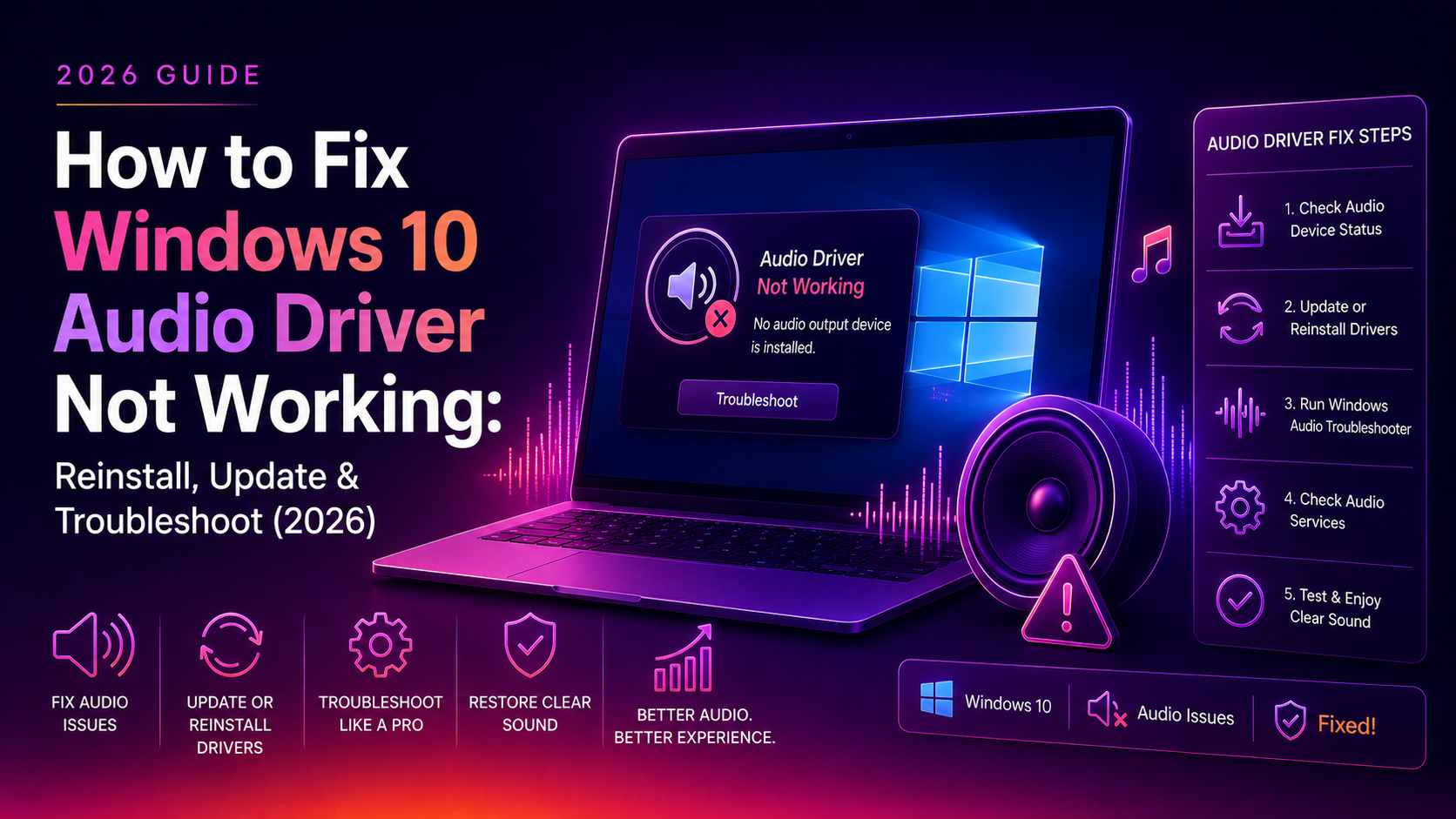
No sound on Windows 10 — it's one of those problems that turns a simple work session into a frustrating troubleshooting marathon. Whether you're hearing nothing at all, getting a "No Audio Output Device Is Installed" error, or sound cut out after a Windows update, the fix almost always comes down to the audio driver. This guide covers every method to fix Windows 10 audio driver not working, from the five-minute quick fix to deep reinstallation.
Quick Check First: Volume, Cables, and Default Device
Before touching drivers, rule out the obvious:
- Click the speaker icon in the taskbar — is the volume muted or at zero?
- Right-click the speaker icon → Open Sound settings → check that the correct output device is selected (headphones vs speakers)
- Check physical connections: headphone jack fully inserted, speakers plugged in and powered
- Right-click the speaker icon → Open Volume Mixer — check that the specific app (browser, media player) isn't muted
If everything looks right but there's still no sound, the driver is the issue. Continue below.
💡 None of these worked? Skip the guesswork.
Get Expert Help →Method 1 — Run the Audio Troubleshooter
1. Open Settings → Update & Security → Troubleshoot → Additional troubleshooters
2. Click "Playing Audio" → Run the troubleshooter
Windows scans for driver issues, misconfigurations, and service problems. It automatically fixes what it can and tells you what it couldn't fix. This resolves about 40% of audio issues without any manual work.
Method 2 — Restart the Windows Audio Service
The Windows Audio service handles all sound output. If it's stopped, you'll get complete silence.
:: Open Command Prompt as Administrator and run:
net stop AudioSrv
net stop AudioEndpointBuilder
net start AudioSrv
net start AudioEndpointBuilder
Or via Services: press Windows + R → type services.msc → find Windows Audio and Windows Audio Endpoint Builder → right-click each and select Restart. Set both to Automatic startup type.
Method 3 — Update Audio Driver via Device Manager
1. Press Windows + X → Device Manager
2. Expand Sound, video and game controllers
3. Right-click your audio device (e.g. "Realtek High Definition Audio" or "Intel Smart Sound Technology")
4. Select Update driver → Search automatically for drivers
If Windows says "The best drivers for your device are already installed" but sound still doesn't work, the installed driver may be corrupted. Proceed to Method 4.
Method 4 — Reinstall the Audio Driver
1. In Device Manager, right-click your audio device → Uninstall device
2. Check "Delete the driver software for this device" if the option appears
3. Click Uninstall
4. Restart your computer — Windows will automatically reinstall a basic audio driver on reboot
5. Test sound. If it works, you're done. If the basic driver works but audio quality is poor, install the manufacturer's driver (Step 5).
Method 5 — Download Driver from Manufacturer's Website
For the best performance, download the audio driver directly from your hardware manufacturer — not from Windows Update.
- Realtek audio (most common): go to realtek.com → Audio Codecs → download the latest driver for your OS
- Dell laptop: go to dell.com/support → enter your service tag → Drivers → Audio
- HP laptop: go to support.hp.com → enter your model → Software and Drivers → Audio
- Lenovo: go to support.lenovo.com → enter your model → Drivers → Audio
- Desktop with Intel audio: go to intel.com/content/www/us/en/support/detect.html → let Intel Driver Assistant detect your hardware
Run the downloaded installer and follow the wizard. Restart when prompted.
Method 6 — Roll Back the Driver After a Windows Update
If sound stopped working right after a Windows Update pushed a new driver:
1. Device Manager → Sound, video and game controllers → right-click audio device → Properties
2. Click the Driver tab → Roll Back Driver
3. Select the reason (optional) → click Yes
This reverts to the previous driver version. If Roll Back Driver is greyed out, the previous driver was not saved — use Method 4 or 5 instead.
Method 7 — Fix "No Audio Output Device Is Installed" Error
This specific error means Windows can't detect any audio hardware at all:
:: Run in elevated Command Prompt:
msdt.exe /id AudioPlaybackDiagnostic

:: Also check that audio controller shows in Device Manager
:: Look for any yellow exclamation marks under Sound, video and game controllers
:: or under Other devices (unrecognised hardware)
If your audio device shows with a yellow exclamation mark, right-click it → Update driver → Browse my computer → Let me pick from a list → select "High Definition Audio Device" as a fallback generic driver.
Method 8 — Disable Audio Enhancements
Microsoft and Realtek audio enhancements can conflict with certain drivers and cause distorted or missing sound.
Right-click speaker icon → Sounds → Playback tab → double-click your audio device → Enhancements tab → check "Disable all enhancements" → OK. Test sound.
Audio driver problems on Windows 10 can be tricky when multiple updates are in play — sometimes a Windows quality update, a driver update, and a hardware firmware update all collide. If you've tried everything and still have no audio, professional remote support can identify driver conflicts that basic troubleshooting misses. CloudHouse Technologies provides per-ticket Windows 10 support — we diagnose and fix audio driver issues remotely without you needing to send your PC anywhere.