What Causes Windows 10 Error Code 43
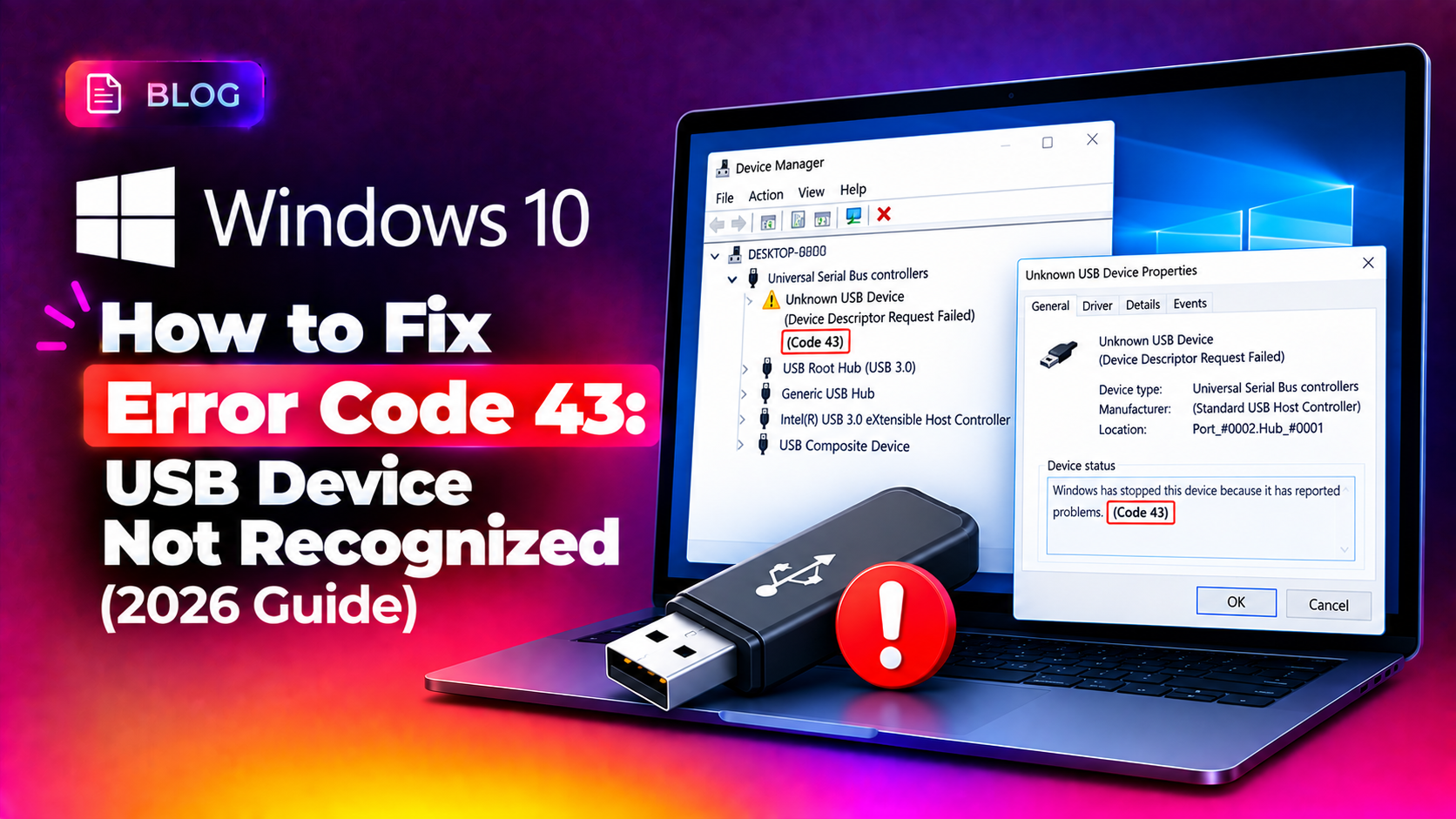
If you plug in a USB drive, webcam, controller, or external hard drive and Windows 10 responds with "Windows has stopped this device because it has reported problems (Code 43)", it means Windows Device Manager has deliberately disabled the device after detecting a driver or hardware fault. This is one of the most common device manager errors reported by Windows 10 users in 2026, especially after cumulative updates like KB5044384 and later builds change USB driver stacks.
Error Code 43 can be triggered by:
- A corrupted or outdated USB driver
- A damaged USB cable or port
- Faulty USB power management settings turning the port off
- An outdated motherboard chipset driver or BIOS
- Physical hardware failure on the device itself
The good news: in the majority of cases this is a software-level fix that takes less than ten minutes. Below are the methods we use every day when remotely troubleshooting this exact error for clients.
Quick Fix Method 1: Restart and Reseat the Device
Before touching drivers, rule out a temporary glitch:
- Unplug the USB device completely.
- Restart Windows 10 fully (not sleep/hibernate) via
Start > Power > Restart. - Plug the device into a different USB port, preferably directly into the motherboard rather than a front-panel hub.
- Try a different USB cable if applicable - many Code 43 cases are actually a bad cable, not a driver fault.
If the device is recognized after this, no further action is needed. If Code 43 persists, move to Method 2.
Method 2: Uninstall and Reinstall the USB Driver
This is the fix that resolves Code 43 for most users:
- Right-click the Start button and select Device Manager.
- Expand Universal Serial Bus controllers (or the relevant hardware category, e.g. Disk drives, Imaging devices).
- Right-click the device showing the yellow warning triangle and select Uninstall device.
- Check the box for "Attempt to remove the driver for this device" if prompted, then click Uninstall.
- Right-click your computer name at the top of Device Manager and choose Scan for hardware changes. Windows will reinstall the driver automatically.
You can also force a driver refresh from an elevated Command Prompt:
pnputil /enum-devices /connected
pnputil /remove-device "USB\VID_XXXX&PID_XXXX"
Replace the VID/PID with the values shown for your device under the Details tab > Hardware Ids in Device Manager.
Method 3: Fix USB Power Management Settings
Windows 10 aggressively suspends USB ports to save power, which frequently causes Code 43 on laptops:
- In Device Manager, expand Universal Serial Bus controllers.
- Right-click each USB Root Hub entry and select Properties.
- Go to the Power Management tab.
- Uncheck "Allow the computer to turn off this device to save power."
- Repeat for every USB Root Hub listed, then reboot.
You can also disable USB selective suspend globally via Power Options:
powercfg /setacvalueindex scheme_current 2a737441-1930-4402-8d77-b2bebba308a3 48e6b7a6-50f5-4782-a5d4-53bb8f07e226 0
powercfg /setactive scheme_current
Method 4: Update Chipset Drivers and BIOS
If the built-in Windows driver is not the issue, an outdated motherboard chipset driver often is:
- Identify your motherboard or laptop model, then visit the manufacturer's support page (Dell, HP, Lenovo, ASUS, etc.).
- Download and install the latest chipset driver and USB 3.0/3.1 controller driver for your exact model.
- Check for a BIOS/UEFI update, since USB controller firmware bugs are a known cause of Code 43 on 2023-2025 era motherboards still in service in 2026.
- Reboot after installing chipset drivers before testing the USB device again.
Method 5: Registry Cleanup for Persistent Code 43
If the error keeps returning on the same physical port even after a clean driver reinstall, a corrupted USB registry key is often the cause:
- Open Registry Editor (
regedit) as Administrator. - Navigate to
HKEY_LOCAL_MACHINE\SYSTEM\CurrentControlSet\Enum\USB. - Locate the subkey matching your device's Hardware ID and delete it (back up the registry first with File > Export).
- Reboot and reconnect the device so Windows rebuilds the key from scratch.
If you're not comfortable editing the registry yourself, our pay-per-ticket remote support technicians can safely perform this fix for you in a single session without any subscription commitment.
Prevention: Avoiding Code 43 in the Future
- Keep chipset and USB drivers updated quarterly, not just via Windows Update.
- Use quality, shielded USB cables rated for your device's transfer speed.
- Avoid daisy-chaining unpowered USB hubs for high-draw devices like external SSDs.
- Disable USB selective suspend on desktops that don't need battery savings.
Frequently Asked Questions
What does Error Code 43 actually mean in Windows 10?
It means Windows detected a problem reported by the device driver and deliberately stopped the device to prevent further issues, rather than letting it run in a faulty state.
Can Error Code 43 damage my USB device?
No, Code 43 itself is a safety stop, not damage. However, it can indicate an underlying hardware fault that may worsen over time if ignored.
Does a Windows 10 reinstall fix Error Code 43 permanently?
A clean install can fix driver-related Code 43 issues, but if the cause is hardware (port, cable, or controller), the error will return after reinstall. Try driver and power fixes first.
Why does Code 43 only happen with one specific USB port?
This usually points to a hardware fault in that specific port or its controller lane rather than a general driver issue - try the device in a different port to confirm.
Is Code 43 the same on Windows 10 and Windows 11?
Yes, Code 43 is a generic Device Manager error code used identically across Windows 10 and Windows 11; the fixes in this guide apply to both.