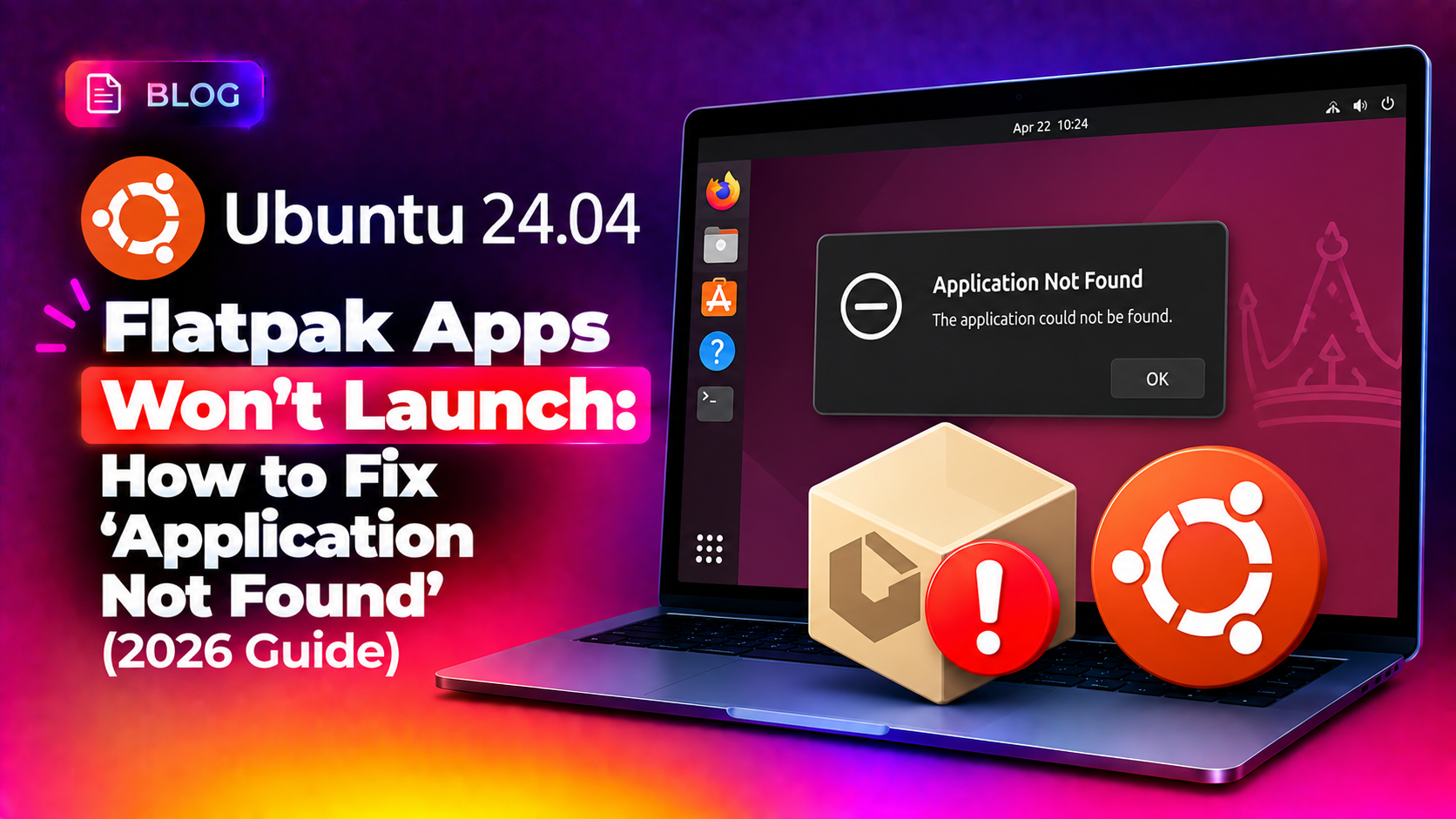
Why Flatpak Apps Fail to Launch on Ubuntu 24.04
Ubuntu 24.04 LTS ships GNOME Software with Flatpak support pre-integrated, but a persistent bug affects many users in 2026: an app installs successfully, shows up in the applications menu, yet clicking it does nothing, or produces an "Application not found" error in the terminal. This is one of the most reported Ubuntu Desktop software issues on forums and Launchpad, and it typically comes down to one of a handful of root causes: a stale Flatpak application ID, a broken runtime, a permissions sandbox conflict, or a corrupted desktop entry file.
Below is the complete troubleshooting path we use when remotely fixing this exact issue for CloudHouse clients running Ubuntu 24.04 and 24.10.
Step 1: Confirm the Real Application ID
Flatpak apps are launched internally by a reverse-DNS style ID (e.g. org.mozilla.firefox), not their display name. A mismatched or guessed ID is the single most common cause of "Application not found":
flatpak list --app --columns=application,nameFind the exact ID for the app that won't open, then try launching it directly from a terminal to see the real error output:
flatpak run org.kde.kdenliveIf this command throws a different, more specific error (missing runtime, sandbox denial, etc.), you now have the real cause instead of a generic GUI failure.
Step 2: Update All Flatpak Apps and Runtimes
Outdated runtimes are a frequent cause of launch failures after an Ubuntu point release:
flatpak update -yThis updates every installed Flatpak app and shared runtime (e.g. org.freedesktop.Platform, org.gnome.Platform). Reboot after the update completes, then try launching the app again.
Step 3: Check for Missing or Broken Runtimes
List installed runtimes and look for anything marked as unused, partial, or mismatched in version to the app's requirement:
flatpak list --runtime
flatpak repair
flatpak repair re-verifies every object in the local Flatpak repository and re-downloads anything corrupted, without touching your app data. This alone resolves a large share of "won't launch" cases caused by interrupted downloads or disk errors.
Step 4: Reinstall the Desktop Entry
Sometimes the .desktop launcher file GNOME uses is stale even though the underlying app is fine. Force Flatpak to re-export it:
flatpak uninstall --unused
sudo flatpak update --appstream
flatpak install --reinstall flathub org.kde.kdenlive
Replace org.kde.kdenlive with your actual app ID from Step 1. After reinstalling, log out and back in (or run killall gnome-shell on X11 sessions) so GNOME Shell rescans the applications menu.
Step 5: Rule Out Sandbox Permission Conflicts
Flatpak sandboxes apps by default, which can silently block launch on systems with custom AppArmor or SELinux policies. Check permissions with Flatseal (itself a Flatpak app) or via CLI:
flatpak install flathub com.github.tchx84.Flatseal
flatpak override --show org.kde.kdenlive
If a required permission (such as --socket=wayland or --filesystem=host) has been stripped, restore Flatpak defaults for that app:
flatpak override --reset org.kde.kdenliveStep 6: Full Flatpak Reset (Last Resort)
If nothing above works, Launchpad bug reports confirm a small number of Ubuntu 24.04 systems have a corrupted Flatpak installation at the system level. A full reset fixes it without reinstalling Ubuntu:
sudo apt remove --purge flatpak
rm -rf ~/.local/share/flatpak ~/.var/app
sudo apt install flatpak gnome-software-plugin-flatpak
flatpak remote-add --if-not-exists flathub https://dl.flathub.org/repo/flathub.flatpakrepo
Warning: this removes all Flatpak app data in ~/.var/app, so back up any app-specific settings or save files first.
If you'd rather not risk your data during a reset, our pay-per-ticket remote Linux support team can safely back up and repair your Flatpak environment in one session.
Prevention Tips
- Run
flatpak updateweekly alongsideapt update & upgrade- Flatpak apps are not covered by the standard Ubuntu Updates app in every configuration. - Avoid mixing Flatpak and native
.debversions of the same application, which can create conflicting desktop entries. - Enable Flathub as a remote explicitly rather than relying only on the bundled GNOME Software remote, since some Ubuntu images ship a limited default remote.
Frequently Asked Questions
Why does GNOME Software show a Flatpak app as installed but it never opens?
This almost always means the desktop launcher entry is stale or the runtime failed to download completely - running flatpak repair and reinstalling the app resolves most cases.
Is this a known Ubuntu 24.04 bug or something wrong with my system?
Launchpad tracks this as a known GNOME Software / Flatpak integration bug on Ubuntu 24.04, though individual systems can also develop the issue from corrupted runtimes or permission overrides.
Does upgrading to a newer Ubuntu version fix it?
Some users report the issue resolves after upgrading to 24.10 or later, but you can fix it on 24.04 directly using the runtime repair and reinstall steps above without upgrading.
Will flatpak repair delete my app data?
flatpak repair only re-verifies and re-downloads corrupted system files - it does not touch your personal app data stored in ~/.var/app.
How do I find an app's exact Flatpak ID?
Run flatpak list --app --columns=application,name in a terminal to see every installed app's real ID alongside its display name.