Dual Monitor Problems on Linux Mint: What You're Likely Hitting
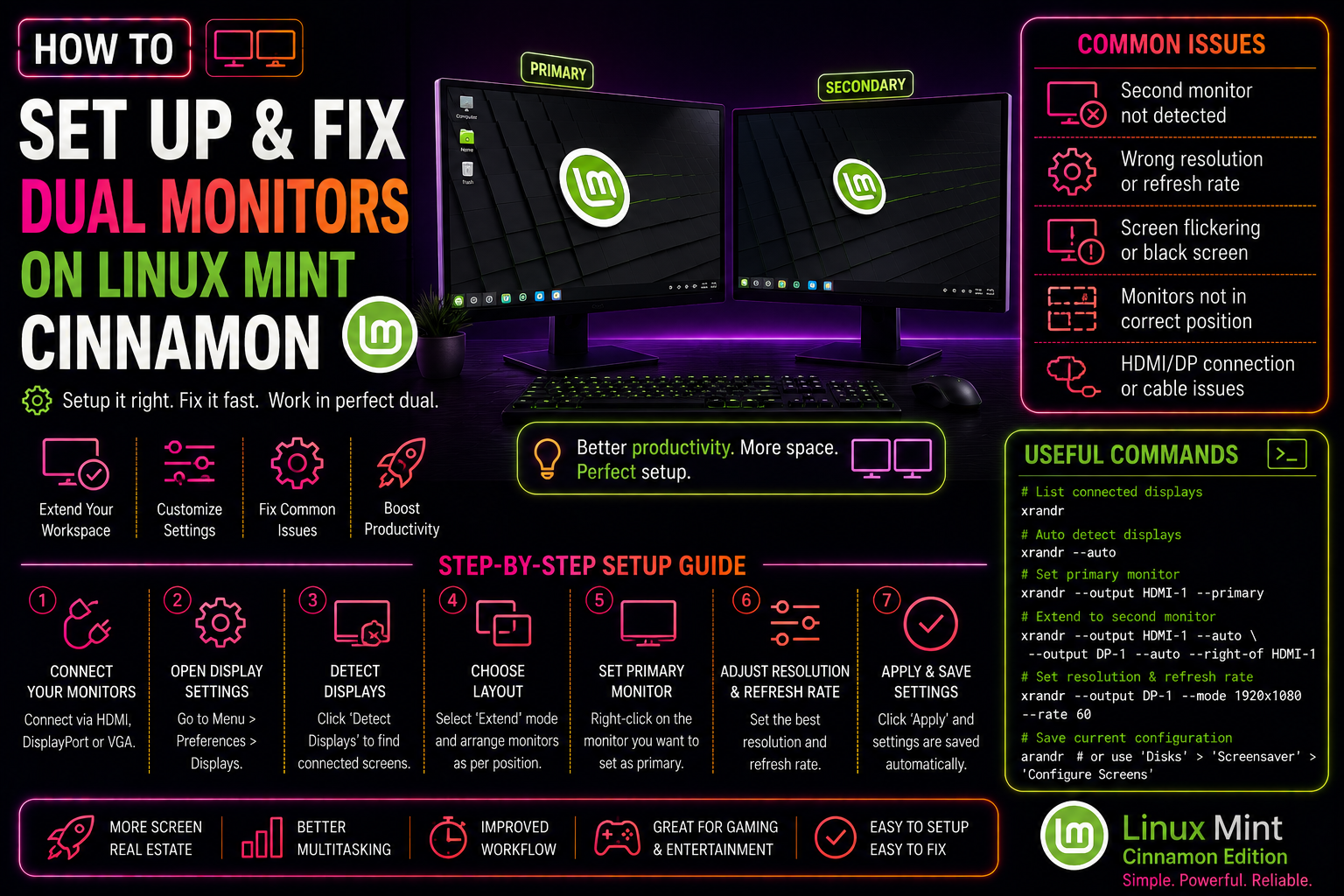
Linux Mint's Cinnamon desktop has solid multi-monitor support, but setting up two screens with different resolutions, aspect ratios, or refresh rates still requires manual xrandr work in some configurations. The most common 2026 problems are:
- Second monitor not detected at all (HDMI/DisplayPort/USB-C)
- Wrong or limited resolution on one monitor
- Blurry/scaled display on a 4K+1080p mixed setup
- Monitors reverting to single-display or wrong arrangement after reboot
- Screen tearing on the secondary display
- Panel/taskbar appearing on the wrong monitor
This guide covers each scenario with the exact xrandr commands and configuration files needed to make the setup permanent.
Step 1: Identify Your Monitors and Outputs
First, get the exact output names that Linux assigned to your monitors:
xrandr --querySample output:
Screen 0: minimum 8 x 8, current 3840 x 1080, maximum 32767 x 32767
eDP-1 connected primary 1920x1080+1920+0 (normal left inverted right x axis y axis) 344mm x 194mm
   1920x1080     60.00*+  59.97
HDMI-1 connected 1920x1080+0+0 (normal left inverted right x axis y axis) 527mm x 296mm
   1920x1080     60.00*+  50.00
DP-1 disconnected (normal left inverted right x axis y axis)
Note the output names exactly — in this example eDP-1 (laptop screen) and HDMI-1 (external monitor). Yours may be HDMI-2, DP-2, HDMI-A-0, DisplayPort-0, etc. depending on your GPU and driver.
Fix 1: Second Monitor Not Detected
If xrandr --query shows the output as "disconnected" even though the monitor is physically connected:
Check the cable and port: Try a different cable and port. DisplayPort cables rated for 4K must support HBR3 (High Bit Rate 3). USB-C to HDMI adapters must be DP Alt Mode capable.
Force detection:
xrandr --autoCheck if the driver sees the monitor:
dmesg | grep -i "drm\|display\|hdmi\|dp"For NVIDIA GPUs with the proprietary driver — use nvidia-settings:
sudo nvidia-settingsIn nvidia-settings, go to "X Server Display Configuration" → click "Detect Displays" → save to X Configuration File.
For AMD/Intel — check if Wayland is in use and switch to X11: On Linux Mint 22.1+ you may be on Wayland. Wayland handles multi-monitor differently. Log out, click the gear icon on the login screen, and select "Cinnamon (X11)" to force X.Org, which has better multi-monitor tool support.
Fix 2: Wrong or Missing Resolution on Second Monitor
If the monitor is detected but your native resolution (e.g., 2560x1440) isn't in the list:
Step 1 — Calculate the custom mode:
cvt 2560 1440 60Output will look like:
# 2560x1440 59.96 Hz (CVT 3.69M9) hsync: 89.52 kHz; pclk: 312.25 MHz
Modeline "2560x1440_60.00"  312.25  2560 2752 3024 3488  1440 1443 1448 1493 -hsync +vsync
Step 2 — Add and apply the mode:
xrandr --newmode "2560x1440_60.00" 312.25 2560 2752 3024 3488 1440 1443 1448 1493 -hsync +vsync
xrandr --addmode HDMI-1 "2560x1440_60.00"
xrandr --output HDMI-1 --mode "2560x1440_60.00"
Replace HDMI-1 with your actual output name from Step 1.
Fix 3: Set Monitor Arrangement (Side by Side or Above/Below)
Tell Linux which monitor is left and which is right (or above/below):
# eDP-1 (laptop) on the right, HDMI-1 (external) on the left
xrandr --output HDMI-1 --mode 1920x1080 --pos 0x0 --output eDP-1 --mode 1920x1080 --pos 1920x0

# eDP-1 as primary
xrandr --output eDP-1 --primary
Or use the Display Settings GUI: Menu → System Settings → Display. Drag the monitor rectangles to the desired arrangement and click Apply.
Fix 4: Make the Setup Permanent Across Reboots
xrandr commands reset on reboot. To make your multi-monitor config persistent, add it to an autostart script:
Method A — Autostart script (recommended):
nano ~/.config/autostart/fix-monitors.desktopAdd:
[Desktop Entry]
Type=Application
Name=Fix Monitors
Exec=bash -c "sleep 3 && xrandr --output HDMI-1 --mode 1920x1080 --pos 0x0 --output eDP-1 --mode 1920x1080 --pos 1920x0 --primary"
Hidden=false
NoDisplay=false
X-GNOME-Autostart-enabled=true
The sleep 3 ensures the display manager has initialised before xrandr runs.
Method B — xorg.conf.d file (for permanent kernel-level config):
sudo nano /etc/X11/xorg.conf.d/10-monitor.confSection "Monitor"
Identifier "HDMI-1"
Option "Primary" "false"
Option "LeftOf" "eDP-1"
EndSection
Section "Monitor"
Identifier "eDP-1"
Option "Primary" "true"
Option "RightOf" "HDMI-1"
EndSectionFix 5: Handle Mixed Resolution / DPI (e.g., 4K + 1080p)
Mixing a 4K and a 1080p monitor is the hardest multi-monitor scenario on X11. The fundamental limitation is that X11 uses a single global DPI — you cannot set different scale factors per monitor natively without workarounds.
Best workaround — scale the 1080p monitor up to match the 4K base:
# Set 4K monitor (DP-1) as primary at native resolution
# Scale 1080p monitor (HDMI-1) by 2x to match 4K DPI
xrandr --output DP-1 --mode 3840x2160 --scale 1x1 --pos 0x0 --primary        --output HDMI-1 --mode 1920x1080 --scale 2x2 --pos 3840x0
This makes both monitors appear similar in physical size. Text and UI will be sharper on the 4K monitor. Add this to the autostart script (Fix 4) to persist it.
For Wayland users in Linux Mint 22.1+: Wayland supports per-monitor scaling natively. Log in with Cinnamon (Wayland) and set scaling per-display in Display Settings — no xrandr needed.
Fix 6: Fix Taskbar (Panel) Appearing on Wrong Monitor
After rearranging monitors, the Cinnamon panel may appear on the wrong one:
- Right-click the panel → Panel Settings.
- Under "Panel position" → change the monitor dropdown to your primary monitor.
- Alternatively: System Settings → Panel → drag the panel indicator to the correct monitor.
To set the primary monitor so apps open on it by default:
xrandr --output eDP-1 --primaryFix 7: Fix Screen Tearing on Secondary Monitor
For AMD and Intel GPUs, enable TearFree globally:
sudo nano /etc/X11/xorg.conf.d/20-tearfree.confSection "Device"
Identifier "Intel Graphics" # or "AMD Graphics"
Driver "intel" # or "amdgpu"
Option "TearFree" "true"
EndSectionFor NVIDIA proprietary driver, enable Force Full Composition Pipeline in nvidia-settings:
- Open
nvidia-settings. - X Server Display Configuration → Advanced → Force Full Composition Pipeline → check the box for both monitors.
- Save to X Configuration File.
If you're still fighting with multi-monitor configuration after working through these steps, our professional desktop support team can remotely configure your exact hardware combination on Linux Mint.
Frequently Asked Questions
Why does my second monitor show as disconnected in xrandr even though it's plugged in?
This usually means the GPU driver isn't detecting the monitor's EDID data. Try a different cable (ensure it's rated for your resolution), try a different port, or run xrandr --auto to force detection. For NVIDIA users, use nvidia-settings and click Detect Displays.
How do I stop my dual monitor setup from resetting after every reboot?
xrandr changes are not persistent. Add your xrandr commands to an autostart .desktop file in ~/.config/autostart/ with a 3-second sleep delay, or write a permanent xorg.conf.d configuration file as described in Fix 4.
Can I use a 4K monitor and a 1080p monitor together on Linux Mint without blurry text?
Yes, using xrandr's --scale option (Fix 5). The cleanest solution is to use Linux Mint 22.1+ with the Wayland session, which supports fractional per-monitor scaling natively in Display Settings without any xrandr workarounds.
My laptop closes the lid but I want only the external monitor to stay on. How do I configure that?
Set the lid-close action to "Do nothing" in System Settings → Power Management → "When the lid is closed: Do nothing". Then use xrandr to turn off the built-in display: xrandr --output eDP-1 --off --output HDMI-1 --auto. Add this to your autostart script.
The Cinnamon Display Settings GUI doesn't show the resolution I need. What do I do?
The GUI only lists resolutions that the driver negotiated with the monitor. If your native resolution isn't listed, use the cvt + xrandr --newmode + xrandr --addmode workflow described in Fix 2 to add the missing resolution manually.