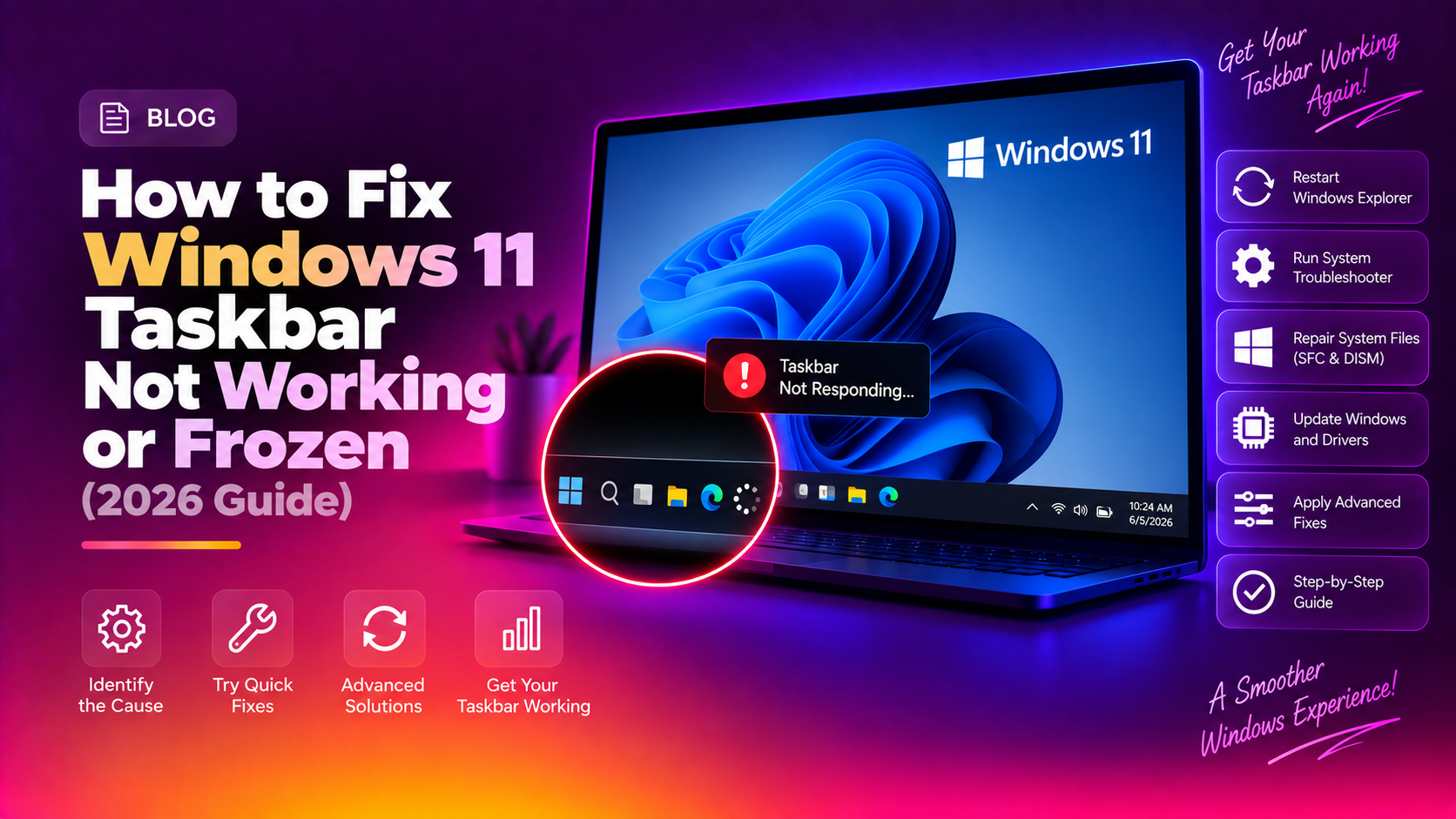
Why Is Your Windows 11 Taskbar Not Working?
If your Windows 11 taskbar is frozen, blank, or missing, the fastest fix is to restart explorer.exe from Task Manager (press Ctrl + Shift + Esc), which takes under a minute. If the problem comes back, the fixes below cover updates, SFC and DISM repairs, shell re-registration, and more.
The Windows 11 taskbar is powered by explorer.exe, the shell process responsible for the desktop, taskbar, Start menu, and system tray. When explorer.exe crashes, freezes, or becomes corrupted, the entire taskbar can stop responding, go blank, or disappear entirely.
In May 2026, Microsoft acknowledged a widespread explorer.exe stability issue affecting Windows 11 users worldwide. The KB5089549 update was rolled out to address taskbar freezes, blank desktops, and Start menu failures. Even after the patch, some users still experience problems, particularly after system updates, corrupted user profiles, or malware infections. Installing the latest cumulative update is still the best first step, because later updates build on that fix.
This 2026 guide walks you through every fix, from a 30-second explorer restart to advanced SFC and DISM repairs, so you can get your taskbar working again today.
Fix 1: Restart Explorer.exe (Fastest Fix)
This fix resolves the majority of temporary taskbar freezes in under 60 seconds. It reloads the Windows shell without requiring a full reboot.
Step 1. Press Ctrl + Shift + Esc to open Task Manager directly (this works even when the taskbar is unresponsive).
Step 2. Click the Details tab and scroll to find explorer.exe.
Step 3. Right-click explorer.exe and select End Task. Your taskbar and desktop icons will disappear briefly.
Step 4. In Task Manager, click File → Run new task, type explorer.exe, and press Enter. The taskbar will reload within seconds.
If the taskbar works normally after this, the issue was a temporary glitch. If it freezes again within minutes, continue to the next fix.
Fix 2: Install the Latest Windows 11 Updates
Microsoft shipped a direct fix for explorer.exe instability in the May 2026 cumulative update (KB5089549). If you haven't installed it yet, that update alone may resolve your problem. Installing the newest cumulative update available also brings in any later stability fixes.
Step 1. Press Win + I to open Settings.
Step 2. Navigate to Windows Update and click Check for updates.
Step 3. Download and install all available updates, including optional driver updates.
Step 4. Restart your PC when prompted and check whether the taskbar works correctly after rebooting.
Fix 3: Run the System File Checker (SFC)
Corrupted Windows system files are a leading cause of persistent taskbar failures. The System File Checker scans every protected system file and automatically replaces corrupted ones with a clean cached copy.
Step 1. Press Win + S, type cmd, right-click Command Prompt, and select Run as administrator.
Step 2. Type the following command and press Enter:
sfc /scannowStep 3. Wait for the scan to complete. This typically takes 5–15 minutes. Do not close the window.
Step 4. If SFC reports "Windows Resource Protection found corrupt files and repaired them," restart your PC and test the taskbar.
If SFC reports it could not fix all errors, run the DISM repair in the next step before running SFC again.
Fix 4: Run DISM to Repair the Windows Image
DISM (Deployment Imaging Service and Management) repairs the underlying Windows image that SFC draws from. If the SFC cache itself is corrupted, DISM fetches clean replacement files directly from Microsoft's servers.
Step 1. Open Command Prompt as administrator (same as Fix 3).
Step 2. Run these three commands in sequence:
DISM /Online /Cleanup-Image /CheckHealth
DISM /Online /Cleanup-Image /ScanHealth
DISM /Online /Cleanup-Image /RestoreHealth
Step 3. The RestoreHealth command downloads missing or corrupted components from Windows Update, so make sure you have an internet connection. This may take 10–30 minutes.
Step 4. After DISM completes, run sfc /scannow again, then restart your PC.
Fix 5: Re-register Windows Shell Components (PowerShell)
If explorer.exe itself is intact but the taskbar components (Start menu, system tray, Action Center) won't load, re-registering the Windows Shell AppX packages often resolves the problem.
Step 1. Right-click the Start button and select Windows PowerShell (Admin) or Terminal (Admin).
Step 2. Run this command:
Get-AppXPackage -AllUsers | Foreach {Add-AppxPackage -DisableDevelopmentMode -Register "$($_.InstallLocation)\AppXManifest.xml"}Step 3. Ignore any red error lines. These are normal for pre-installed apps. Wait for the command to complete fully, then restart your PC.
Fix 6: Check for Corrupted User Profile
A corrupted user profile is the cause when the taskbar works perfectly on other Windows accounts but fails only on yours. To test this:
Step 1. Press Win + I → Accounts → Other users → Add account.
Step 2. Create a temporary local administrator account and sign into it.
Step 3. If the taskbar works flawlessly on the new account, your original profile is corrupted. Transfer your files and settings to the new account, then delete the old one.
Fix 7: Disable Third-Party Shell Extensions
Some third-party applications (context menu handlers, antivirus integrations, cloud storage apps) inject code into explorer.exe and cause instability. ShellExView is a free, reliable tool for diagnosing this.
Step 1. Download ShellExView from NirSoft (free, no installation needed).
Step 2. Open ShellExView and sort by Company. Select all extensions that are NOT from Microsoft.
Step 3. Press F7 to disable them all, then restart explorer.exe (Fix 1).
Step 4. If the taskbar stabilises, re-enable the extensions one by one to identify the culprit.
Fix 8: Scan for Malware
Malware frequently targets explorer.exe and the Windows shell to hide its processes or maintain persistence. If your taskbar issues started suddenly without a Windows update, run a full malware scan.
Step 1. Press Win + I → Privacy & Security → Windows Security → Virus & threat protection.
Step 2. Click Scan options and select Full scan. Click Scan now.
Step 3. For a second opinion, download Malwarebytes Free and run a scan alongside Windows Security.
Fix 9: Perform a Clean Boot
A clean boot starts Windows with only essential Microsoft services, eliminating all third-party software conflicts.
Step 1. Press Win + R, type msconfig, and press Enter.
Step 2. On the Services tab, check Hide all Microsoft services, then click Disable all.
Step 3. On the Startup tab, click Open Task Manager and disable all startup items.
Step 4. Restart your PC. If the taskbar works correctly after a clean boot, re-enable services in batches to identify the conflicting program.
Fix 10: Reset Windows 11 (Keep Your Files)
If all other fixes have failed, resetting Windows 11 reinstalls the OS while preserving your personal files. This resolves deep system-level corruption that SFC and DISM cannot repair. Back up important data first as a precaution.
Step 1. Press Win + I → System → Recovery.
Step 2. Under Reset this PC, click Reset PC.
Step 3. Choose Keep my files to preserve documents, photos, and personal data. Applications will be removed and Windows reinstalled fresh.
Step 4. Follow the on-screen prompts. The reset takes 30–60 minutes depending on your hardware.
Prevention: How to Keep Your Windows 11 Taskbar Stable
- Keep Windows updated — install cumulative updates regularly to receive stability patches for explorer.exe.
- Avoid third-party shell replacements — programs that modify the taskbar appearance are a common source of crashes.
- Limit startup programs — too many startup apps put pressure on explorer.exe at boot time.
- Create regular restore points — go to Control Panel → System → System Protection and enable automatic restore points.
Still Stuck? Get Expert Help
If your Windows 11 taskbar is still not working after trying all ten fixes, the problem likely requires hands-on diagnostics, such as event log analysis, driver conflict identification, or profile migration. CloudHouse Technologies offers pay-per-ticket Windows support with a guaranteed response time. A certified technician will remotely diagnose your exact issue and fix it in a single session.
Frequently Asked Questions
Why does my Windows 11 taskbar keep disappearing?
The taskbar disappears when explorer.exe crashes. This is most commonly caused by corrupted system files, a conflicting startup program, or a bug in a recent Windows update. Restart explorer.exe as a first step, then run SFC if the problem recurs.
Why is my Windows 11 Start menu not opening?
The Start menu relies on the StartMenuExperienceHost.exe process. If it crashes, the menu won't open even when the taskbar is visible. Re-registering AppX packages (Fix 5) or creating a new user profile (Fix 6) usually resolves this.
Is it safe to end explorer.exe in Task Manager?
Yes, it is completely safe. Ending explorer.exe temporarily removes the desktop shell. Restarting it via Task Manager (File → Run new task → explorer.exe) brings everything back without affecting your files or running applications.
Will resetting Windows 11 delete my files?
Only if you choose "Remove everything." The "Keep my files" option reinstalls Windows while preserving your personal files. Your installed applications will be removed, but documents, photos, and downloads in your user folders will remain.
My taskbar only breaks after a specific Windows update — what should I do?
Use System Restore to roll back to a point before the update: press Win + S, search for "Create a restore point," click System Restore, and choose a date before the update was installed. You can then pause Windows Update for up to 5 weeks while waiting for Microsoft to ship a fix.