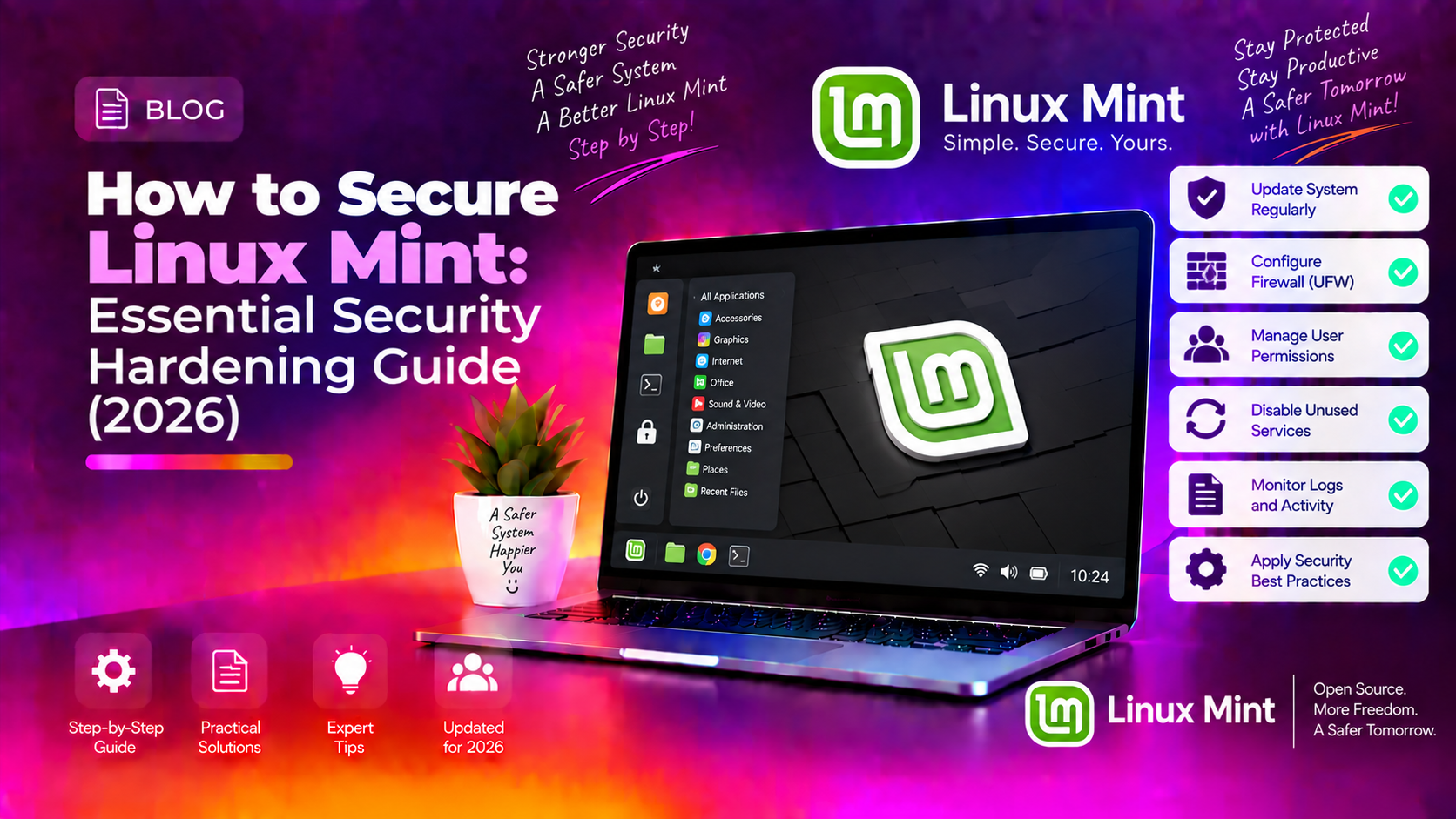
Why Linux Mint Security Matters in 2026
Linux Mint has a reputation for being inherently secure, and that reputation is well-earned — Linux-based desktops don't suffer from the mass malware epidemics that plague Windows. But "more secure by default" is not the same as "secure." In 2026, threats targeting Linux desktops are growing: browser-based exploits, phishing attacks that steal credentials, rogue npm packages, and ransomware strains that run fine on Linux are all real concerns for everyday users.
The good news: hardening Linux Mint is straightforward, and most steps require only a few terminal commands. This guide covers everything from firewall setup to application confinement — in order of impact.
Step 1: Keep Your System Updated
The single most effective security measure is keeping your software up to date. The vast majority of successful Linux attacks exploit known CVEs (Common Vulnerabilities and Exposures) — vulnerabilities that already have patches available.
Run updates regularly from the terminal:
sudo apt update && sudo apt upgrade -yFor automatic security updates, install unattended-upgrades:
sudo apt install unattended-upgrades
sudo dpkg-reconfigure --priority=low unattended-upgrades
Select Yes when prompted. This configures your system to automatically download and install security patches daily without requiring your intervention.
Also open the Update Manager (Linux Mint's built-in tool) and verify that the Security Updates source is enabled and set to the highest priority level.
Step 2: Enable and Configure UFW Firewall
Linux Mint ships with UFW (Uncomplicated Firewall) pre-installed but disabled by default. Enable it immediately:
sudo ufw enableCheck its status:
sudo ufw status verboseBy default, UFW blocks all incoming connections and allows all outgoing connections — this is the correct starting posture for a desktop system. If you run any local services, allow only what you need:
# Allow SSH only from your local network (replace 192.168.1.0/24 with yours)
sudo ufw allow from 192.168.1.0/24 to any port 22

# Allow Samba for local file sharing
sudo ufw allow samba

# Block everything else by default (already the default, but explicit is better)
sudo ufw default deny incoming
sudo ufw default allow outgoing
For a graphical interface, install Gufw:
sudo apt install gufwOpen it from the menu under Administration → Firewall Configuration.
Step 3: Verify AppArmor is Enforcing
AppArmor is a Mandatory Access Control (MAC) system pre-installed in Linux Mint. It confines applications to specific file paths and network capabilities — even if your browser is compromised via a zero-day, AppArmor can prevent it from reading your SSH keys or home directory files.
Check AppArmor status:
sudo apparmor_statusYou should see profiles listed as enforce mode, not complain mode. If AppArmor is not active:
sudo systemctl enable apparmor
sudo systemctl start apparmor
Install additional AppArmor profiles for common applications:
sudo apt install apparmor-profiles apparmor-profiles-extraAfter installing, reload AppArmor:
sudo systemctl reload apparmorStep 4: Install and Configure Fail2Ban
If your Linux Mint machine is accessible via SSH from the internet (not recommended for most desktop users, but common for home servers or remote work setups), Fail2Ban automatically blocks IP addresses after repeated failed login attempts.
sudo apt install fail2banCreate a local configuration (never edit the original — it gets overwritten on updates):
sudo cp /etc/fail2ban/jail.conf /etc/fail2ban/jail.local
sudo nano /etc/fail2ban/jail.local
Set these values in the [DEFAULT] section:
bantime  = 3600
findtime = 600
maxretry = 5
This bans IPs for 1 hour after 5 failed attempts within 10 minutes. Restart Fail2Ban:
sudo systemctl enable fail2ban
sudo systemctl restart fail2ban
Step 5: Use Strong Passwords and Enable Disk Encryption
If you didn't enable full disk encryption (LUKS) during Linux Mint installation, your data is accessible to anyone who has physical access to your hard drive. This is especially critical for laptops.
To check if encryption is active:
lsblk -o NAME,FSTYPE,MOUNTPOINT | grep cryptIf you see dm-crypt or crypto_LUKS in the output, your disk is encrypted. If not, you'll need to reinstall Linux Mint and select Encrypt the new Linux Mint installation during setup — there's no safe way to encrypt an existing installation without reinstalling.
For passwords, use a password manager like KeePassXC (available in the Software Manager) to generate and store unique, complex passwords for every service.
Step 6: Scan for Malware with ClamAV
While Linux Mint is not a common malware target, it's good practice to scan files received from untrusted sources — especially if you share files with Windows users.
sudo apt install clamav clamav-daemon
sudo systemctl stop clamav-freshclam
sudo freshclam
sudo systemctl start clamav-freshclam
Scan a directory:
clamscan -r --bell -i /home/yourusername/DownloadsThe -r flag scans recursively, -i shows only infected files, and --bell sounds an alert if anything is found. For a full system scan (takes longer):
sudo clamscan -r --bell -i /Step 7: Secure Your Browser
Your web browser is the most exposed attack surface on any desktop. For Linux Mint users in 2026:
- Use Firefox or Chromium — both have strong sandboxing and are actively maintained on Linux Mint.
- Install uBlock Origin — blocks malicious ads and tracking scripts. Available free from the Firefox Add-ons site or Chrome Web Store.
- Enable DNS over HTTPS in Firefox: Settings → Privacy & Security → DNS over HTTPS → Max Protection. Use Cloudflare (1.1.1.1) or NextDNS.
- Disable Flash and Java plugins — both are end-of-life and should not be installed.
- Review installed extensions — remove any you don't recognise. Malicious browser extensions are a leading attack vector on Linux desktops.
Step 8: Audit Installed Services and Open Ports
List all listening network services to identify anything that shouldn't be exposed:
ss -tulnpLook for unexpected services listening on external interfaces (anything that isn't 127.0.0.1 or ::1). Common legitimate listeners include avahi-daemon (mDNS) and cups (printing). If you see something unexpected:
# Find which package provides the service
dpkg -S /path/to/binary

# Disable the service if not needed
sudo systemctl disable --now service-name
Step 9: Restrict sudo Access
Review which users have sudo (administrative) access:
grep -Po '^sudo.+:\K.*$' /etc/groupRemove sudo access from any user that doesn't need it:
sudo deluser username sudoAlso review the sudoers file for any NOPASSWD entries (which allow commands to run without a password prompt) — these should be minimised:
sudo visudoGetting Professional Linux Support
If you're managing Linux Mint in a business environment or need help implementing a more complex security configuration, CloudHouse Technologies offers professional Linux desktop support. Our engineers can audit your system, harden your configuration, and provide ongoing monitoring.
Frequently Asked Questions
Does Linux Mint need antivirus software?
Linux Mint is far less vulnerable to traditional malware than Windows, but antivirus software like ClamAV is still useful for scanning files shared with Windows users or downloaded from untrusted sources. It won't noticeably impact performance and adds a useful safety net.
Is UFW enabled by default in Linux Mint?
UFW is installed by default in Linux Mint but is disabled. You must manually enable it with sudo ufw enable. Once enabled, it blocks all incoming connections by default, which is the correct setting for most desktop users.
Should I use AppArmor or SELinux on Linux Mint?
Linux Mint uses AppArmor by default and it's the recommended MAC system for Mint and Ubuntu-based systems. SELinux is primarily used on Red Hat/CentOS systems and requires significant configuration effort. Stick with AppArmor and ensure it's in enforcing mode.
Can I encrypt my home folder on Linux Mint without reinstalling?
eCryptfs home folder encryption is available without reinstalling, but it's less robust than full disk encryption (LUKS) and has been deprecated in newer Ubuntu/Mint releases. For new installations, enable LUKS full disk encryption during setup. For existing systems without encryption, the safest approach is to back up your data and reinstall with encryption enabled.
How do I know if my Linux Mint system has been compromised?
Signs of compromise include unexpected outbound network connections (check with ss -tulnp), new user accounts you didn't create, unusual cron jobs (crontab -l and sudo crontab -l), modified system binaries (use debsums -c to verify package integrity), and unexplained CPU or disk activity. Run sudo rkhunter --check for a rootkit scan.