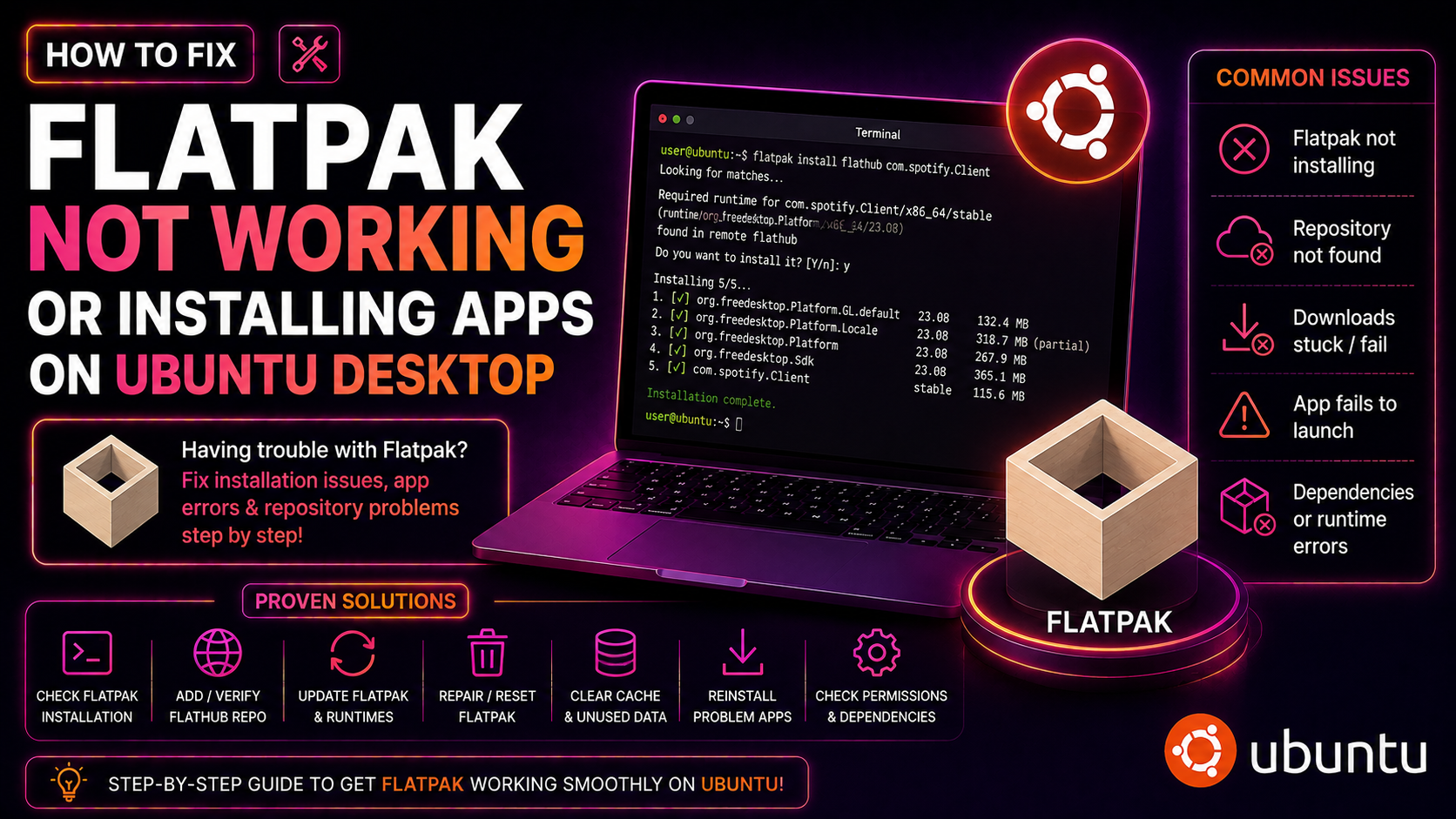
Flatpak is supposed to make installing apps on Ubuntu simple — one command, any app from Flathub, done. But for thousands of Ubuntu 24.04 and 25.10 users in 2026, Flatpak installations silently fail or throw cryptic errors like "Error installing application", "could not unmount revokefs-fuse filesystem", or "Child process exited with code 1". The frustrating part? Everything looks correctly set up, yet VLC, GIMP, OBS — nothing installs. This guide walks through every known cause and fix, including the Ubuntu 25.10 AppArmor regression that most articles completely miss.
Why Flatpak Breaks on Ubuntu Desktop in 2026
There are several distinct reasons Flatpak fails on Ubuntu, and they produce different error messages:
- AppArmor blocking fusermount3 — Ubuntu 25.10 shipped with an AppArmor profile for
fusermount3that denies access to/run/mount/utab, which Flatpak requires to mount and unmount filesystems during installation. This is a confirmed Canonical bug (Launchpad #2100295) affecting all Flatpak installs on Ubuntu 25.10 until AppArmor version 5.0.0~alpha1-0ubuntu8.1 or later. - Flathub remote not configured — Ubuntu 24.04 does not ship with Flatpak or the Flathub remote pre-configured. Installing
flatpakalone is not enough. - Permission or filesystem errors — Trying to install as a non-root user without the correct flags, or installing to a read-only or full filesystem.
- Missing or corrupt runtime — Flatpak apps depend on shared runtimes (e.g., GNOME Platform, KDE Frameworks). If the runtime is missing or mismatched, the app launches with a blank window or crashes immediately.
Identify your error message first — it tells you exactly which section of this guide to jump to.
Quick Fix: Update AppArmor to Unblock fusermount3
If you are on Ubuntu 25.10 (Questing Quokka) and every Flatpak install fails with "could not unmount revokefs-fuse filesystem" or "Child process exited with code 1", the root cause is the AppArmor fusermount3 profile bug. Here are your two options:
Option A: Install the Official Patched AppArmor (Recommended)
Canonical released a fix in the proposed archive. Enable it and update AppArmor:
sudo add-apt-repository ppa:canonical-kernel-team/proposed
sudo apt update
sudo apt install --only-upgrade apparmor
After the upgrade, verify the AppArmor version is 5.0.0~alpha1-0ubuntu8.1 or higher:
dpkg -l apparmor | grep apparmorRestart the AppArmor service and try your Flatpak install again:
sudo systemctl restart apparmor
flatpak install flathub org.videolan.VLC
Option B: Temporarily Disable the Problematic AppArmor Profile
If you cannot update right now, disable just the fusermount3 profile as a temporary workaround. This carries a minor security trade-off but is acceptable on a personal desktop:
sudo ln -s /etc/apparmor.d/fusermount3 /etc/apparmor.d/disable/fusermount3
sudo apparmor_parser -R /etc/apparmor.d/fusermount3
Confirm the profile is disabled:
sudo aa-status | grep fusermount3The profile should no longer appear in the enforced list. Try installing a Flatpak app to verify the fix.
To re-enable the profile after the official AppArmor update arrives:
sudo rm /etc/apparmor.d/disable/fusermount3
sudo apparmor_parser -r /etc/apparmor.d/fusermount3
Fix Flatpak Not Installed or Remote Not Configured
Ubuntu 24.04 LTS does not include Flatpak by default. If running flatpak list gives you "command not found" or your Software Center shows no Flatpak apps, complete the full setup:
Step 1: Install Flatpak
sudo apt update
sudo apt install flatpak
Step 2: Install the GNOME Software Flatpak Plugin
This enables Flatpak support inside the GNOME Software Center (optional but recommended for GUI users):
sudo apt install gnome-software-plugin-flatpakStep 3: Add the Flathub Remote
Without this step, Flatpak has no app repository to search or download from:
flatpak remote-add --if-not-exists flathub https://dl.flathub.org/repo/flathub.flatpakrepoTo add it system-wide (available to all users on the machine):
sudo flatpak remote-add --if-not-exists flathub https://dl.flathub.org/repo/flathub.flatpakrepoStep 4: Verify the Remote Was Added
flatpak remotesYou should see flathub listed with the URL https://dl.flathub.org/repo/. If it is missing, re-run the remote-add command.
Step 5: Reboot
Flatpak requires a full reboot (not just a logout) for the portal services and D-Bus integration to activate properly on Ubuntu:
sudo rebootFix "Error Installing Application" Permission Errors
The generic "Error installing application" message can have several causes. Work through these checks in order:
Check Available Disk Space
Flatpak apps and their runtimes can consume several gigabytes. Check free space on your root partition:
df -h /If you have less than 2 GB free, clear old Flatpak data first:
flatpak uninstall --unused
sudo apt autoremove --purge
Run the Install with Verbose Output
The default error message hides the real cause. Add --verbose to see the full error chain:
flatpak install --verbose flathub org.gimp.GIMPLook for lines containing error: or Failed — these point to the exact sub-component failing.
Try Installing as System vs. User
If installing system-wide fails, try installing for your user only:
flatpak install --user flathub org.gimp.GIMPConversely, if user installs fail, try system-wide with sudo:
sudo flatpak install flathub org.gimp.GIMPRepair a Corrupt Flatpak Installation
If the Flatpak database itself is corrupt, the repair command rebuilds it:
sudo flatpak repair --systemFor user installations:
flatpak repair --userFully Reinstall Flatpak
As a last resort for persistent errors, purge and reinstall Flatpak completely:
sudo apt remove --purge flatpak
sudo apt autoremove --purge
sudo rm -rf /var/lib/flatpak
rm -rf ~/.local/share/flatpak
sudo apt install flatpak
sudo flatpak remote-add --if-not-exists flathub https://dl.flathub.org/repo/flathub.flatpakrepo
sudo reboot
Fix Flatpak Apps Launching with Missing Libraries or Blank Windows
If Flatpak apps install successfully but launch with a blank window, crash on startup, or show errors about missing libraries, the issue is usually a missing or mismatched runtime.
Update All Flatpak Runtimes
flatpak updateThis updates both the installed apps and their runtimes. Run this first before anything else.
Check Which Runtime an App Requires
flatpak info org.videolan.VLCLook at the Runtime line. Then verify that runtime is installed:
flatpak list --runtimeIf the required runtime is missing, install it manually. For example, for GNOME Platform 46:
flatpak install flathub org.gnome.Platform//46Run the App from Terminal to See Errors
Launch a Flatpak app from the terminal to capture runtime error output:
flatpak run org.videolan.VLCError messages printed here (such as bwrap: Can't bind mount or xdg-portal errors) give you the exact component to investigate.
Fix Portal and D-Bus Integration Issues
Some apps fail because the xdg-desktop-portal service is not running or is using the wrong backend. Check its status:
systemctl --user status xdg-desktop-portalIf it shows failed or inactive, restart it:
systemctl --user restart xdg-desktop-portal
systemctl --user restart xdg-desktop-portal-gnome
Prevention: Keep Flatpak and AppArmor Profiles Updated
The Ubuntu 25.10 AppArmor regression is a strong reminder that OS-level security policies can silently break application frameworks. To stay ahead of similar issues:
- Enable automatic security updates — Run
sudo dpkg-reconfigure unattended-upgradesand ensure the security and proposed-security sources are enabled. - Update Flatpak apps weekly — Add
flatpak updateto your maintenance routine or set up a systemd timer:sudo systemctl enable --now flatpak-system-update.timer - Monitor AppArmor denials proactively — Check for denied operations before they cause visible failures:
sudo journalctl -k --grep="apparmor.*DENIED" --since today - Clean up unused runtimes periodically to reclaim disk space:
flatpak uninstall --unused
Need expert help? CloudHouse Technologies offers Pay-Per-Ticket Support — get a specialist to fix this for you.
Frequently Asked Questions
Why does Flatpak work on other Linux distros but not on Ubuntu 25.10?
Ubuntu 25.10 shipped with a restrictive AppArmor profile for fusermount3 that blocks access to /run/mount/utab, a file Flatpak needs during app installation. Other distributions either do not use AppArmor or ship a less restrictive profile. The fix is to update AppArmor to version 5.0.0~alpha1-0ubuntu8.1 or later, or temporarily disable the fusermount3 profile with sudo ln -s /etc/apparmor.d/fusermount3 /etc/apparmor.d/disable/fusermount3 followed by sudo apparmor_parser -R /etc/apparmor.d/fusermount3.
Do I need to add Flathub separately on Ubuntu 24.04?
Yes. Unlike some distributions that pre-configure Flathub, Ubuntu 24.04 LTS requires you to add it manually after installing Flatpak. Run sudo flatpak remote-add --if-not-exists flathub https://dl.flathub.org/repo/flathub.flatpakrepo and then reboot. Without this step, Flatpak has no app repository to install from.
Is it safe to disable the AppArmor fusermount3 profile?
Disabling the fusermount3 AppArmor profile is a minor reduction in security isolation for the FUSE filesystem layer. On a personal desktop that is not a public server, this trade-off is generally acceptable as a temporary measure while waiting for the official AppArmor update. Re-enable the profile after updating AppArmor to the patched version.
How do I completely reset Flatpak if nothing else works?
Remove Flatpak and all its data, then reinstall from scratch: run sudo apt remove --purge flatpak, then sudo rm -rf /var/lib/flatpak and rm -rf ~/.local/share/flatpak. Reinstall with sudo apt install flatpak, re-add the Flathub remote, and reboot. This resolves corrupt database issues that cannot be fixed with flatpak repair.
Flatpak apps installed fine but now show a blank window — what changed?
A blank window on launch usually means a runtime version mismatch after an OS upgrade. Run flatpak update to bring all runtimes up to date. If that does not help, run the app from a terminal with flatpak run <app-id> to see the specific error, and check that the xdg-desktop-portal service is running with systemctl --user status xdg-desktop-portal.