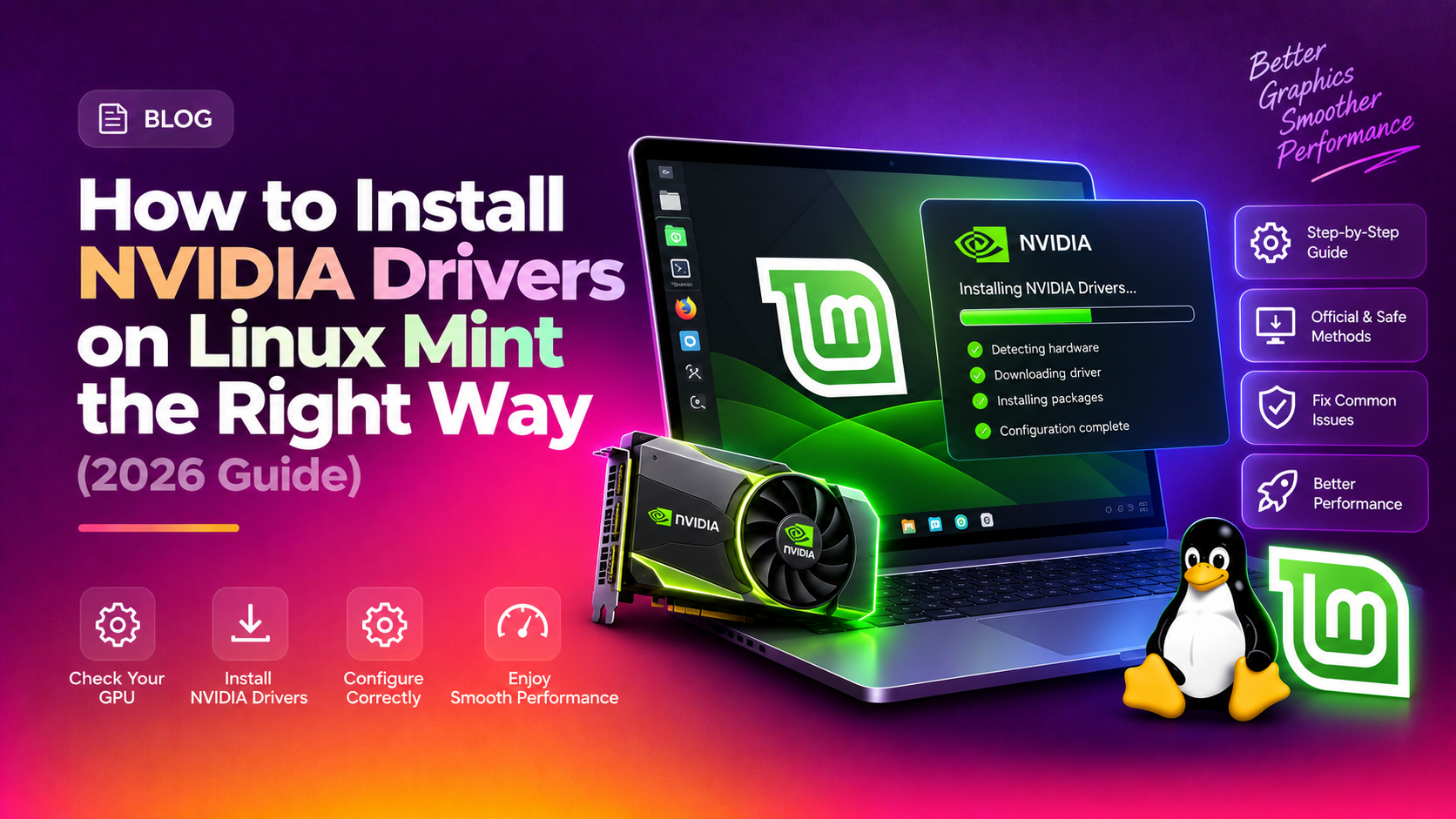
If you've just installed Linux Mint and your display looks blurry, screen tearing is visible during video playback, or your games run at a fraction of the expected performance, the culprit is almost always the open-source Nouveau driver running instead of NVIDIA's proprietary driver. Linux Mint makes NVIDIA driver installation straightforward — but there are several methods, common pitfalls, and post-install fixes you need to know before diving in. This 2026 guide covers every method, every common error, and every fix.
Why NVIDIA Driver Installation Matters on Linux Mint
By default, Linux Mint ships with the Nouveau driver — an open-source reverse-engineered NVIDIA driver maintained by the community. Nouveau works for basic display output, but it lacks:
- Hardware-accelerated video decoding (NVDEC/NVENC)
- Vulkan and OpenGL performance needed for gaming
- CUDA support for machine learning and GPU compute workloads
- NVIDIA PRIME switching on laptops (hybrid graphics)
- Proper support for 4K/high-refresh-rate monitors
NVIDIA's proprietary driver unlocks all of these. In 2026, the current stable driver branch is nvidia-driver-570 (with open-kernel module support for RTX 30/40 series). Installing it correctly the first time avoids the dreaded black screen on boot that affects so many new Linux Mint users.
Before You Start: Check Your NVIDIA GPU
Before installing anything, identify exactly which GPU you have. This determines which driver branch is compatible.
Step 1: List your GPU with lspci
Open a terminal (Ctrl+Alt+T) and run:
lspci -k | grep -EA3 'VGA|3D|Display'You'll see output like:
01:00.0 VGA compatible controller: NVIDIA Corporation GA106M [GeForce RTX 3060 Mobile / Max-Q] (rev a1)
        Subsystem: Lenovo Device 3a3a
        Kernel driver in use: nouveau
        Kernel modules: nouveau
The line Kernel driver in use: nouveau confirms you're currently on the open-source driver.
Step 2: Check what drivers are available
ubuntu-drivers devicesThis lists all detected hardware and recommended drivers. Look for lines beginning with driver:
vendor   : NVIDIA Corporation
model    : GA106M [GeForce RTX 3060 Mobile / Max-Q]
driver   : nvidia-driver-570 - distro non-free recommended
driver   : nvidia-driver-550 - distro non-free
driver   : nvidia-driver-535 - distro non-free
The entry marked recommended is the safest choice for most users.
Method 1: Install NVIDIA Driver via Driver Manager (Recommended)
The Driver Manager is Linux Mint's GUI tool for managing proprietary drivers. It is the easiest and safest method.
- Open the Start Menu and search for Driver Manager, or go to Menu > Administration > Driver Manager.
- Enter your password when prompted. Driver Manager will scan your hardware — this takes 10–30 seconds.
- In the NVIDIA section, you will see a list of available driver versions. The entry labelled recommended (usually the latest stable version, e.g.
nvidia-driver-570) is highlighted. Select it. - Click Apply Changes. The driver will be downloaded and installed. This may take 3–10 minutes depending on your internet speed.
- When the installation finishes, click Restart Now. Your system will reboot.
- After reboot, verify the driver loaded correctly by opening a terminal and running:
nvidia-smi
If nvidia-smi outputs a table showing your GPU name, driver version, and memory, the installation succeeded.
Note: Avoid selecting drivers marked open (kernel module) unless you have an RTX 30-series or newer card and understand what that means. The standard proprietary driver is better tested across Linux Mint's kernel versions.
Method 2: Install NVIDIA Drivers via Terminal
If you prefer the command line, or if Driver Manager fails to detect your GPU, use the terminal method.
Option A: Auto-install the recommended driver
- Update your package list:
sudo apt update - Let ubuntu-drivers select and install the recommended driver automatically:
sudo ubuntu-drivers autoinstall - Reboot:
sudo reboot
Option B: Install a specific driver version manually
- Update package list:
sudo apt update - Install the exact driver version you want (replace 570 with your chosen version):
sudo apt install nvidia-driver-570 nvidia-dkms-570 - The DKMS package ensures the kernel module is rebuilt automatically whenever your kernel updates — critical for avoiding driver breakage after system updates.
- Reboot:
sudo reboot
Option C: Install from graphics-drivers PPA (latest upstream)
If the version in Linux Mint's repositories is older than what you need:
- Add the PPA:
sudo add-apt-repository ppa:graphics-drivers/ppasudo apt update - Install the latest driver:
sudo apt install nvidia-driver-570 - Reboot:
sudo reboot
Warning: PPA drivers are upstream and may occasionally be ahead of Linux Mint's tested kernel. If a newer driver causes instability, remove the PPA and revert to the repository version.
Method 3: Install Official NVIDIA Run File (Advanced)
The .run installer from NVIDIA's website gives you the absolute latest driver but bypasses the package manager. Use this only if you have a very new GPU not yet supported in the repositories, or if you need a specific driver version for CUDA development.
- Download the
.runfile from nvidia.com/drivers. Select your GPU, Linux 64-bit, and the language. Save the file (e.g.,NVIDIA-Linux-x86_64-570.86.16.run). - Stop the display manager to exit the graphical session. Press Ctrl+Alt+F3 to drop to a TTY, then:
sudo systemctl stop lightdm - Blacklist Nouveau (if not already done by a previous install attempt):
echo "blacklist nouveau" | sudo tee /etc/modprobe.d/blacklist-nouveau.confecho "options nouveau modeset=0" | sudo tee -a /etc/modprobe.d/blacklist-nouveau.confsudo update-initramfs -u - Make the installer executable and run it:
chmod +x NVIDIA-Linux-x86_64-570.86.16.runsudo ./NVIDIA-Linux-x86_64-570.86.16.run - Accept the license, let the installer build the kernel module, and select Yes when asked to update your X configuration file.
- Reboot:
sudo reboot
Caution: The .run method does not integrate with DKMS. After every kernel update you may need to reinstall the driver manually. For daily-use systems, Methods 1 or 2 are strongly preferred.
Fix: Black Screen After NVIDIA Driver Install
A black screen on boot after installing NVIDIA drivers is the most common post-install problem. It usually means either the driver failed to load, or the X server cannot initialise the display.
Step 1: Access recovery mode
- Power on your system. When the GRUB menu appears, hold Shift (Legacy BIOS) or press Esc (UEFI) to ensure the menu is visible.
- Select Advanced options for Linux Mint, then choose the entry ending in (recovery mode).
- In the recovery menu, select root — Drop to root shell prompt.
Step 2: Remove the broken NVIDIA driver
sudo apt remove --purge '^nvidia-.*'
sudo apt autoremove
sudo apt install --reinstall xserver-xorg
sudo update-initramfs -u
Step 3: Reboot and start fresh
sudo rebootYour system will boot with the Nouveau driver. You can then reinstall NVIDIA drivers via Driver Manager using Method 1 above.
Alternative: Fix X configuration
Sometimes the issue is just a corrupted /etc/X11/xorg.conf. Try removing it:
sudo rm /etc/X11/xorg.conf
sudo reboot
Fix: NVIDIA Settings Not Opening
If the NVIDIA X Server Settings application launches but is blank, or doesn't open at all, try the following steps.
- Verify the driver is active:
nvidia-smi
If this returns "command not found" or an error, the driver module is not loaded. Reinstall via Method 1 or 2. - Check that the nvidia-settings package is installed:
sudo apt install nvidia-settings - If NVIDIA Settings opens but shows "You do not appear to be using the NVIDIA X driver", regenerate your X configuration:
sudo nvidia-xconfigsudo reboot - On Wayland sessions, NVIDIA Settings has limited functionality. Switch to an X11 session: at the login screen, click the gear icon and select Cinnamon (X11) or MATE (X11) depending on your desktop environment.
- Check for errors in the X log:
grep -i error /var/log/Xorg.0.log | head -20
How to Switch Between NVIDIA and Intel/AMD (Prime)
On laptops with both integrated Intel or AMD graphics and a discrete NVIDIA GPU, Linux Mint uses NVIDIA PRIME to manage which GPU is active. Choosing the right mode balances battery life and performance.
Check current PRIME mode
prime-select querySwitch to NVIDIA only (maximum performance)
sudo prime-select nvidia
sudo reboot
Switch to Intel/AMD only (maximum battery life)
sudo prime-select intel
sudo reboot
For AMD integrated graphics, use:sudo prime-select amd
Enable PRIME on-demand mode (hybrid, recommended for laptops)
sudo prime-select on-demand
sudo reboot
In on-demand mode, your integrated GPU handles everyday tasks while the NVIDIA GPU activates only for GPU-intensive applications. To force a specific application to use the NVIDIA GPU:
__NV_PRIME_RENDER_OFFLOAD=1 __GLX_VENDOR_LIBRARY_NAME=nvidia glxgearsFor Steam games, add __NV_PRIME_RENDER_OFFLOAD=1 __GLX_VENDOR_LIBRARY_NAME=nvidia %command% to the game's launch options.
Verifying the Driver Installation
After installation and reboot, run these checks to confirm everything is working correctly.
Check driver version and GPU status
nvidia-smiSuccessful output looks like:
+-----------------------------------------------------------------------------------------+
| NVIDIA-SMI 570.86.16              Driver Version: 570.86.16      CUDA Version: 12.8    |
|-----------------------------------------+------------------------+----------------------+
| GPU  Name                 Persistence-M | Bus-Id          Disp.A | Volatile Uncorr. ECC |
| Fan  Temp   Perf          Pwr:Usage/Cap |           Memory-Usage | GPU-Util  Compute M. |
|=========================================================================================|
|   0  NVIDIA GeForce RTX 3060        Off |   00000000:01:00.0 Off |                  N/A |
| 30%   42C    P0             22W / 115W  |     512MiB /  12288MiB |      2%      Default |
+-----------------------------------------------------------------------------------------+
Verify the kernel module is loaded
lsmod | grep nvidiaYou should see nvidia, nvidia_modeset, nvidia_uvm, and nvidia_drm listed.
Check full system GPU info
inxi -GThis shows which driver is in use for each GPU in your system.
Test OpenGL rendering
glxinfo | grep "OpenGL renderer"Output should include your NVIDIA GPU name, not "llvmpipe" or "softpipe" which would indicate software rendering.
Verify DKMS module is registered
dkms statusYou should see an entry like nvidia/570.86.16, 6.8.0-60-generic, x86_64: installed. This confirms the driver will survive kernel updates automatically.
If your NVIDIA driver is installed but still not performing as expected — or if you'd rather have an expert handle the entire setup remotely — CloudHouse Pay-Per-Ticket Support can connect to your Linux Mint system and configure NVIDIA drivers, PRIME switching, and GPU settings correctly in a single session. No subscription required.
FAQ
How do I install NVIDIA drivers on Linux Mint?
The easiest method is using the Driver Manager: go to Menu > Administration > Driver Manager, select the recommended NVIDIA driver (usually the latest non-beta version), click Apply, and restart. Alternatively, run sudo ubuntu-drivers autoinstall in Terminal.
Which NVIDIA driver should I use on Linux Mint?
Use the driver marked "recommended" in Driver Manager, typically the latest stable proprietary driver (e.g., nvidia-driver-570 in 2026). Avoid "open kernel" variants unless you have an RTX 3000+ series card, as they may have less support on older kernel versions.
How do I fix a black screen after installing NVIDIA drivers on Linux Mint?
Boot to recovery mode (hold Shift during boot > Advanced options > Recovery mode > root shell), then run: sudo apt remove --purge '^nvidia-.*' && sudo apt autoremove && sudo reboot. This reverts to the open-source Nouveau driver so you can retry the installation cleanly.
How do I check if NVIDIA drivers are installed on Linux Mint?
Run nvidia-smi in Terminal. If drivers are installed correctly, it shows GPU information, driver version, and memory usage. You can also run inxi -G to see the graphics driver currently in use.
What is PRIME on Linux Mint?
NVIDIA PRIME is a technology that lets laptops with both Intel/AMD integrated graphics and an NVIDIA discrete GPU switch between them. Use prime-select nvidia for performance mode (NVIDIA only) or prime-select on-demand for hybrid mode that saves battery by using the NVIDIA GPU only when needed.