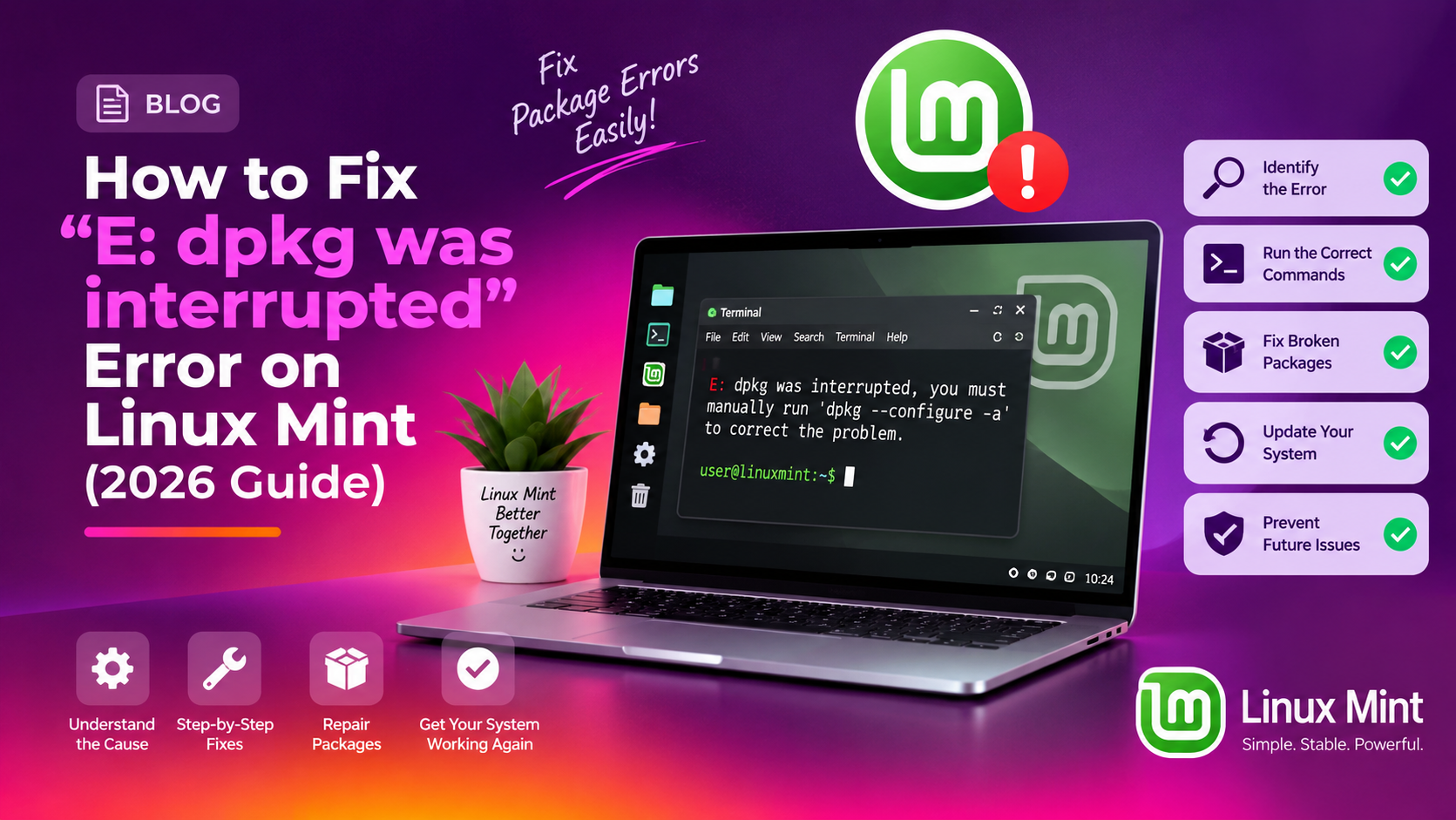
"E: dpkg was interrupted, you must manually run 'sudo dpkg --configure -a' to correct the problem" means a package install or update on Linux Mint was cut off before it finished. Run sudo dpkg --configure -a in a terminal to complete it, and in most cases that clears the error within a couple of minutes.
Until it is fixed, the error blocks every apt command and stops the Update Manager from running. This 2026 guide covers three progressively deeper fixes: the standard one-liner, removing stale lock files, and repairing the dpkg status database by hand. Whichever way the update was interrupted, one of them will get you back to a healthy system.
Why Does the 'E: dpkg was interrupted' Error Happen on Linux Mint?
The dpkg (Debian Package Manager) is the low-level tool that actually installs, configures, and removes software packages on Linux Mint. When you install or update a package, dpkg writes its progress to a journal. If that process is interrupted mid-way, dpkg never gets a chance to record a clean finish. Typical causes are a power cut, a system crash, a forced reboot, or accidentally closing the terminal.
The next time you (or apt, or the Update Manager) try to install or update anything, dpkg checks its journal and finds an unfinished transaction. It refuses to proceed until that pending configuration is completed or rolled back. Hence the error:
E: dpkg was interrupted, you must manually run 'sudo dpkg --configure -a' to correct the problem.Common triggers on Linux Mint include:
- Laptop battery dying during an update
- Pressing the power button or force-rebooting while Update Manager was running
- Closing the terminal mid-install with Ctrl+C
- A system freeze or kernel panic during package configuration
- Running
aptordpkgas two simultaneous processes (one kills the other)
The error appears on every edition of Linux Mint, including the current 21.x and 22.x releases (Ubuntu-based) and LMDE (the Debian-based edition). LMDE users can be hit harder after a large system update goes wrong, because a Debian base is strict about a clean dpkg state before it allows any new transaction.
Fix 1: Run sudo dpkg --configure -a to Resume the Interrupted Configuration
This is the standard fix suggested by the error message itself and the usual first step on Linux Mint. It tells dpkg to resume and complete the configuration of every package that was left in a half-configured state.
Step 1: Close the Update Manager and Synaptic Package Manager if either is open. Having them open while running this command can cause conflicts.
Step 2: Open a terminal (Ctrl+Alt+T) and run:
sudo dpkg --configure -aEnter your password when prompted. dpkg will now attempt to complete configuration for each interrupted package. You'll see output like this (package names and versions will differ on your system):
Setting up linux-image-6.8.0-55-generic (6.8.0-55.57) ...
Setting up grub-pc (2.12-1ubuntu7) ...
Running hooks in /etc/ca-certificates/update.d...
done.
Step 3: Once it finishes, update your package lists and verify everything is consistent:
sudo apt update
sudo apt upgrade
In the majority of cases, this single command resolves the problem completely. If it completes without errors, you're done. If it throws new errors or hangs, move on to Fix 2.
Fix 2: Remove Stale dpkg Lock Files Blocking apt and Update Manager
If sudo dpkg --configure -a fails with a message like:
dpkg: error: dpkg frontend lock was locked by another process with pid XXXXor
E: Could not get lock /var/lib/dpkg/lock-frontend. It is held by process XXXX...then a stale lock file is blocking dpkg. This happens when a previous apt/dpkg process crashed without releasing its lock. The system thinks a package manager is still running, even though it isn't.
Step 1: Verify no package manager is actually running:
ps aux | grep -E 'apt|dpkg|synaptic|mintinstall'If you see no relevant processes (only the grep command itself), the locks are genuinely stale and safe to remove. If a process is still running, wait for it to finish rather than deleting its lock.
Step 2: Remove all dpkg and apt lock files:
sudo rm -f /var/lib/dpkg/lock
sudo rm -f /var/lib/dpkg/lock-frontend
sudo rm -f /var/cache/apt/archives/lock
sudo rm -f /var/lib/apt/lists/lock
Step 3: Reconfigure the dpkg database after clearing locks:
sudo dpkg --configure -aStep 4: Run a full package fix pass:
sudo apt --fix-broken install
sudo apt update
sudo apt upgrade
The --fix-broken install flag tells apt to automatically resolve any missing dependencies or partially installed packages that emerged from the interrupted transaction.
If you still see errors after this, particularly loops where dpkg keeps failing on the same package, proceed to Fix 3.
Fix 3: Manually Repair the dpkg Status Database When Configuration Loops or Hangs
In rare cases, dpkg's internal status database becomes corrupted. This is most likely after a severe crash, an interrupted kernel update, or a failed LMDE system update. You'll recognize it when sudo dpkg --configure -a either loops indefinitely, reports the same package failing repeatedly, or shows:
dpkg: error processing package PACKAGENAME (--configure):
 subprocess installed post-installation script returned error exit status 1
Step 1: Identify which package is broken:
sudo dpkg -l | grep -E '^iF|^rF|^uF'Packages marked with iF (installed, Failed-config), rF, or uF are in a failed state.
Step 2: Try to force-remove and reinstall the offending package (replace PACKAGENAME with the actual package name):
sudo dpkg --remove --force-remove-reinstreq PACKAGENAME
sudo apt install PACKAGENAME
Step 3: If the package cannot be removed (e.g., it's a critical system package), try reconfiguring it individually:
sudo dpkg --configure PACKAGENAMEStep 4: If the dpkg status database itself is corrupted (not just one package), restore it from the backup dpkg maintains automatically:
sudo cp /var/lib/dpkg/status-old /var/lib/dpkg/statusdpkg keeps a backup of the previous status file at /var/lib/dpkg/status-old, which it refreshes as package operations run. Restoring it rolls the package database back to its state just before the most recent change. Only do this when the status file itself is damaged, because any package changes made since that backup will need to be redone.
Step 5: After restoring the status file, run the full repair sequence:
sudo dpkg --configure -a
sudo apt --fix-broken install
sudo apt clean
sudo apt update
sudo apt upgrade
This sequence completes any pending configurations, clears the package cache, and rebuilds the package lists. If you need expert help at any stage, professional PC support from CloudHouse can resolve this remotely in minutes.
How to Prevent dpkg Interruptions from Happening Again
Once you've fixed the immediate error, a few simple habits will prevent it recurring:
- Never force-close Update Manager mid-update. If an update appears stuck, wait at least 10 minutes before investigating. Many large kernel or Nvidia driver updates take longer than expected.
- Use a UPS or keep your laptop plugged in during updates. Power loss mid-install is the most common cause of dpkg interruptions. Even a brief outage during a kernel reconfigure can corrupt the status database.
- Use Timeshift before major updates. On Linux Mint, open Timeshift and create a snapshot before applying kernel or system-level updates. If anything goes wrong, you can restore in under five minutes.
- Don't run multiple package managers at once. Never open Synaptic while apt is running in the terminal (or vice versa). Check for running processes with
ps aux | grep aptbefore launching a new install session. - Check available disk space before updating. A full disk (
/partition at 100%) can cause dpkg to fail mid-write. Rundf -hbefore large update sessions. - Enable automatic Timeshift snapshots. In Timeshift settings, configure daily or weekly snapshots so you always have a rollback point if a future update goes wrong.
FAQ: dpkg Interrupted Errors on Linux Mint
What does "E: dpkg was interrupted" actually mean?
It means dpkg, the Debian package manager underlying Linux Mint, was in the middle of configuring or installing a package when the process was killed or crashed. dpkg recorded that it started the work but never recorded finishing it. Until you complete or undo that pending work with sudo dpkg --configure -a, dpkg will block all new package operations.
Is it safe to delete dpkg lock files?
Yes, as long as no package manager is actively running. Verify with ps aux | grep apt before deleting. Lock files are purely advisory: they exist to prevent simultaneous access, and stale ones left by crashed processes are safe to remove with sudo rm -f /var/lib/dpkg/lock*.
What if sudo dpkg --configure -a loops or never finishes?
This usually means one package's post-install script is failing. Run sudo dpkg -l | grep '^iF' to identify broken packages, then force-remove the offending one with sudo dpkg --remove --force-remove-reinstreq PACKAGENAME and reinstall it. Alternatively, restore the status-old backup as described in Fix 3.
Will fixing dpkg delete any of my files or settings?
No. Running sudo dpkg --configure -a or sudo apt --fix-broken install only affects package metadata and completes interrupted installs. Your personal files, home directory, browser bookmarks, and application settings are not touched by these operations.
How do I know when dpkg is fully repaired?
Run sudo apt update && sudo apt upgrade. If both commands complete without any errors mentioning dpkg, broken packages, or lock files, your system is clean. You can also run sudo dpkg -l | grep -E '^iF|^rF'. If it returns no output, there are no packages in a failed state.