
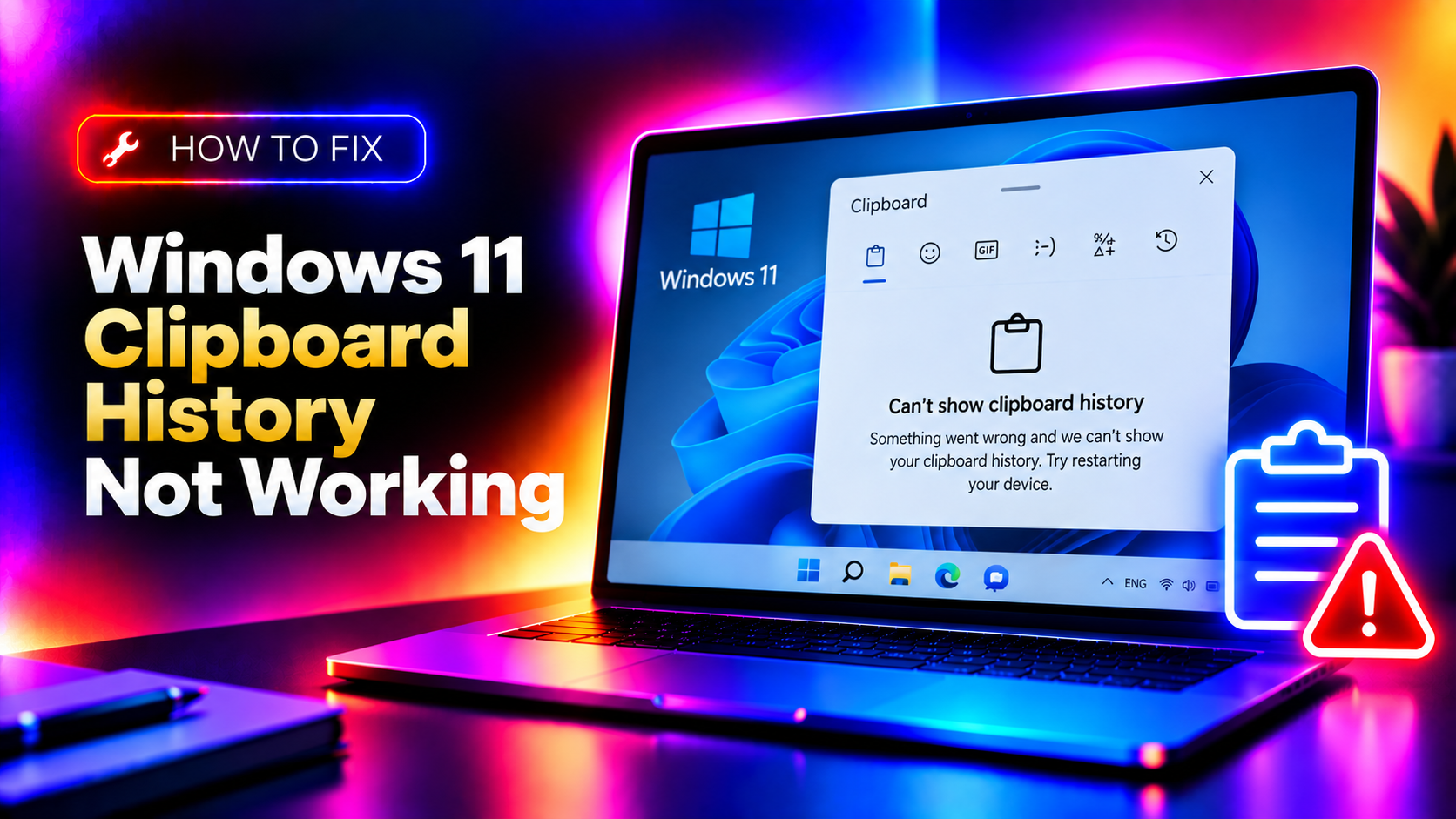
Why Windows 11 Clipboard History Stops Working
Windows 11 Clipboard History (Win+V) lets you paste from a history of up to 25 copied items, pin items, and sync across devices. When it stops working, the symptoms are: pressing Win+V shows nothing or a greyed-out panel, the Clipboard History toggle in Settings is missing, items stop being saved after a Windows Update, or sync stops working across your Microsoft Account devices.
In 2026, the most frequent cause is a Group Policy setting that was silently pushed by the May 2026 cumulative update (KB5058411) and the June 2026 update (KB5061526), which reset the clipboard policy on managed and unmanaged Windows 11 devices alike. This guide covers all causes with exact fixes.
Fix 1: Enable Clipboard History in Settings
Clipboard History is disabled by default on fresh installs and gets reset by some Windows Updates.
Step 1. Open Settings (Win+I) → System → Clipboard.
Step 2. Toggle Clipboard history to On.
Step 3. Optionally enable Sync across devices if you want the clipboard history to appear on other Windows 11 PCs signed in with the same Microsoft Account.
Step 4. Press Win+V to open the clipboard panel. Copy some text, then press Win+V again — the copied text should appear in the history.
If the toggle is missing from Settings entirely, a Group Policy is hiding it (see Fix 3).
Fix 2: Enable via Registry
If the Settings toggle is not available or reverts immediately, set it directly via Registry.
Step 1. Open Registry Editor (Win+R → regedit).
Step 2. Navigate to:
HKEY_CURRENT_USER\Software\Microsoft\ClipboardStep 3. Find or create the DWORD value EnableClipboardHistory and set it to 1.
Step 4. For clipboard sync, also set:
HKEY_CURRENT_USER\Software\Microsoft\Clipboard\SyncEnabled = 1Step 5. Restart Explorer to apply: open Task Manager → find Windows Explorer → right-click → Restart.
Fix 3: Fix Group Policy Blocking Clipboard History
Enterprise editions and some consumer Windows 11 PCs updated in May-June 2026 had clipboard history disabled via Group Policy. This overrides the Settings toggle.
Step 1. Press Win+R, type gpedit.msc, press Enter (Windows 11 Pro/Enterprise only).
Step 2. Navigate to: Computer Configuration → Administrative Templates → System → OS Policies.
Step 3. Find Allow Clipboard History and Allow Clipboard synchronization across devices.
Step 4. Set both to Enabled (or Not Configured to use the default). Click OK.
Step 5. Run gpupdate /force in an elevated Command Prompt to apply the policy immediately.
Registry equivalent for Windows 11 Home (which does not have gpedit.msc):
reg add "HKLM\SOFTWARE\Policies\Microsoft\Windows\System" /v AllowClipboardHistory /t REG_DWORD /d 1 /f
reg add "HKLM\SOFTWARE\Policies\Microsoft\Windows\System" /v AllowCrossDeviceClipboard /t REG_DWORD /d 1 /f
Fix 4: Restart the Clipboard User Service
The Clipboard User Service is a per-user service introduced in Windows 10 20H2. If it crashes or is stopped, Clipboard History silently stops working.
Step 1. Open Services (services.msc).
Step 2. Find Clipboard User Service_xxxxx (the suffix is unique per user — search for "Clipboard User").
Step 3. Right-click → Restart. If it is stopped, right-click → Properties → set Startup type to Automatic → Start.
Step 4. If the service fails to start, run SFC to check for corrupted system files:
sfc /scannowFix 5: Clear the Clipboard History Database
A corrupted clipboard history database causes Win+V to show a blank panel or crash. Clearing it forces Windows to create a fresh one.
Step 1. Open Settings → System → Clipboard → click Clear under Clipboard history. This clears the in-memory history.
Step 2. For a deeper reset, delete the clipboard history database file. Close all apps, then in File Explorer navigate to:
%LOCALAPPDATA%\Microsoft\Windows\ClipboardStep 3. Delete all files in this folder.
Step 4. Restart and re-enable Clipboard History in Settings.
Fix 6: Repair Windows System Files
A corrupted Windows component store (WinSxS) after an interrupted update causes Clipboard History to stop functioning. Run DISM followed by SFC.
Step 1. Open Command Prompt as Administrator and run:
DISM /Online /Cleanup-Image /RestoreHealthStep 2. Wait for DISM to complete (10–20 minutes), then run:
sfc /scannowStep 3. Restart your PC. Re-enable Clipboard History in Settings (Win+I → System → Clipboard).
Fix 7: Check for Windows Update Regression
If Clipboard History stopped working immediately after a Windows Update, uninstalling the update may restore functionality while a permanent fix is released.
Step 1. Open Settings → Windows Update → Update history → Uninstall updates.
Step 2. Look for the most recent cumulative update and click Uninstall. For June 2026, this would be KB5061526.
Step 3. Restart and test Clipboard History. If it works, wait for Microsoft to release a patched update before reinstalling.
If Windows 11 Clipboard History is still not working after these fixes, book a CloudHouse Pay-Per-Ticket Support session — our Windows engineers resolve Windows 11 feature failures fast.