
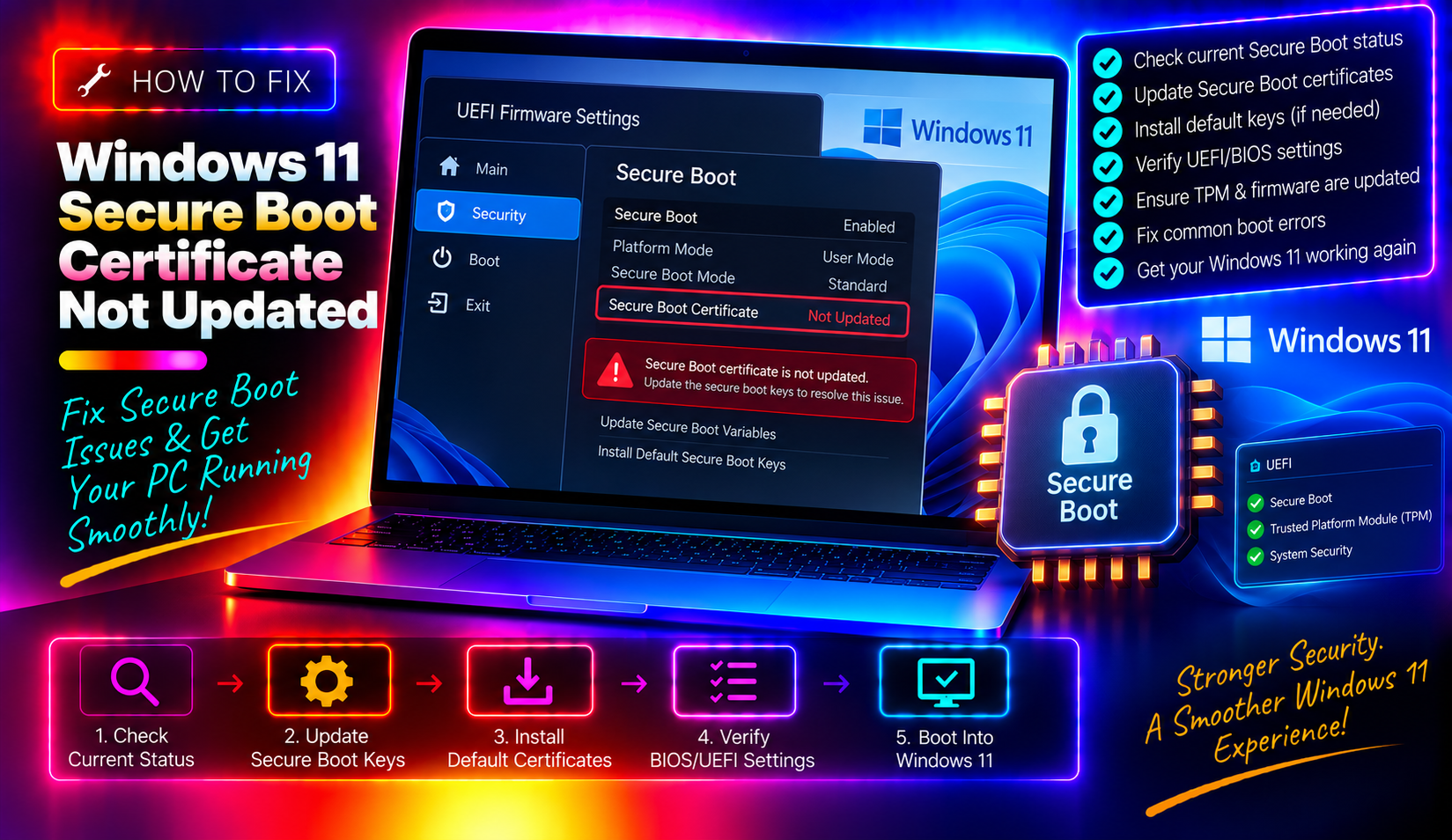
What Is the Windows 11 Secure Boot Certificate Expiration Problem?
In June 2026, a security crisis quietly unfolded across hundreds of millions of Windows PCs. The Secure Boot certificates that Microsoft issued back in 2011 — the cryptographic keys your PC's firmware uses to verify that Windows hasn't been tampered with before it boots — began reaching their expiration dates.
Secure Boot is the gatekeeper that stands between your PC's firmware and the operating system. Every time you power on your computer, your UEFI firmware checks the digital signature on Windows' bootloader against a trusted certificate. If the signature is valid, Windows loads. If not, the firmware blocks the boot — protecting you from bootkits, rootkits, and other firmware-level malware that can hide below the operating system.
The problem: those trusted certificates from 2011 had a finite lifespan. Starting June 24, 2026, they began expiring. Microsoft planned an automatic rollout of updated 2023 certificates via Windows Update, but millions of PCs — particularly older hardware from 2015 to 2021 — have not received the update. There is no visible error. Windows loads normally. But under the surface, your PC's boot security has silently degraded.
This guide walks you through exactly how to check your status and manually apply the fix — something most published guides either skip or describe only in enterprise IT terms.
How to Check If Your Secure Boot Certificate Has Been Updated (Registry & PowerShell Method)
Windows tracks the certificate update status in a dedicated registry key. This is the fastest and most reliable way to know whether your PC is protected or still running on expired certificates.
Method 1: PowerShell Registry Check
Open PowerShell as Administrator (right-click the Start button, select Terminal (Admin)) and run:
Get-ItemProperty "HKLM:\SYSTEM\CurrentControlSet\Control\SecureBoot\Servicing" | Select-Object UEFICA2023StatusThe UEFICA2023Status value will return one of three states:
- Updated — Your certificates have been successfully replaced. You are protected.
- In progress — The update is currently being deployed. Wait for it to complete and reboot.
- Not started — The update has not begun. You need to trigger it manually (see below).
Method 2: Windows Security App
If you prefer a visual check: open Windows Security > Device Security > Secure Boot. A green checkmark with no warnings means certificates are current. A yellow warning badge or a message about "certificate update required" means action is needed.
Method 3: Event Log Check
You can also verify by checking the Windows System Event Log for Event ID 1808, which is written when the new Secure Boot certificates have been successfully applied to the device's firmware. In PowerShell:
Get-WinEvent -LogName System | Where-Object { $_.Id -eq 1808 } | Select-Object -First 5 | Format-List TimeCreated, MessageIf Event ID 1808 appears with a recent timestamp, your certificates are updated.
Why Some PCs Did Not Receive the Automatic Certificate Update
Microsoft began rolling out the automatic Secure Boot certificate update with the January 2026 security patch. However, several factors cause the rollout to skip certain devices:
- Older UEFI firmware: PCs manufactured before 2022 may have UEFI firmware that does not support the new certificate format without a firmware update from the manufacturer first.
- IT-managed update policies: Business PCs with Windows Update managed through WSUS, Intune, or Group Policy may have had the update held back pending admin approval.
- Staged rollout: Microsoft's gradual rollout means not every eligible PC received the update simultaneously — some PCs at the tail end of the wave only received it in June 2026.
- Windows 11 version eligibility: Only certain editions automatically receive the update. Windows 11 23H2 Home and Pro editions are not in the automatic rollout — only Enterprise and Education editions of 23H2 qualify for automatic delivery. Windows 11 24H2, 25H2, and LTSC 2024 are covered automatically.
- Windows Update errors: Any pending Windows Update error (error codes 0x80070002, 0x8024402C, 0x80240034) can silently block certificate deployment without a visible Secure Boot warning.
If you are running Windows 11 23H2 Home or Pro, you are in the highest-risk group — your edition is not in the automatic rollout wave, and you need to apply the fix manually.
How to Manually Update Your Secure Boot Certificate in Windows 11
There are two manual methods: using the registry to trigger the built-in Windows deployment task, or downloading and installing the KB update directly from the Microsoft Update Catalog.
Method A: Registry Trigger (Recommended — No Download Required)
This method tells Windows to immediately run its own Secure Boot certificate update task, without needing to download anything externally.
Step 1. Open PowerShell as Administrator and set the deployment flag:
reg add "HKEY_LOCAL_MACHINE\SYSTEM\CurrentControlSet\Control\SecureBoot" /v AvailableUpdates /t REG_DWORD /d 0x5944 /fThe value 0x5944 instructs Windows to deploy all required certificates and update to the Windows UEFI CA 2023–signed boot manager in a single pass.
Step 2. Immediately trigger the update task without waiting for its next scheduled run:
Start-ScheduledTask -TaskName "\Microsoft\Windows\PI\Secure-Boot-Update"Step 3. Restart your PC. After the reboot, run the task again — a second reboot may be required to finalize the boot manager update:
Start-ScheduledTask -TaskName "\Microsoft\Windows\PI\Secure-Boot-Update"
Restart-Computer
Step 4. After the second reboot, verify status:
Get-ItemProperty "HKLM:\SYSTEM\CurrentControlSet\Control\SecureBoot\Servicing" | Select-Object UEFICA2023StatusThe value should now read Updated.
Method B: Manual KB Download from Microsoft Update Catalog
If Method A does not work — for example, because the scheduled task fails or your WSUS policy blocks it — download the Safe OS Dynamic Update KB for your Windows 11 version directly:
- Windows 11 23H2: Search for
KB5069341orKB5072543at catalog.update.microsoft.com - Windows 11 24H2 / Windows Server 2025: Search for
KB5063689orKB5070186 - Windows 11 25H2: Search for
KB5070186orKB5077180
Download the .msu file and install it by double-clicking or running:
wusa.exe C:\Path\To\KBxxxxxxx.msu /quiet /norestartRestart your PC after installation completes.
How to Update Your UEFI/BIOS Firmware (Required for Some PCs)
On pre-2022 hardware, the Secure Boot certificate update may fail silently if your UEFI firmware is too old to process the new 2023 certificate format. In this case, a BIOS/UEFI firmware update is required before the certificate update can succeed.
Step 1. Identify your motherboard or laptop manufacturer. In PowerShell:
Get-WmiObject -Class Win32_BIOS | Select-Object Manufacturer, SMBIOSBIOSVersion, ReleaseDateStep 2. Visit your manufacturer's support site and search for your model's latest UEFI/BIOS firmware update:
- Dell: dell.com/support
- HP: support.hp.com
- Lenovo: support.lenovo.com
- ASUS: asus.com/support
Important: Never interrupt a BIOS update. Ensure your laptop is plugged into AC power, or your desktop has a stable power source. A failed BIOS update can brick a motherboard.
Step 3. After the firmware update and reboot, repeat the registry trigger method above to deploy the Secure Boot certificates.
If you are not comfortable performing a BIOS update yourself, this is an excellent time to use professional desktop support — our certified technicians can handle both the firmware update and certificate deployment remotely.
What Happens If You Leave the Expired Certificate in Place?
Your PC will not immediately stop working. Windows will continue to boot normally — but your system will be operating in a silently degraded security state. Here is what is at risk:
- No new DBX blacklist updates: The DBX (Forbidden Signatures Database) is the list of known-malicious bootloaders that Secure Boot blocks. Without a valid current certificate, your PC stops receiving DBX updates. Every new bootkit discovered after your certificate expired will be able to run on your machine.
- No future boot-critical security patches: Microsoft will not deliver new security updates for boot-critical binaries to PCs still using expired 2011 certificates.
- Future Windows feature updates blocked: Beginning with the next major Windows feature update cycle, PCs that have not completed the certificate transition may be blocked from upgrading.
- DBX revocation of old CA: Microsoft plans to update the DBX to actively revoke the expired 2011 CA. When that update reaches your PC, any bootloader signed only by the old CA will be immediately blocked — meaning your PC could refuse to boot if the bootloader has not also been updated.
In short: leaving the expired certificate in place does not break your PC today, but it leaves a permanent, growing security hole that worsens with every passing month.
How to Verify Your PC Is Fully Protected After the Update
After completing the certificate update and rebooting, run this full verification checklist in PowerShell (as Administrator):
# Check certificate update status
Get-ItemProperty "HKLM:\SYSTEM\CurrentControlSet\Control\SecureBoot\Servicing" | Select-Object UEFICA2023Status

# Confirm Secure Boot is enabled
Confirm-SecureBootUEFI

# Check for Event ID 1808 (certificate applied successfully)
Get-WinEvent -LogName System | Where-Object { $_.Id -eq 1808 } | Select-Object -First 3 | Format-List TimeCreated, Message

# Verify AvailableUpdates has reset to 0x4000 (deployment complete)
Get-ItemProperty "HKLM:\SYSTEM\CurrentControlSet\Control\SecureBoot" | Select-Object AvailableUpdates
Expected results after a successful update:
UEFICA2023Statusreturns UpdatedConfirm-SecureBootUEFIreturns True- Event ID 1808 is present with a recent timestamp
AvailableUpdatesvalue is 0x4000 (all updates applied, none pending)
If all four checks pass, your PC's Secure Boot chain of trust is fully restored and you are protected against boot-level threats going forward.
Q: Will my PC stop booting if I don't update the Secure Boot certificate?
A: Not immediately. Your PC will continue to boot normally after the certificate expires. However, once Microsoft updates the DBX (Forbidden Signatures Database) to actively revoke the old 2011 certificate authority, any bootloader that has not been updated and re-signed by the new 2023 CA could be blocked at startup. This makes applying the fix now — before that DBX update ships — essential.
Q: How do I know which Windows 11 version I'm running to find the right KB?
A: Open PowerShell and run winver or (Get-ItemProperty "HKLM:\SOFTWARE\Microsoft\Windows NT\CurrentVersion").DisplayVersion. This will show your version as 23H2, 24H2, 25H2, etc. Match this to the KB list in the manual download section above.
Q: Is the Secure Boot certificate update the same as a regular Windows Update?
A: No. The Secure Boot certificate update modifies the UEFI firmware's trusted key database — it operates at a lower level than a standard Windows security patch. It is delivered through Windows Update as a Safe OS Dynamic Update, but it writes directly to your device's UEFI/BIOS storage rather than to the Windows partition.
Q: My PC is a business device managed by IT. Do I need to do this myself?
A: On IT-managed devices, your system administrator controls Windows Update deployment. Check with your IT department — they may need to approve and push the update via WSUS or Intune. The registry trigger method (Method A above) requires admin rights and may be blocked by Group Policy on managed devices. Escalate to your IT helpdesk if the Windows Security app shows a certificate warning.
Q: After the update, my PC shows a blue BitLocker recovery screen on reboot. What do I do?
A: This is expected behavior on PCs with BitLocker enabled. The Secure Boot certificate change modifies the boot measurement, which triggers BitLocker to request your recovery key as a security precaution. Have your BitLocker recovery key ready before starting the update. You can find it at account.microsoft.com/devices/recoverykey if it is linked to your Microsoft account. Enter the 48-digit key when prompted and Windows will boot normally.