![Fix Windows 0x80004005 error [SOLVED]](https://strapise.cloudhousetechnologies.com/uploads/banner_fix_windows_0x80004005_error_9c97b9a4c9.png)
Resolving the Windows 0x80004005 error
Windows 11 error 0x80004005 is an unspecified error that can occur during tasks like updating Windows, extracting ZIP files, accessing network drives or shared folders, starting the system, or installing applications, but it is a common issue that can usually be fixed easily.
Why Does Error 0x80004005 Occur?
The “Unspecified Error” can be caused by issues such as corrupted Windows update files, damaged system files, network or permission problems, ZIP extraction errors, outdated or misconfigured drivers, or interference from antivirus software, but it can usually be resolved with the right troubleshooting steps.
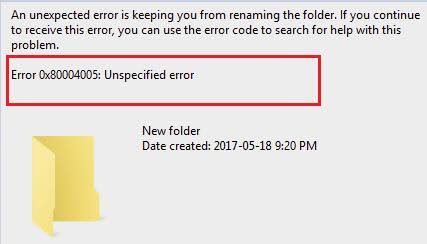
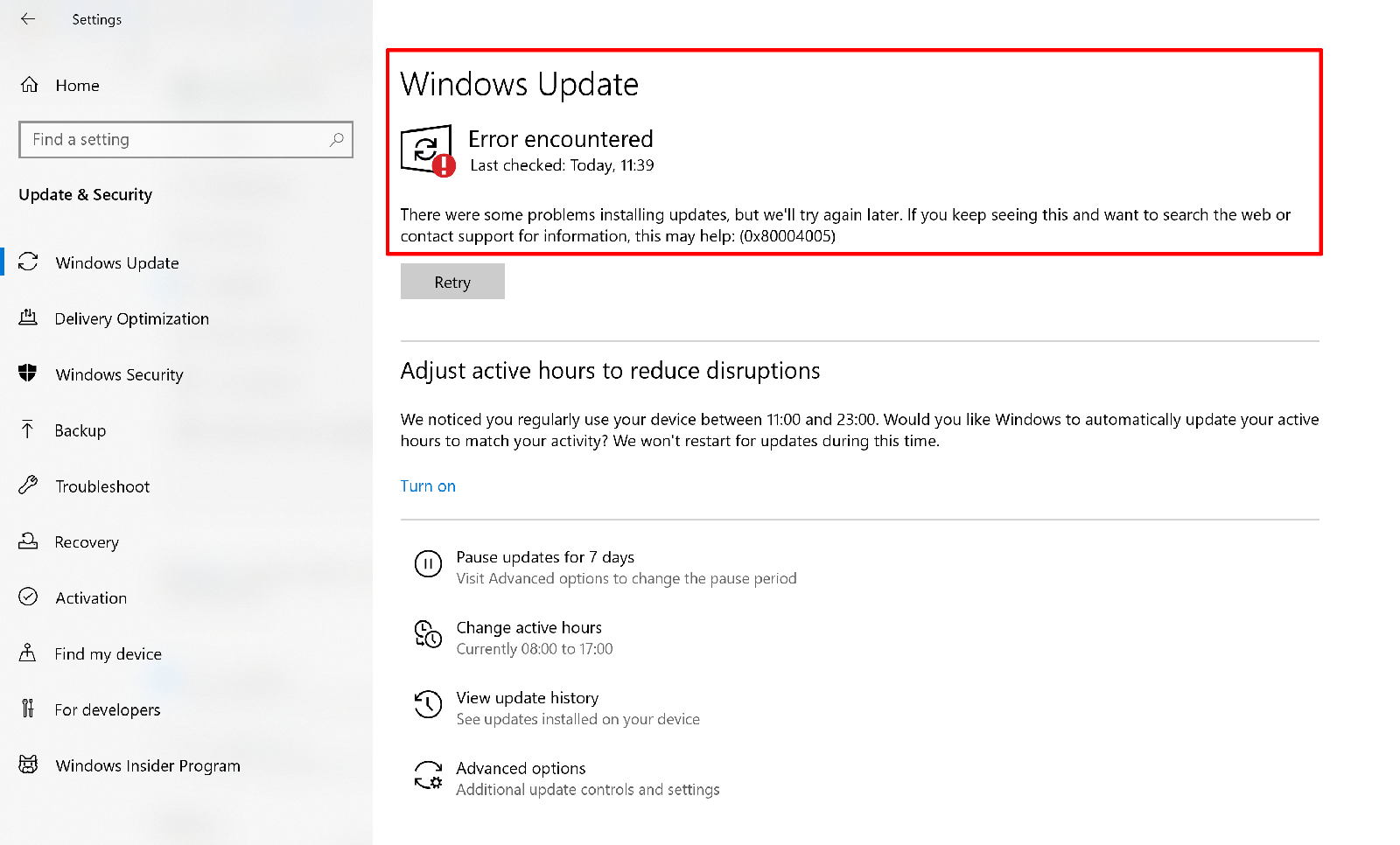
Possible Solutions for the 0x80004005 Error When Updating Windows
If installing a new Windows update doesn’t work and you see the error code “0x80004005”, you have a range of possible solutions: For example, you can use the Troubleshooter provided by Microsoft, run a check (including repairs) of system files, restart the update services or manually install the respective update.
Solution 1: Troubleshooter
Windows 7 and Windows 8 users can download the Windows Update Troubleshooter from the Microsoft Forum. After downloading it, start the troubleshooter by double-clicking on the downloaded file (WindowsUpdate.diagcab). Then, select the entry “Windows Update” and click “Next”; Windows will then start attempting to fix the update error.
In Windows 10, the update troubleshooter can be found in the “Update and Security” menu. You can find it in the Settings which can be opened via the button with the same name in the Start menu. Once you’ve opened the “Update and Security” menu, select the “Troubleshoot” section in the left side menu and click on “Windows Update”. The “Run troubleshooter” button, which allows you to start the help tool, will then appear:
Solution 2: Check and Repair System Files with SFC
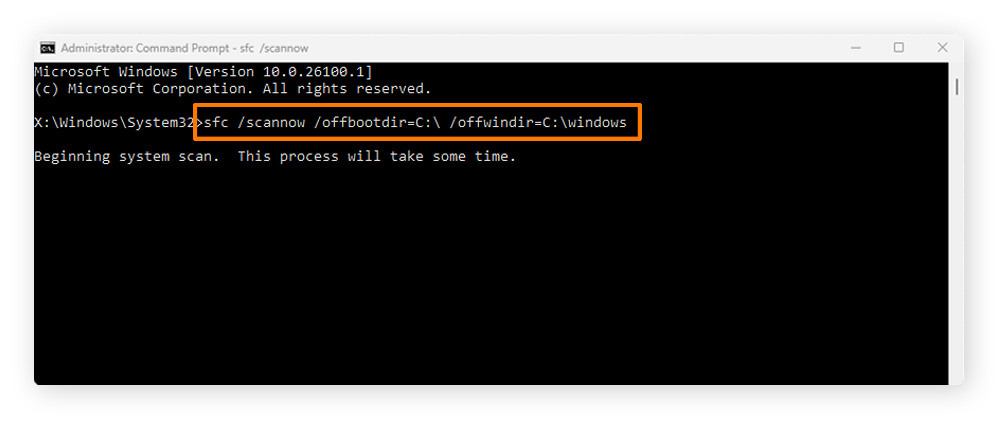
If the installation of a Windows update is blocked, this can be due to damaged or missing system files. In this case, you can fix the issue using the command line program SFC (System File Checker), which is installed as standard on all Windows systems. However, this solution only works if you have administrator rights. That’s because you need to run the command prompt as administrator to start the SFC. If you meet this requirement, you can start the system check as follows:
Type “cmd” into the Windows search. Select the command prompt with a right click and then click on “Run as administrator”. Enter the command sfc /scannow and press the [Enter] key.
Solution 3: Restart Update Services
Windows uses a number of services to receive and install the updates which Microsoft regularly provides. If these services aren’t working properly, faults like the 0x80004005 error may result. For this reason, it can be a good idea to restart these services, which you can also execute via command prompt. Simply start it as an administrator by following the steps described in the previous section. Then enter the following commands one after the other to end the services:
Then restart the services:
net stop wuauserv
net stop bits
net stop trustedinstaller
net stop appidsvc
net stop cryptsvc
Solution 4: Manually Install the Update
If error 0x80004005 still occurs in the Update Center despite your attempts to use the solutions presented here, you can try manually downloading and installing the relevant update. For this purpose, write down the associated knowledge base number and enter it into the search window of the online Microsoft Update Catalog. You’ll then receive a list of the update’s installation files for the various architectures. Here you only need to look for the version that’s right for you.
Once the download is ready, execute the download msu file by double-clicking. Follow the instructions and then restart the PC to complete the update process.
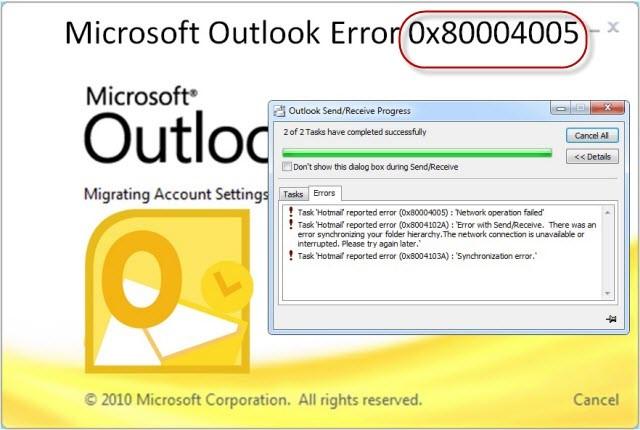
How to Fix the 0x80004005 Error in Microsoft Outlook
If you get the error code “0x80004005” when accessing emails in the Outlook client, this is likely due to one of two reasons:
Your antivirus software is blocking the retrieval of messages received. There’s a problem with notifications for new emails received. You can quickly and easily check if the first case applies by temporarily deactivating your security software and trying to access your messages again. If it turns out that the program is actually responsible for the access problem, you should contact the manufacturer directly or switch to a different solution.
If the problem is that the notification for new emails is not working, you can solve it by deactivating the feature. To do so, open the Outlook Options (“File” -> “Options”) and go to the “Email” category. Next, remove the checkmark for “Show desktop notifications” in the “Incoming Messages” section and confirm the change by clicking on “OK”.
Resolving Error “0x80004005” When Unpacking Files
If you want to unpack zipped files with the standard Windows tool and are confronted with the error code “0x80004005”, this usually means that the archive has been compressed with an algorithm that’s not supported. A second possible cause is that the ZIP file is password protected. After all, the Windows program only supports ZIPCrypto and AES 128, while encrypted archive files are often based on AES 256. An easy solution is to use third-party tools like WinZip or the freely licensed 7-Zip. These programs support far more compression and encryption methods than the integrated Windows service, significantly increasing your chances of being able to open the file.
Five Steps for Fixing 0x80004005 Network Errors
To fix error 0x80004005, open Control Panel, go to Network and Sharing Center, click your active network connection, select Properties, enable Client for Microsoft Networks and File and Printer Sharing for Microsoft Networks, then click OK and try accessing the network again.
If access to shared folders is prevented, the status of the Windows services above should also be checked for the network participant who makes the respective resources available to the network.
How to Fix 0x80004005 Errors When Installing or Updating Software
The error code “0x80004005” doesn’t just appear for issues with Microsoft applications and services but also for problems with third-party software – especially when installing and updating these programs. One possible reason for this can be that the file or files used for installing or updating a program are damaged. If you’ve downloaded them from the internet, you can try to download them again.
If the problem persists, you should take a look at the security software you use. Both the Windows real-time protection and Windows firewall as well as corresponding solutions from third-party providers can block the execution of installation files, for instance, causing error messages like “0x80004005”. Temporarily deactivate the respective tools to check whether they are actually responsible for the error. However, first make sure that you’ve obtained the installation files from a trustworthy source. Otherwise, you run the risk of infecting your system with malware.
Possible Solutions to the 0x80004005 Error When Using VirtualBox
VirtualBox is one of the best-known solutions for virtually operating any number of guest operating systems like Ubuntu or other Windows editions. But the 0x80004005 error can likewise occur when starting a configured virtual machine. In most cases, the problem is that virtualization software files have been lost or damaged. For these situations, VirtualBox offers a repair function that you can use by running the setup again and selecting the option “Repair”. VirtualBox then automatically replaces the faulty or missing files without requiring you delete any configured machines.
The access error when starting a VirtualBox machine can also be the result of a driver issue: VirtualBox works with the driver “VirtualBox NDIS6 Bridged Networking Driver”, which must be activated in the settings for the network connection “VirtualBox Host-Only Network”. Open the Network and Sharing Center and check whether NDIS6 is active in the settings for this adapter. Place a checkmark in the corresponding line to fix the 0x80004005 error.