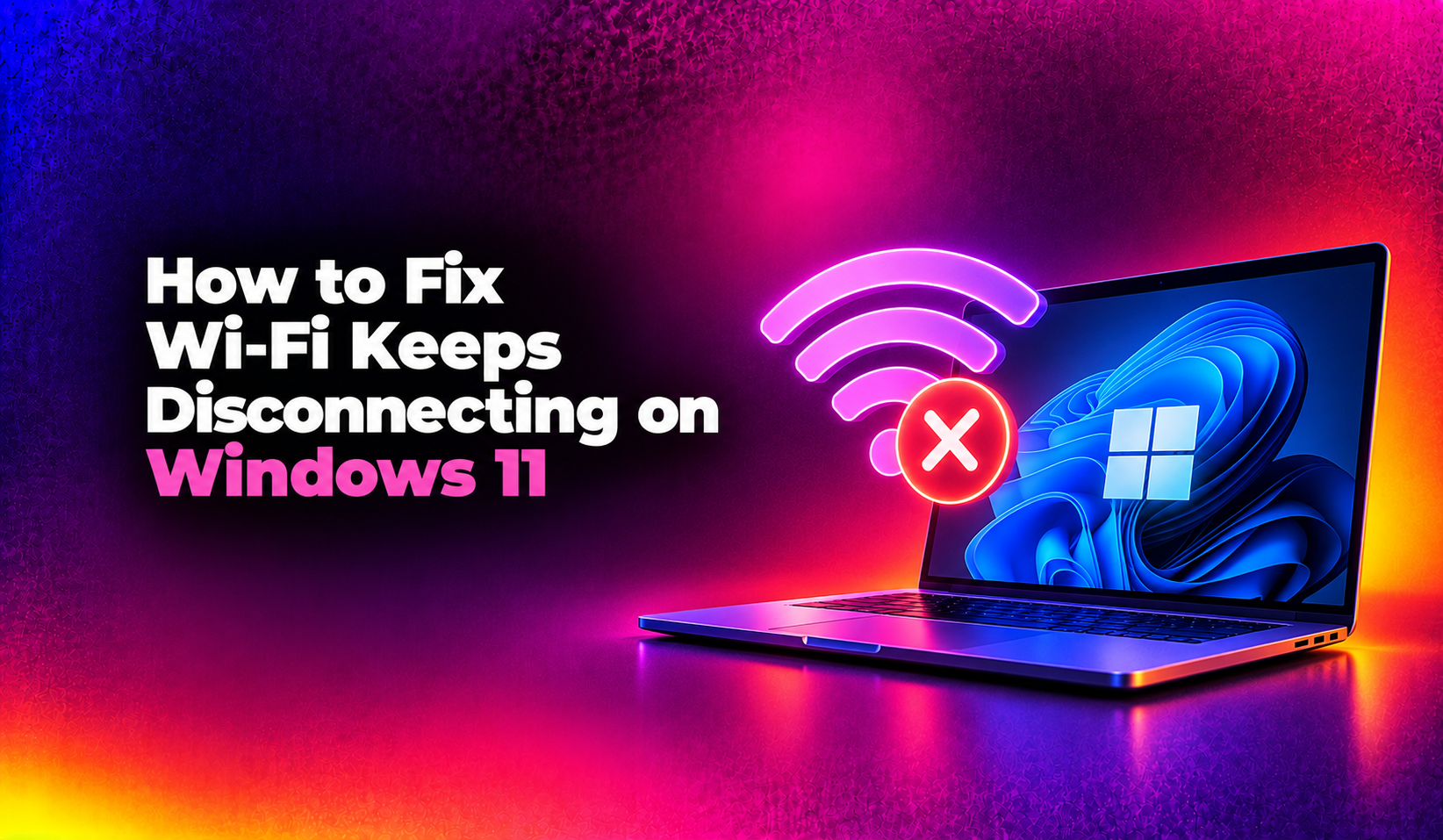
Why Windows 11 WiFi Keeps Dropping in 2026
Disconnecting WiFi is one of the most-reported Windows 11 complaints on Microsoft forums and Reddit — and in 2026 it has grown worse because of overlapping causes: Intel and Realtek driver regressions shipped via Windows Update, the new Wi-Fi 7 (802.11be) stack introduced in 24H2 that sometimes conflicts with older access points, and aggressive power-saving policies that Windows 11 applies by default.
This guide covers every proven fix in order from simplest to most thorough. Start at the top and work down until your WiFi stays connected.
Fix 1: Disable Power Management on the Wi-Fi Adapter
The single most common cause of periodic drops — Windows kills the adapter to save power, and the reconnect fails silently.
- Press Win + X → Device Manager.
- Expand Network adapters.
- Right-click your Wi-Fi adapter (e.g., "Intel Wi-Fi 6E AX211") → Properties.
- Click the Power Management tab.
- Uncheck "Allow the computer to turn off this device to save power".
- Click OK.
For an extra layer of protection, also set the adapter's power policy via PowerShell (run as Administrator):
powercfg /setacvalueindex SCHEME_CURRENT 19caa947-efe5-43bc-b7e5-37eb5cbba462 12bbebe6-58d6-4636-95bb-3217ef867c1a 0
powercfg /setdcvalueindex SCHEME_CURRENT 19caa947-efe5-43bc-b7e5-37eb5cbba462 12bbebe6-58d6-4636-95bb-3217ef867c1a 0
powercfg /setactive SCHEME_CURRENT
This disables Wi-Fi power-saving for both AC and DC (battery) modes without changing other power plan settings.
Fix 2: Update (or Roll Back) the Wi-Fi Driver
Windows Update shipped a series of buggy Intel Wi-Fi drivers (version 23.x) in late 2025 and early 2026 that cause random drops on 11th-generation and newer Intel chips. The fix is either to update to the latest stable version directly from the manufacturer or to roll back to the last known-good driver.
Check your current driver version:
Get-PnpDevice -FriendlyName "*Wi-Fi*" | Select-Object FriendlyName, DriverVersionTo update to the latest Intel driver:
- Visit Intel's Wi-Fi driver download page.
- Download the latest version (24.40.0 or later as of mid-2026).
- Run the installer — it replaces the Windows Update version.
To roll back a bad driver:
- Device Manager → Wi-Fi adapter → Properties → Driver tab.
- Click Roll Back Driver.
- Select "My apps don't work with this driver" and confirm.
To prevent Windows Update from reinstalling the bad driver:
# Download and run Microsoft's "Show or Hide Updates" troubleshooter
# Then hide the problematic driver package
Alternatively, open Group Policy (Win + R → gpedit.msc) → Computer Configuration → Administrative Templates → Windows Components → Windows Update → "Do not include drivers with Windows Updates" → Enabled.
Fix 3: Reset the Network Stack
Corrupted Winsock or TCP/IP tables cause drops that look like signal issues but aren't. This command sequence resets both layers:
netsh winsock reset
netsh int ip reset resetlog.txt
ipconfig /release
ipconfig /renew
ipconfig /flushdns
Run these in an elevated Command Prompt (search "cmd" → right-click → Run as administrator). Restart your PC after running all five commands.
Fix 4: Switch to the 5 GHz or 6 GHz Band
The 2.4 GHz band is crowded and drops connections more often, especially in apartments and offices. If your router supports 5 GHz or 6 GHz and your adapter supports Wi-Fi 5/6/6E/7, switch bands.
- Click the Wi-Fi icon in the system tray → Manage Wi-Fi connections.
- Connect to your router's 5 GHz SSID (often labeled with "5G" or "_5GHz").
You can also force your adapter to prefer 5 GHz in Device Manager:
- Wi-Fi adapter → Properties → Advanced tab.
- Find Preferred Band → Set to Prefer 5 GHz band.
Fix 5: Disable Background Apps That Interfere with Wi-Fi
VPN clients, Bluetooth PAN profiles, and the Windows "Random Hardware Addresses" feature can all cause drops:
Disable Random MAC Address (often causes disconnects on enterprise networks):
- Settings → Network & Internet → Wi-Fi → your network name → Random hardware addresses → Off.
Disable Bluetooth coexistence mode (if Bluetooth and Wi-Fi share the same chip):
- Device Manager → Wi-Fi adapter → Properties → Advanced.
- Find Bluetooth Collaboration or Bluetooth AMP → Disable.
Fix 6: Change DNS Servers
Slow or unresponsive DNS from your ISP can look like a connectivity drop — apps time out and the connection appears lost. Switch to a fast public DNS:
netsh interface ipv4 set dns "Wi-Fi" static 8.8.8.8 primary
netsh interface ipv4 add dns "Wi-Fi" 1.1.1.1 index=2
Or use Settings → Network & Internet → Wi-Fi → Hardware properties → DNS server assignment → Manual → enter 8.8.8.8 and 8.8.4.4.
Fix 7: Full Network Reset (Last Resort)
If nothing else works, Windows 11 has a built-in network reset that removes all adapters, clears all network settings, and reinstalls them from scratch:
- Settings → Network & Internet → Advanced network settings.
- Scroll down → Network reset.
- Click Reset now → confirm.
- Your PC restarts. Reconnect to your Wi-Fi network after reboot.
Note: this removes saved VPN, proxy, and custom TCP/IP settings. Re-configure those after the reset.
Fix 8: Check for Windows Update Regressions
The KB5037771 (November 2025) and KB5041990 (February 2026) cumulative updates introduced a Wi-Fi stack regression on some Realtek RTL8852AE adapters. If drops started after a Windows Update:
# Check recently installed updates
Get-HotFix | Sort-Object InstalledOn -Descending | Select-Object -First 10
If a recent KB matches, uninstall it:
- Settings → Windows Update → Update history.
- Click Uninstall updates.
- Find the problematic KB → Uninstall.
Monitor Microsoft's Windows 11 Known Issues page and Microsoft Community forums for patch status before reinstalling a problematic update.
If you've worked through every step and the drops continue, the issue may be hardware (failing antenna, faulty NIC solder joint) or router firmware. Our professional desktop support team can remote into your PC and run a full Wi-Fi diagnostic in minutes.
Frequently Asked Questions
Why did my Windows 11 Wi-Fi start dropping after a Windows Update?
Cumulative updates sometimes include new Wi-Fi driver packages that regress specific adapter models (especially Intel AX200/AX210/AX211 and Realtek RTL8852AE). Uninstall the update via Update History, or install the driver directly from Intel or Realtek to override the version from Windows Update.
How do I know if my Wi-Fi drops are due to the adapter or the router?
Connect a second device (phone or another laptop) to the same Wi-Fi network. If it also drops, the problem is the router or ISP. If only the Windows 11 PC drops, the issue is the adapter, driver, or Windows settings.
Does Windows 11 24H2 Wi-Fi 7 support cause issues with older routers?
Yes. The 802.11be (Wi-Fi 7) stack in 24H2 introduced MLO (Multi-Link Operation) which is not supported by Wi-Fi 5/6 routers. Enabling MLO on a compatible adapter connecting to an older AP can trigger periodic renegotiation drops. Disable MLO in the adapter's Advanced properties if you see this pattern.
How do I stop Windows from reinstalling a bad Wi-Fi driver after I roll it back?
Use Group Policy (gpedit.msc → Computer Configuration → Administrative Templates → Windows Components → Windows Update → "Do not include drivers with Windows Updates" → Enabled) or use Microsoft's Show/Hide Updates troubleshooter to hide the specific driver package from future updates.
Will a network reset delete my saved Wi-Fi passwords?
Yes. A full network reset removes all network adapters and their saved passwords. Write down or export your Wi-Fi credentials before running it. You'll need to reconnect to your network as if it were a new device.