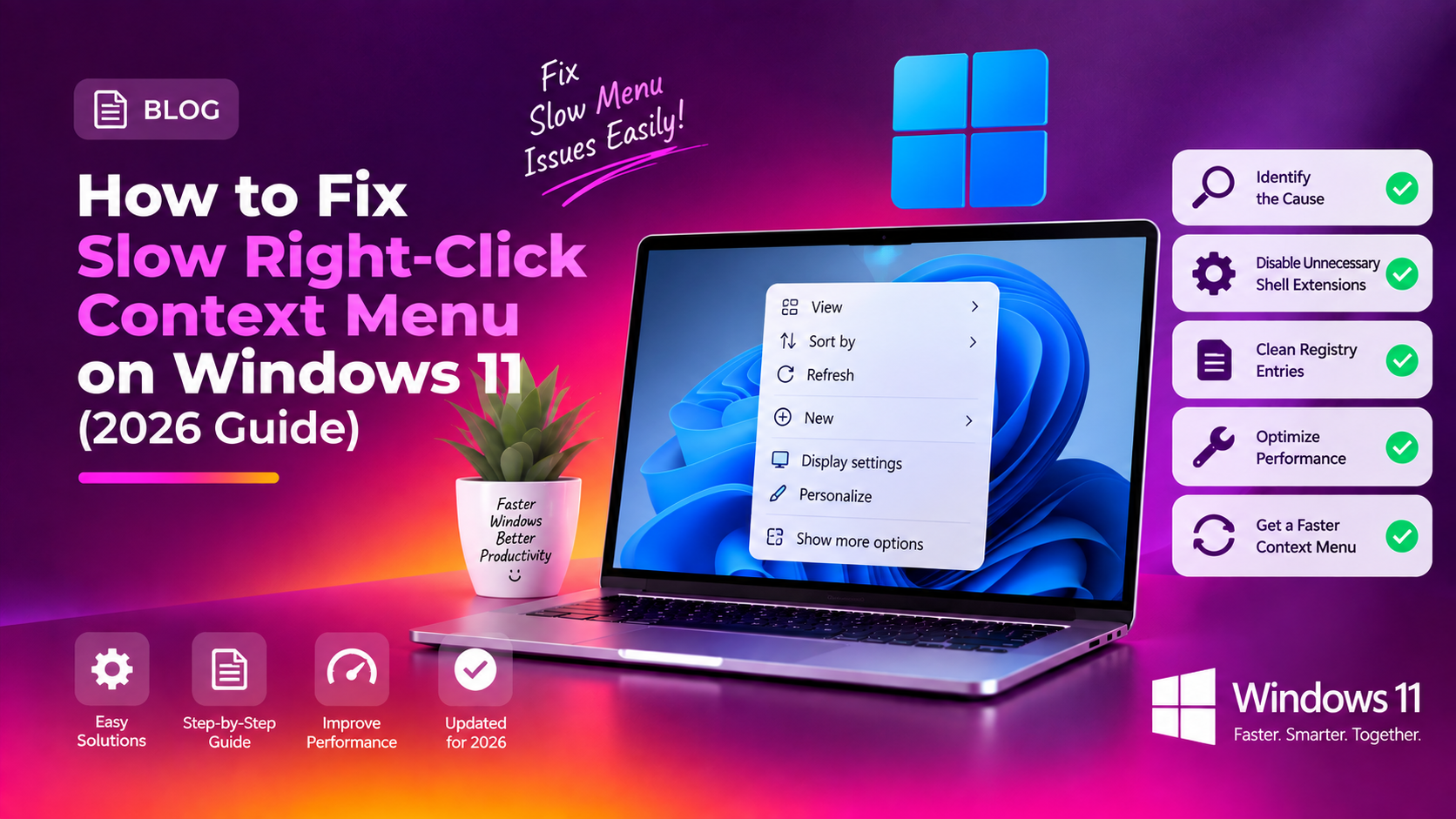
Why Is the Windows 11 Right-Click Menu So Slow?
If your Windows 11 right-click context menu takes several seconds to appear — or freezes entirely — you're not alone. This is one of the most-reported Windows 11 desktop complaints in 2026. The root causes fall into a handful of categories:
- Third-party shell extensions: Applications like compression tools, cloud sync clients, and antivirus programs inject entries into the context menu via shell extension DLLs. A broken or outdated DLL stalls the whole menu.
- The XAML-based context menu: Windows 11 replaced the classic Win32 context menu with a modern XAML shell that renders slightly slower, especially with many extensions loaded.
- Corrupted File Explorer cache: Quick Access history and icon cache databases can cause Explorer to hang every time you right-click.
- Ghost network drives: Mapped drives that are no longer reachable force Windows to wait for a network timeout before the menu loads.
- Pending Windows Updates: Microsoft shipped targeted fixes for context menu lag in 2026 cumulative updates. Running an outdated build can leave you exposed to known bugs.
Work through the steps below in order — most users resolve the issue within the first two or three fixes.
Fix 1: Disable Shell Extensions with ShellExView
This is the single most effective fix for Windows 11 right click context menu slow issues. ShellExView (by NirSoft) lets you see every DLL that hooks into your context menu and disable the culprits without uninstalling the parent application.
- Download ShellExView for free from nirsoft.net/utils/shexview.html and extract the ZIP to your Desktop.
- Right-click
shexview.exeand choose Run as administrator. - Click Options → Hide All Microsoft Extensions to show only third-party entries.
- Click the Type column to sort. Look for entries with type Context Menu.
- Select all non-Microsoft Context Menu entries, then press F7 to disable them.
- Restart File Explorer and test your right-click speed.
- If the menu is now fast, re-enable extensions one at a time (F8) to identify the exact offender.
Tip: Entries highlighted in pink are already flagged as potentially problematic — start by disabling those first.
Fix 2: Clear File Explorer Cache
A bloated Quick Access cache forces Explorer to parse large metadata every time you open a menu. Clearing it is safe and takes under a minute.
Clear Quick Access history via File Explorer
- Open File Explorer, click the three-dot menu → Options.
- On the General tab, under Privacy, click Clear next to "Clear File Explorer history".
- Click OK.
Deep clean via PowerShell (Admin)
Remove-Item -Path "$env:APPDATA\Microsoft\Windows\Recent\AutomaticDestinations\*" -Force -ErrorAction SilentlyContinue
Remove-Item -Path "$env:APPDATA\Microsoft\Windows\Recent\CustomDestinations\*" -Force -ErrorAction SilentlyContinue
Then restart Explorer (see Fix 5).
Fix 3: Disconnect Ghost Network Drives
When Windows 11 right click loading forever is specific to folders or the Desktop, a disconnected mapped drive is almost always the cause. Windows tries to query every mapped drive when building the context menu — an unreachable share adds 5–30 seconds of delay.
Remove disconnected drives
- Open File Explorer → This PC.
- Right-click any drive shown with a red X and choose Disconnect.
Clear all mapped drives at once
net use * /delete /yesRemap only the drives you actively use after this step.
Fix 4: Registry Tweak to Restore the Classic Context Menu
Windows 11's modern XAML context menu adds rendering overhead that older hardware handles poorly. Reverting to the classic Win32 menu eliminates that overhead entirely.
One-line command (recommended)
Open Windows Terminal or Command Prompt as administrator:
reg.exe add "HKCU\Software\Classes\CLSID\{86ca1aa0-34aa-4e8b-a509-50c905bae2a2}\InprocServer32" /f /veRestart File Explorer to apply. To undo, delete the {86ca1aa0-34aa-4e8b-a509-50c905bae2a2} key from the registry.
Fix 5: Restart Windows Explorer and Flush Icon Cache
Restarting explorer.exe reloads the shell and applies all registry and cache changes without a full reboot.
Full restart + icon cache flush
Open Command Prompt as administrator:
taskkill /f /im explorer.exe
cd /d %localappdata%\Microsoft\Windows\Explorer
del iconcache*.db /f /q
start explorer.exe
Your taskbar will disappear briefly, then return. Icons rebuild automatically in 10–15 seconds.
Fix 6: Run SFC and DISM
Corrupted system files can cause erratic Explorer and context menu behaviour.
Run SFC first
sfc /scannowRun DISM if SFC finds unfixable errors
DISM /Online /Cleanup-Image /RestoreHealthAfter DISM completes, run sfc /scannow once more to confirm all corruptions are resolved, then restart your PC.
Fix 7: Update Conflicting Third-Party Apps
Outdated versions of common applications are a leading cause of Windows 11 context menu delay. Known offenders include WinRAR/7-Zip, OneDrive/Dropbox/Google Drive, antivirus software, and NVIDIA GeForce Experience.
Update all apps at once
winget upgrade --all --silentInstall pending Windows Updates
Go to Settings → Windows Update → Check for updates. Install everything listed including optional updates, then restart.
If you're still experiencing issues after all seven fixes, our team can diagnose deeper driver conflicts or corrupt user profiles remotely — get expert Windows support from CloudHouse Technologies.
FAQ
Why does my Windows 11 right-click context menu take 5+ seconds to open?
The most common cause is a third-party shell extension DLL that is broken or outdated. Applications like cloud sync clients, archiving tools, and antivirus software all inject entries into the context menu. Use ShellExView (Fix 1) to identify and disable the problematic extension. A disconnected mapped network drive (Fix 3) can also add several seconds of delay as Windows waits for a network timeout.
Is it safe to restore the classic Windows context menu via the registry?
Yes. The registry key used in Fix 4 is a well-documented, user-scoped change that only affects your account — it does not modify system files. You can reverse it at any time by deleting the {86ca1aa0-34aa-4e8b-a509-50c905bae2a2} key. Microsoft has not blocked this method as of June 2026.
Will clearing the icon cache delete any of my files or settings?
No. The icon cache (iconcache*.db) is a performance database that stores pre-rendered icon images. Deleting it only means Windows has to redraw icons from scratch on next login — about 10–15 seconds. Your files, applications, and settings are completely unaffected.
My right-click menu is slow only on network folders. What should I do?
This is almost always caused by ghost network drives (Fix 3) or a shell extension from a cloud storage or network app (Fix 1). Disconnect any mapped drives you no longer use, and disable network-aware context menu extensions in ShellExView. If the issue persists on a specific share, the problem may be server-side latency rather than a local Windows issue.
Do I need to repeat these fixes after a Windows Update?
Usually not. The ShellExView settings and registry classic menu tweak both persist across Windows Updates. However, major feature updates can occasionally reset the XAML context menu registry key. If the menu becomes slow again after a major update, re-run the reg.exe add command from Fix 4 and restart File Explorer.