Why Apps Keep Crashing on macOS Sequoia in 2026
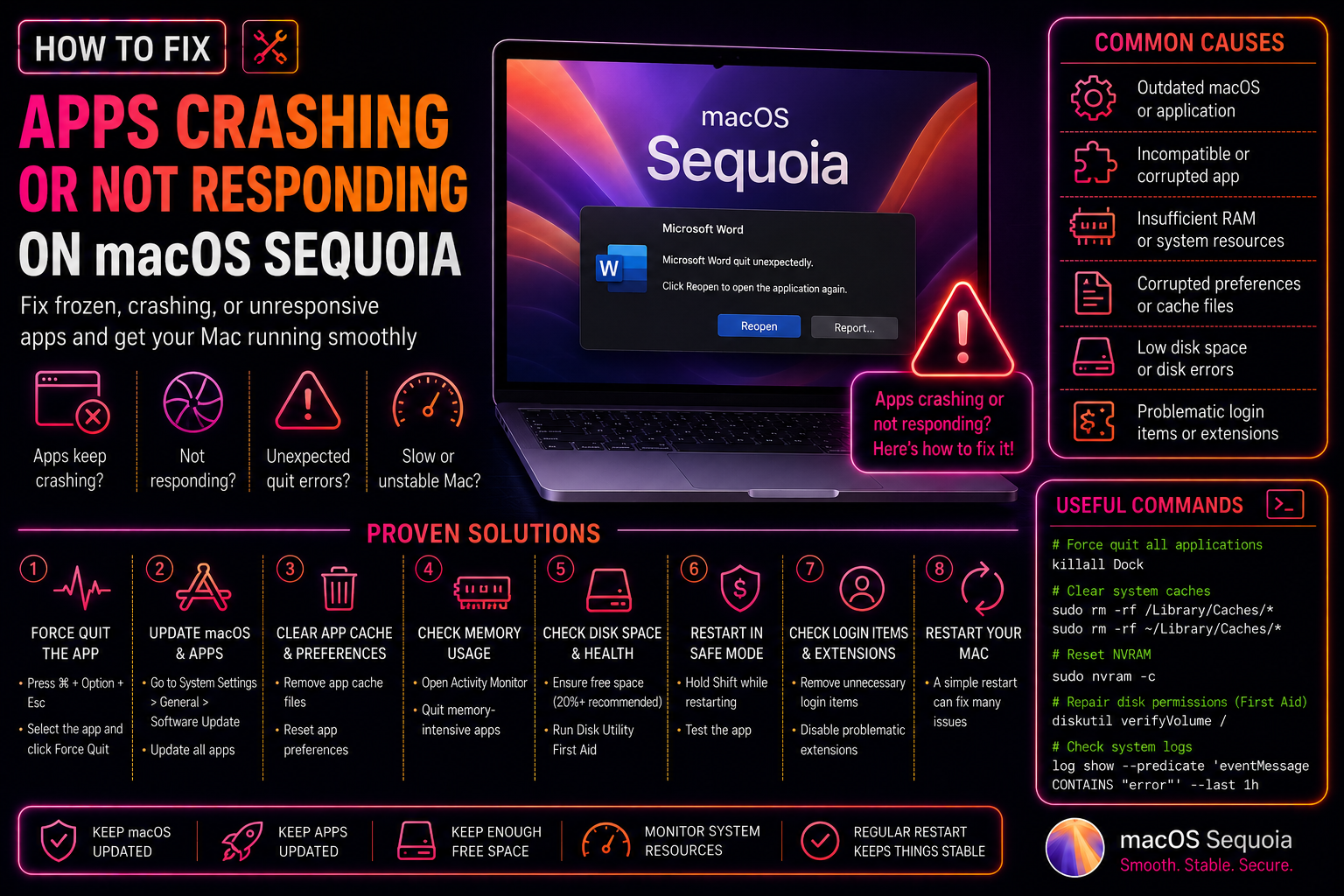
macOS Sequoia (15.x) introduced a redesigned window management system, a rebuilt notification stack, and deeper iPhone Mirroring integration — and with them, a wave of app crash reports. The most common culprits in 2026 are: Rosetta 2 compatibility breaks with apps that haven't been recompiled as universal or Apple Silicon-native, broken preference (plist) files from in-place upgrades, leftover launch agents from older macOS versions, and Gatekeeper's expanded notarisation checks blocking apps that ran fine before.
This guide covers every fix in sequence — quick fixes first, deeper repairs at the end.
Fix 1: Force Quit the Stuck App and Relaunch
Before anything else, kill the frozen process cleanly and restart it.
Method A — Force Quit menu:
- Press Option + Command + Escape.
- Select the unresponsive app.
- Click Force Quit.
Method B — Activity Monitor (gets deeper stuck processes):
- Open Finder → Applications → Utilities → Activity Monitor.
- Search for the app name.
- Select it → click the X button → Force Quit.
Method C — Terminal kill:
killall -9 "App Name"Replace App Name with the exact process name shown in Activity Monitor.
After force-quitting, wait 5 seconds, then relaunch. If it crashes again immediately, continue below.
Fix 2: Check for App Updates
Many apps required Sequoia-specific updates to handle new API changes. Open the App Store → Updates and install all pending updates. For apps outside the App Store, check the app's own "Check for Updates" menu or the developer's website.
Particularly important in 2026: Adobe Creative Cloud apps, Microsoft Office, Zoom, and Slack all shipped mandatory Sequoia 15.3+ compatibility patches.
Fix 3: Delete the App's Preference File (Corrupted Plist)
Upgrade installs to Sequoia sometimes corrupt preference files. Deleting them forces the app to regenerate clean defaults.
- Open Finder → from the menu bar, Go → Go to Folder → type:
~/Library/Preferences- Search for the app name (e.g.,
com.adobe.Photoshop.plist). - Drag the file(s) to the Trash — do not empty the Trash yet in case you need to restore them.
- Relaunch the app.
If it works, empty the Trash. If it breaks further, restore the file from Trash.
Fix 4: Clear the App's Cache
Corrupted cache is especially common for Electron-based apps (Slack, VS Code, Discord) after an OS upgrade.
- Quit the app fully.
- Go to Finder → Go → Go to Folder → type:
~/Library/Caches- Find the folder matching the app's bundle ID (e.g.,
com.tinyspeck.slackmacgap). - Delete the entire folder.
- Relaunch the app.
Fix 5: Reset App Permissions (macOS Privacy & Security)
macOS Sequoia tightened the privacy permission model. An app may crash if a previously granted permission was reset during the Sequoia upgrade.
- Open System Settings → Privacy & Security.
- Check each category: Camera, Microphone, Contacts, Calendar, Full Disk Access, Accessibility, Screen Recording.
- Find the crashing app and toggle its permission off, wait 5 seconds, and toggle it back on.
- Relaunch the app.
For apps that crashed right after a permission prompt appeared, grant the permission explicitly — the crash is often the app failing to handle a "deny" response gracefully.
Fix 6: Remove the App Completely and Reinstall
A partial upgrade or incomplete original install can leave broken binary fragments. Use the proper removal method for a clean slate.
For App Store apps:
- Hold Option on the Launchpad → click the X on the app to delete.
- Reinstall from the App Store.
For apps with a dedicated uninstaller: Always use the provided uninstaller before reinstalling.
For drag-to-install apps without an uninstaller: Use a tool like AppCleaner (free) to find and delete all associated files:
# Manually find all app-related files
find ~/Library -name "*AppName*" 2>/dev/null
find /Library -name "*AppName*" 2>/dev/null
Fix 7: Check for Rosetta 2 Issues (Intel Apps on Apple Silicon)
If you are on an M1/M2/M3/M4 Mac and running an older Intel-compiled app, crashes may be Rosetta 2 translation failures.
Check if Rosetta is installed:
softwareupdate --install-rosetta --agree-to-licenseCheck whether the app is running natively or via Rosetta:
- Activity Monitor → find the app process.
- Look at the Kind column: "Apple" = native, "Intel" = Rosetta translation.
If the app is running as "Intel" and crashing, contact the developer for an Apple Silicon (Universal) build. As a workaround, right-click the app in Finder → Get Info → uncheck "Open using Rosetta" (or check it, depending on current state) to toggle the translation layer.
Fix 8: Disable Login Items and Launch Agents
Old launch agents from apps installed under a previous macOS version can conflict with Sequoia's new security model.
- System Settings → General → Login Items & Extensions.
- Under "Open at Login" and "Allow in Background", disable items from apps you don't recognise or that match the crashing app.
For deeper cleanup via Terminal:
# List all user launch agents
launchctl list | grep -v com.apple

# Remove a specific launch agent
launchctl remove com.example.AppName
Fix 9: Run Disk First Aid and Repair Permissions
Filesystem errors can cause apparently random app crashes:
- Open Disk Utility (Finder → Applications → Utilities).
- Select your startup disk → First Aid → Run.
If First Aid reports errors it cannot repair, boot into Recovery Mode (hold Command + R on Intel Macs, or hold Power on Apple Silicon Macs) and run First Aid from there.
Fix 10: Read the Crash Report for Root Cause
macOS logs a crash report every time an app quits unexpectedly. Reading it narrows down the cause fast.
- Open Console.app (Finder → Applications → Utilities).
- Click Crash Reports in the sidebar.
- Find the latest report for your crashing app.
- Look for the Exception Type line:
EXC_CRASH (SIGABRT)— app logic error; usually a plist or cache issueEXC_BAD_ACCESS (SIGSEGV)— memory access violation; often a Rosetta issue or driver conflictDYLD: Library not loaded— missing dependency; reinstall the appkilled: 9— macOS killed it for exceeding memory limits
Still crashing after all these steps? Our professional desktop support team can remote in to your Mac, read the crash logs, and resolve the root cause in a single session.
Frequently Asked Questions
Why do apps crash more often after upgrading to macOS Sequoia?
Sequoia changed the window management APIs, tightened privacy permission enforcement, and introduced new security checks via Gatekeeper. Apps built for older macOS versions may hit APIs that have changed behaviour or been removed. Updating apps to their latest versions resolves most post-upgrade crashes.
How do I find out exactly why my Mac app crashed?
Open Console.app → Crash Reports → find the latest report for your app. The Exception Type and Thread 0 backtrace lines tell you whether the crash is a memory error, missing library, assertion failure, or OS kill signal. Share this report with the app's support team if you need further help.
Is it safe to delete an app's .plist preference file?
Yes — the app will recreate the plist with default settings on next launch. You will lose any custom in-app settings (keyboard shortcuts, theme, display preferences) but no documents or user data will be affected.
Why does only one specific app crash while all others work fine?
This points to an app-specific issue: a corrupted plist or cache, a missing permission in Privacy & Security, a broken code signature, or an incompatibility with Sequoia's APIs. Start with Fix 3 (delete plist) and Fix 5 (reset permissions) before attempting a full reinstall.
Can too many apps open at once cause crashes on macOS?
Yes, especially if your Mac has limited RAM. Open Activity Monitor → Memory tab → check the Memory Pressure graph. A consistently red graph means your Mac is swapping heavily, which causes crashes in memory-hungry apps. Close unused apps, upgrade RAM if your model supports it, or consider upgrading to a Mac with more unified memory.