Why Ubuntu 24.04 to 26.04 Upgrades Fail
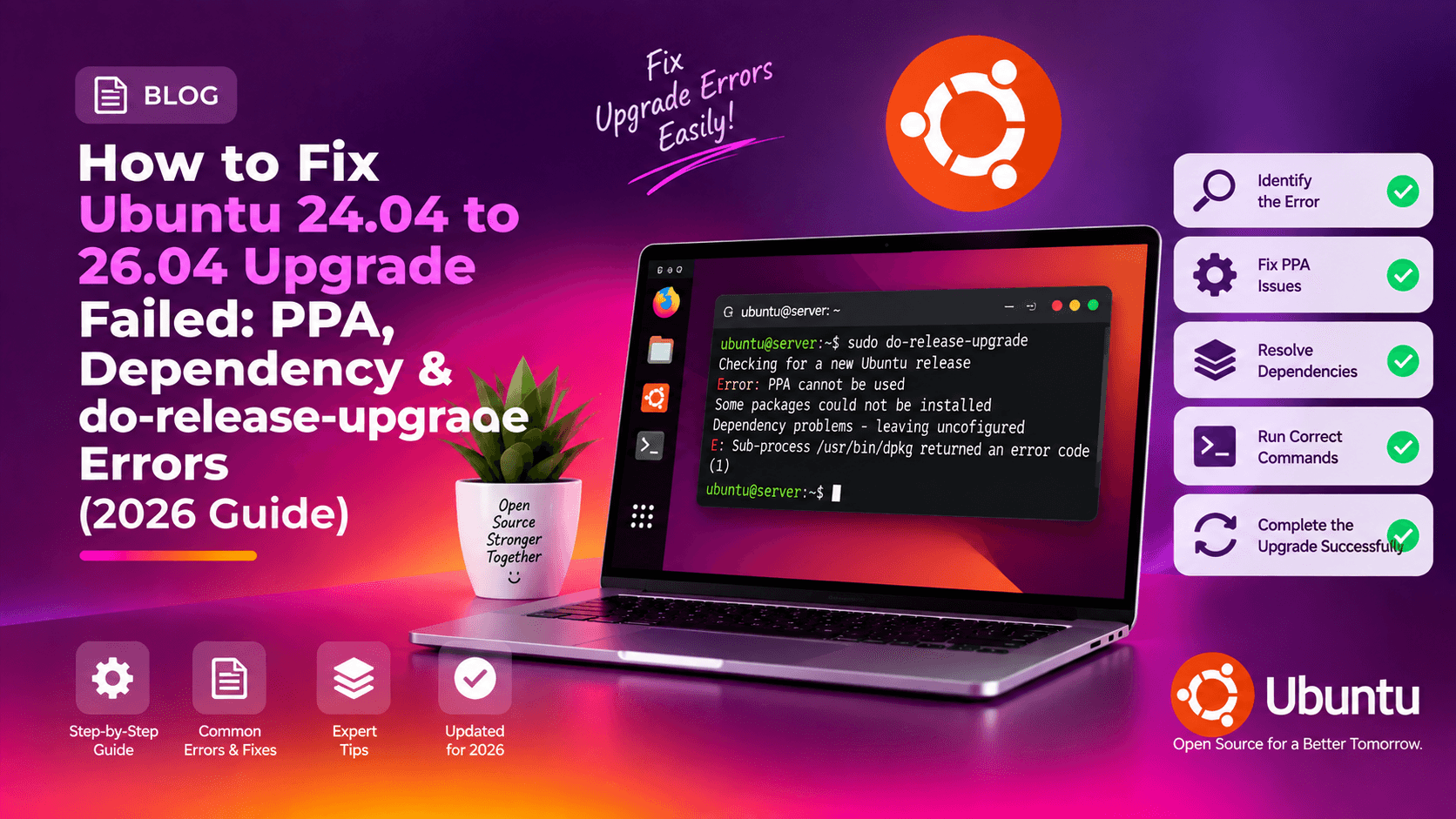
Most failed Ubuntu 24.04 to 26.04 upgrades come down to three causes: third-party PPAs without 26.04 packages, broken or unmet dependencies, and an upgrade that was interrupted part-way. This guide shows how to fix each one and get do-release-upgrade running again, with the exact commands for 2026.
The upgrade should be straightforward, but a significant number of users hit a wall. Knowing why it fails lets you fix it with confidence instead of guessing. The most common culprits are:
- Third-party PPAs that have not published packages compatible with Ubuntu 26.04, causing the upgrade calculator to report "an unresolvable problem occurred."
- Unmet or broken dependencies left over from previously installed packages that conflict with the new release's libraries.
- Interrupted upgrades that leave packages in a half-installed or half-configured state.
- Stale or unsigned repository sources that make
do-release-upgradeabort. - Timing: Ubuntu 26.04.1 was scheduled for August 2026. Until the LTS-to-LTS upgrade path is opened for your system,
do-release-upgrademay report no new release and require the-dflag.
Pre-Upgrade Checklist
Skipping preparation is the biggest reason Ubuntu upgrades fail mid-way. Run through this checklist completely before upgrading, even on a machine you consider healthy.
- Back up your data. Use Timeshift or rsync:
sudo timeshift --create --comments "Pre-26.04-upgrade snapshot" - Apply all current updates:
sudo apt update && sudo apt full-upgrade -y - Remove orphaned packages:
sudo apt autoremove --purge -y - Fix broken packages now:
sudo apt --fix-broken install - Ensure do-release-upgrade is available:
sudo apt install update-manager-core -y - Confirm upgrade policy is set to LTS:
cat /etc/update-manager/release-upgradesVerify
Prompt=ltsis present. - Free up disk space (at least 10 GB needed):
df -h / sudo apt clean - Run inside tmux to survive connection drops:
sudo apt install tmux -y
tmux new -s upgrade
Fix: Removing PPAs Blocking the Upgrade
When do-release-upgrade encounters a PPA without 26.04-compatible packages, it reports:
An unresolvable problem occurred while calculating the upgrade.
This can be caused by:
 * Unofficial software packages not provided by Ubuntu
The fix: disable every PPA before upgrading, then re-add them afterwards if they gain 26.04 support.
Step 1 — List all active PPAs
grep -r "^deb" /etc/apt/sources.list /etc/apt/sources.list.d/ | grep -i ppaStep 2 — Remove PPAs
sudo add-apt-repository --remove ppa:user/ppa-nameStep 3 — Revert packages with ppa-purge (recommended)
sudo apt install ppa-purge -y
sudo ppa-purge ppa:user/ppa-name
Repeat for every PPA identified. This reverts packages to the official Ubuntu archive versions.
Step 4 — Remove stale .list files manually if needed
ls /etc/apt/sources.list.d/
sudo rm /etc/apt/sources.list.d/problematic-ppa.list
Step 5 — Refresh and run the upgrade
sudo apt update && sudo apt full-upgrade -yTry the standard command first. If it reports that no new release was found, the LTS upgrade path has not been enabled for your system yet, so use the -d flag:
sudo do-release-upgrade -dOnce Ubuntu 26.04.1 is available to your system (it was scheduled for August 2026), the standard command is all you need:
sudo do-release-upgradeFix: Resolving Unmet Dependencies Mid-Upgrade
If the upgrade starts but stalls with dependency conflict errors, these usually involve packages from PPAs or manually installed .deb files pinned at incompatible versions.
Identify conflicting packages
sudo apt-get -f install
sudo dpkg --audit
Remove the conflicting package
sudo apt remove --purge conflicting-package-name
sudo apt autoremove -y
Force dependency resolution
sudo apt full-upgrade --fix-missing
sudo apt --fix-broken install
Check for held packages
sudo apt-mark showholdRelease held packages that are not intentionally pinned:
sudo apt-mark unhold package-nameAfter resolving dependencies, re-run sudo do-release-upgrade -d to resume. If your system already sees the 26.04 release without the flag, plain sudo do-release-upgrade works too.
Fix: Recovering a Half-Upgraded System
If your upgrade was interrupted, you may be left with a system that shows:
dpkg was interrupted, you must manually run 'sudo dpkg --configure -a' to correct the problem.Step 1 — Configure all half-installed packages
sudo dpkg --configure -aStep 2 — Fix broken dependencies
sudo apt --fix-broken install
sudo apt install -f
Step 3 — Identify half-installed packages
dpkg -l | grep -E "^.H|^.U"Reinstall each broken package:
sudo apt install --reinstall package-nameStep 4 — Remove stale lock files (only if no APT process is running)
sudo lsof /var/lib/dpkg/lock-frontendIf output is empty, remove stale locks:
sudo rm /var/lib/apt/lists/lock
sudo rm /var/cache/apt/archives/lock
sudo rm /var/lib/dpkg/lock
sudo rm /var/lib/dpkg/lock-frontend
sudo dpkg --configure -a
Step 5 — Review upgrade logs
cat /var/log/dist-upgrade/main.log
cat /var/log/dist-upgrade/apt.log
Step 6 — Continue the upgrade
sudo do-release-upgrade -dStep 7 — Final cleanup after successful upgrade
sudo apt update && sudo apt full-upgrade -y
sudo apt autoremove --purge -y
sudo apt clean
lsb_release -a
If the system is too corrupted to continue, restore from your Timeshift snapshot or get expert Linux support from CloudHouse — our team can remotely diagnose and recover half-upgraded Ubuntu systems without data loss.
FAQ
Why does do-release-upgrade say "No new release found" on Ubuntu 24.04?
The LTS-to-LTS upgrade is only advertised through the standard channel once Ubuntu 26.04.1 is available (it was scheduled for August 2026). If your system has not been offered the upgrade yet, use the -d flag: sudo do-release-upgrade -d. Also confirm /etc/update-manager/release-upgrades contains Prompt=lts and not Prompt=never.
Is it safe to upgrade a production server from Ubuntu 24.04 to 26.04?
Yes, with proper preparation: take a full backup, remove all PPAs, resolve broken packages, and run inside a tmux session. For mission-critical servers, test on a staging replica first or contact CloudHouse for a managed upgrade.
Can I re-add my PPAs after upgrading to Ubuntu 26.04?
Yes. Once on 26.04, check whether the PPA has published packages for the Resolute Raccoon series. If supported, re-add with: sudo add-apt-repository ppa:user/ppa-name && sudo apt update.
What should I do if the upgrade downloads packages but fails during installation?
Run sudo dpkg --configure -a then sudo apt --fix-broken install. Check /var/log/dist-upgrade/main.log for the failing package. Remove it if safe and re-run sudo do-release-upgrade -d to resume.
How long does a Ubuntu 24.04 to 26.04 upgrade take?
On a 100 Mbps connection, expect 20–35 minutes for downloads and 15–25 minutes for installation — roughly 45–60 minutes total. Servers with many packages or slower disks may take longer.