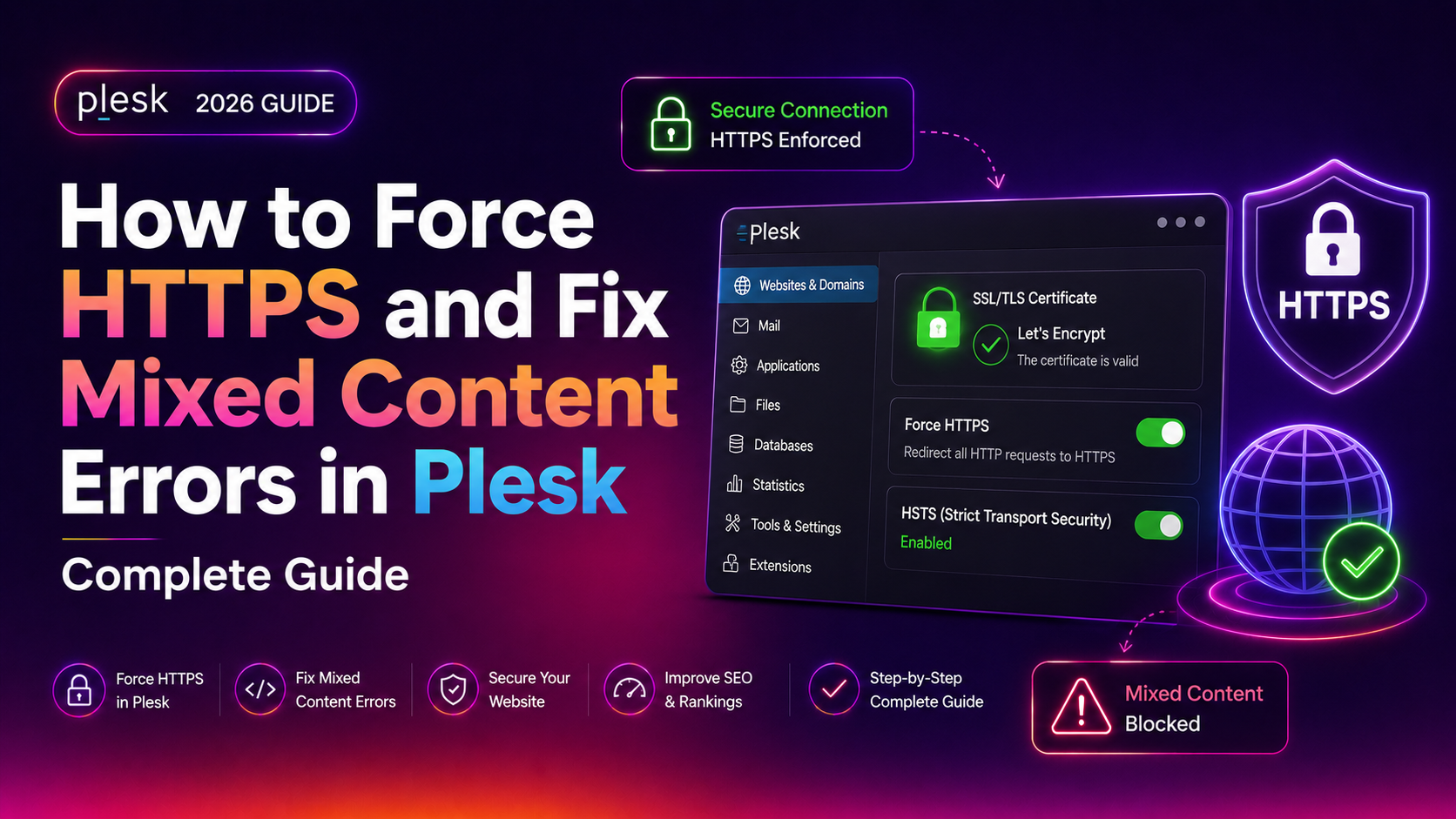
If you've just installed an SSL certificate in Plesk and your site is still throwing browser warnings, you're dealing with one of the most frustrating post-SSL problems in web hosting — mixed content errors. The plesk force https mixed content fix isn't a single switch; it's a layered process that covers your Plesk panel settings, your web server configuration, your CMS, and your HTTP response headers. This guide walks you through every layer so your site loads fully over HTTPS with zero insecure warnings.
Why Mixed Content Errors Appear After Enabling SSL in Plesk
When a browser loads a page over HTTPS, every resource that page requests — images, scripts, stylesheets, fonts, iframes, WebSocket connections — must also come over HTTPS. If even one resource is requested over plain HTTP, the browser flags it as mixed content.
There are two categories:
- Passive mixed content — images, audio, video loaded over HTTP. The browser usually displays the page but shows a warning badge in the address bar.
- Active mixed content — scripts, stylesheets, iframes, XHR/fetch calls over HTTP. The browser blocks these outright, breaking layouts and functionality.
Why does this happen right after enabling SSL in Plesk? Because Plesk's built-in HTTPS redirect only controls how the page URL is delivered — it does nothing about hard-coded http:// URLs inside your HTML, your database, your theme files, or your application config. Those insecure references were written before SSL existed on the domain, and they stay insecure until you fix each layer explicitly.
Common root causes include:
- Hard-coded
http://URLs in HTML, CSS, or JavaScript files - WordPress database entries storing the old HTTP site URL
- Third-party scripts or ad networks serving assets over HTTP
- WebSocket connections using
ws://instead ofwss:// - Reverse proxy configurations that strip or ignore the
X-Forwarded-Protoheader
💡 None of these worked? Skip the guesswork.
Get Expert Help →Step 1: Enable and Force HTTPS Redirect in Plesk Panel
Log into Plesk and navigate to Websites & Domains. Click on the domain you want to secure, then select Hosting Settings. Under the Security section, enable Permanent SEO-safe 301 redirect from HTTP to HTTPS and click OK. Plesk writes the redirect rule into your Apache or Nginx virtual host configuration automatically.
From the command line, run a quick curl test:
curl -I http://yourdomain.comYou should see HTTP/1.1 301 Moved Permanently and a Location: https://yourdomain.com/ header. If you see a redirect loop (301 → 301 → 301), check whether your site is behind Cloudflare or a load balancer that is already terminating SSL — in that case, disable the Plesk toggle and handle the redirect at the proxy level instead.
If a previous developer added manual redirect rules to .htaccess, they may conflict with the Plesk-generated rule. Open /var/www/vhosts/yourdomain.com/httpdocs/.htaccess and remove any duplicate RewriteRule blocks that reference HTTP-to-HTTPS redirects, keeping only the one Plesk manages.
Load your site over HTTPS, open DevTools (F12), and click the Console tab. Mixed content warnings appear as red or yellow messages prefixed with Mixed Content:. Each message shows the exact URL of the insecure resource.
In the Network tab, reload the page and use the search bar to filter by http://. This reveals every resource request that isn't using HTTPS, including lazily-loaded images and background XHR calls that may not appear in the Console.
If your application uses real-time features (live chat, push notifications, collaborative editing), look for ws:// connections in the Network tab under the WS filter. These must be upgraded to wss:// in your application code — no server-side header can fix a hard-coded WebSocket URL.
For large sites, the manual approach misses dynamically-loaded content. Use Why No Padlock or the open-source mixed-content-scan CLI tool to crawl every page:
npx mixed-content-scan https://yourdomain.com --format=textIn the WordPress admin, go to Settings → General and change both WordPress Address (URL) and Site Address (URL) from http:// to https://. Save changes.
Install the Better Search Replace plugin or use WP-CLI from the Plesk terminal:
wp search-replace 'http://yourdomain.com' 'https://yourdomain.com' --all-tables --path=/var/www/vhosts/yourdomain.com/httpdocsThis updates every stored URL in your posts, postmeta, options, and custom tables in a single pass. Always take a database backup before running this command.
Open wp-config.php and add these lines above the /* That's all, stop editing! */ comment:
define('FORCE_SSL_ADMIN', true);
if (isset($_SERVER['HTTP_X_FORWARDED_PROTO']) && $_SERVER['HTTP_X_FORWARDED_PROTO'] === 'https') {
    $_SERVER['HTTPS'] = 'on';
}
The second block is essential when WordPress runs behind Plesk's Nginx proxy — without it, WordPress doesn't know the connection is HTTPS and may generate HTTP URLs for enqueued scripts.
If you use a caching plugin (WP Super Cache, W3 Total Cache, WP Rocket), purge the entire cache after making these changes. Cached pages may still contain old HTTP URLs.
Step 5: Use Content-Security-Policy Headers to Upgrade Insecure Requests
Once you've fixed all known mixed content sources, add a Content-Security-Policy header with the upgrade-insecure-requests directive as a safety net. This instructs the browser to automatically upgrade any remaining http:// resource requests to https:// before making the connection — catching any hard-coded URLs you missed.
Adding CSP Header in Apache .htaccess
<IfModule mod_headers.c>
    Header always set Content-Security-Policy "upgrade-insecure-requests"
</IfModule>
Adding CSP Header in Nginx (Plesk Additional Directives)
add_header Content-Security-Policy "upgrade-insecure-requests" always;Adding CSP Header in WordPress
Add this snippet to your theme's functions.php or a site-specific plugin:
add_action('send_headers', function() {
    header("Content-Security-Policy: upgrade-insecure-requests");
});
Important: upgrade-insecure-requests only handles passive and active HTTP resource loads. It does not upgrade WebSocket connections (ws:// to wss://). Those must be fixed in application code. Also note that this directive does not work as a substitute for fixing your database URLs — it is a browser-side last-resort upgrade, not a server-side rewrite.
Verifying Your CSP Header
After deploying, verify the header is being sent:
curl -I https://yourdomain.com | grep -i content-security-policyYou should see: content-security-policy: upgrade-insecure-requests
For complex server environments, ongoing SSL management, and HTTPS migration across multi-domain Plesk setups, the team at CloudHouse server management provides hands-on support so you don't have to debug vhost configurations alone.
FAQs
Why is my Plesk HTTPS redirect causing a redirect loop?
A redirect loop usually means your site is behind Cloudflare or a load balancer that is already terminating SSL and forwarding traffic to Plesk over plain HTTP. Plesk sees incoming HTTP traffic and redirects to HTTPS, but the proxy sends it back as HTTP again — infinite loop. The fix is to either disable the Plesk redirect toggle and let the proxy handle it, or add a condition to the redirect rule that checks the X-Forwarded-Proto header and skips the redirect if it equals https.
How do I find all mixed content on a large WordPress site in Plesk?
Use WP-CLI's search command combined with a crawler tool. First run wp search-replace --dry-run 'http://yourdomain.com' 'https://yourdomain.com' --all-tables to see how many records contain HTTP URLs. Then use the mixed-content-scan NPM package or Why No Padlock to crawl all pages and identify dynamically-generated insecure references that the database replace won't catch.
Does the Plesk SSL redirect toggle work with Nginx or only Apache?
The Plesk redirect toggle writes rules for both Apache and Nginx automatically, depending on which web server handles your domain. For domains served by Nginx (Plesk's default since Plesk Onyx), the toggle writes an Nginx return 301 directive in the vhost config. For Apache-only domains, it writes an .htaccess rewrite rule. You can verify which server is active under Websites & Domains → Apache & nginx Settings.
What is the difference between mixed content warnings and blocked mixed content?
Passive mixed content (images, audio, video loaded over HTTP) produces a warning — the browser shows the page with a degraded padlock icon. Active mixed content (scripts, stylesheets, XHR, iframes over HTTP) is blocked — the browser refuses to load those resources entirely, which can break your site layout, JavaScript functionality, and login sessions. The upgrade-insecure-requests CSP directive handles both, but active mixed content blocked errors are the more urgent priority.
Will fixing mixed content in Plesk improve my Google Search rankings?
Yes, indirectly. Google has confirmed HTTPS is a ranking signal, and a site with mixed content warnings is technically still serving insecure content even though the page URL is HTTPS. More directly, a padlock warning in the Chrome address bar increases visitor bounce rates — users who see security warnings leave. Fixing mixed content removes those warnings, improves user trust signals, and ensures Google's crawler can access all page resources without blockage, which can positively affect crawl quality scores.
Forcing HTTPS and eliminating mixed content in Plesk requires working through four distinct layers: the panel redirect toggle, your Apache or Nginx virtual host configuration, your CMS database and application settings, and your HTTP response headers. The Plesk toggle is only the starting point — the database URLs, the wp-config.php proxy flags, and the CSP upgrade-insecure-requests header are what actually close the gaps that leave browsers unhappy. Work through each step in order, verify with DevTools and curl after each change, and you'll have a clean, fully-green HTTPS padlock with no mixed content warnings remaining.