
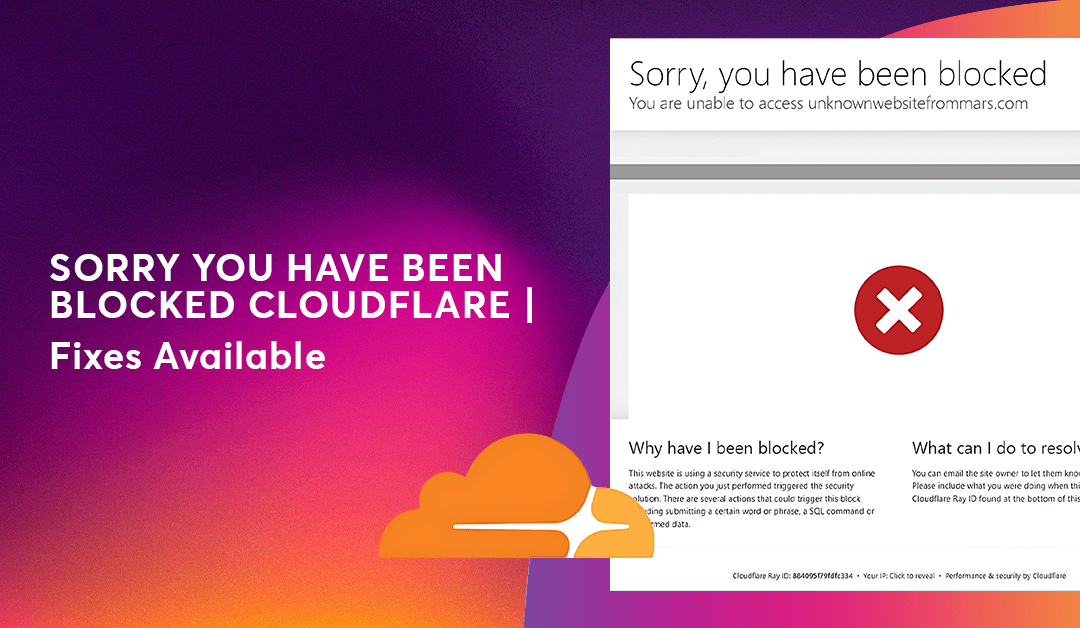
Sorry, You Have Been Blocked (Cloudflare)
It can be perplexing if you see "Sorry, You Have Been Blocked" abruptly when you attempt to access a website shielded by Cloudflare, particularly if you have done nothing wrong.
This message just implies Cloudflare's security system detected your request as possibly malicious. Good tidings? Most of the time, it's simple to correct.
The most frequent reasons of the Cloudflare block are listed below together with the best ways to fix it.
Why Cloudflare Blocks You
You may see this message because Cloudflare detected a potential risk from your connection. Common reasons include:
Your IP address was flagged for unusual activity
VPN or Proxy services triggered Cloudflare’s firewall
The site owner manually banned certain IP ranges
Browser has suspicious cookies or outdated cache
Bot-like behavior (too many requests in a short time)
Using outdated browsers or privacy extensions that hide essentials
Method 1: Disable VPN or Proxy
Cloudflare blocks many VPN IP ranges automatically.
What to do:
Turn off VPN and refresh the page
If using a proxy, remove it from browser/network settings
Try connecting using mobile data or another network
If the site loads after disabling VPN, you’ve found the culprit.
Method 2: Clear Browser Cache & Cookies
Old or corrupted cookies can make Cloudflare think you're a threat.
Steps:
Open your browser settings
Go to Privacy & Security
Clear Cache, Cookies, and Site Data
Restart your browser
Try visiting the website again.
Method 3: Disable Browser Extensions
Cloudflare detection may be hampered by extensions like script filters, privacy blockers, or ad-blockers.
Test:
Turning off AdBlock, UBlock, Privacy Badger, or other similar programs
Change to Incognito Mode
Checking the site in still another browser
If the page loads without extensions, one of them is creating the problem.
Method 4:Restart Your Router (Get a New IP)
Sometimes your public IP is mistakenly marked as suspicious.
Restarting the router often gives you a fresh IP.
Try:
Turn the router off
Wait 15–20 seconds
Turn it back on
Then reload the website.
Method 5: Contact the Website Owner
If nothing works, Cloudflare may have blocked your IP range at the server level.
You can:
Use the “Ray ID” shown on the Cloudflare page
Click the “Contact site owner” link (if provided)
Email the website owner and request an unblock
They can whitelist your IP from Cloudflare’s dashboard.