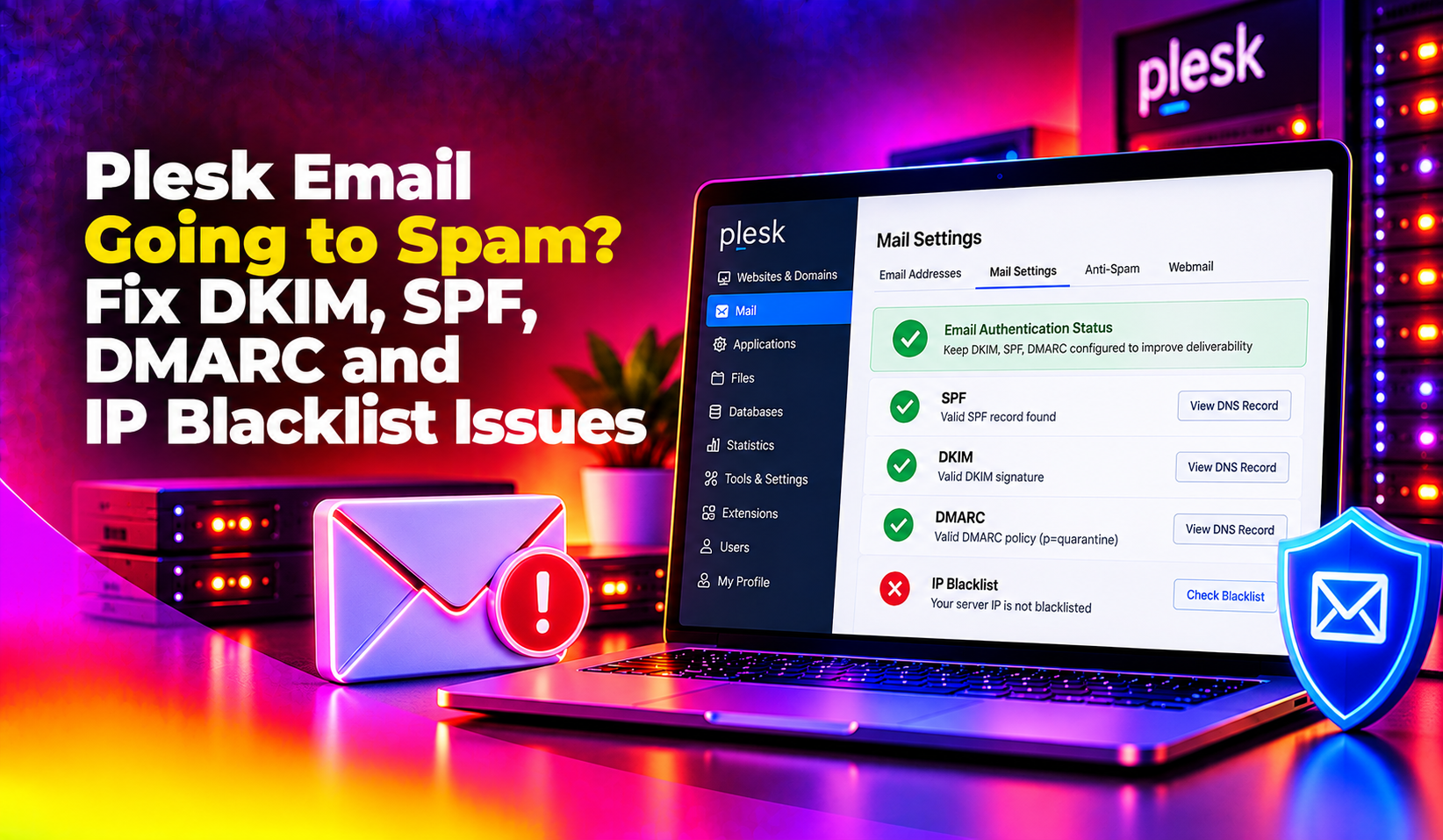
Your Plesk server is sending email, but it's landing in spam folders — at Gmail, Outlook, Yahoo, or your clients' corporate mail servers. You've checked and the messages are going out, but recipients never see them in their inbox. This guide covers every cause of Plesk email deliverability failures and the exact configuration changes to fix them.
💡 None of these worked? Skip the guesswork.
Get Expert Help →Step 1: Diagnose Why Your Email Is Going to Spam
Before changing anything, identify the actual cause. Use these free tools to get a complete picture:
Go to mail-tester.com, copy the test address, send a real email from your Plesk server to that address, then click Check your score. It grades your email on 10+ factors including DKIM, SPF, DMARC, content, and blacklists, and tells you exactly what's wrong.
2. MXToolbox
# Check if your server IP is blacklisted:
# https://mxtoolbox.com/blacklists.aspx
# Enter your server's outgoing IP address

# Check DKIM record:
# https://mxtoolbox.com/dkim.aspx

# Check SPF record:
# https://mxtoolbox.com/spf.aspxIf emails to Gmail are going to spam, register your sending domain at postmaster.google.com. It shows your domain reputation, IP reputation, spam rate, and DMARC compliance rate — data only Google has.
The most common causes in order of frequency:
- DKIM not configured or not matching
- SPF record missing or incorrect
- Server IP on a public blacklist (RBL)
- No PTR (reverse DNS) record for the mail server IP
- DMARC policy misconfigured
- Email content triggers spam filters
Step 2: Fix DKIM in Plesk
DKIM (DomainKeys Identified Mail) adds a cryptographic signature to every outgoing email. Receiving servers verify this signature against a public key published in DNS. Without it, your email looks unauthenticated and many providers route it to spam.
Enable DKIM globally (server-wide):
- Log into Plesk as administrator
- Go to Tools & Settings → Mail Server Settings
- Scroll to the DKIM spam protection section
- Check Allow signing outgoing mail
- Check Verify incoming mail
- Click OK
Enable DKIM per domain:
- Go to Websites & Domains → select the domain
- Click Mail Settings
- Check Use DKIM spam protection system to sign outgoing email messages
- Click OK
When DKIM is enabled, Plesk automatically adds two DNS records to the domain's zone:
default._domainkey.yourdomain.com  TXT  "v=DKIM1; k=rsa; p=MIGfMA0GCSqGSIb3..."
_domainkey.yourdomain.com          TXT  "t=y; o=~;"
If the domain uses external DNS (Cloudflare, Route53, etc.), Plesk cannot add these records automatically. You must copy them manually:
- In Plesk, go to Websites & Domains → DNS Settings for the domain
- Find the
default._domainkeyTXT record and copy the full value - Add that TXT record in your external DNS provider
Verify DKIM is working:
dig TXT default._domainkey.yourdomain.com +short
# Should return the v=DKIM1 record

# Or use the command line to check signing:
# Send a test email and examine the raw headers — look for DKIM-Signature header
Step 3: Fix the SPF Record
SPF (Sender Policy Framework) tells receiving servers which IP addresses are authorized to send email for your domain. A missing or incorrect SPF record causes many providers to route your email to spam or reject it outright.
A correct SPF record looks like this:
yourdomain.com TXT "v=spf1 ip4:YOUR_SERVER_IP ~all"If you send from multiple sources (Plesk server + a transactional email service like SendGrid or Mailgun), include them all:
yourdomain.com TXT "v=spf1 ip4:YOUR_SERVER_IP include:sendgrid.net ~all"Common SPF mistakes to avoid:
- Using
-all(hard fail) when you're not 100% sure all legitimate senders are listed — this causes legitimate mail to bounce. Use~all(soft fail) until you've verified all sending sources - Including too many
include:mechanisms — SPF lookups are capped at 10 DNS lookups; exceeding this causes SPF to fail - Having multiple SPF TXT records — there must be exactly one SPF record per domain
In Plesk with internal DNS, the SPF record is added automatically. For external DNS:
- Go to Websites & Domains → DNS Settings
- Copy the SPF TXT record Plesk has created
- Add or update the TXT record in your external DNS provider
Validate your SPF:
dig TXT yourdomain.com +short | grep spf
# Should return the v=spf1 record

# Use kitterman.com/spf/validate.phtml to simulate a check from your server IP
Step 4: Configure DMARC
DMARC (Domain-based Message Authentication, Reporting, and Conformance) builds on top of DKIM and SPF. It tells receiving servers what to do when authentication fails, and provides reporting so you can see failed attempts.
A basic DMARC record:
_dmarc.yourdomain.com TXT "v=DMARC1; p=quarantine; rua=mailto:dmarc@yourdomain.com; pct=100"p=none— monitor only, no action (use this first to collect data)p=quarantine— route failing mail to spamp=reject— reject failing mail outright (use after you're confident your SPF and DKIM are correct)rua=— aggregate report destination (you'll receive daily XML reports)pct=100— apply the policy to 100% of mail
Start with p=none to collect two weeks of reports, verify all your legitimate mail passes, then step up to p=quarantine and eventually p=reject.
In Plesk, DMARC is configured under Tools & Settings → DNS Template. For external DNS, add the _dmarc TXT record manually.
Verify DMARC:
dig TXT _dmarc.yourdomain.com +short
# Should return the v=DMARC1 record
Step 5: Fix the PTR (Reverse DNS) Record
Many spam filters check that the IP address your mail server sends from has a PTR record (reverse DNS) that resolves back to a hostname. Without a PTR record, or with one that points to a generic provider hostname like static.123.456.789.ip.hosting.com, your email is far more likely to be flagged.
Set the PTR record at your hosting provider or data center level (not in Plesk's DNS — PTR records are controlled by whoever owns the IP block):
- Log into your server provider's control panel
- Find the option for reverse DNS / PTR record for your server's main IP
- Set it to your mail server hostname, e.g.
mail.yourdomain.com
In Plesk, also ensure the mail server hostname matches:
- Go to Tools & Settings → Server Settings
- The Server hostname field should match your PTR record
Verify the PTR record:
dig -x YOUR_SERVER_IP +short
# Should return your mail server hostname

# And that hostname should resolve back to the IP:
dig +short mail.yourdomain.com
# Should return YOUR_SERVER_IP
Step 6: Check and Remove Blacklistings
If your server IP has been blacklisted (due to a compromised account sending spam, or a previous tenant's behavior), even perfect authentication won't save you — major providers will reject or spam-folder your mail.
Check all major blacklists:
# MXToolbox multi-blacklist check (web):
# https://mxtoolbox.com/blacklists.aspx
# Enter your mail server IP

# Check Spamhaus specifically (most impactful RBL):
dig YOUR_SERVER_IP_REVERSED.zen.spamhaus.org
# e.g. for IP 1.2.3.4: dig 4.3.2.1.zen.spamhaus.org
# If NXDOMAIN → not listed (good). Any IP response → listed.
If listed — delist the IP:
- First, find and stop whatever caused the listing (a compromised WordPress site, an account sending spam, an open relay)
- Then request delisting from each blacklist provider's removal form
- Spamhaus: spamhaus.org/lookup
- Sorbs: sorbs.net/lookup
- Barracuda: barracudacentral.org/rbl/removal-request
In Plesk, check outgoing mail volume to spot accounts sending unusual volumes:
- Go to Tools & Settings → Mail Server Settings → Outgoing Mail
- Or check postfix queue:
mailq | head -50
Limit outgoing mail per domain to prevent one compromised site from blacklisting your entire server:
# In Plesk: Domains → Mail Settings → Outgoing mail limit
# Set a reasonable per-domain hourly/daily limit
Step 7: Verify the Full Email Authentication Chain
After making changes, send a test email and check the raw headers in Gmail (click the three-dot menu → Show Original) or any mail client. You should see:
Authentication-Results: mx.google.com;
   dkim=pass header.i=@yourdomain.com;
   spf=pass (google.com: domain of no-reply@yourdomain.com designates YOUR_IP as permitted sender);
   dmarc=pass (p=QUARANTINE sp=QUARANTINE dis=NONE) header.from=yourdomain.com
All three must show pass. If any show fail or none, return to the relevant section above.
If your Plesk server's email reputation is damaged or you're dealing with a complex multi-domain setup with external DNS across all of them, CloudHouse's server management team handles email authentication configuration and blacklist recovery for Plesk servers regularly.
Conclusion
Plesk email going to spam is almost always fixable by correctly configuring DKIM, SPF, DMARC, and ensuring a clean PTR record and IP reputation. The key is to diagnose with mail-tester.com first — it tells you exactly which layers are broken so you don't spend time fixing things that aren't the problem. After configuration changes, allow 24-48 hours for DNS propagation and test again before declaring victory.