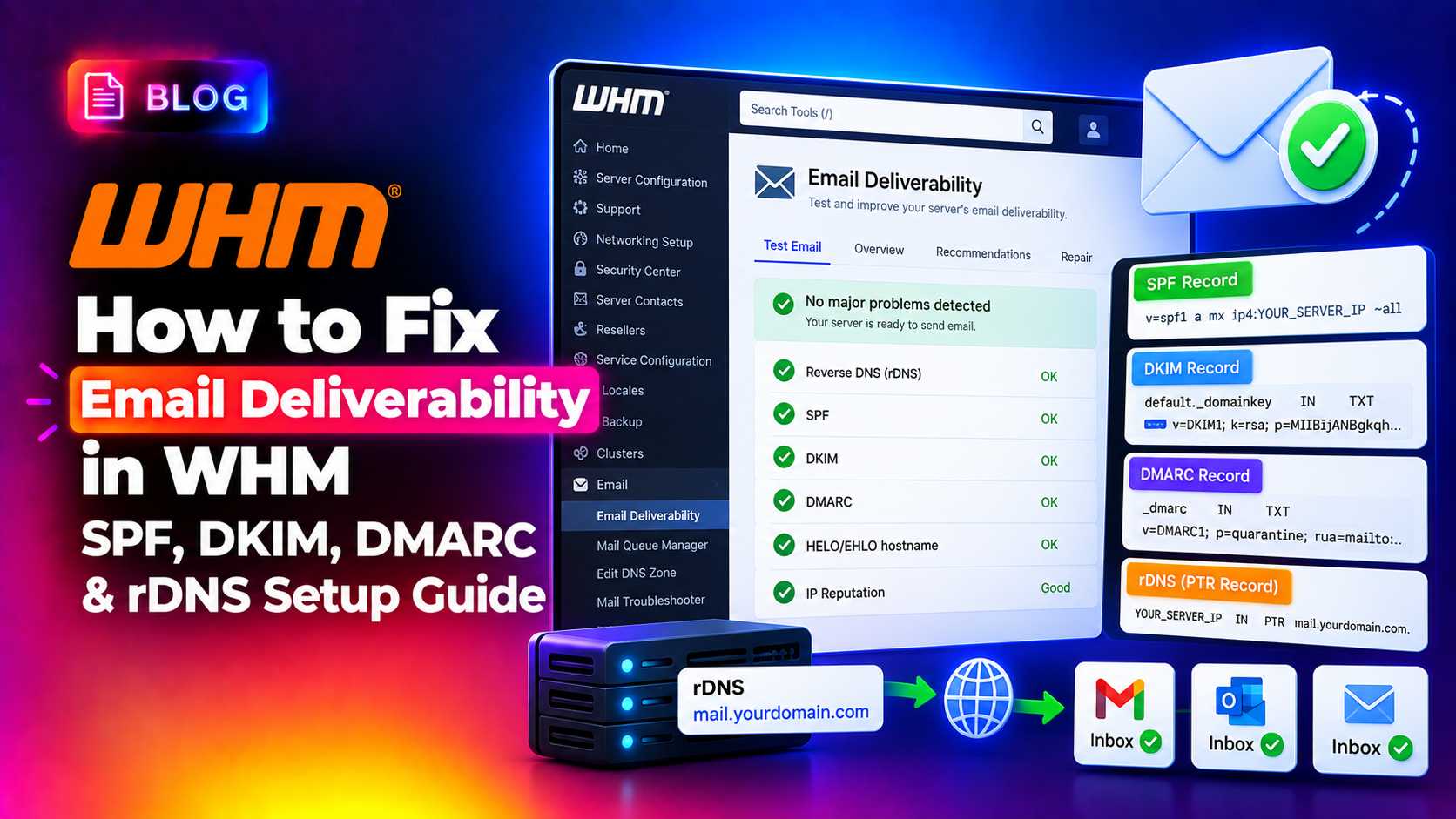
If your server's emails are landing in spam folders or getting rejected outright, the fix almost always starts in WHM's email deliverability settings. The four records that determine whether your email is trusted — SPF, DKIM, DMARC, and rDNS/PTR — need to be correctly configured for every domain on your server.
This guide walks through how to set up and verify all four records from WHM, including the CLI commands for diagnosis and what to check when the WHM repair tool isn't enough.
Why Email Deliverability Fails on cPanel/WHM Servers
Modern mail servers use a layered authentication system to decide whether to accept, filter, or reject incoming mail. When any layer is missing or misconfigured, your emails hit the spam folder — or bounce entirely.
- SPF (Sender Policy Framework) — tells receiving servers which IPs are authorised to send email for your domain
- DKIM (DomainKeys Identified Mail) — adds a cryptographic signature to outgoing mail that proves the message hasn't been tampered with
- DMARC (Domain-based Message Authentication, Reporting & Conformance) — tells receiving servers what to do when SPF or DKIM checks fail
- rDNS/PTR — reverse DNS that resolves your server IP back to a hostname; many mail servers reject or flag mail from IPs with no PTR record
All four need to align. Fixing only one while leaving the others broken still gets your mail flagged.
💡 None of these worked? Skip the guesswork.
Get Expert Help →Step 1: Use WHM's Email Deliverability Tool
WHM includes a built-in Email Deliverability tool that audits all domains on your server and flags missing or incorrect records.
Access WHM at https://your-server-ip:2087 and log in as root.
In the WHM search bar, type Email Deliverability and click the result. You'll see a list of all domains hosted on the server with their current status.
Each domain shows one of:
- Everything looks good — all records are in order
- Problems Exist — one or more records are missing or invalid
- Warning — records exist but may have issues
For domains where nameservers are hosted on the same server, click Repair next to a problematic domain. WHM will automatically generate the correct SPF and DKIM records and update the local DNS zone.
If the domain uses external nameservers (Cloudflare, Route53, etc.), the Repair button will not update DNS — instead, click Manage to see the exact TXT record Name and Value you need to add manually at your DNS provider.
Step 2: Configure SPF Records in WHM
SPF records are DNS TXT records that list which mail servers are allowed to send email on behalf of your domain.
Default WHM SPF Record
When WHM generates an SPF record, it typically looks like:
v=spf1 +a +mx +ip4:YOUR_SERVER_IP ~allThis allows the domain's A record IP, MX record hosts, and the server IP to send mail. The ~all means soft fail — mail from unlisted sources will be flagged but not rejected.
Stricter SPF for Production
If you're not sending from third-party services, tighten it to:
v=spf1 ip4:YOUR_SERVER_IP -allThe -all causes hard fail — mail from unlisted sources is rejected outright. Only use this if you're certain all outgoing mail routes through your server.
SPF for Third-Party Senders
If the domain also sends through Google Workspace or SendGrid, include their SPF entries:
v=spf1 ip4:YOUR_SERVER_IP include:_spf.google.com include:sendgrid.net ~allKeep in mind the 10 DNS lookup limit for SPF — too many include: directives cause SPF to fail permanently.
Step 3: Enable DKIM in WHM
DKIM uses a private/public key pair. The private key signs outgoing mail; the public key is published in DNS so receiving servers can verify the signature.
Enable DKIM Server-Wide
1. In WHM, go to Email → Enable DKIM/SPF Globally
2. Check both DKIM and SPF boxes
3. Click Save
This ensures all new accounts automatically get DKIM keys generated.
Generate DKIM for an Existing Domain
If a domain was created before DKIM was enabled globally:
- Go to Email Deliverability in WHM
- Click Manage next to the domain
- Under the DKIM section, click Install if the key isn't present
The DNS TXT record WHM generates looks like:
Name: default._domainkey.yourdomain.com
Type: TXT
Value: v=DKIM1; k=rsa; p=MIIBIjANBgkqhkiG9w0BAQEFAAOCAQ8AMIIBCgKCAQEA...
Verify DKIM via CLI
# Check if DKIM is active in Exim
grep -i dkim /etc/exim.conf | grep -v "#"

# Test DKIM signing for a domain
/usr/sbin/sendmail -bv user@yourdomain.com
You can also verify externally with:
dig TXT default._domainkey.yourdomain.comStep 4: Configure DMARC Policy
DMARC tells receiving servers how to handle mail that fails SPF and/or DKIM checks. It's a DNS TXT record added at _dmarc.yourdomain.com.
Start With Monitor Mode
If you're adding DMARC for the first time, use p=none to collect reports without affecting delivery:
Name: _dmarc.yourdomain.com
Type: TXT
Value: v=DMARC1; p=none; rua=mailto:dmarc-reports@yourdomain.com; ruf=mailto:dmarc-forensic@yourdomain.com; fo=1
The rua address receives aggregate reports (daily summaries). The ruf address receives forensic reports on individual failures.
Escalate to Quarantine or Reject
After reviewing reports and confirming your legitimate mail passes, tighten the policy:
# Quarantine — suspicious mail goes to spam folder
v=DMARC1; p=quarantine; pct=100; rua=mailto:dmarc-reports@yourdomain.com

# Reject — non-compliant mail is bounced
v=DMARC1; p=reject; pct=100; rua=mailto:dmarc-reports@yourdomain.com
Use pct=10 initially when moving to quarantine or reject, so only 10% of failing mail is affected while you monitor for unexpected failures.
Step 5: Set Up rDNS (PTR Records)
rDNS (reverse DNS) is controlled by your hosting provider or data center — not by your cPanel DNS zone. You need to set the PTR record at the IP level through your server provider's control panel.
What the PTR Record Should Say
Your server's PTR record should resolve to the server's hostname, which must forward-resolve back to the same IP. The chain must be:
IP → PTR record → hostname → A record → same IPFor example:
65.20.91.10 → mail.yourserver.com → 65.20.91.10Verify PTR in WHM
In WHM, go to Email Deliverability and look at the rDNS row for your domain's IP. It should show a matching hostname.
Via CLI:
# Check your outgoing IP's PTR record
dig -x YOUR_SERVER_IP

# Check WHM's mail HELO hostname
grep "^primary_hostname" /etc/exim.conf
Update the Mail HELO in Exim
If your PTR was recently updated, rebuild WHM's rDNS cache:
- In WHM, go to Service Configuration → Exim Configuration Manager
- Click the Domains and IPs tab
- Click Rebuild RDNS Cache
This updates Exim's HELO string to match the current PTR hostname — fixing a common mismatch that causes rejections at Gmail, Microsoft, and Yahoo.
Step 6: Test and Verify Everything
After making DNS changes, wait for propagation (up to 24 hours for external nameservers), then verify:
Mail-Tester.com Test
Send a test email to a unique address at mail-tester.com and check your score. A score of 10/10 means all authentication records are passing correctly.
MXToolbox Checks
# Check SPF
https://mxtoolbox.com/spf.aspx

# Check DKIM
https://mxtoolbox.com/dkim.aspx

# Check DMARC
https://mxtoolbox.com/dmarc.aspx

# Check Blacklist
https://mxtoolbox.com/blacklists.aspx
Exim Mail Log
Watch the Exim log to confirm outgoing mail is being signed with DKIM:
tail -f /var/log/exim_mainlog | grep -i dkimYou should see DKIM: d=yourdomain.com s=default in the log entries for outgoing mail.
Common Issues and Fixes
"DKIM signature verification failed" at Gmail
Usually means the public key in DNS doesn't match the private key Exim is using. Regenerate the DKIM key in WHM's Email Deliverability tool, then update the DNS TXT record with the new public key value.
SPF "permerror" — too many DNS lookups
Count your SPF mechanisms. Each include:, a:, mx: costs one lookup. If you exceed 10, SPF permanently fails. Use a service like dmarcian's SPF Surveyor to flatten your SPF record.
DMARC reports show legitimate mail failing
Common cause: mail sent through a third-party service (CRM, transactional email) that doesn't support DKIM signing for your domain. Either add their SPF include and set up DKIM through their platform, or use a subdomain sender address (mail.yourdomain.com) with separate DMARC policy.
If this level of email infrastructure management is taking you away from your core work, CloudHouse Technologies provides fully managed cPanel/WHM server management — including email deliverability audits, DKIM/SPF/DMARC configuration, and ongoing monitoring.
Conclusion
Fixing email deliverability on a WHM server means getting all four authentication layers right: SPF to authorise your sending IPs, DKIM to cryptographically sign your mail, DMARC to enforce what happens when checks fail, and rDNS to ensure your server IP resolves to a trusted hostname. Use WHM's built-in Email Deliverability tool as your starting point, verify with external tools, and monitor DMARC reports after tightening your policy from p=none to p=quarantine or p=reject.