What Does "App Is Damaged and Can't Be Opened" Actually Mean?
If you've ever double-clicked an app on your Mac and been greeted with "App Is Damaged and Can't Be Opened. You Should Move It to the Trash", the app almost certainly isn't actually damaged. What you're seeing is Apple's Gatekeeper security layer doing its job — sometimes too aggressively.
Gatekeeper checks every app you try to open to confirm it comes from a recognised developer and hasn't been tampered with. When it can't verify an app — due to a missing signature, an expired certificate, a stale quarantine flag, or incompatibility with the current macOS version — it blocks the launch and displays this error.
The key point: the file itself is almost always fine. This guide walks through every fix, from the simplest one-click workaround to advanced Terminal commands, and covers the new Gatekeeper behaviour in macOS Tahoe (2026).
Common Causes: Gatekeeper, Quarantine Flags, and Expired Certificates
1. The Quarantine Extended Attribute
When you download any file from the internet, macOS stamps it with a hidden attribute called com.apple.quarantine. This flag tells Gatekeeper to inspect the file every time you try to open it. If the app's notarisation can't be verified — for example, if you're offline or the developer's certificate has expired — the launch is blocked.
2. Expired or Revoked Developer Certificates
Developers sign apps with Apple-issued Developer ID certificates that have expiry dates. Apps signed with an expired or revoked certificate will trigger the damaged-app error even if the app has been running on your machine for years.
3. macOS Tahoe's Stricter Notarisation Checks
macOS Tahoe (2026) tightened its notarisation requirements. Apps that passed Gatekeeper checks in Sequoia may now fail in Tahoe because they rely on deprecated frameworks or older signing formats that the new security stack no longer accepts.
Quick Fixes: Right-Click Open and Privacy & Security Bypass
Method 1: Control-Click to Open (macOS Ventura and earlier)
- Locate the app in Finder.
- Hold the Control key and click the app icon, then choose Open.
- A new dialogue appears with an Open button — click it.
- macOS remembers your choice and allows the app to launch normally in future.
Note: Apple removed this override in macOS Sequoia and Tahoe. Use Method 2 if you're on a newer version.
Method 2: Privacy & Security → Open Anyway (Sequoia and Tahoe)
- Try to open the app. It will be blocked — click OK to dismiss the error.
- Open System Settings → Privacy & Security.
- Scroll down to the Security section. You'll see: "[AppName] was blocked from use because it is not from an identified developer."
- Click Open Anyway.
- Authenticate with your administrator password or Touch ID.
- The app launches and macOS grants a permanent exception for it.
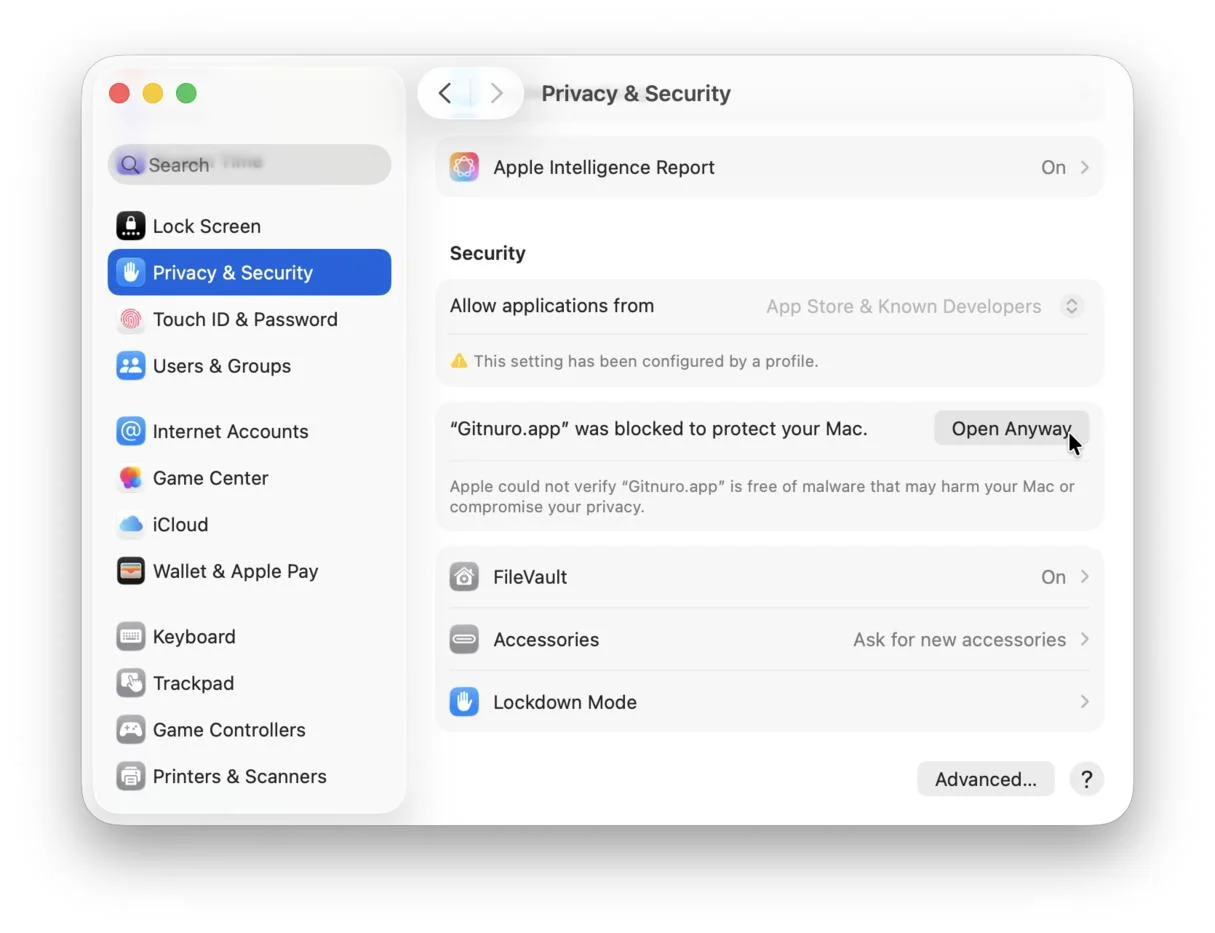
Tip: The "Open Anyway" button only appears within about 60 minutes of the blocked launch attempt. If it's not visible, try opening the app again to refresh the prompt.
Advanced Fix: Remove the Quarantine Attribute via Terminal
If the System Settings method doesn't work, removing the quarantine attribute directly via Terminal is the most reliable fix.
Step 1: Check whether the quarantine flag exists
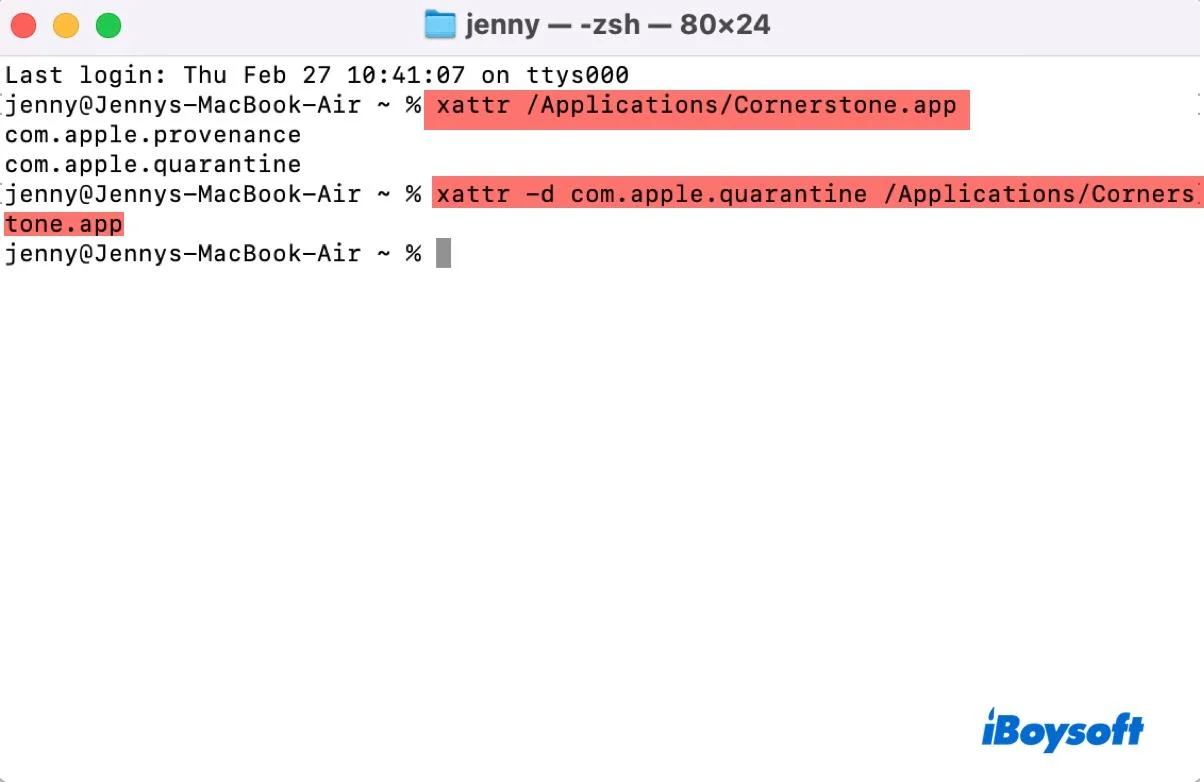
xattr /Applications/YourApp.appIf you see com.apple.quarantine in the output, that's the flag causing the block.
Step 2: Remove the quarantine attribute
sudo xattr -r -d com.apple.quarantine /Applications/YourApp.appFlag breakdown: -r applies recursively to all files inside the app bundle; -d deletes the named attribute. Enter your administrator password when prompted (cursor won't move — that's normal). Try opening the app again.
Pro tip: Drag the app path into Terminal
After typing sudo xattr -r -d com.apple.quarantine (with a trailing space), drag the app icon from Finder directly into the Terminal window to insert the full path automatically.
Step 3: Verify the app's signing status (optional)
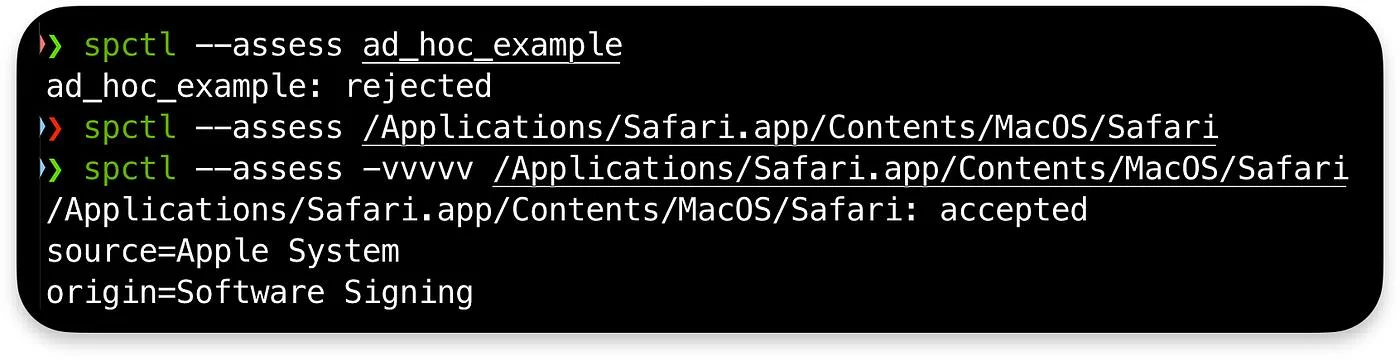
spctl -a -vv /Applications/YourApp.appOutput of "accepted — source: Notarized Developer ID" means the app is properly signed. "rejected" means the signature is invalid — exercise caution with apps from unknown sources.
macOS Tahoe-Specific App Compatibility Issues and Workarounds
If apps that worked in Sequoia are now showing the damaged-app error after upgrading to macOS Tahoe, Tahoe's stricter Gatekeeper is the likely cause.
- More aggressive quarantine enforcement: Apps that carried a quarantine flag but were previously tolerated may now be hard-blocked.
- Deprecated framework calls: Apps not updated for Tahoe's current APIs may fail to launch, showing the damaged-app error as the only visible symptom.
- New privacy prompts: System-level permission prompts in Tahoe can interrupt an app's launch sequence in a way that triggers the Gatekeeper error.
Tahoe recovery steps
- Check for an update: Many developers released Tahoe-compatible updates in 2026.
- Run the quarantine removal command:
sudo xattr -r -d com.apple.quarantine /Applications/YourApp.appoften resolves the block even on Tahoe. - Check Privacy & Security for a pending "Open Anyway" prompt.
- Temporarily disable Gatekeeper (last resort):
sudo spctl --master-disableThis adds an "Anywhere" option in Privacy & Security. Re-enable Gatekeeper immediately after opening the app:
sudo spctl --master-enableIf none of the above works, the app requires a proper Tahoe update from the developer. For business-critical situations, get expert Mac support from CloudHouse Technologies — we handle remote diagnostics and resolve Gatekeeper and compatibility issues without disrupting your workflow.
FAQ
Is it safe to remove the quarantine attribute with xattr?
Yes, as long as you trust the source of the app. Removing the com.apple.quarantine flag simply tells macOS to stop re-checking the app's certificate on every launch. It does not disable any other security feature. If you downloaded the app from the developer's official website or a reputable source, this is safe. Never use this method on apps from unknown or untrusted sources.
Why does the error say "move it to the trash" if the app isn't actually damaged?
Apple's error message is misleading. It's designed to encourage users to delete apps that macOS can't verify, as a conservative safety measure. In the vast majority of cases, the app binary is completely intact — "damaged" refers to an inability to verify the app's authenticity, not actual file corruption. Do not delete the app based on this message alone.
Will removing the quarantine flag affect automatic updates for the app?
No. The quarantine flag is a one-time attribute attached when a file is first downloaded. Removing it has no effect on an app's built-in auto-update mechanism. The app will continue to check for and install its own updates normally.
The "Open Anyway" button is not appearing in Privacy & Security — why?
The button only appears for roughly 60 minutes after a blocked launch attempt. Try opening the app again to trigger a fresh block, then immediately check System Settings → Privacy & Security and scroll to the Security section. If it still doesn't appear, use the Terminal xattr method described in this guide.
I upgraded to macOS Tahoe and several apps are now broken. Do I have to wait for updates?
Not necessarily. Running sudo xattr -r -d com.apple.quarantine /Applications/YourApp.app resolves most cases. For apps with expired certificates or deprecated framework dependencies, check the developer's website for a Tahoe-compatible build. CloudHouse Technologies can assess compatibility and recommend workarounds while you wait for official updates.