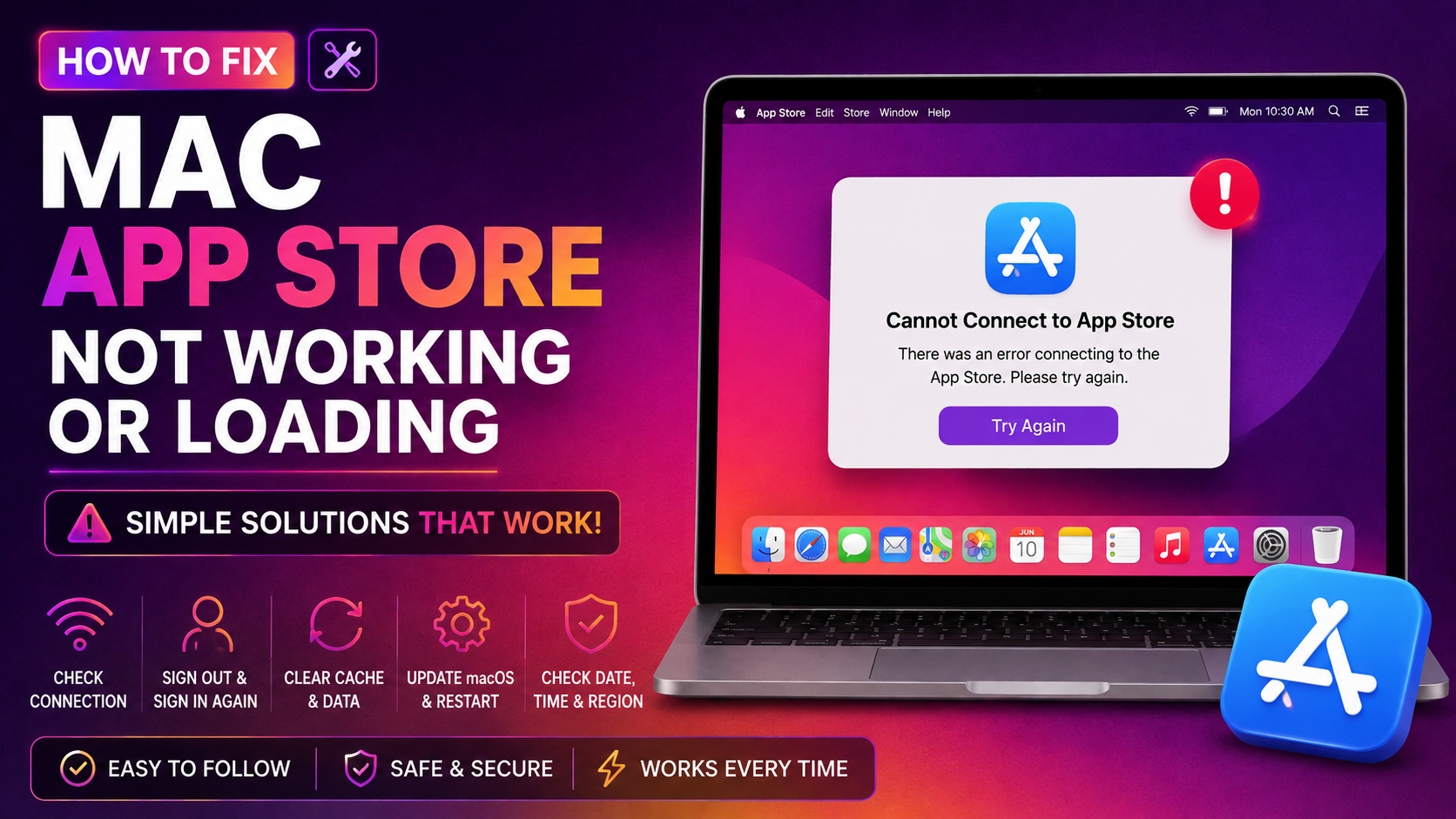
Why Is the Mac App Store Not Working? (Common Causes in 2026)
If you've opened the Mac App Store and been greeted by a blank white screen, a spinning wheel that never stops, or an error that says "Cannot connect to the App Store," you're not alone. In 2026, these issues remain among the most common Mac complaints — and they have real, fixable causes.
Before you spend hours troubleshooting, it helps to understand why this happens:
- Apple server outages — Apple's servers occasionally go down, making the App Store unavailable for all users worldwide.
- Incorrect date, time, or timezone settings — Apple's security certificates are time-sensitive. If your Mac's clock is wrong, connections to Apple's servers will fail silently.
- Apple ID authentication errors — A stale or corrupted session token can prevent the App Store from loading your account or processing downloads.
- Corrupted App Store cache files — Over time, cached data builds up and can become corrupted, causing the App Store UI to fail to render properly.
- VPN or proxy interference — Many VPNs route traffic through servers Apple blocks or rate-limits, breaking App Store connectivity.
- macOS bugs in recent updates — macOS Sequoia and Tahoe have both shipped with App Store regressions that were later patched in point releases.
- Network DNS issues — If your DNS resolver can't resolve Apple's domains, the App Store will appear to hang indefinitely.
The good news: every one of these causes has a clear fix. Work through the steps below in order — most users resolve the problem within the first two or three fixes.
Quick Checks Before You Troubleshoot (Apple Server Status, Date & Time, Wi-Fi)
Before changing anything on your Mac, do these three quick checks. They take under two minutes and can save you from unnecessary troubleshooting.
1. Check Apple's System Status
Visit apple.com/support/systemstatus and look at the row labelled App Store. If there's a yellow or red indicator, the issue is on Apple's end — no local fix will help until they restore service. Check back in 30–60 minutes.
2. Verify Date, Time & Timezone
Go to System Settings > General > Date & Time and make sure Set time and date automatically is turned on. A clock that's even a few minutes wrong can break TLS certificate validation and prevent the App Store from loading.
3. Test Your Wi-Fi or Ethernet Connection
Open Safari and load a page you haven't visited before (to bypass cache). If it loads, your internet is fine. If not, restart your router or switch networks. Also confirm that no firewall rule on your router is blocking *.apple.com or *.mzstatic.com — these are the domains the App Store uses.
Fix 1: Force Quit and Relaunch the App Store
Sometimes the App Store process simply gets stuck. Force-quitting it clears the hung state without changing any settings.
- Press Command + Option + Escape to open the Force Quit window.
- Select App Store from the list and click Force Quit.
- Wait 10 seconds, then reopen the App Store from the Dock or Launchpad.
Alternatively, you can force-quit from Terminal:
killall App\ StoreThen relaunch the App Store. If it loads normally, you're done. If it's still blank or unresponsive, continue to Fix 2.
Fix 2: Sign Out and Sign Back Into Your Apple ID
A stale Apple ID session is one of the most common causes of App Store failures — and signing out and back in refreshes the authentication token completely.
- Open the App Store.
- Click your name or avatar in the bottom-left corner of the sidebar.
- Click Sign Out.
- Force-quit the App Store (Command + Option + Escape).
- Reopen the App Store and sign back in with your Apple ID and password.
- If prompted for two-factor authentication, complete it.
Once signed back in, try loading the Featured tab and searching for a free app to test the connection. This fix resolves App Store blank screens in the majority of cases.
Fix 3: Clear App Store Cache Files
The App Store stores temporary data in two cache locations. If either becomes corrupted, the App Store may fail to load content, show empty pages, or loop endlessly on downloads.
Method A: Use Terminal (Fastest)
rm -rf ~/Library/Caches/com.apple.appstore
rm -rf ~/Library/Caches/com.apple.storeagent
killall App\ Store
After running these commands, relaunch the App Store. It will rebuild a fresh cache on first launch.
Method B: Use Finder
- In Finder, press Command + Shift + G to open the Go to Folder dialog.
- Type
~/Library/Cachesand press Enter. - Find and delete the folders com.apple.appstore and com.apple.storeagent.
- Empty the Trash, then relaunch the App Store.
You can also reset App Store preferences entirely with this Terminal command:
defaults delete com.apple.appstore
killall App\ Store
This resets all App Store settings to their defaults — your purchased apps and Apple ID are not affected.
Fix 4: Reset Network Settings and Disable VPN or Proxy
VPNs and proxy servers frequently interfere with the App Store. Apple's CDN (mzstatic.com) is rate-limited or blocked by many VPN exit nodes. Disable any active VPN or proxy first, then test the App Store.
Flush DNS Cache
A stale DNS cache can cause the App Store to resolve Apple's servers to outdated or incorrect IP addresses. Flush it with:
sudo dscacheutil -flushcache; sudo killall -HUP mDNSResponderEnter your Mac password when prompted. Then relaunch the App Store.
Add Google or Cloudflare DNS
If the App Store still can't connect, your ISP's DNS may be the problem. Switch to a reliable public resolver:
- Go to System Settings > Wi-Fi (or Network), click your connection, then Details.
- Click the DNS tab.
- Click + and add
8.8.8.8and1.1.1.1. - Click OK and reconnect to Wi-Fi.
Fix 5: Update macOS to Resolve App Store Compatibility Bugs
Apple has shipped several App Store regressions in macOS Sequoia and Tahoe that were only resolved in subsequent point releases. Running an outdated macOS version could mean you're hitting a bug that Apple already patched.
- Go to System Settings > General > Software Update.
- If an update is available, click Update Now and allow the Mac to restart.
You can also check for available updates from Terminal:
softwareupdate --listTo install all available updates non-interactively:
sudo softwareupdate --install --allAfter updating, relaunch the App Store and check whether the issue is resolved. Keeping macOS current is one of the best long-term defences against App Store problems.
Fix 6: Use Terminal to Reset the App Store (Advanced)
If none of the above fixes have worked, a more thorough reset using Terminal can clear deeper state that simple cache deletion misses. These commands are safe — they do not affect your purchased apps, Apple ID, or any installed software.
Full App Store Reset
# Step 1: Delete App Store preferences
defaults delete com.apple.appstore

# Step 2: Delete Store Agent preferences
defaults delete com.apple.storeagent

# Step 3: Clear all App Store cache
rm -rf ~/Library/Caches/com.apple.appstore
rm -rf ~/Library/Caches/com.apple.storeagent

# Step 4: Clear the App Store temporary download folder
rm -rf $(getconf DARWIN_USER_CACHE_DIR)com.apple.appstored

# Step 5: Force quit the App Store and related daemons
killall App\ Store
killall storeagentd 2>/dev/null; true
After running all five steps, restart your Mac and open the App Store fresh. Sign back into your Apple ID if prompted.
Reset the App Store Using a New Admin Account (Diagnostic)
If the App Store works on a fresh user account but not your main account, the issue is isolated to your user profile — likely a corrupted preference file or keychain entry. In that case:
- Go to System Settings > Users & Groups and create a new administrator account.
- Log into that account and open the App Store.
- If it works, the problem is in your main user's Library — consider migrating to the new account or selectively deleting preference files.
When to Contact Apple Support or a Mac Technician
If you've worked through all six fixes above and the Mac App Store is still not working, the issue may be deeper than standard troubleshooting can reach. Consider the following scenarios:
- Keychain corruption — A corrupted Keychain Access entry for your Apple ID can silently block App Store authentication. This requires careful manual intervention to resolve.
- MDM or enterprise restrictions — If your Mac is managed by a company or school, Mobile Device Management policies may be blocking the App Store deliberately.
- Disk permissions or SIP issues — System Integrity Protection (SIP) misconfiguration can prevent the App Store daemon from writing required files.
- Hardware-level issues — Rarely, failing NAND storage causes App Store downloads and updates to silently fail due to write errors.
For persistent Mac App Store problems that resist DIY fixes, CloudHouse Pay-Per-Ticket Support connects you with expert Mac technicians who can diagnose App Store failures, Apple ID authentication issues, and macOS software problems — with no subscription required. You pay only for the support you need.
You can also contact Apple directly via getsupport.apple.com or visit an Apple Store for in-person diagnostics.
Frequently Asked Questions
Why is the Mac App Store not working?
Common causes include Apple server outages, incorrect date/time settings, Apple ID sign-in issues, corrupted App Store cache files, VPN or proxy interference, or macOS bugs introduced in recent updates. Start by checking Apple's System Status page, then work through the fixes above in order.
How do I reset the Mac App Store?
Open Terminal and run:
defaults delete com.apple.appstore && killall App\ StoreThis resets App Store preferences. Also clear the cache by deleting ~/Library/Caches/com.apple.appstore and ~/Library/Caches/com.apple.storeagent, then relaunch the App Store.
How do I clear the App Store cache on Mac?
In Finder, press Cmd+Shift+G and go to ~/Library/Caches. Delete the folders named com.apple.appstore and com.apple.storeagent. Then relaunch the App Store. Alternatively, run rm -rf ~/Library/Caches/com.apple.appstore ~/Library/Caches/com.apple.storeagent in Terminal.
Mac App Store shows blank white screen — how to fix?
Sign out of your Apple ID (App Store > Sign Out), force quit the App Store, clear cache files in ~/Library/Caches, then relaunch and sign back in. Also check that your Mac's date and time are set to automatic under System Settings > General > Date & Time.
App Store not updating apps on Mac — what to do?
Go to App Store > Updates and try manually triggering updates. If stuck, sign out and back in to your Apple ID. Also run softwareupdate --list in Terminal to check for pending macOS updates that might be blocking the App Store. Flushing the DNS cache with sudo dscacheutil -flushcache; sudo killall -HUP mDNSResponder can also help.