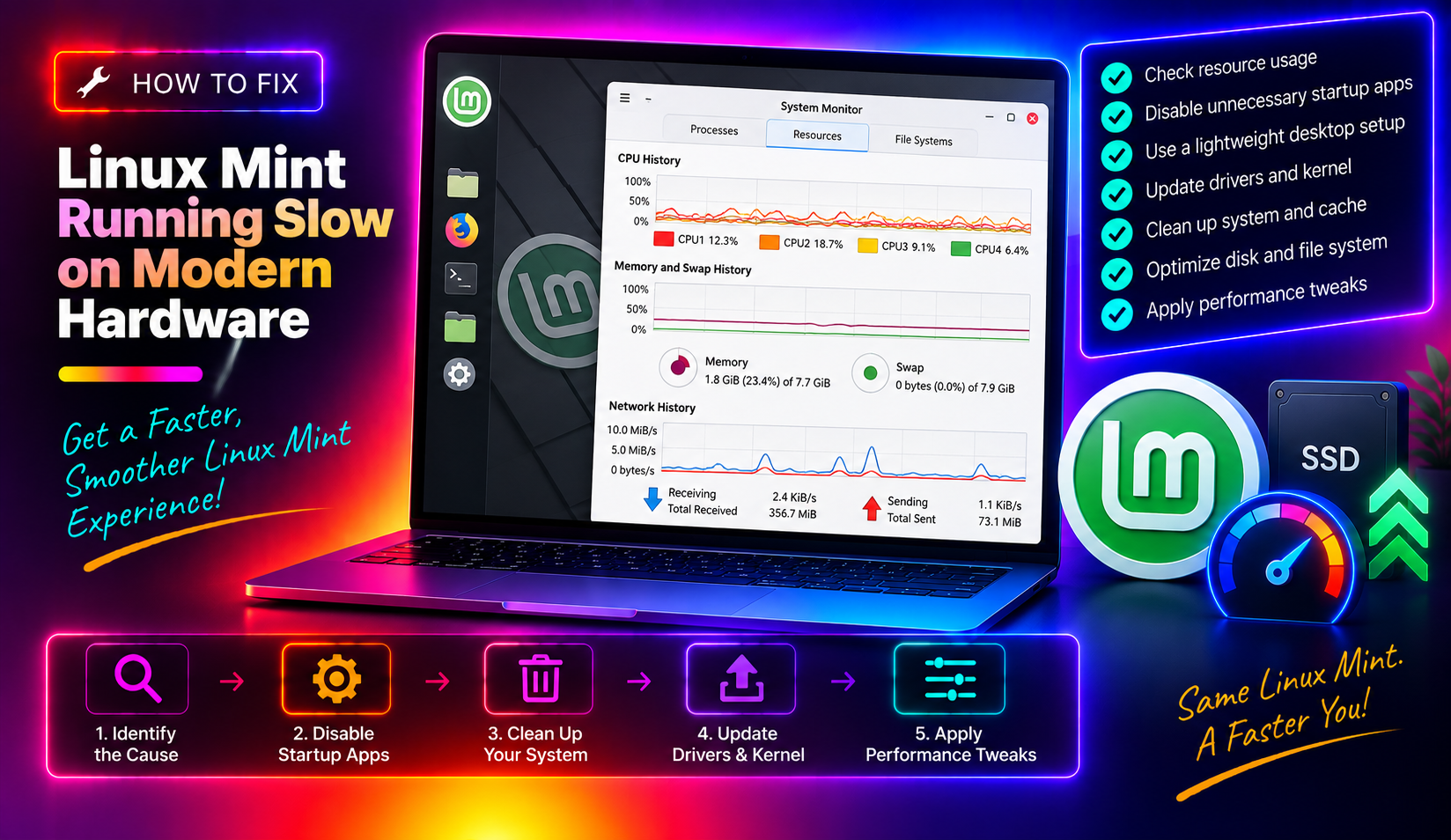
Why Linux Mint Feels Slow Even on Fast Hardware
If your Linux Mint machine has a modern SSD, 8 GB or more of RAM, and a multi-core CPU yet the desktop still stutters, windows take a second too long to open, and the whole system feels sluggish — you are not alone. This is one of the most reported issues on the Linux Mint forums in 2026, and the causes are almost never the hardware itself.
Linux Mint carries conservative kernel defaults designed for spinning hard drives and limited RAM. Pair those defaults with the Cinnamon desktop's known memory growth behaviour and a handful of bloated autostart entries, and even a fast NVMe SSD can feel sluggish. Every one of these problems has a clear, tested fix — and none of them require reinstalling the OS.
This guide covers the four highest-impact fixes for Linux Mint running slow that actually work in 2026. Work through them in order; most users find the problem resolves after fix one or two.
Fix 1: Lower Swappiness to Stop Premature Swap Thrashing
Swappiness controls how aggressively the kernel moves memory pages from RAM to swap space. The default value is 60, which was reasonable when machines had 512 MB of RAM. On a modern system with 8–32 GB of RAM and an SSD, a swappiness of 60 means Linux Mint starts writing to swap when you still have gigabytes of free RAM — causing unnecessary slowdowns.
Lowering swappiness to 10 tells the kernel to use physical RAM much more aggressively before touching swap. This is one of the most effective Linux Mint performance tweaks 2026 users can apply in under two minutes.
Step 1: Check your current swappiness value
cat /proc/sys/vm/swappinessThe output will almost certainly be 60 on a stock Linux Mint install.
Step 2: Apply the change immediately (no reboot needed)
sudo sysctl vm.swappiness=10Step 3: Make the change permanent across reboots
echo 'vm.swappiness=10' | sudo tee /etc/sysctl.d/99-swappiness.conf
sudo sysctl --system
Step 4: Verify the change
sudo sysctl vm.swappinessYou should see vm.swappiness = 10. This single change often resolves the Linux Mint swappiness fix that eliminates random freezes during multitasking on machines with 8 GB+ of RAM.
Fix 2: Reduce Cinnamon Memory Leak and High RAM Usage
Cinnamon has a documented issue: the cinnamon process slowly consumes more and more RAM over hours and days, eventually eating 2–6 GB even when you are doing nothing. This is the main driver of Cinnamon high RAM usage fix searches in 2026. Linux Mint's developers built a mitigation directly into the desktop settings.
Step 1: Check how much RAM Cinnamon is currently using
ps aux --sort=-%mem | grep cinnamon | head -5If the cinnamon process is consuming more than 500–800 MB, the leak is in progress.
Step 2: Enable the automatic RAM cap in System Settings
- Open Menu → Preferences → System Settings
- Navigate to Troubleshoot
- Enable "Automatically restart Cinnamon when memory limit is exceeded"
- Set the threshold to 1024 MB for machines with 8 GB RAM, or 2048 MB for 16 GB+
Cinnamon will silently restart itself in the background when it exceeds your limit — restoring normal memory consumption without logging you out.
Step 3: Manually restart Cinnamon right now
If Cinnamon is already bloated and you want immediate relief:
nohup cinnamon --replace &Or press Alt + F2, type r and press Enter. Cinnamon reloads in place — your open windows remain untouched.
Step 4: Keep Cinnamon updated
sudo apt update && sudo apt upgradeMany memory-related fixes are delivered via point releases. Staying on the latest Cinnamon version is the best long-term mitigation.
Fix 3: Disable Unnecessary Visual Effects and Compositor
Cinnamon's compositor handles window transparency, animations, shadows, and smooth transitions. On integrated Intel or AMD graphics, it can consume meaningful CPU and GPU time, contributing to sluggishness even when the disk is fast.
Option A: Disable animations (GUI — recommended)
- Open Menu → Preferences → System Settings
- Click Effects
- Toggle off "Enable effects" entirely, or selectively disable window open/close animations
- Click OK — changes apply immediately
Option B: Disable compositing for full-screen windows
- Open System Settings → General
- Tick "Disable compositing for full-screen windows"
This disables the compositor only when an application goes full-screen — ideal for gaming and video playback.
Option C: Reduce animation speed via gsettings
gsettings set org.cinnamon desktop-effects-on-dialogs 'none'
gsettings set org.cinnamon desktop-effects-on-menus 'none'
These two settings remove the most noticeable lag when opening context menus and dialog boxes.
Fix 4: Audit and Trim Startup Applications
Every application that launches at login delays your desktop and consumes RAM from the moment you log in. Third-party apps frequently add themselves to autostart without asking, and old entries from removed applications often linger.
Step 1: Open Startup Applications Manager
mintstartupOr via the menu: Menu → Preferences → Startup Applications
Step 2: Disable unnecessary entries
Common offenders include: update notifiers from software you rarely use, cloud storage clients, Bluetooth applets if you don't use Bluetooth, and entries from already-uninstalled apps. Click the toggle to disable — safer than deleting.
Step 3: Inspect autostart files via terminal
User-specific entries:
ls -la ~/.config/autostart/System-wide entries:
ls -la /etc/xdg/autostart/Step 4: Check boot speed with systemd-analyze
systemd-analyze blame | head -20To disable a slow service you don't need:
sudo systemctl disable servicename.serviceIf you've applied all four fixes and Linux Mint is still not performing as expected, the issue may be driver-related or a deeper configuration problem. You can get expert Linux support from CloudHouse Technologies — our Linux specialists diagnose and resolve performance issues remotely without requiring a reinstall.
FAQ
What is the best swappiness value for Linux Mint in 2026?
For systems with 8 GB or more of RAM, a swappiness value of 10 is the most widely recommended setting. On systems with only 4 GB of RAM, a value of 20–30 may be safer to prevent out-of-memory situations under heavy multitasking.
Why does Cinnamon use so much RAM after a few hours?
Cinnamon has a known long-running memory growth issue. Certain desktop applets, themes, and extensions can accelerate the leak. Enable the automatic Cinnamon restart threshold in System Settings → Troubleshoot, and keep Cinnamon updated via sudo apt upgrade.
Will disabling visual effects make Linux Mint look ugly?
Not noticeably. Disabling window open/close animations and menu transition effects removes the most GPU-intensive operations while keeping the desktop looking modern. Most users cannot tell the difference — but they do notice the desktop feels faster immediately.
Is Linux Mint slow on SSDs because of filesystem settings?
Stock Linux Mint on SSDs uses ext4 with sensible defaults, so filesystem tuning is rarely the cause. The most common culprits are high swappiness, Cinnamon memory bloat, and heavy autostart applications. Also confirm TRIM is active: sudo systemctl status fstrim.timer.
Do these fixes work on Linux Mint 21 and Linux Mint 22?
Yes. All four fixes work identically on Linux Mint 21 (Vanessa/Vera/Victoria) and Linux Mint 22 (Wilma and later). The underlying kernel, systemd, and Cinnamon architecture are consistent across both major releases.