
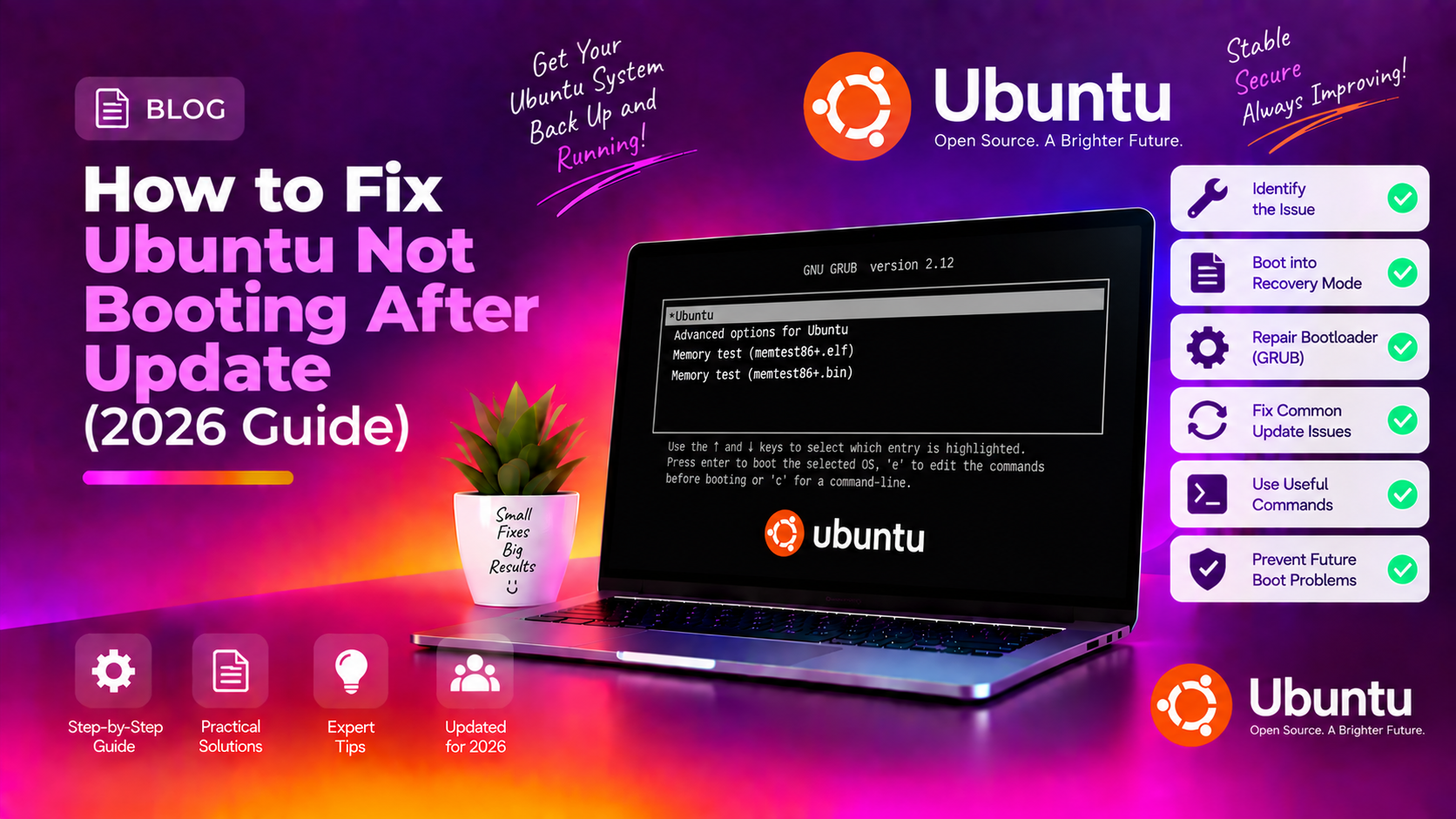
Why Ubuntu Stops Booting After an Update
Ubuntu system updates occasionally break the boot process, especially when a new kernel is installed or when GRUB (the bootloader) is misconfigured during an apt upgrade. The most common symptoms are:
- Black screen with blinking cursor after GRUB
- GRUB rescue prompt (
grub rescue>) - Error: "initramfs" or "BusyBox" shell on boot
- Boot loops or immediate shutdown
- Kernel panic messages
This guide covers all the major causes and their fixes for Ubuntu 22.04 LTS and Ubuntu 24.04 LTS in 2026.
Step 1: Boot into an Older Kernel via GRUB
When Ubuntu installs a kernel update, the old kernel is usually kept as a fallback. This is the fastest fix if the new kernel is causing the boot failure.
1. At boot, hold or press Shift (BIOS systems) or Esc (UEFI systems) to open the GRUB menu — you may need to press it repeatedly during POST
2. Select "Advanced options for Ubuntu" from the GRUB menu
3. Choose an older kernel (e.g., the previous version without "(recovery mode)" next to it) and press Enter
4. If Ubuntu boots successfully: open a terminal and run: sudo apt remove --purge linux-image-VERSION (replace VERSION with the broken new kernel version)
5. Then reinstall GRUB: sudo update-grub
Step 2: Use Recovery Mode
Ubuntu's Recovery Mode gives you access to a root shell and repair tools without needing a live USB.
1. Open GRUB menu (Shift or Esc at boot) → Advanced options for Ubuntu
2. Select the recovery mode entry (the one ending in "(recovery mode)")
3. In the Recovery Menu: select "network" to enable networking, then select "root" to get a root shell
4. Remount the filesystem as read-write: mount -o remount,rw /
5. Run a package repair: dpkg --configure -a && apt-get -f install
6. Reinstall GRUB: update-grub, then reboot: reboot
Step 3: Fix GRUB from a Live USB (GRUB Rescue)
If you see the grub rescue> prompt, GRUB cannot find its own files. This requires fixing from a bootable Ubuntu live USB.
1. Create a Ubuntu live USB on another PC using Balena Etcher and an Ubuntu ISO, or use your existing Ubuntu installer USB
2. Boot from the live USB (set USB as first boot device in BIOS/UEFI)
3. Open a terminal in the live environment
4. Find your Ubuntu partition: lsblk -f — look for the ext4 partition (usually /dev/sda2 or /dev/nvme0n1p2)
5. Mount the partition and chroot into it:
sudo mount /dev/sda2 /mnt
sudo mount --bind /dev /mnt/dev
sudo mount --bind /proc /mnt/proc
sudo mount --bind /sys /mnt/sys
sudo chroot /mnt
6. Reinstall GRUB (replace /dev/sda with your disk, not partition):
grub-install /dev/sda
update-grub
exit
sudo reboot
Step 4: Fix Broken initramfs
The initramfs is the temporary root filesystem loaded during boot. If it's corrupt or missing (common after a failed update), you'll see a BusyBox shell or initramfs error.
1. From the initramfs shell, type exit to attempt recovery — Ubuntu may auto-fix and boot
2. If that fails, boot from live USB (see Step 3) and chroot into your system
3. Rebuild initramfs for all kernels: update-initramfs -u -k all
4. Update GRUB: update-grub
5. Exit chroot and reboot
Step 5: Fix Broken Packages After Interrupted Update
If power was cut or the system was shut down during an apt upgrade, some packages may be in a broken partial-install state, preventing the kernel or GRUB from completing their installation.
1. Boot into recovery mode or live USB chroot (Steps 2–3)
2. Fix interrupted dpkg operations: sudo dpkg --configure -a
3. Repair broken dependencies: sudo apt-get -f install
4. Run a full upgrade: sudo apt update && sudo apt upgrade
5. Reinstall GRUB and update initramfs: sudo update-grub && sudo update-initramfs -u -k all
6. Reboot
Step 6: Fix Black Screen After GRUB (Graphics Driver Issue)
A black screen after GRUB with no cursor usually means the new kernel loaded but the GPU driver crashed or is incompatible.
1. In GRUB menu: select Ubuntu → press E to edit the boot entry
2. Find the line starting with "linux" and add nomodeset before the quiet splash text
3. Press Ctrl + X or F10 to boot with this temporary fix
4. Once booted, reinstall GPU drivers: sudo ubuntu-drivers autoinstall or through Additional Drivers in Software & Updates
5. To make nomodeset permanent: edit /etc/default/grub and add nomodeset to GRUB_CMDLINE_LINUX_DEFAULT, then run sudo update-grub
Step 7: UEFI Secure Boot Issues
On UEFI systems, Secure Boot can block a newly installed kernel if its signature isn't trusted by the firmware — especially after switching between NVIDIA proprietary drivers and the open kernel.
1. Reboot and enter BIOS/UEFI
2. Temporarily disable Secure Boot to test if this is the cause
3. If Ubuntu boots: install the correct signed kernel module: sudo apt install shim-signed grub-efi-amd64-signed
4. Re-enable Secure Boot in BIOS after confirming the signed modules are installed
When to Seek Professional Help
If your Ubuntu system still won't boot after all the above steps, or if the disk shows I/O errors (dmesg | grep -i error), the issue may be hardware — a failing SSD or corrupted filesystem. CloudHouse Technologies provides remote Ubuntu Linux support — our engineers can connect remotely via a live session and diagnose boot failures, filesystem corruption, and kernel issues without requiring you to travel to a service centre.