Why Does Windows 11 Show "USB Device Not Recognized"?
The "USB Device Not Recognized" error on Windows 11 means the operating system detected that something was plugged in but cannot communicate with it properly. The pop-up typically reads: "The last USB device you connected to this computer malfunctioned, and Windows does not recognize it."
Common causes in 2026:
- Outdated, corrupt, or missing USB controller drivers
- The USB device itself is failing or has a dirty connector
- Windows 11 USB power management putting the port to sleep
- USB 3.0/3.1/3.2 or USB-C compatibility issues
- A corrupted USB driver stack after a Windows update
- Insufficient power for the USB device (especially for external hard drives)
- BIOS/UEFI USB settings conflict
Step 1: Basic Hardware Checks
Before diving into software fixes, rule out hardware issues — they're the most common cause.
1. Try a different USB port on the same PC — if the device works in another port, the original port's hardware is faulty
2. Try the same device on another computer — if it's not recognized there either, the device itself is faulty
3. Clean the USB connector: use compressed air or a dry cotton swab to remove dust or debris from both the device plug and the PC port
4. Try a different USB cable if using a device with a separate cable (external hard drive, phone)
5. Test with a powered USB hub if the device requires more power than a standard port provides (some external hard drives need 900mA or more)
Step 2: Run the Windows USB Troubleshooter
Windows 11 includes a built-in troubleshooter that automatically detects and fixes common USB problems.
1. Go to Settings → System → Troubleshoot → Other troubleshooters
2. Find "Hardware and Devices" and click "Run"
3. Follow the prompts — the troubleshooter will detect the error and attempt an automatic fix
4. Restart your PC after the troubleshooter completes, then reconnect the USB device
Step 3: Update USB Controller Drivers
Outdated USB host controller drivers are one of the most common causes of USB recognition failures on Windows 11, especially after a feature update.
1. Open Device Manager: Win + X → Device Manager
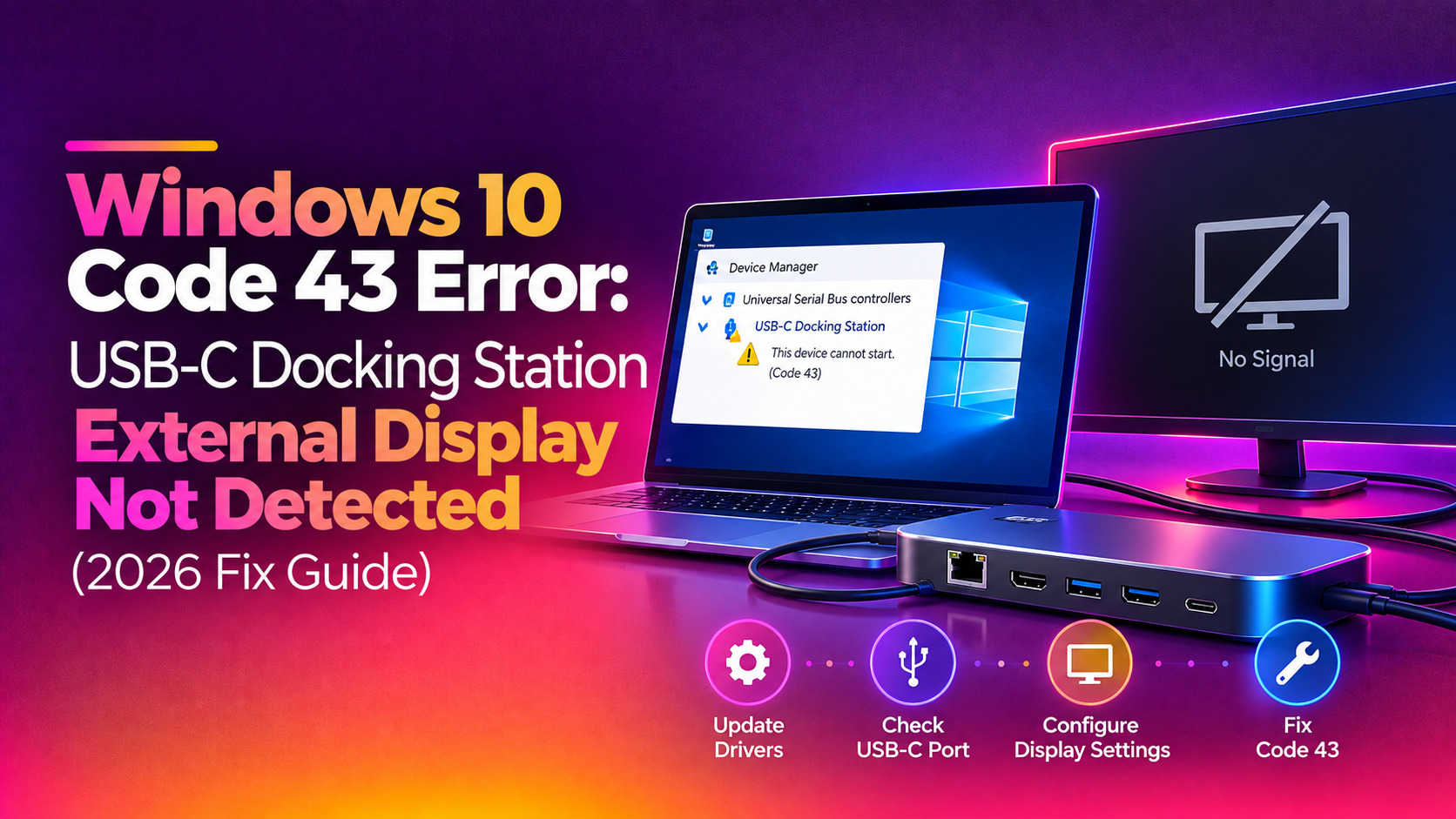
2. Expand "Universal Serial Bus controllers"
3. Look for any device with a yellow warning triangle — this is the problematic controller
4. Right-click each USB controller → Update driver → Search automatically for drivers
5. Alternatively: right-click → Uninstall device → check "Delete the driver software" → click Uninstall → then restart. Windows will reinstall a fresh USB driver on startup
Step 4: Disable USB Selective Suspend
Windows 11's USB Selective Suspend is a power-saving feature that cuts power to idle USB ports. It frequently causes devices to disconnect and fail to reconnect properly.
1. Go to Settings → System → Power & sleep → Additional power settings (or search "power plan" in Start)
2. Click "Change plan settings" next to your active power plan
3. Click "Change advanced power settings"
4. Expand "USB settings" → USB selective suspend setting
5. Change both "On battery" and "Plugged in" to Disabled
6. Click Apply → OK, then reconnect the USB device
Step 5: Fix "Unknown USB Device" via Device Manager
If Device Manager shows "Unknown USB Device (Device Descriptor Request Failed)", the device descriptor is corrupt or unreadable.
1. Open Device Manager (Win + X → Device Manager)
2. Expand "Universal Serial Bus controllers"
3. Right-click "Unknown USB Device (Device Descriptor Request Failed)" → Uninstall device
4. Disconnect the USB device physically
5. From the Device Manager menu: Action → Scan for hardware changes
6. Reconnect the USB device — Windows will reinstall the driver from scratch
Step 6: Run SFC and DISM to Repair System Files
Corrupt Windows system files can break the USB driver stack entirely, causing all USB devices to fail on specific ports.
1. Open Command Prompt as Administrator
2. Run System File Checker: sfc /scannow
3. Run DISM: DISM /Online /Cleanup-Image /RestoreHealth
4. Restart after both complete, then test the USB device
Step 7: Change USB Power Management in Device Manager
Windows allows the USB hub to turn off power to individual ports to save energy. This can cause intermittent "device not recognized" errors when devices try to reconnect.
1. In Device Manager → Universal Serial Bus controllers → right-click each "USB Root Hub" → Properties
2. Go to the Power Management tab
3. Uncheck "Allow the computer to turn off this device to save power"
4. Click OK and repeat for all USB Root Hubs listed
5. Reconnect your USB device
Step 8: Check BIOS/UEFI USB Settings
Some BIOS/UEFI firmware settings can interfere with Windows 11 USB detection, particularly for USB 3.0 to USB 2.0 legacy support.
1. Restart and enter BIOS/UEFI (Del, F2, or F10 at startup)
2. Find USB settings under Advanced or Peripherals
3. Enable "USB Legacy Support" if it's disabled — this helps USB 2.0 devices connect to USB 3.0 ports
4. Enable all USB ports if any are listed as disabled
5. Save and exit BIOS
Step 9: For External Hard Drives — Check Disk Management
External hard drives may be recognized by Windows but not appear in File Explorer if they have no drive letter assigned.
1. Press Win + X → Disk Management
2. Look for your external drive in the list (often listed as "Unknown" or with no label but with a partition shown)
3. Right-click the volume → Change Drive Letter and Paths → Add → assign a drive letter
4. If the disk shows as RAW: the file system is corrupt. Use chkdsk X: /f (replace X with the drive letter) to attempt repair
When to Get Professional Help
If your USB ports are completely dead across multiple devices and the above fixes don't help, the USB controller on the motherboard may have failed — a hardware fault that cannot be repaired with software. CloudHouse Technologies provides remote Windows 11 diagnostics — our engineers can identify whether the issue is a driver, firmware, or hardware failure and recommend the most cost-effective repair path.