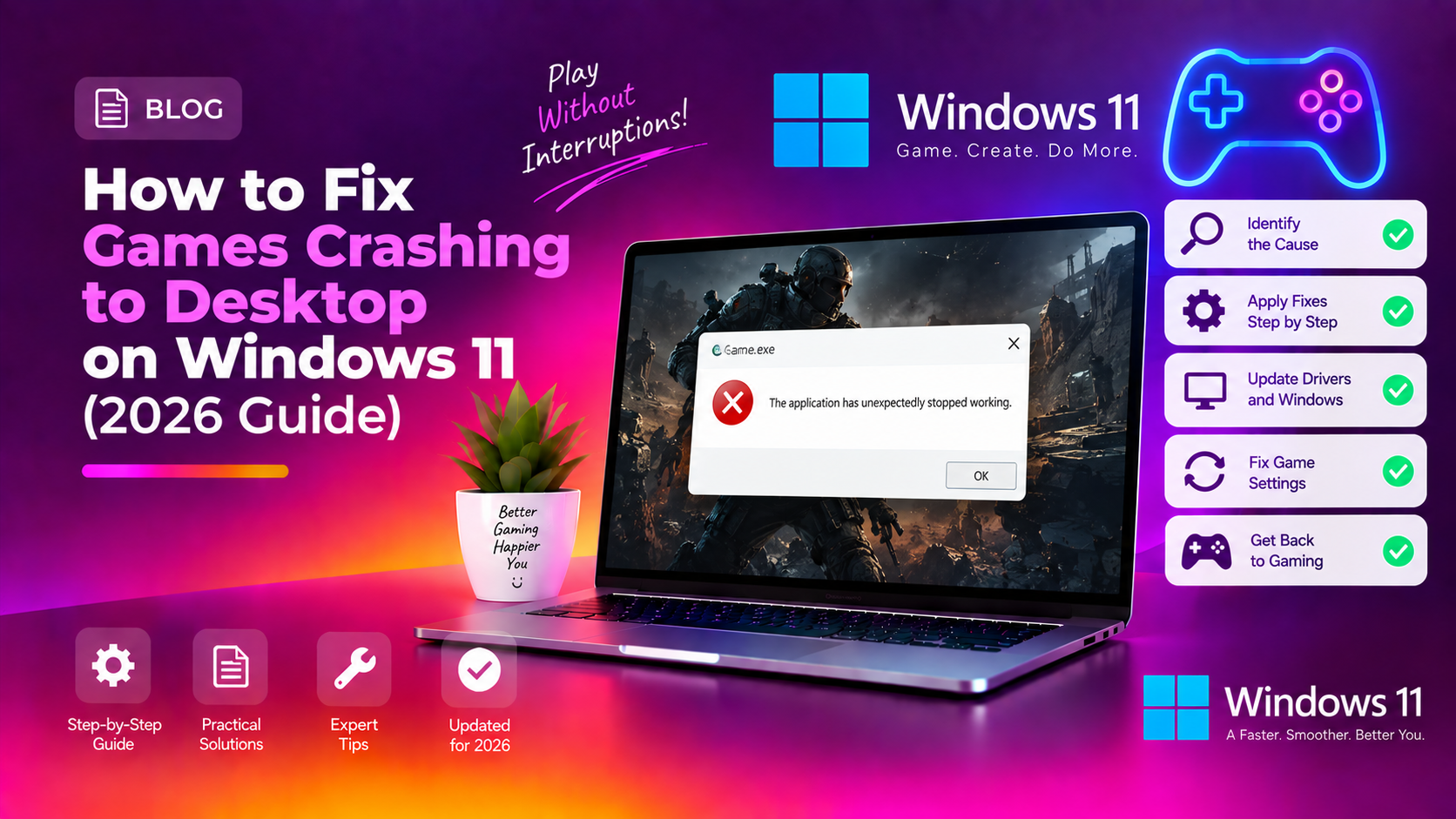
Why Do Games Keep Crashing to Desktop on Windows 11?
A game that crashes to the desktop (CTD) on Windows 11 — sometimes with no error, sometimes mid-match — is one of the most disruptive PC gaming problems. Unlike a BSOD or system crash, CTDs leave no obvious trace, making the root cause hard to identify.
The most common causes in 2026 are: outdated or corrupted GPU drivers, Windows 11 feature conflicts (particularly Hardware-Accelerated GPU Scheduling), missing or corrupt Visual C++ redistributables, corrupted game files, overheating under sustained load, and RAM instability.
Work through these fixes in order — most CTD issues are resolved by Fix 1 through Fix 4.
Fix 1 - Update Your GPU Driver (Clean Install)
An outdated or corrupted graphics driver is the number-one cause of game crashes on Windows 11. Always do a clean driver install to eliminate leftovers from old versions:
NVIDIA:
- Download DDU (Display Driver Uninstaller) from guru3d.com
- Boot into Safe Mode (hold Shift while clicking Restart, then Troubleshoot - Advanced Options - Startup Settings)
- Run DDU and choose Clean and Restart for NVIDIA
- After restart, download the latest driver from nvidia.com and install with Custom Install - Perform a Clean Installation checked
AMD:
- Download the latest Adrenalin software from amd.com
- During install, choose Factory Reset to remove old driver data
Fix 2 - Verify Game File Integrity
Corrupted game files cause silent CTDs with no error message. Verify files through your game launcher:
Steam: Right-click game - Properties - Local Files - Verify integrity of game files
Epic Games: Click the three dots next to the game - Manage - Verify
EA App: Click the three dots next to the game - Repair
Allow the verification to complete fully. Even a single corrupted file can cause consistent CTDs in specific game areas.
Fix 3 - Disable Hardware-Accelerated GPU Scheduling (HAGS)
HAGS is a Windows 11 feature that offloads GPU scheduling to the graphics card. While it can improve frame times on some systems, it causes CTDs on others — particularly with older NVIDIA cards or when combined with certain anti-cheat software:
- Press Win + I - System - Display - Graphics
- Click Change default graphics settings
- Toggle Hardware-accelerated GPU scheduling to Off
- Restart your PC
Test your game again. If crashes stop, HAGS was the culprit.
Fix 4 - Repair Visual C++ Redistributables
Most modern games require specific Visual C++ runtime versions. If these are missing or corrupt, games crash silently at launch or mid-session:
- Press Win + I - Apps - Installed apps
- Search for Microsoft Visual C++
- Right-click each entry and choose Modify - Repair
- Do this for all versions (2015, 2017, 2019, 2022)
Alternatively, download the latest Visual C++ Redistributable bundle directly from the Microsoft website and run the installer — it will update all missing versions.
Fix 5 - Check CPU and GPU Temperatures During Gaming
Thermal throttling and emergency shutdowns from overheating cause games to crash with no warning. Test while gaming:
- Install HWiNFO64 or MSI Afterburner with RivaTuner
- Enable the on-screen overlay or log temperatures during a gaming session
- Normal gaming temperatures: CPU under 90C, GPU under 85C
- If temperatures exceed these thresholds just before crashes, clean your PC's fans and heatsinks
Fix 6 - Run a RAM Stability Test
Faulty or unstable RAM causes random CTDs that are almost impossible to diagnose otherwise. Test with Windows Memory Diagnostic:
- Press Win + R, type
mdsched.exe, press Enter - Choose Restart now and check for problems
- The test runs before Windows loads — allow it to complete
For a more thorough test, use MemTest86 (boot from USB). Any reported errors indicate failing RAM that needs to be replaced.
Fix 7 - Disable Overlays and Background Apps
Game overlays and conflicting background apps are a common cause of CTDs — particularly with anti-cheat games:
- Discord overlay: User Settings - Game Overlay - Enable in-game overlay (toggle off)
- NVIDIA GeForce Experience overlay: Settings - General - In-Game Overlay (toggle off)
- Xbox Game Bar: Win + I - Gaming - Xbox Game Bar (toggle off)
- Steam overlay: Steam - Settings - In-Game - Enable the Steam Overlay (uncheck)
Test the game with all overlays off. If it stops crashing, re-enable them one at a time to identify the conflict.
Fix 8 - Run a Clean Boot
A background service or startup app may be conflicting with the game:
- Press Win + R, type
msconfig, press Enter - Under the Services tab, check Hide all Microsoft services, then click Disable all
- Under the Startup tab, click Open Task Manager and disable all startup items
- Restart and test the game
If the game stops crashing, re-enable services in batches to identify the conflicting one.
Fix 9 - Check Windows Event Log for Crash Details
Windows logs crash events even when no error dialog appears:
- Press Win + R, type
eventvwr.msc, press Enter - Navigate to Windows Logs - Application
- Look for Error entries with timestamps matching when crashes occurred
- Note the Faulting module name — if it shows a DLL you recognise (d3d11.dll, nvcuda.dll, etc.), that points directly to the cause
Fix 10 - Reinstall DirectX and Update Windows
- Run Windows Update fully: Settings - Windows Update - Check for updates
- Reinstall DirectX: press Win + R, type
dxwebsetup.exe(or download DirectX End-User Runtime from Microsoft) - Enable optional updates and install all driver updates offered by Windows Update
Still crashing? CloudHouse remote support can diagnose the exact crash cause from your Event Viewer logs and system configuration.
FAQ
Why do my games crash to desktop with no error message?
Silent CTDs are usually caused by GPU driver issues, overheating shutdowns, RAM errors, or a game process being killed by anti-cheat software. Check the Windows Event Viewer (Fix 9) for the faulting module name immediately after a crash.
Can Windows 11 updates cause game crashes?
Yes. Some Windows 11 feature updates have introduced HAGS bugs, scheduler changes, and memory management regressions that cause CTDs. If crashes started after a specific update, check Reddit or the Windows Insider blog for known issues with that version.
What is Hardware-Accelerated GPU Scheduling and should I disable it?
HAGS reduces input lag on supported hardware by letting the GPU manage its own scheduling queue. However it is not universally stable and can cause CTDs on some GPU and driver combinations. If you experience CTDs, disabling it (Fix 3) is always worth testing.
Why does only one specific game keep crashing while others are fine?
Game-specific crashes usually point to corrupted game files (Fix 2), a specific DLL the game uses (check Event Viewer), incompatibility with that game's anti-cheat, or a missing runtime like a specific Visual C++ version (Fix 4).
Can too little VRAM cause crashes to desktop?
Yes. If a game's texture settings exceed your GPU VRAM capacity, it can crash when trying to load large assets. Try lowering texture quality and shadow settings to a level that fits comfortably in your VRAM. Check VRAM usage with GPU-Z or MSI Afterburner during gameplay.