You enter your password, hit Enter, and instead of your familiar Cinnamon (or MATE, or XFCE) desktop, Linux Mint greets you with a blank, black void — sometimes with just a mouse cursor blinking in the dark. This is one of the most reported post-login issues on the Linux Mint forums, and it affects all editions: Cinnamon, MATE, and XFCE. The good news is that it is almost always fixable without reinstalling the OS.
This 2026 guide walks you through every common cause and the exact commands to resolve it, whether you just ran a system update, swapped GPU hardware, or installed a new kernel.
Why Does Linux Mint Show a Black Screen After Login?
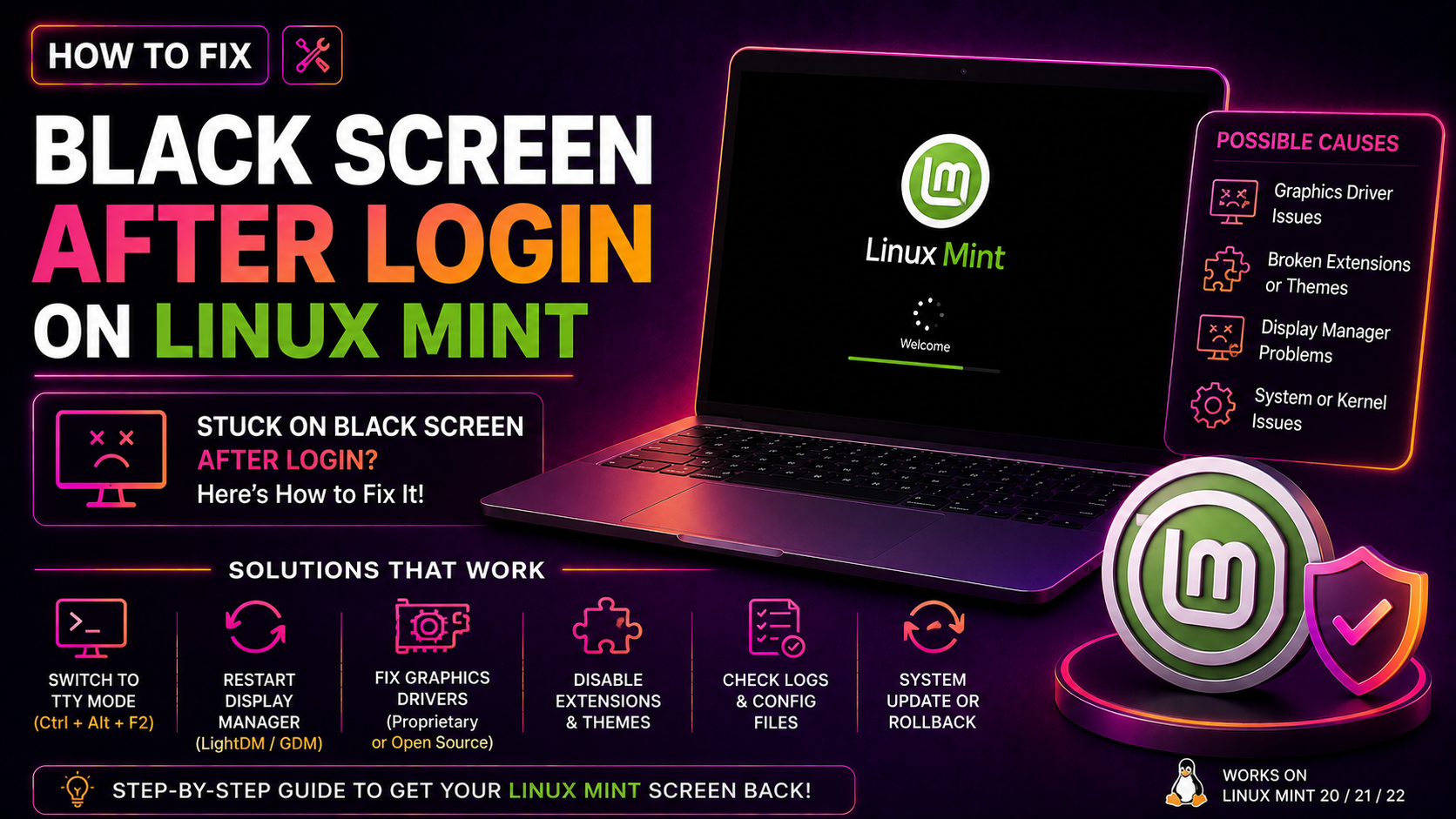
The black screen after login is not a single bug — it is a symptom shared by several different root causes. Understanding which one you are dealing with determines which fix to apply first.
- Broken or incompatible GPU drivers: The most common culprit. After a kernel update, NVIDIA or AMD proprietary drivers may fail to rebuild via DKMS, leaving the X server with nothing to render on screen.
- Crashed Cinnamon desktop (applet or desklet conflict): A faulty spice can crash Cinnamon at startup before the desktop even appears, leaving only the cursor on a black background.
- LightDM misconfiguration: Linux Mint uses LightDM as its default display manager. If its configuration is corrupted or conflicts arise after an update, it may fail to launch the desktop session correctly.
- nomodeset / kernel mode-setting conflicts: Some GPUs, especially older NVIDIA cards or newer hardware without proper driver support, need the
nomodesetkernel parameter to boot into a usable graphical state. - Display frequency or resolution mismatch: Linux Mint may attempt to push an unsupported refresh rate through a cable that only supports 60 Hz, causing a blank signal.
Quick Fix: Switch to a TTY and Restart the Display Manager
Before diving into deeper fixes, try this fast recovery method. It works in about 30% of cases where the desktop session simply stalled or LightDM had a one-off failure.
- At the black screen, press Ctrl + Alt + F2 to open a text-only TTY terminal.
- Log in with your Linux Mint username and password.
- Restart the display manager with:
sudo systemctl restart lightdm - Press Ctrl + Alt + F7 or Ctrl + Alt + F8 to switch back to the graphical session.
If the desktop loads, the issue was a transient display manager failure. If the black screen returns on the next login, continue to the sections below to find the root cause.
Tip: While in the TTY, check recent system logs for clues with: journalctl -xe --no-pager | tail -50
Fix Broken or Incompatible GPU Drivers
This is the most frequent cause of a post-login black screen, especially after a kernel upgrade. The proprietary NVIDIA or AMD driver module fails to load because it was not rebuilt for the new kernel.
Check if the driver module is loaded
From a TTY (Ctrl + Alt + F2), run:
lsmod | grep nvidia
or for AMD: lsmod | grep amdgpu
If you see no output for a machine that should be using that driver, the module is not loaded — that is your problem.
Reinstall NVIDIA drivers
- Remove the existing NVIDIA packages:
sudo apt remove --purge nvidia-* - Update the package list:
sudo apt update - Install the recommended driver (replace with the version appropriate for your card):
sudo apt install nvidia-driver-550 - Ensure kernel headers are present for DKMS rebuilding:
sudo apt install linux-headers-$(uname -r) - Reboot:
sudo reboot
Switch to open-source drivers temporarily
If you cannot identify the right proprietary driver version, switch to the open-source nouveau (NVIDIA) or amdgpu (AMD) driver. Use the graphical Driver Manager once you have a working desktop via nomodeset (covered below).
Fix a Crashed Cinnamon Desktop (Applet or Desklet Issue)
If you recently installed or updated a Cinnamon spice and the black screen appeared shortly after, the spice is the likely culprit. Cinnamon loads all enabled spices at startup; a broken one can cause the entire shell to crash before the desktop renders.
Reset Cinnamon settings from a TTY
- Switch to TTY: Ctrl + Alt + F2, log in.
- Reset all Cinnamon settings to defaults:
gsettings reset-recursively org.cinnamon - Alternatively, disable all applets and desklets without losing other settings:
gsettings set org.cinnamon enabled-applets "[]"andgsettings set org.cinnamon enabled-desklets "[]"andgsettings set org.cinnamon enabled-extensions "[]" - Restart LightDM:
sudo systemctl restart lightdm
Known problematic spices
Community reports from 2025-2026 highlight the Spices Update applet and the Night Light applet as frequent crash triggers after Cinnamon updates. If you have either of these enabled, disable them first and test.
Use nomodeset to Bypass GPU Driver Problems
The nomodeset kernel parameter tells the Linux kernel to hand over display initialisation to the X server rather than the kernel-level modesetting driver. It is an essential diagnostic step for any black screen that appears to be GPU-related.
Apply nomodeset temporarily (single boot)
- Reboot your machine. When the GRUB menu appears, highlight the main Linux Mint entry and press E to edit.
- Find the line beginning with
linuxthat containsquiet splash. - Add
nomodesetafterquiet splashso it reads:quiet splash nomodeset - Press Ctrl + X or F10 to boot with this parameter.
If the desktop loads successfully with nomodeset, your GPU driver is definitely the root cause. Proceed to the GPU driver fix section and use Driver Manager to install the correct driver while nomodeset keeps your system usable.
Make nomodeset permanent
- Open a terminal and edit GRUB:
sudo nano /etc/default/grub - Find the line:
GRUB_CMDLINE_LINUX_DEFAULT="quiet splash" - Change it to:
GRUB_CMDLINE_LINUX_DEFAULT="quiet splash nomodeset" - Save and exit, then update GRUB:
sudo update-grub - Reboot.
Note: nomodeset disables hardware acceleration. It is a working fallback, not a permanent solution. Always install proper GPU drivers and remove nomodeset afterward.
Reinstall or Reconfigure LightDM
If the previous fixes have not resolved the issue, the display manager configuration itself may be corrupted. Purging and reinstalling LightDM often clears lingering config conflicts introduced by updates.
- Open a TTY: Ctrl + Alt + F2, log in.
- Stop the display manager:
sudo systemctl stop lightdm - Purge LightDM and its configuration:
sudo apt purge lightdm lightdm-gtk-greeter - Remove residual config files:
sudo rm -rf /etc/lightdm/ - Reinstall LightDM:
sudo apt install lightdm lightdm-gtk-greeter - Reconfigure it:
sudo dpkg-reconfigure lightdm - Start the display manager:
sudo systemctl start lightdm
After reinstalling, test a fresh login. If the desktop loads, verify your auto-login settings in System Settings > Login Window.
Check the LightDM log for errors
If reinstalling does not help, inspect the LightDM log directly: cat /var/log/lightdm/lightdm.log
Look for lines containing ERROR or CRITICAL — these will point to the exact session script or Xorg configuration that is failing.
Additional Fixes Worth Trying
Upgrade or downgrade the kernel
A brand-new kernel may introduce regressions for your specific GPU or hardware combination. Open the Update Manager, navigate to View > Linux Kernels, and try the previously installed kernel or a newer LTS release. The 6.8 LTS kernel has proven stable for most Linux Mint 22.x users in 2026.
Check disk space on /boot
Old kernel packages accumulate in /boot. If the partition is full, DKMS cannot rebuild driver modules, causing a black screen after updates. Check with: df -h /boot
If usage is above 90%, remove old kernels via Update Manager or run: sudo apt autoremove --purge
Disable Secure Boot
Proprietary GPU drivers must be signed to load when Secure Boot is active. If your UEFI has Secure Boot enabled and you recently updated the NVIDIA driver, the unsigned module will silently fail to load. Disable Secure Boot in your UEFI/BIOS settings and test again.
For persistent, complex desktop OS issues, getting help from professional desktop support can save hours of troubleshooting and get your system back faster.
Frequently Asked Questions
Why does Linux Mint show a black screen only after login but not during boot?
The boot sequence uses a minimal framebuffer display. The black screen after login happens specifically because the full graphical desktop session fails to initialise. Kernel-level modesetting or the initial GRUB screen can display fine even when the desktop environment itself is broken.
Will resetting Cinnamon settings delete my files?
No. The gsettings reset-recursively org.cinnamon command only resets desktop configuration — panel layout, applets, themes, and wallpaper. Your documents, home folder, installed applications, and system files are completely unaffected.
Is nomodeset safe to use permanently?
nomodeset is safe for system stability but disables GPU hardware acceleration, which means video playback, gaming, and compositing effects will be slower or unavailable. Use it as a temporary workaround while you fix the underlying GPU driver issue, then remove it from GRUB once the proper driver is installed.
My black screen has a cursor — is that different from a fully blank screen?
Yes, and it is a useful diagnostic clue. A black screen with a visible cursor means the X server started and is running, but the desktop shell crashed before rendering. Check ~/.xsession-errors and try restarting the display manager first.
How do I prevent the black screen from coming back after future updates?
Three habits help: install kernel updates one at a time and reboot to verify stability; check new Cinnamon spice ratings before enabling them; and after any NVIDIA driver update, confirm the driver loaded with nvidia-smi before logging out.